
Introduction
This manual provides detailed instructions for the installation, operation, and maintenance of your TVT TD 2104-TS-CL 4 Channel Digital Video Recorder (DVR). This DVR supports TVI, CVI, and AHD video inputs, offering versatile compatibility with various surveillance cameras. It features H.264 compression for efficient storage and network transmission, an intuitive Graphical User Interface (GUI), and comprehensive recording and playback options. Please read this manual thoroughly before using the device to ensure proper setup and functionality.
What's in the Box
Carefully unpack the contents and ensure all items are present:
- TVT TD 2104-TS-CL 4 Channel DVR Unit
- Power Adapter
- USB Mouse
- SATA Cable (for internal hard drive connection)
- User Manual (this document)
Setup
1. Physical Connections
Before powering on the DVR, make all necessary physical connections.
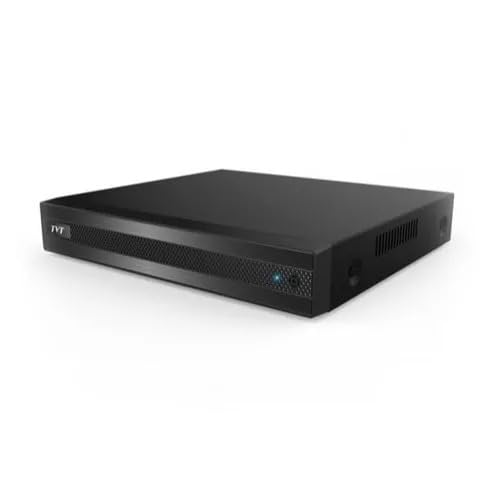
Image: Front and rear view of the TVT TD 2104-TS-CL 4 Channel DVR, showing various ports for video input, audio, network, USB, and power.
- Hard Drive Installation (Optional): If you plan to record video, install a compatible SATA hard drive inside the DVR chassis using the provided SATA cable. Refer to the DVR's internal diagram for proper connection.
- Camera Connections: Connect your TVI, CVI, or AHD surveillance cameras to the BNC video input ports on the rear panel of the DVR. Ensure secure connections for each channel.
- Monitor Connection: Connect a monitor to the HDMI output port on the DVR's rear panel. This will display the DVR's interface and live video feeds.
- Mouse Connection: Plug the USB mouse into one of the USB ports on the DVR. The mouse is essential for navigating the Graphical User Interface (GUI).
- Network Connection: For remote access and network features, connect an Ethernet cable from your router or network switch to the LAN port on the DVR.
- Power Connection: Connect the provided power adapter to the DVR's power input port, then plug the adapter into a suitable power outlet.
2. Initial Power On and Configuration
Once all connections are made, the DVR will power on automatically. Follow the on-screen prompts for initial setup, which typically includes setting the date/time, creating an administrator password, and configuring network settings.
Operating Instructions
1. Recording Modes
The DVR supports multiple recording modes:
- Manual Recording: Start and stop recording manually.
- Timer Recording: Schedule recording periods based on specific times and days.
- Motion Detection Recording: The DVR records automatically when motion is detected in the camera's view. Configure motion detection zones and sensitivity in the settings.
2. Playback and Search
To review recorded footage:
- Access the playback menu via the GUI.
- Simultaneous Playback: The DVR supports 4, 8, or 16 channel simultaneous playback depending on the model variant.
- Search Options: Utilize search functions such as time slice, specific time, event (manual, motion), and tag search to quickly locate desired footage.
3. Data Backup
Backup recorded data to external storage:
- USB Backup: Connect a USB flash drive to a USB port on the DVR and follow the on-screen instructions to export selected footage.
- Network Backup: Utilize the network connection to back up data to a remote server or network-attached storage (NAS).
4. Remote Access and Surveillance
The DVR offers robust remote access capabilities:
- Web Browser (IE): Access the DVR interface via Internet Explorer using its IP address.
- CMS (Central Management Software): Use the provided CMS software for comprehensive management of multiple DVRs.
- Mobile Device Surveillance: Download the official mobile application for iOS and Android devices. Scan the QR code provided by the DVR for easy setup.
- Network Protocols: Supports DHCP, DDNS, PPPoE, and NAT functions for seamless network integration.
- Dual Stream Technology: Enables high-definition local storage while providing efficient remote network transmission for mobile surveillance.
5. PTZ Control
If your system includes PTZ (Pan-Tilt-Zoom) cameras, the DVR supports:
- PTZ Presets: Configure up to 255 preset positions for quick camera movement.
- Auto Cruise: Set up to 8 cruise paths for automated camera patrolling.
6. User Management
Manage user accounts and permissions:
- Authorization Management: Create multiple user accounts with varying access levels.
- Log Review: Access system logs to review device status and user activities.
Maintenance
- Regular Cleaning: Keep the DVR unit clean and free from dust. Use a soft, dry cloth. Do not use liquid cleaners.
- Ventilation: Ensure the DVR is placed in a well-ventilated area to prevent overheating. Do not block ventilation openings.
- Firmware Updates: Periodically check the TVT official website for firmware updates. Updating firmware can improve performance and add new features. Follow update instructions carefully.
- Hard Drive Health: Monitor the health of the installed hard drive through the DVR's system settings. Replace the hard drive if errors are detected to prevent data loss.
- Password Security: Regularly change your administrator password and ensure it is strong and unique.
Troubleshooting
If you encounter issues with your DVR, refer to the following common problems and solutions:
- No Video Output on Monitor:
- Check HDMI cable connection to both DVR and monitor.
- Ensure the monitor is powered on and set to the correct input source.
- No Camera Image:
- Verify camera power supply.
- Check BNC cable connections from camera to DVR.
- Ensure camera type (TVI/CVI/AHD) is compatible and correctly configured in DVR settings.
- No Network Connection:
- Check Ethernet cable connection to DVR and router.
- Verify router is functioning correctly.
- Check DVR network settings (IP address, gateway, DNS) for correct configuration.
- Cannot Record:
- Ensure a hard drive is installed and properly initialized.
- Check hard drive status in DVR settings; replace if faulty.
- Verify recording schedule or motion detection settings are correctly configured.
- Remote Access Not Working:
- Confirm network connection is active.
- Check port forwarding settings on your router if required.
- Ensure DDNS service is updated if using a dynamic IP address.
- Verify mobile app or CMS settings are correct.
If problems persist, contact technical support.
Specifications
| Feature | Specification |
|---|---|
| Model Number | TD 2104-TS-CL (Base Model 2104) |
| Video Input | 4 Channel TVI / CVI / AHD |
| Recording Resolution | 1080P lite / 720P / WD1 |
| IPC Support (4 CH DVRs) | 1 / 1 CH IPC 1080P / 960P / 720P recording |
| Video Compression | H.264 High Profile |
| Video Output | HDMI 1080P |
| Connectivity Technology | Ethernet, HDMI, USB |
| Network Protocols | DHCP, DDNS, PPPoE |
| Storage | Supports 1 SATA HDD (up to specified capacity, HDD not included) |
| Built-In Media | Adapter, MOUSE, SATA CABLE |
| Remote Access | IE browser, CMS, Mobile App (iOS/Android) |
| PTZ Control | 255 Presets, 8 Cruises |
Warranty and Support
For warranty information, please refer to the documentation provided at the time of purchase or visit the official TVT website. For technical support, contact your vendor or the manufacturer's support channels. Keep your purchase receipt and product serial number handy when seeking support.


