
Seventable 47.2 inch Black
Seventable Computer Desk User Manual
Model: 47.2 inch Black
1. Introduction
Thank you for purchasing the Seventable Computer Desk. This manual provides detailed instructions for assembly, operation, maintenance, and troubleshooting to ensure you get the most out of your new desk. Please read this manual thoroughly before assembly and use, and retain it for future reference.
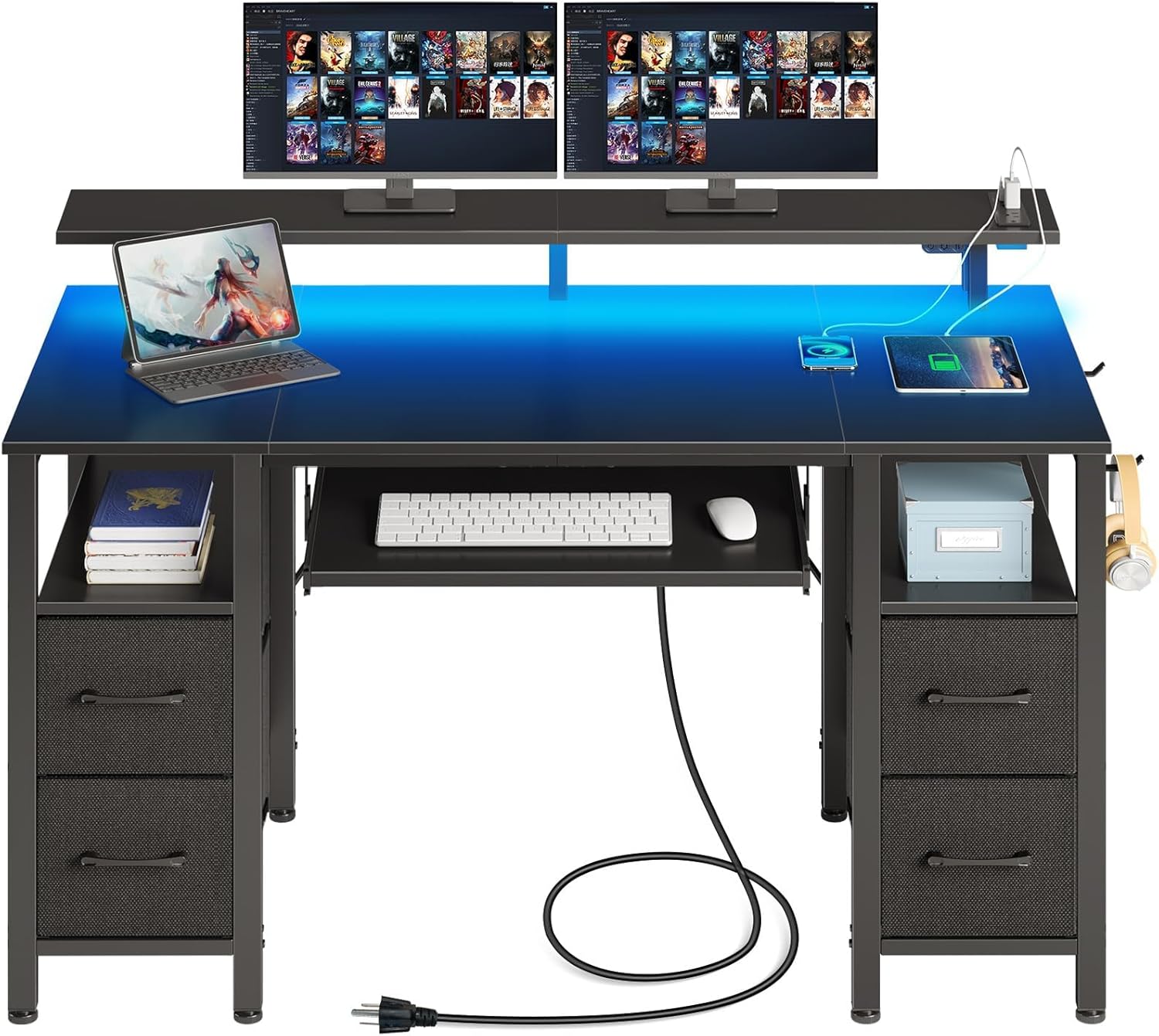
Image: The Seventable Computer Desk, showcasing its dual monitor stand, integrated LED lighting, and spacious desktop with a laptop and charging devices.
2. Safety Instructions
- Ensure all parts are present and undamaged before assembly. Do not use if any parts are missing or broken.
- Assemble the desk on a soft, clean surface to prevent scratches.
- Do not overtighten screws during assembly to avoid damaging the material.
- Keep children and pets away during assembly.
- Do not exceed the maximum weight capacities for the desktop, monitor stand, or drawers. Refer to the Specifications section for details.
- Ensure the power strip is connected to a grounded outlet. Do not overload the power strip.
- Keep liquids away from the power strip and electrical components.
3. Package Contents
Please verify that all components listed below are included in your package. If any parts are missing or damaged, please contact customer support.
- Desktop Panels
- Desk Frame Components (Legs, Support Bars)
- Monitor Stand
- Keyboard Tray and Rails
- Fabric Drawers (4 units)
- Power Strip Assembly
- LED Light Strip and Controller
- Assembly Hardware (Screws, Allen Wrench, etc.)
- Instruction Manual (this document)
4. Assembly Instructions
Follow these steps carefully to assemble your Seventable Computer Desk. It is recommended to have two people for certain assembly steps.
- Unpack and Identify Parts: Lay out all components on a clean, soft surface. Refer to the parts list to identify each piece.
- Assemble the Desk Frame: Attach the leg frames to the main support bars using the provided screws. Do not fully tighten screws until all frame components are loosely assembled.
- Attach Desktop Panels: Carefully place the desktop panels onto the assembled frame. Secure them with screws from underneath.
- Install Keyboard Tray: Attach the keyboard tray rails to the designated slots under the desktop. Slide the keyboard tray onto the rails.
- Mount Monitor Stand: Secure the monitor stand to the top of the desk using the provided hardware.
- Integrate Power Strip: Insert the power strip into its designated cutout on the monitor stand or desktop. Ensure it is flush and secure.
- Install LED Lights: Adhere the LED light strip to the underside of the monitor stand or desktop as indicated in the diagram. Connect the LED controller.
- Insert Fabric Drawers: Slide the fabric drawers into their respective shelving tiers. The drawers can be arranged as needed.
- Final Tightening: Once all components are in place, carefully tighten all screws. Do not overtighten.

Image: Detailed diagram illustrating the dimensions and weight capacities of various parts of the Seventable Computer Desk, including the desktop, monitor stand, keyboard tray, and drawers.
5. Operating Instructions
5.1. Power Strip Usage
The desk features a built-in power strip for convenient device charging.
- Connect the power strip's main plug to a standard grounded wall outlet.
- Utilize the 2 AC outlets for laptops, monitors, or other electronics.
- Use the 2 USB ports (5V/2.4A) and 1 Type-C port (5V/3A) for charging smartphones, tablets, and other USB-powered devices.
- Avoid exceeding the maximum power rating of the strip.

Image: A detailed view of the integrated power strip on the desk, showing its 2 AC outlets, 2 USB ports, and 1 Type-C port, with a phone and smartwatch charging.
5.2. LED Light Operation
The desk is equipped with dynamic multi-color RGB LED light strips.
- Power On/Off: Use the dedicated button on the controller or the phone app to turn the lights on or off.
- Color Selection: Choose from over 60,000 colors via the phone app or controller.
- Brightness Adjustment: Adjust the light intensity to your preference.
- Mode Selection: Cycle through various lighting modes (e.g., static, fade, strobe).
- Music Sync Mode: Activate the music sync feature to make the lights react to audio.
- Timer Setting: Set a timer for the lights to automatically turn off.

Image: The desk illuminated by colorful RGB LED lights, with icons indicating features like smart controller, over 60,000 colors, microphone mode, music mode, and timing mode.
5.3. Keyboard Tray and Drawers
- Keyboard Tray: Pull out the keyboard tray for comfortable typing. It can accommodate a full-size keyboard and mouse. Push it back in when not in use to save space.
- Fabric Drawers: The four fabric drawers are designed for storing office supplies, documents, or gaming accessories. They can be easily removed and reinserted into the shelving tiers.

Image: A close-up view of the four fabric storage drawers, demonstrating their capacity for various items and illustrating different configuration possibilities for the drawers within the desk's shelving units.
6. Maintenance
- Cleaning: Wipe the desk surfaces with a soft, damp cloth. Avoid harsh chemicals or abrasive cleaners.
- Dusting: Regularly dust the LED lights and power strip area to ensure optimal performance and prevent dust buildup.
- Hardware Check: Periodically check all screws and connections to ensure they remain tight. Retighten if necessary.
- Fabric Drawers: The fabric drawers can be spot cleaned with a mild detergent and water. Allow them to air dry completely before reinserting.
7. Troubleshooting
| Problem | Possible Cause | Solution |
|---|---|---|
| LED lights not turning on. | Power cable disconnected; Controller malfunction; LED strip damaged. | Ensure the LED power cable is securely plugged in. Check controller connection. If still not working, contact customer support. |
| Power outlets/USB ports not working. | Power strip not plugged in; Wall outlet issue; Overload protection activated. | Verify the main power strip plug is securely connected to a working wall outlet. Unplug some devices if overloaded. Try a different outlet. |
| Desk wobbles after assembly. | Screws not fully tightened; Uneven floor. | Ensure all assembly screws are securely tightened. Adjust the leveling feet (if present) or place shims under the legs to stabilize. |
| Keyboard tray sticks or is difficult to slide. | Rails misaligned; Debris in rails. | Check that the rails are properly aligned and free of obstructions. Clean the rails if necessary. |
8. Specifications
| Feature | Detail |
|---|---|
| Brand | Seventable |
| Model | Computer Desk 47.2 inch |
| Product Dimensions | 47D x 88.1W x 119.9H Centimetres |
| Color | Black |
| Material | Engineered Wood (Top), Alloy Steel (Base) |
| Desk Design | Writing Desk |
| Special Features | Charging Station (2 AC, 2 USB, 1 Type-C), Drawer (4 Fabric), LED Light (RGB), Monitor Stand, Keyboard Tray |
| Max Desktop Weight Capacity | 220 lbs (approx. 100 kg) |
| Max Monitor Stand Weight Capacity | 44 lbs (approx. 20 kg) |
| Max Drawer Weight Capacity | 22 lbs (approx. 10 kg) per drawer |
9. Warranty and Support
Seventable products are manufactured with quality and care. For warranty information, technical support, or to order replacement parts, please contact Seventable customer service through the retailer's platform or the official Seventable website. Please have your purchase receipt and product model number ready when contacting support.
Website: Visit the Seventable Store on Amazon
Related Documents - 47.2 inch Black
 |
Multi-purpose Desk/Gaming Desk Assembly Instructions Comprehensive assembly instructions for the Inbox Zero Oresto multi-purpose desk and gaming desk. This guide provides a detailed parts list, hardware inventory, and step-by-step instructions with textual descriptions of diagrams to ensure a smooth and stress-free setup for your home office or gaming station. |
 |
Computer Desk with Shelf - Assembly Instructions User manual and assembly instructions for the IFANNY Computer Desk with Shelf. Includes parts list, hardware details, and step-by-step guidance for building the desk. |
 |
VASAGLE Desk and File Cabinet User Manuals & Assembly Guide Official user manuals and assembly instructions for VASAGLE Computer Writing Desk (LWD series) and VASAGLE Mobile Filing Cabinet (OFC041/UOFC071B02). Includes general guidelines, safety warnings, parts lists, and assembly process descriptions. |
 |
Pamray 32-Inch Computer Desk Assembly Guide This guide provides step-by-step instructions for assembling the Pamray 32-inch computer desk, including tips for optimal stability and proper screw tightening. |
 |
VASAGLE Computer Desk & File Cabinet User Manual and Assembly Instructions Comprehensive user manual and assembly guide for VASAGLE Computer Writing Desk (LWD series) and VASAGLE File Cabinet (OFC041), including parts list, step-by-step instructions, safety guidelines, and product specifications. |
 |
IFANNY 48 Inch Computer Desk with Bookshelf Assembly Instructions Detailed assembly guide for the IFANNY 48 Inch Computer Desk with Bookshelf. Includes parts list, hardware identification, and step-by-step instructions for building your study writing desk. |
Ask a question about this manual
Ask about setup, troubleshooting, compatibility, parts, safety, or missing instructions. Manuals+ will review the question and use this page’s manual context to help answer it.