
1. Introduction
This manual provides essential information for the safe and efficient operation of your DOUGH Spectrum One 27-Inch Gaming Monitor. Please read this manual thoroughly before using the product and retain it for future reference.
2. Safety Information
- Ensure the monitor is placed on a stable, level surface to prevent accidental falls.
- Do not expose the monitor to rain, moisture, or extreme temperatures.
- Use only the power adapter supplied with the monitor.
- Avoid blocking ventilation openings to prevent overheating.
- Do not attempt to service the monitor yourself. Refer all servicing to qualified personnel.
- Disconnect the power cable from the outlet during lightning storms or when unused for long periods.
3. Package Contents
Verify that all components are present in your package:
- DOUGH Spectrum One 27-Inch Gaming Monitor
- Power Adapter and Cable
- DisplayPort Cable
- USB-C Cable
- Quick Start Guide (not included in this manual)

Image 3.1: Front view of the DOUGH Spectrum One monitor.
4. Setup
4.1 Physical Setup
The DOUGH Spectrum One monitor can be used with its optional stand (if purchased) or a VESA-compatible mount (100x100mm). This manual focuses on the monitor unit itself.
- Unpacking: Carefully remove the monitor and all accessories from the packaging.
- Placement: Position the monitor on a stable, flat surface. Ensure adequate space for ventilation around the monitor.
- Connecting Cables:
- Connect the power cable to the monitor and then to a power outlet.
- Connect your computer or gaming console to the monitor using either an HDMI 2.1 cable, DisplayPort 1.4 cable, or USB-C cable.
- For USB hub functionality, connect a USB-B to USB-A cable from your computer to the monitor's upstream USB-B port.
- For USB-C docking, connect a compatible laptop to the monitor's USB-C port. This single connection can provide video, data, and up to 100W of power delivery.
- Optional: Connect headphones to the 3.5mm audio jack.

Image 4.1: Rear view of the monitor showing available ports including HDMI 2.1, DisplayPort 1.4, USB Type-C (100W), USB Type-B, USB Type-A, and 3.5mm AUX.
4.2 Initial Power On
- Ensure all necessary cables are securely connected.
- Press the power button on the monitor. The power indicator light will illuminate.
- If no image appears, ensure your input source (computer/console) is powered on and correctly configured to output to the monitor.
5. Operating Instructions
5.1 On-Screen Display (OSD) Navigation
The monitor features an On-Screen Display (OSD) menu for adjusting various settings. Use the physical buttons or joystick (if present) on the monitor to navigate the OSD. Typically, a central button or joystick allows for menu access and selection, while directional movements adjust values or navigate options.
5.2 Picture Settings
The DOUGH Spectrum One monitor offers advanced picture settings for optimal visual experience:
- Resolution: Supports 4K UHD (3840 x 2160 pixels).
- Refresh Rate: Up to 144Hz for smooth motion.
- Color Accuracy: Factory calibrated for Delta E 0.6 average accuracy, covering 98% DCI-P3 and 100% sRGB color gamuts.
- HDR: HDR10 support with a 10 million:1 dynamic contrast ratio for enhanced highlights and deep shadows.
- Brightness: 450 nits (sustained), 750 nits (peak).

Image 5.1: Overview of the monitor's core display technologies and features.
5.3 Gaming Features
The monitor includes several features designed to enhance your gaming experience:
- Adaptive Sync Technology: Supports AMD FreeSync Premium Pro, NVIDIA G-Sync, and VESA Adaptive-Sync compatibility to reduce screen tearing and stuttering by synchronizing the monitor's refresh rate with the graphics card's frame rate.
- Pixel-Perfect Upscaling: Uses integer-ratio pixel duplication for low-resolution input signals, preserving the look of pixel art and keeping retro games crisp.
- Crosshair Overlay: An on-screen crosshair can be enabled to assist aim in games.
- Frame Rate Counter: Displays the current frame rate on screen to monitor system performance.
- Blur Busters Presets: Pre-tuned settings for optimal motion clarity.

Image 5.2: The monitor displaying a high-performance gaming scene.
5.4 Connectivity
The monitor offers versatile connectivity options:
- HDMI 2.1 (x2): For high-bandwidth connections to compatible devices, supporting 4K 144Hz.
- DisplayPort 1.4 (x1): Another high-bandwidth option for video input.
- USB-C 3.2 Gen 2 (x1): Supports video, data transfer (up to 10 Gb/s), and up to 100W power delivery over a single cable for compatible laptops.
- USB-A (x2 side-facing, x1 rear): For connecting peripherals.
- 3.5mm Audio Jack: For connecting headphones or external speakers.
- Split Screen Mode: The display can show video from two separate sources simultaneously.
6. Maintenance
6.1 Cleaning the Screen
To clean the monitor screen:
- Turn off the monitor and unplug the power cord.
- Gently wipe the screen with a soft, lint-free cloth.
- For stubborn marks, lightly dampen the cloth with water or a screen-cleaning solution specifically designed for monitors. Do not spray liquid directly onto the screen.
- Avoid using abrasive cleaners, alcohol, or ammonia-based solutions, as these can damage the screen surface.
6.2 Cleaning the Casing
Wipe the monitor casing with a soft, dry cloth. If necessary, use a slightly damp cloth. Do not use harsh chemicals.
7. Troubleshooting
This section addresses common issues you might encounter with your DOUGH Spectrum One monitor.
| Problem | Possible Cause / Solution |
|---|---|
| No image on screen / Power LED off | Ensure the power cable is securely connected to both the monitor and the power outlet. Check if the power outlet is functional. Press the monitor's power button. |
| No image / "No Signal" message | Verify the video cable (HDMI, DisplayPort, USB-C) is securely connected to both the monitor and your computer/console. Ensure the correct input source is selected in the monitor's OSD. Check if the computer/console is powered on and outputting video. |
| Monitor takes long to wake from sleep / Occasional black screen when changing resolution | This can sometimes be resolved by updating the monitor's firmware. Firmware updates typically require a Windows machine. Refer to the manufacturer's support website for instructions and the latest firmware. |
| Dim display | Adjust brightness and contrast settings in the OSD menu. Ensure HDR settings are correctly configured for your content and operating system. |
| Screen tearing or stuttering | Ensure Adaptive Sync (FreeSync Premium Pro, G-Sync compatible) is enabled on both the monitor and your graphics card settings. Verify your graphics drivers are up to date. |
| Power supply not compatible with region | Ensure you have received the correct power supply for your region. Contact customer support if the provided power supply is incorrect. |
8. Specifications
| Feature | Specification |
|---|---|
| Model Number | ES07D03 |
| Screen Size | 27 Inches |
| Panel Type | IPS |
| Resolution | 3840 x 2160 Pixels (4K UHD) |
| Refresh Rate | 144Hz |
| Response Time | 1ms |
| Aspect Ratio | 16:9 |
| Image Brightness | 450 nits (sustained), 750 Nits (Peak) Candela |
| HDR Support | HDR10 |
| Color Gamut | 98% DCI-P3, 100% sRGB |
| Adaptive Sync | AMD FreeSync Premium Pro, NVIDIA G-Sync Compatible, VESA Adaptive-Sync |
| Connectivity | 2x HDMI 2.1, 1x DisplayPort 1.4, 1x USB-C 3.2 Gen 2 (100W PD), 1x USB-B, 2x USB-A (side), 1x USB-A (rear), 1x 3.5mm Audio Jack |
| Product Dimensions | 6 x 27.5 x 17.5 inches |
| Item Weight | 17.76 pounds |
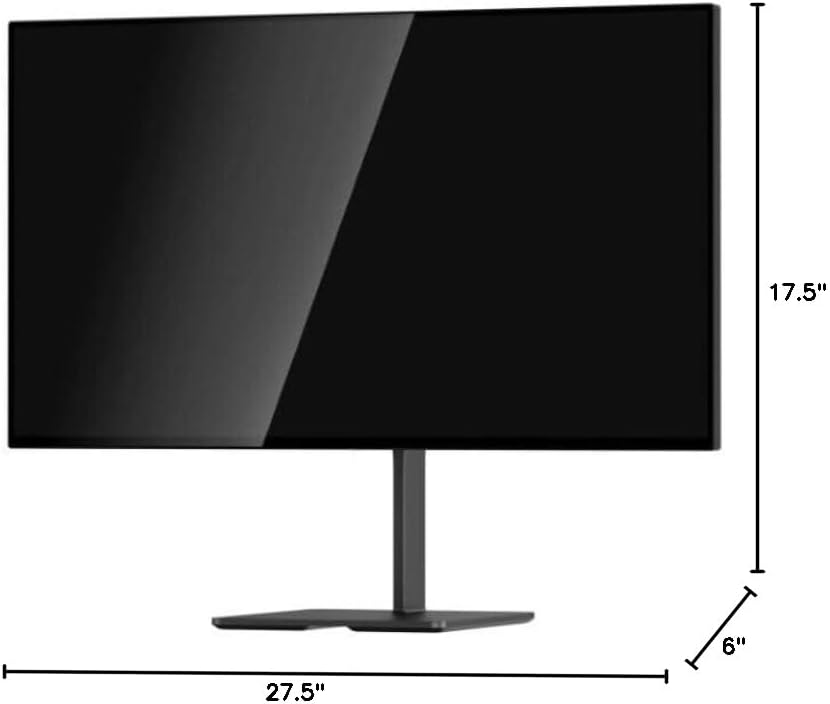
Image 8.1: Monitor dimensions.
9. Warranty and Support
For warranty information and technical support, please refer to the official DOUGH website or contact their customer service directly. Keep your purchase receipt as proof of purchase.
9.1 Coating Comparison
The DOUGH Spectrum One monitor is available in different screen finishes, including Matte, Glossy, and Gorilla Glass. Each finish offers distinct visual characteristics regarding reflections and clarity.
Video 9.1: This video demonstrates the visual differences between Matte, Glossy, and Gorilla Glass screen coatings on the Spectrum One monitor, particularly how they handle reflections from a light source.

Image 9.1: Visual comparison of Matte, Glossy, and Gorilla Glass screen coatings, illustrating how reflections appear on each surface.


