
1. Introduction
The Eaton Tripp Lite BC600R is a 600VA/300W/120V standby Uninterruptible Power Supply (UPS) designed to provide battery backup and AC power protection. It safeguards connected equipment from blackouts, brownouts, surges, overvoltages, and line noise. This UPS is suitable for home computers, office networks, and point-of-sale systems.
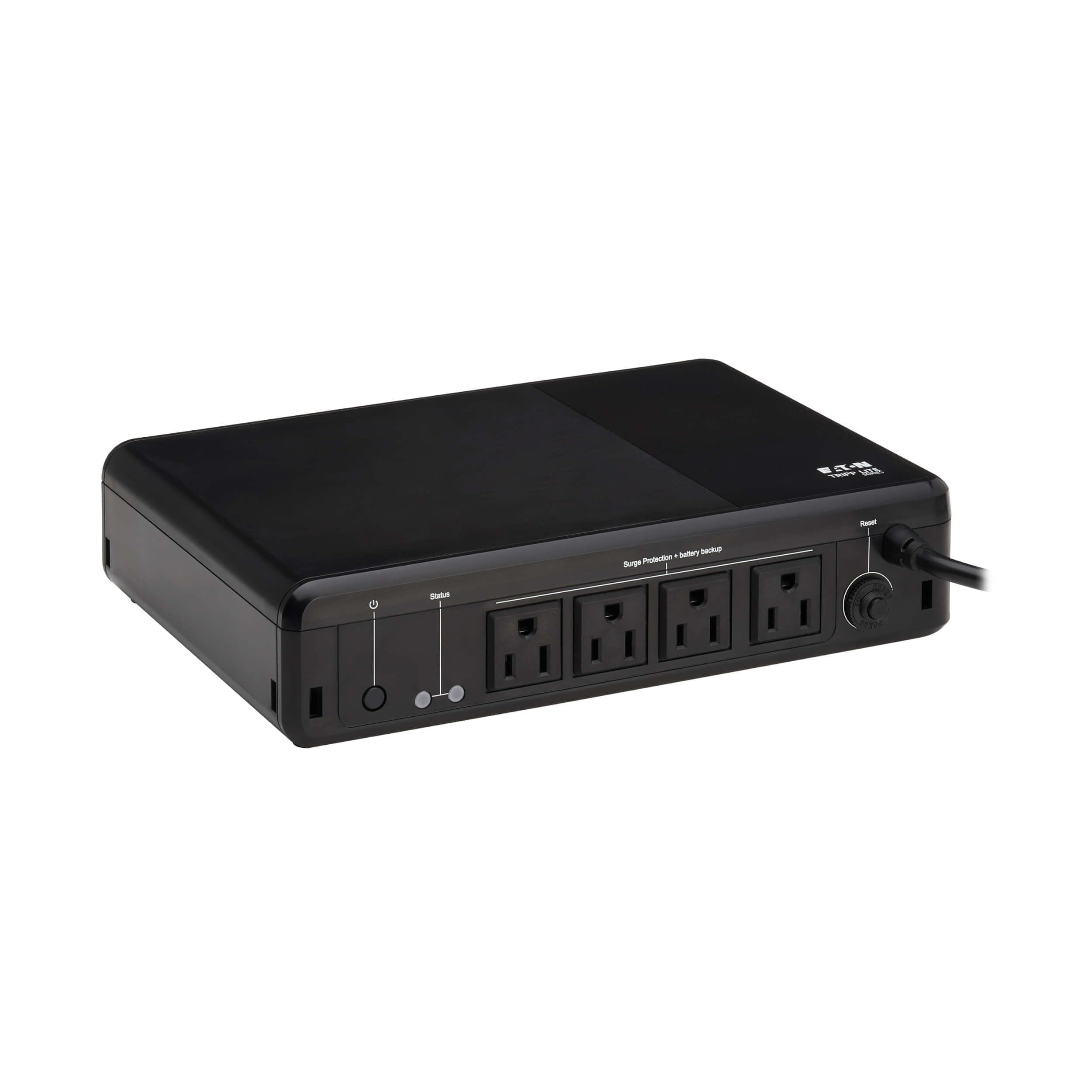
Image 1.1: The Eaton Tripp Lite BC600R UPS unit.
2. Package Contents
Verify that your package contains the following items:
- Eaton Tripp Lite BC600R UPS Unit
- Quick Start Guide
- Mounting Screws (if applicable)

Image 2.1: The UPS unit, quick start guide, and mounting screws included in the package.
3. Setup and Installation
Follow these steps to set up your UPS unit:
- Placement: Position the UPS on a flat, stable surface, or mount it to a wall using the keyhole slots. Ensure adequate ventilation around the unit. The durable housing supports use in environments from 32° to 122°F (0° to 50°C).
- Connect to Power: Plug the UPS's 5-ft power cord (NEMA 5-15P plug) into a standard, grounded AC wall outlet.
- Connect Devices: Plug your devices (e.g., computer, monitor, router) into the NEMA 5-15R outlets on the UPS. These outlets provide both battery backup and 190 joules of surge suppression.
- Power On: Press the Power On/Off button located on the unit to turn on the UPS.

Image 3.1: Overview of the UPS unit with labeled components for easy identification during setup.

Image 3.2: Example of the UPS connected to a typical desktop computer setup.

Image 3.3: The bottom of the UPS unit, highlighting the keyhole mounting slots for versatile installation.
4. Operating Instructions
The BC600R UPS operates automatically to protect your connected equipment.
4.1 Power On/Off
- To turn on the UPS, press the Power On/Off button.
- To turn off the UPS, press and hold the Power On/Off button until the unit powers down.
4.2 LED Indicators and Audible Alarms
The UPS features LED indicators and an audible alarm to communicate its status:
- Green LED: Indicates power status and whether the unit is operating on line power or battery power.
- Red LED: Alerts you to a low battery condition or a fault.
- Audible Alarm: Sounds to indicate a low battery or fault condition.
4.3 Power Outage Response
During a power outage or significant voltage drop, the BC600R automatically switches to battery mode. This provides temporary power, allowing you to save your work and safely shut down connected devices. The unit will automatically restart when utility power is restored, even if the battery is low.
4.4 Surge Protection and Line Noise Filtering
The UPS provides 190 joules of surge suppression to protect connected devices from damaging power surges. It also filters out Electromagnetic Interference (EMI) and Radio Frequency Interference (RFI) that can corrupt data and cause system instability.
5. Maintenance
5.1 Battery Replacement
The VRLA battery inside the BC600R is user-replaceable. Refer to the Quick Start Guide for specific instructions on how to safely replace the battery. Use Eaton's AG-075D cartridge for replacement.
5.2 Resettable Circuit Breaker
The UPS includes a resettable circuit breaker to protect against overloads. If an overload occurs, the circuit breaker may trip. Disconnect non-essential devices, then press the circuit breaker button to reset it.
5.3 Disabling Audible Beep (Advanced)
Some users may wish to disable the audible beep during power outages. On some Tripp Lite models, this can be done by pressing and holding the Power button for 10 seconds. Refer to the Quick Start Guide for your specific model to confirm this feature.
6. Troubleshooting
If you encounter issues with your UPS, refer to the following common problems and solutions:
| Problem | Possible Cause | Solution |
|---|---|---|
| UPS does not turn on. | Not plugged into a live outlet; battery not connected or discharged. | Ensure the UPS is plugged into a working wall outlet. Check the battery connection. Allow the unit to charge for 8 hours. |
| UPS beeps continuously or frequently. | Low battery; overload; internal fault. | During an outage, this indicates low battery – save work and shut down. If on line power, reduce connected load or check for internal fault. Refer to Section 5.3 for disabling the beep. |
| Connected devices lose power during an outage. | Overload; battery depleted; battery fault. | Ensure total wattage of connected devices does not exceed 300W. Allow battery to recharge. If problem persists, battery may need replacement. |
| UPS does not provide surge protection. | Unit is off or faulty. | Ensure the UPS is powered on. If the issue persists, contact support. |
7. Specifications
Key technical specifications for the Eaton Tripp Lite BC600R UPS:
| Feature | Detail |
|---|---|
| Model Number | BC600R |
| Capacity (VA/Watts) | 600VA / 300W |
| Input Voltage | 120V AC |
| Output Voltage | 120V AC |
| Number of Outlets | 4 x NEMA 5-15R |
| Surge Protection | 190 Joules |
| Battery Type | Sealed Lead Acid (VRLA) |
| Battery Charge Time | 8 hours |
| Typical Runtime (Half Load) | 1.2 minutes (at 150W) |
| Dimensions (H x W x D) | 2.3 x 7.1 x 10 inches (58 x 180 x 255 mm) |
| Weight | 4.4 pounds |
| Operating Temperature | 32° to 122°F (0° to 50°C) |
| Certifications | UL 508, UL 497A |
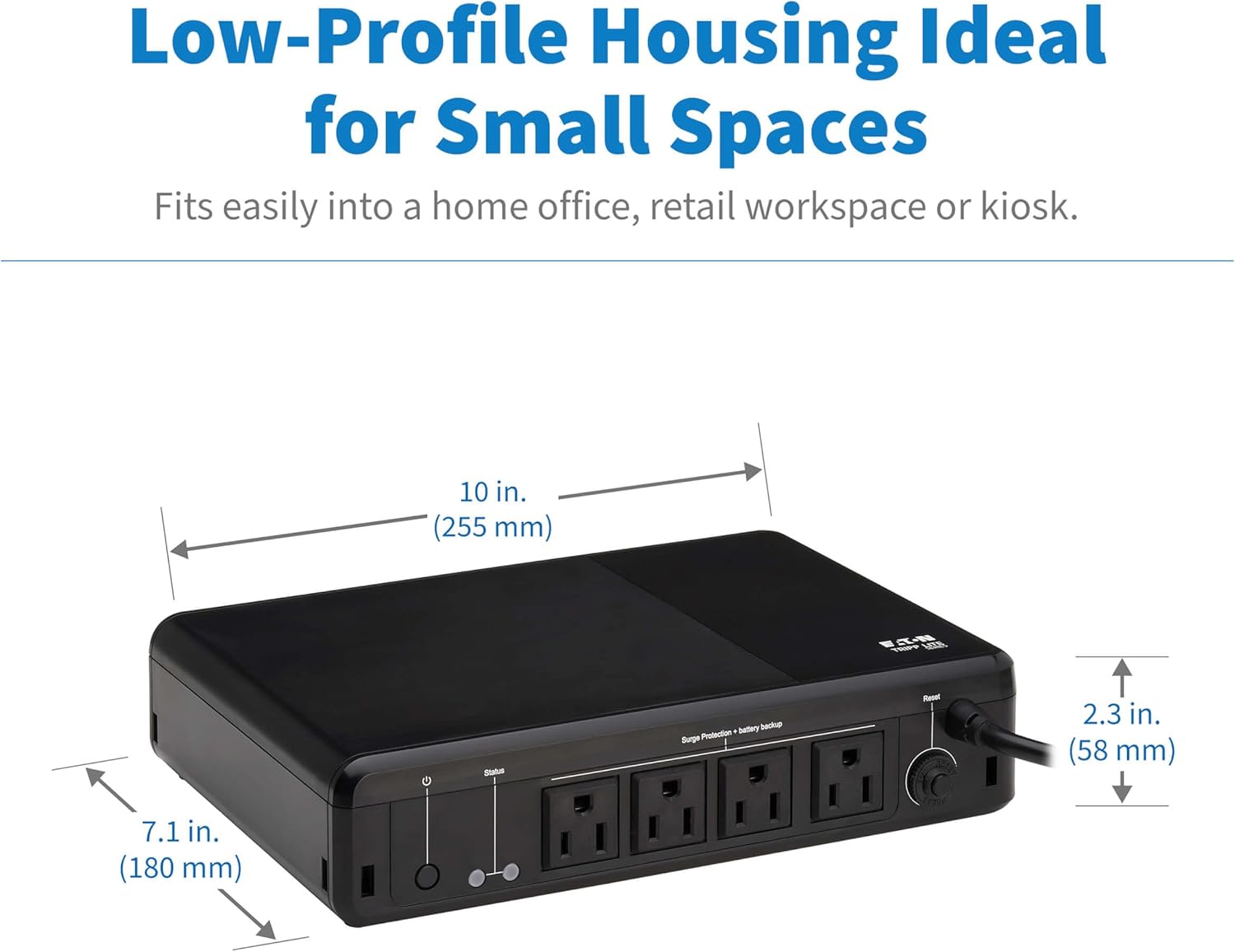
Image 7.1: Physical dimensions of the UPS unit.
8. Warranty Information
The Eaton Tripp Lite BC600R UPS comes with a 3-year limited warranty. Please retain your proof of purchase for warranty claims. For detailed terms and conditions, refer to the official product documentation or the manufacturer's website.
9. Support and Contact
For technical assistance, product inquiries, or further support, please visit the official TRIPP LITE website or contact their customer service department. Contact information can typically be found on the manufacturer's website or in the Quick Start Guide.
Online Resources: www.tripplite.com


