1. Overview
The JOBY Fly X Mini Drone is a compact quadcopter designed for ease of use and aerial photography. It features a 6-axis gyroscope for stable flight, one-button takeoff and landing, and the ability to perform 360-degree flips. Equipped with an HD camera, it captures 720p video and JPEG images, transmitting footage via Wi-Fi to a compatible smartphone.

Image 1.1: The JOBY Fly X Mini Drone, showcasing its compact design and integrated camera.
2. What's in the Box
Ensure all components are present before proceeding with setup:
- JOBY Fly X Mini Drone with HD Camera
- Remote Control
- 2 x Lithium Ion Batteries (for drone)
- USB Charging Cable
- Spare Propellers
- Instruction Manual (this document)
3. Setup
3.1 Battery Installation and Charging
- Drone Battery: Locate the battery compartment on the drone. Carefully insert one of the provided Lithium Ion batteries. Ensure it is securely connected.
- Charging: Connect the drone battery to the USB charging cable. Plug the USB cable into a compatible USB power source (e.g., computer, wall adapter). The indicator light on the cable will show charging status. Charge until fully indicated.
- Controller Batteries: Open the battery compartment on the remote control. Insert the required batteries (not specified in product data, typically AA or AAA, refer to physical product for exact type).
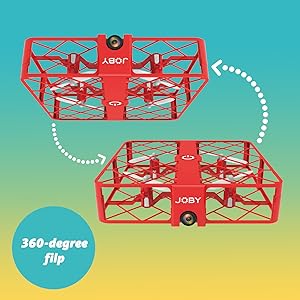
Image 3.1: Drone with its battery compartment open for installation.
3.2 App Installation and Wi-Fi Connection
To utilize the HD camera and view live footage, download the dedicated drone control application on your smartphone (compatible with iPhone/Android). Refer to the packaging or a QR code on the drone for the specific app name.
- Power On Drone: Press the power button on the drone. The indicator lights will flash.
- Connect to Wi-Fi: On your smartphone, go to Wi-Fi settings and connect to the drone's Wi-Fi network (usually named something like "JOBY_DRONE_XXXX").
- Launch App: Open the drone control app. You should see the live camera feed from the drone.
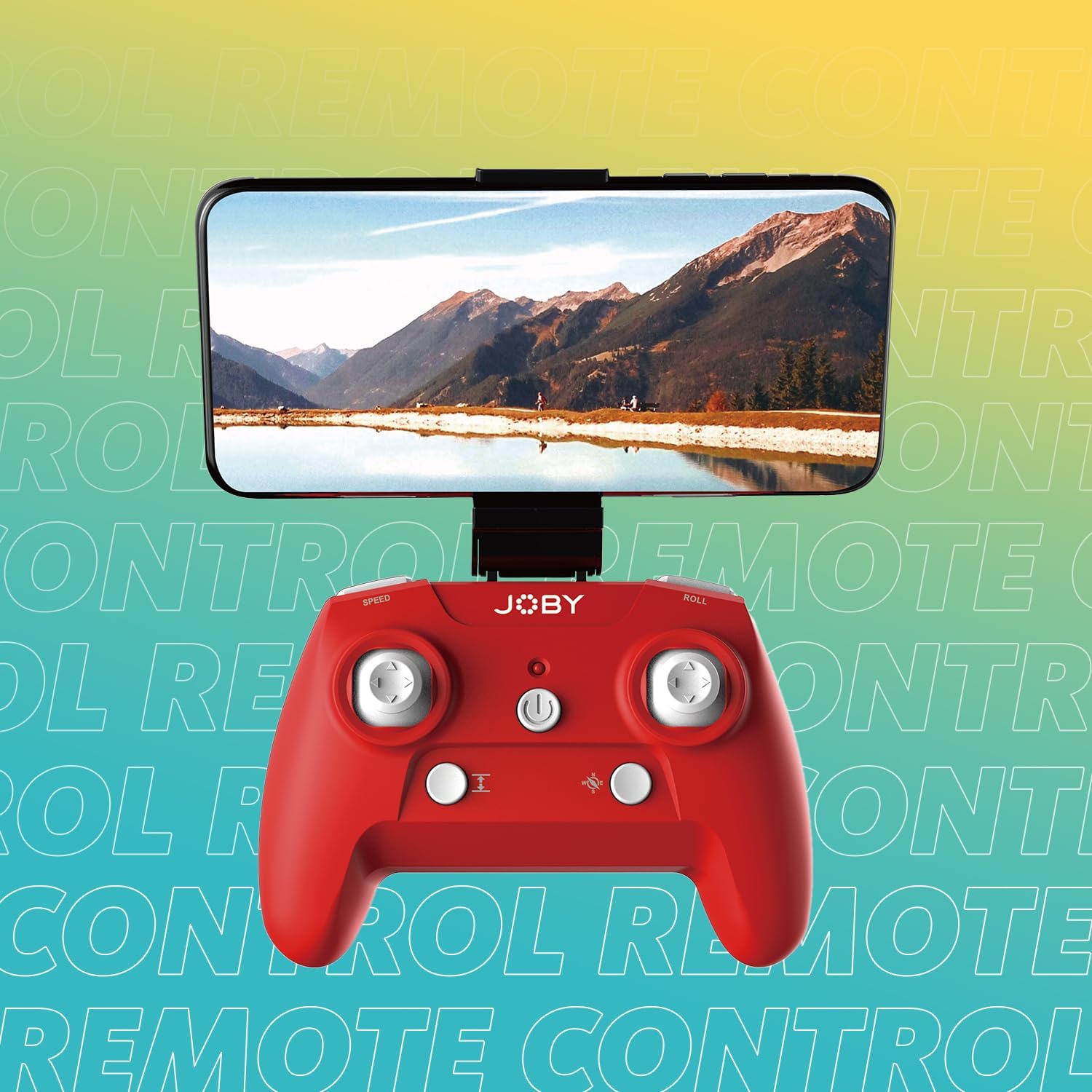
Image 3.2: Remote control with a smartphone attached, showing the live camera view.
4. Operating Instructions
4.1 Power On and Pairing
- Power On Drone: Press the power button on the drone. The lights will flash, indicating it's ready for pairing.
- Power On Controller: Press the power button on the remote control.
- Pairing: Push the left joystick (throttle) all the way up, then all the way down. The drone's lights will stop flashing and become solid, indicating successful pairing.
4.2 Takeoff and Landing
- One-Button Takeoff: After pairing, press the dedicated one-button takeoff/landing button on the controller. The drone will automatically ascend to a stable hovering height.
- One-Button Landing: Press the same one-button takeoff/landing button during flight, and the drone will automatically descend and land.
- Throw to Launch: For experienced users, the drone can be gently tossed into the air after pairing, and it will automatically stabilize.
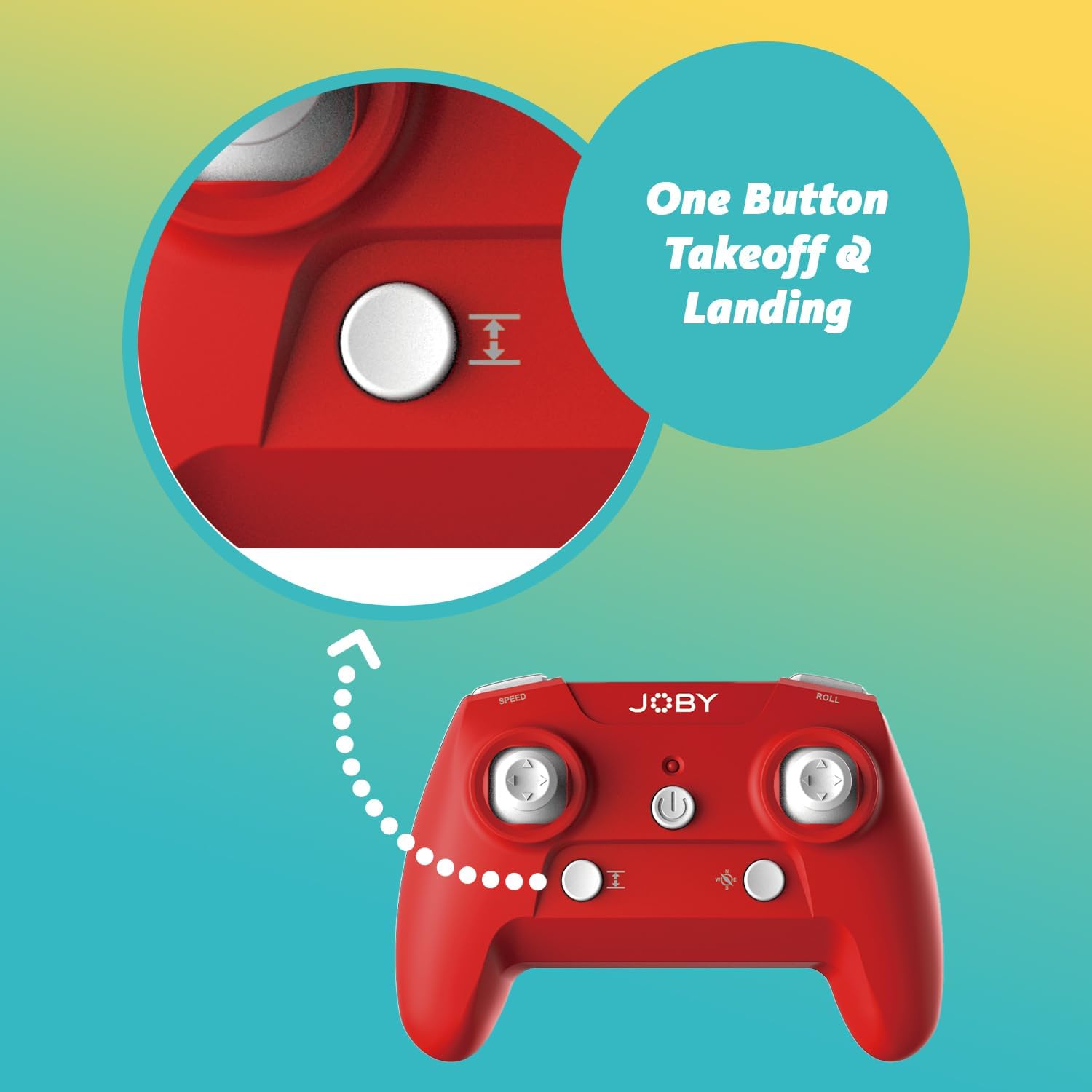
Image 4.1: Remote control highlighting the one-button takeoff/landing button.
4.3 Flight Controls
Use the joysticks on the remote control to maneuver the drone:
- Left Joystick (Throttle): Up/Down for ascend/descend; Left/Right for yaw (rotate).
- Right Joystick (Direction): Up/Down for forward/backward; Left/Right for left/right strafe.
4.4 Special Features
- 360-Degree Flip: Press the dedicated "Flip" button on the controller, then push the right joystick in the desired direction to perform an aerial flip.
- Emergency Landing: In case of an emergency, activate the emergency landing function (refer to controller button layout for specific button) to quickly bring the drone down safely.

Image 4.2: Visual representation of the 360-degree flip feature.
4.5 Camera Operation
The integrated HD camera captures 720p video and JPEG images. Control camera functions via the smartphone app:
- Photo Capture: Tap the camera icon in the app to take a still photograph.
- Video Recording: Tap the video icon to start recording. Tap again to stop.
- Viewing Media: Access recorded photos and videos directly through the app's gallery.
Image 4.3: Detail of the drone's HD camera.
4.6 Instructional Video
Video 4.4: This video demonstrates the unboxing, battery installation, pairing process, and various flight maneuvers of the JOBY Fly X Mini Drone, including indoor and outdoor flight examples.
5. Maintenance
Regular maintenance ensures optimal performance and longevity of your drone:
- Propeller Inspection: Regularly check propellers for damage (cracks, bends). Replace any damaged propellers using the spare parts provided.
- Cleaning: Use a soft, dry cloth to clean the drone body and camera lens. Avoid using harsh chemicals or liquids.
- Battery Care: Store batteries in a cool, dry place. Do not overcharge or completely drain batteries. Remove batteries from the drone and controller during extended periods of non-use.
- Storage: Store the drone in a safe place, away from direct sunlight and extreme temperatures.
6. Troubleshooting
- Drone Not Powering On: Ensure the battery is fully charged and correctly inserted.
- Controller Not Responding: Check controller batteries. Ensure the drone and controller are properly paired (refer to Section 4.1).
- Unstable Flight: Perform a calibration (refer to the app or controller instructions for calibration steps). Check propellers for damage or obstructions.
- No Camera Feed/Poor Quality: Ensure your smartphone is connected to the drone's Wi-Fi network. Check for app updates. Ensure the camera lens is clean.
- Short Flight Time: Batteries may not be fully charged or may be nearing the end of their lifespan.
7. Specifications
| Feature | Detail |
|---|---|
| Brand | Joby |
| Model Name | Fly X Mini |
| Item Model Number | JB01966-BWW |
| Dimensions | 5.12"L x 5.12"W x 1.18"H |
| Item Weight | 2.24 ounces |
| Video Capture Resolution | 720p |
| Video Output Resolution | 1280x720 Pixels |
| Video Capture Format | MP4 |
| Supported Image Format | JPEG |
| Connectivity Technology | Wi-Fi |
| Remote Control Technology | Wi-Fi |
| Maximum Range | 100 feet (approx. 30 meters) |
| Batteries | 2 Lithium Ion batteries (included) |
| Material | Plastic |
| Skill Level | Beginner |
8. Warranty and Support
For warranty information and customer support, please refer to the official Joby website or contact their customer service directly. Keep your proof of purchase for any warranty claims.
You can visit the Joby Store on Amazon for additional product information and support resources.


