
Introduction
Welcome to the user manual for your TWS Pro60 Wireless Bluetooth Headset. This guide provides essential information for setting up, operating, and maintaining your earbuds. Please read this manual thoroughly to ensure proper use and to maximize the lifespan of your device.
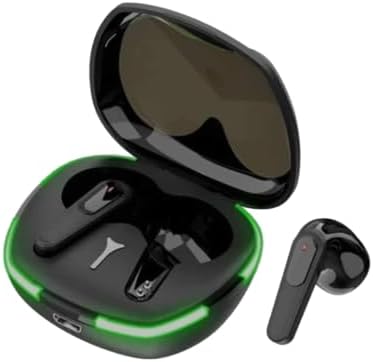
Image: The TWS Pro60 Wireless Bluetooth Headset, showing both earbuds and the open charging case with a green LED light strip.
What's in the Box
Upon opening your TWS Pro60 package, you should find the following items:
- Charging Station
- TWS Pro60 Wireless Bluetooth Earbuds (Left and Right)
- USB Charging Cable (typically USB-C or Micro-USB, not explicitly listed but standard for charging stations)
- User Manual (this document)
Setup
Charging the Earbuds and Case
Before first use, it is recommended to fully charge both the earbuds and the charging case. Place the earbuds into their respective slots in the charging case. Connect the charging case to a power source using the provided USB cable. The LED indicator on the case will show charging status.

Image: The TWS Pro60 charging case with earbuds inserted, displaying a prominent green light strip indicating power or charging status.
Bluetooth Pairing
- Ensure the earbuds are charged.
- Open the lid of the charging case. The earbuds will automatically enter pairing mode.
- On your device (smartphone, tablet, laptop), go to the Bluetooth settings.
- Search for available devices and select "TWS Pro60" (or similar name) from the list.
- Once connected, you will hear an audible confirmation, and the earbuds will be ready for use.
The earbuds are designed for automatic reconnection. After initial pairing, simply open the charging case, and they will automatically connect to the last paired device if Bluetooth is enabled on that device.
Operating Your Earbuds
Touch Controls
The TWS Pro60 earbuds feature intuitive touch controls for managing media playback and calls. The specific functions may vary slightly, but common controls include:
- Single Tap: Play/Pause music, Answer/End call.
- Double Tap (Left/Right): Previous/Next track.
- Triple Tap (Left/Right): Volume up/down.
- Long Press: Activate voice assistant, Reject call.
Refer to the quick start guide included with your product for precise touch control mapping.
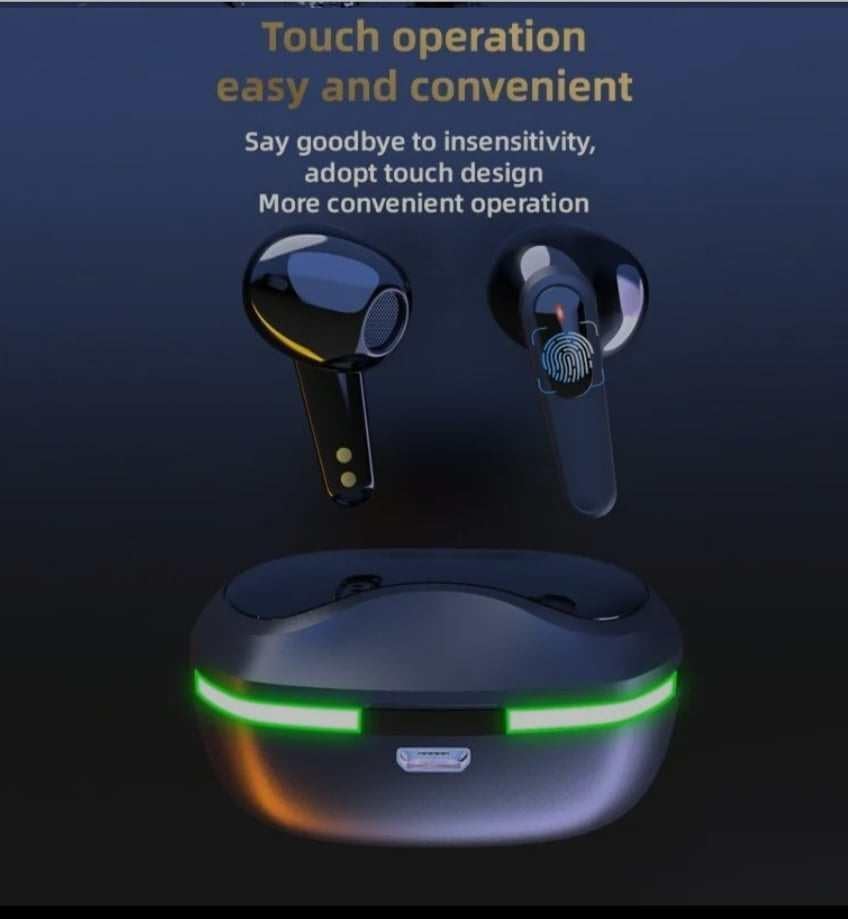
Image: A close-up of the TWS Pro60 earbuds, highlighting the touch-sensitive area for control operations.
Wearing the Earbuds
For optimal sound quality and comfort, ensure the earbuds are properly seated in your ears. Gently insert each earbud into your ear canal and rotate slightly until it feels secure and comfortable. The design is intended to provide a stable fit even during movement.
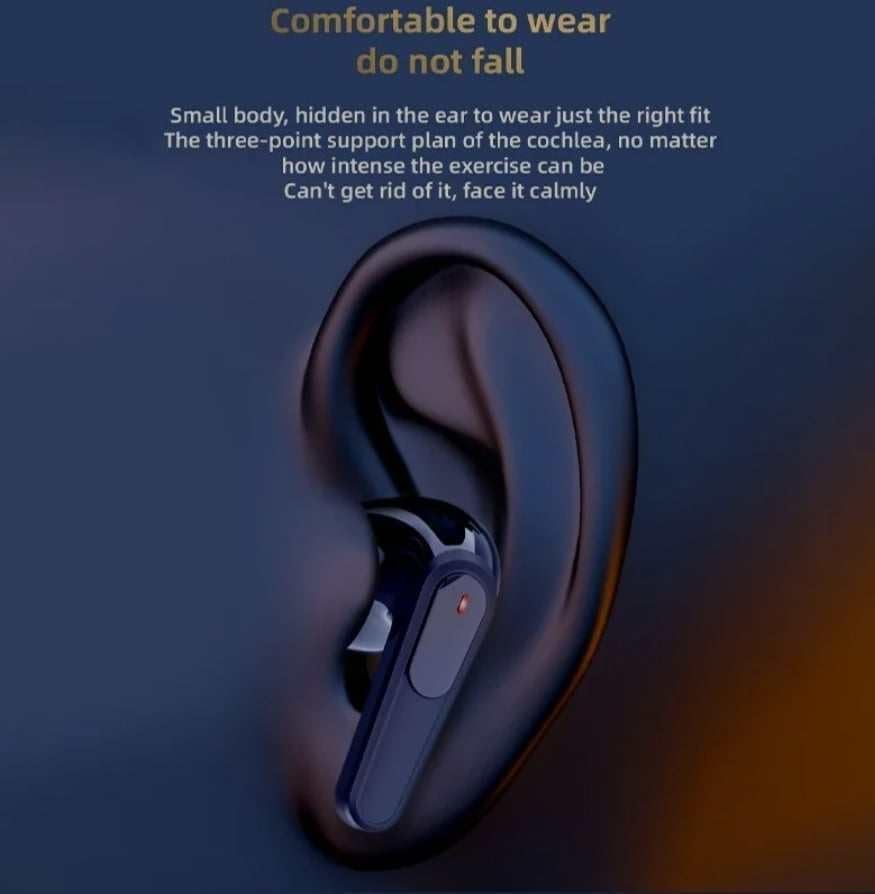
Image: An illustration showing the TWS Pro60 earbud correctly positioned within the ear for a secure and comfortable fit.
Maintenance
Cleaning
To maintain optimal performance and hygiene, regularly clean your earbuds and charging case. Use a soft, dry, lint-free cloth to wipe down the surfaces. For the ear tips, you may gently wipe with a slightly damp cloth and allow to air dry completely before reattaching. Do not use harsh chemicals or abrasive materials.
Storage
When not in use, always store the earbuds in their charging case. This protects them from dust, damage, and ensures they remain charged. Store the case in a cool, dry place away from direct sunlight and extreme temperatures.
The earbuds feature an IPX4 waterproof rating, meaning they are resistant to splashing water from any direction. This protects them from sweat and light rain, but they are not designed for submersion in water.

Image: The TWS Pro60 earbuds and charging case depicted with water splashes, illustrating their IPX4 deep waterproof capability.
Troubleshooting
If you encounter issues with your TWS Pro60 headset, try the following solutions:
- No Sound: Ensure earbuds are charged, connected to your device, and volume is turned up on both the earbuds and your device.
- Earbuds Not Pairing: Make sure Bluetooth is enabled on your device. Place earbuds back in the case, close the lid, wait a few seconds, then open again to re-enter pairing mode. Forget the device on your phone's Bluetooth settings and try pairing again.
- Charging Issues: Check if the charging cable is securely connected to both the case and the power source. Try a different USB port or power adapter. Ensure the charging contacts on the earbuds and inside the case are clean.
- Intermittent Connection: Ensure you are within the Bluetooth range (approximately 10 meters) of your device. Avoid obstacles that may interfere with the signal.
Specifications
Below are the technical specifications for the TWS Pro60 Wireless Bluetooth Headset:
| Feature | Description |
|---|---|
| Model Name | wireless bluetooth |
| Connectivity Technology | Wireless |
| Wireless Communication Technology | Bluetooth |
| Included Components | Charging Station |
| Age Range (Description) | Adult |
| Compatible Devices | Cellphones, Desktops, Laptops, Tablets, Telephones |
| Control Type | Media Control |
| Cable Feature | Without Cable |
| Control Method | Touch |
| Number of Items | 1 |
| Battery Life | 5 Hours |
| Bluetooth Range | 10 Meters |
| Earpiece Shape | Rounded Tip |
| Manufacturer | china |
| Item model number | cdnn |
| Date First Available | January 28, 2024 |
| Brand | Generic |
| Color | Black |
| Ear Placement | In Ear |
| Form Factor | In Ear |
| Noise Control | Active Noise Cancellation |
Warranty and Support
This product is covered by a standard manufacturer's warranty. For specific warranty terms and conditions, please refer to the documentation provided with your purchase or contact the seller directly. If you require technical support or have questions not covered in this manual, please reach out to the customer service department of the retailer or manufacturer.