
Marquis 4MP Turret Color Night
Marquis 4MP PoE IP Turret Dome Camera (Color Night) User Manual
Model: 4MP Turret Color Night
1. Introduction
This manual provides comprehensive instructions for the installation, operation, and maintenance of your Marquis 4MP PoE IP Turret Dome Camera. This camera is designed for both indoor and outdoor surveillance, offering high-resolution imaging and advanced features for reliable security monitoring.
Key features include:
- 4MP HD Resolution: Provides clear and detailed video for identification purposes.
- Power over Ethernet (PoE): Simplifies installation by delivering power and data over a single Ethernet cable.
- IP66 Weather Rated: Ensures durability and protection against dust and water for outdoor environments.
- Color Night Vision: Utilizes advanced low-light technology for full-color imaging in dark conditions.
- Wide Angle Lens: A 2.8mm fixed lens offers a 103° field of view.
- H.265/H.264 Compression: Efficient video compression for reduced storage requirements.
- Multi-Software Compatibility: Works with various NVR brands and third-party software like Blue Iris and Milestone.
2. Product Overview
The Marquis 4MP PoE IP Turret Dome Camera is a compact and robust surveillance device. Familiarize yourself with its components and capabilities.
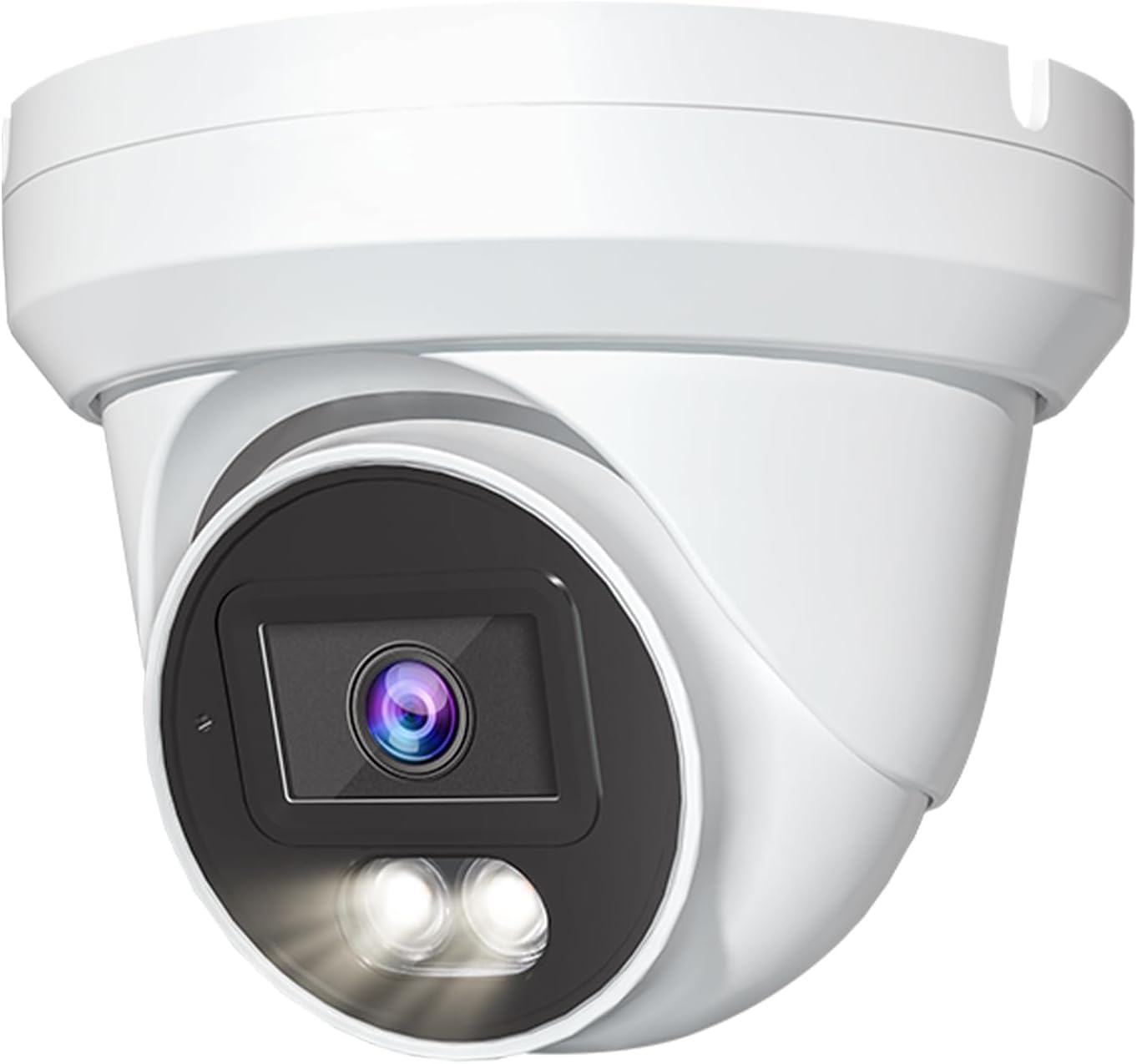
Figure 2.1: Front view of the Marquis 4MP PoE IP Turret Dome Camera, showing the lens and integrated lighting.

Figure 2.2: Rear view of the camera illustrating the Power (optional) and Network (PoE) port connections.
The camera features a 1/2.8" CMOS sensor, providing a maximum 4MP resolution. It supports Day/Night (ICR), Automatic White Balance (AWB), 2D/3D-DNR, and IR-CUT for optimal image quality in varying light conditions. Digital Wide Dynamic Range (D-WDR), Motion Detection, Privacy Mask, Mirror, and Flip functions are also integrated.
3. Setup and Installation
3.1 Mounting the Camera
- Choose a Location: Select a suitable indoor or outdoor location, ensuring a clear field of view and proximity to an Ethernet cable run. The camera is ceiling mountable.
- Secure Mounting: Use appropriate screws and anchors to securely attach the camera base to the chosen surface. Ensure the camera is firmly fixed to prevent movement.
- Adjust Angle: Once mounted, adjust the camera's turret to achieve the desired viewing angle.
3.2 Connecting the Camera (PoE)
This camera supports Power over Ethernet (PoE), allowing both power and data transmission over a single Ethernet cable.
- Connect Ethernet Cable: Plug one end of a standard Ethernet cable into the camera's Network Port (PoE Port).
- Connect to PoE Device: Connect the other end of the Ethernet cable to a PoE-enabled Network Video Recorder (NVR) or a PoE switch.
- Power On: Once connected, the camera will receive power and begin to boot up.
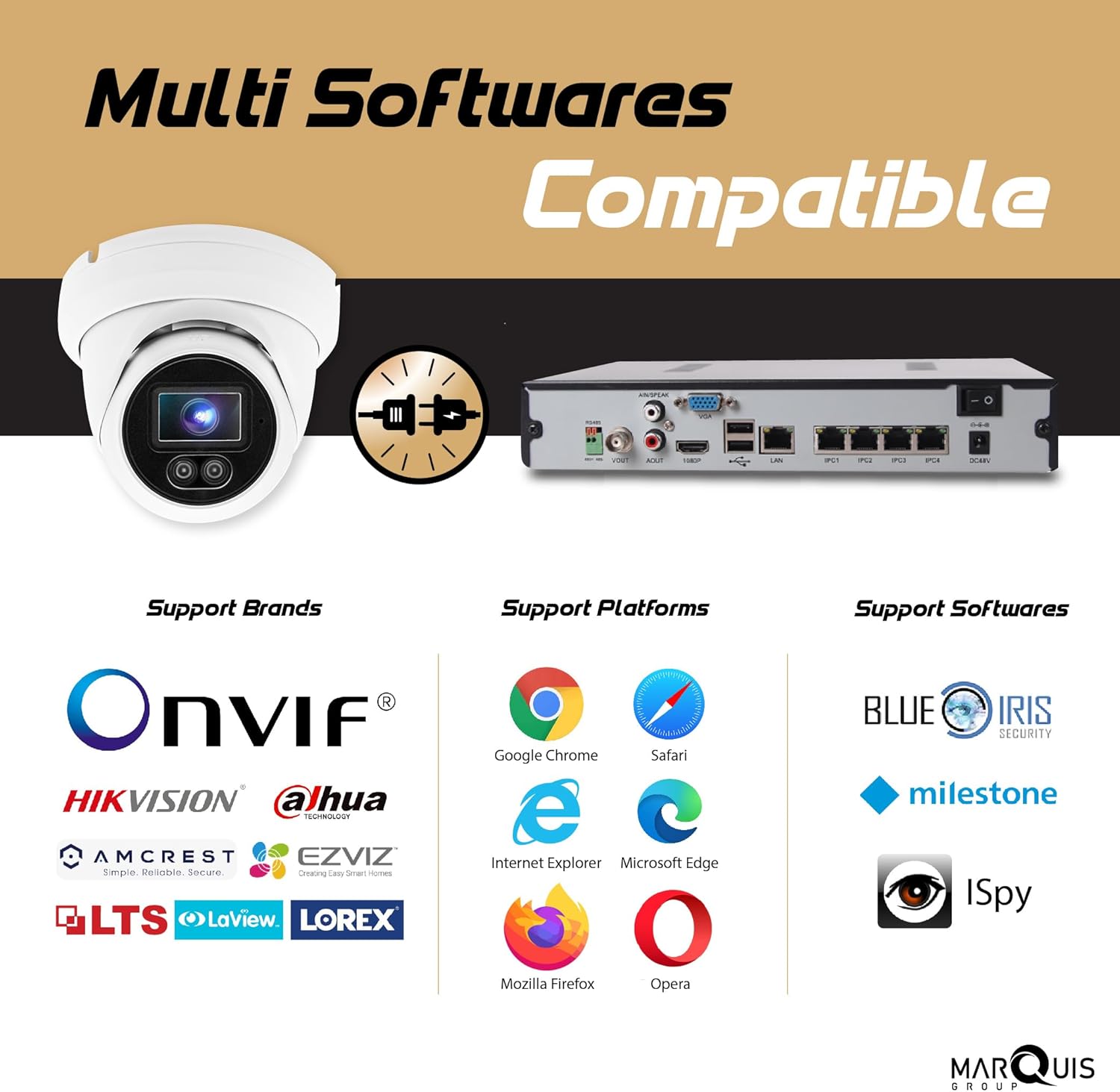
Figure 3.1: The camera's compatibility with various NVR brands and third-party software.
3.3 Initial Network Configuration
The camera is designed for easy plug-and-play with compatible NVRs. For advanced configuration or standalone use, you may need to access the camera via a PC client or web browser.
- NVR Integration: Refer to your NVR's manual for instructions on adding IP cameras. The Marquis camera is ONVIF compliant and compatible with many brands.
- P2P Cloud Service: Utilize the easy-to-use P2P Cloud service for remote access via mobile app.
- Web Browser Access: Access the camera's interface via a multi-web browser (e.g., Chrome, Safari, Firefox) for detailed settings adjustments.
4. Operation
4.1 Live View and Recording
Access the live video feed and manage recording settings through your connected NVR, PC client software, or mobile application.
4.2 Night Vision Modes
The camera features advanced low-light technology, including Color Night Vision, to provide clear images even in minimal light conditions.

Figure 4.1: Illustrates the difference between Full Color Night Vision and traditional Normal Night Vision.

Figure 4.2: Demonstrates the superior low-light performance of the F1.0 starlight lens compared to an F2.0 lens.
4.3 Intelligent Automatic Lighting
The camera can automatically adjust light intensity based on environmental conditions to optimize image quality.

Figure 4.3: The camera's intelligent automatic lighting feature, showing adjustment from minimum to maximum light.
4.4 Advanced Settings
Through the camera's web interface or compatible software, you can configure:
- Motion Detection: Set up detection zones and sensitivity.
- Privacy Mask: Define areas to be excluded from surveillance.
- Image Adjustments: Fine-tune brightness, contrast, saturation, and sharpness.
- Video Compression: Select H.265 or H.264 for optimal storage and bandwidth.
5. Maintenance
Regular maintenance ensures optimal performance and longevity of your camera.
- Lens Cleaning: Periodically clean the camera lens with a soft, dry cloth to remove dust or smudges. Avoid abrasive cleaners.
- Housing Inspection: For outdoor installations, regularly check the camera housing for any signs of damage or loose connections. Ensure the IP66 rating is maintained.
- Firmware Updates: Check the manufacturer's website for available firmware updates to ensure your camera has the latest features and security enhancements.
6. Troubleshooting
If you encounter issues with your Marquis 4MP PoE IP Turret Dome Camera, refer to the following common problems and solutions:
| Problem | Possible Cause | Solution |
|---|---|---|
| No image/video feed | No power, network cable disconnected, incorrect IP address. | Verify PoE connection. Check Ethernet cable. Ensure correct IP configuration or NVR connection. |
| Poor image quality | Dirty lens, improper focus (if adjustable), low bandwidth, incorrect settings. | Clean the lens. Adjust image settings (brightness, contrast, sharpness) in the camera interface. Check network bandwidth. |
| Night vision not working | IR/White light LEDs faulty, night vision mode disabled. | Check camera settings to ensure night vision mode is enabled. If LEDs are confirmed faulty, contact support. |
| Motion detection not triggering | Incorrect sensitivity, detection zone not configured, software issue. | Adjust motion detection sensitivity and ensure detection zones are properly set in the camera's configuration. |
| Cannot access camera remotely | Network configuration issues, P2P service offline, firewall blocking. | Verify internet connection. Check P2P status. Ensure router/firewall settings allow camera access. |
If the problem persists after attempting these solutions, please contact Marquis customer support for further assistance.
7. Specifications
| Feature | Detail |
|---|---|
| Model | 4MP Turret Color Night |
| Effective Still Resolution | 4 MP |
| Lens | 2.8mm fixed lens (103° field of view) |
| Low Light Technology | Color Night |
| Connectivity Technology | Wired (Ethernet) |
| Power Source | PoE |
| International Protection Rating | IP66 |
| Indoor/Outdoor Usage | Outdoor |
| Compatible Devices | ONVIF compliant NVRs |
| Video Capture Format | MP4 (H.265/H.264 dual-stream) |
| Alert Type | Motion Only |
| Mounting Type | Ceiling Mount |
| Item Weight | 15.5 ounces |
| UPC | 850052533076 |
8. Warranty and Support
Marquis products are designed for reliability and performance. For information regarding product warranty, please refer to the warranty card included with your purchase or visit the official Marquis website.
For technical support, troubleshooting assistance, or any inquiries, please contact Marquis customer service through the contact information provided on the official website or your purchase documentation. When contacting support, please have your product model and purchase details available.
Ask a question about this manual
Ask about setup, troubleshooting, compatibility, parts, safety, or missing instructions. Manuals+ will review the question and use this page’s manual context to help answer it.