1. Introduction
This manual provides essential information for the proper use and maintenance of your replacement remote control. Designed to operate various devices including air conditioners, televisions, and other audio/video equipment, this remote offers a convenient solution for lost or broken original controls. Please read this manual thoroughly before use to ensure optimal performance and longevity of the product.
2. Product Overview
The replacement remote control is designed for ease of use with a clear button layout and an ergonomic design. It features dedicated buttons for power, mode selection, temperature/volume adjustment, and specific functions like fan speed and swing for air conditioning units.
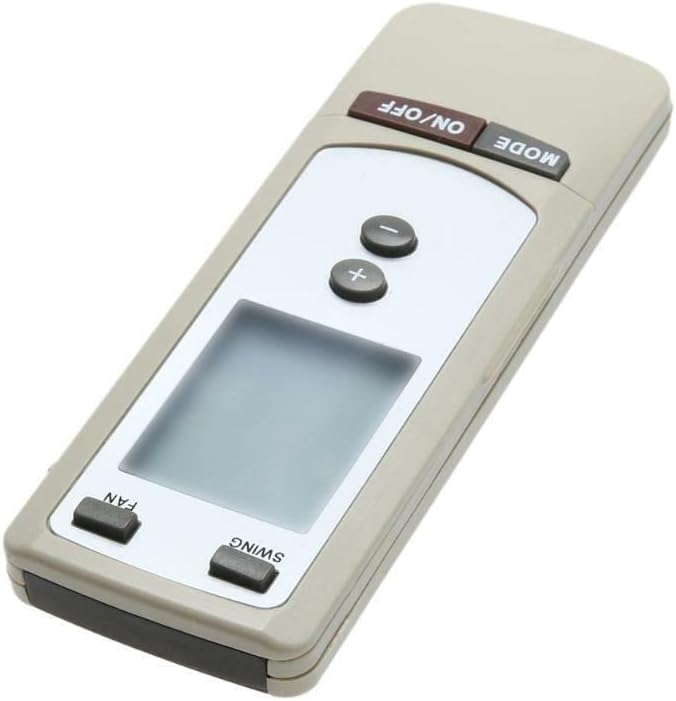
Figure 2.1: Angled view of the remote control. This image displays the overall shape and the primary control buttons, including the power and mode buttons at the top, temperature controls in the middle, and fan/swing controls at the bottom, along with the LCD screen.
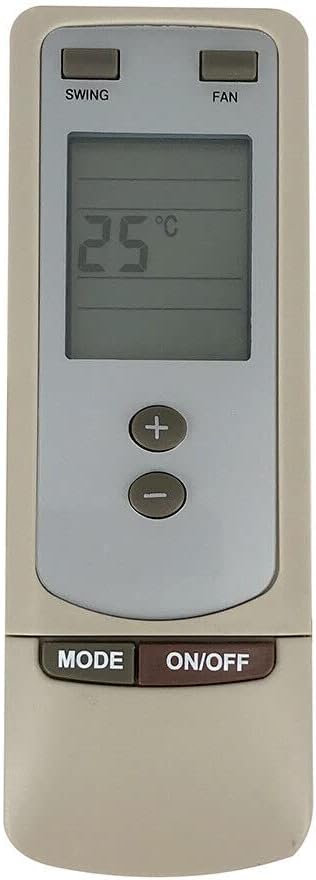
Figure 2.2: Front view of the remote control. This image provides a clear, straight-on view of the remote, highlighting the digital display which shows '25°C', and the arrangement of all functional buttons for easy identification.
3. Setup
3.1 Battery Installation
- Locate the battery compartment on the back of the remote control.
- Slide open the battery compartment cover.
- Insert two (2) new AAA batteries (not included), ensuring the correct polarity (+ and -) as indicated inside the compartment.
- Close the battery compartment cover securely.
Important Note: This replacement remote control typically requires no programming or complex setup. Once batteries are inserted correctly, it should be ready for immediate use with compatible devices.
4. Operating Instructions
This remote control is designed to operate various devices. While its appearance and specific buttons are highly indicative of an air conditioner remote, it is also listed as compatible with Set Top Boxes, Televisions, Stereo Systems, DVD/Blu-ray Players, and Home Theater systems. Functionality may vary depending on the specific device being controlled.
4.1 Basic Functions (Typical for AC Units)
- ON/OFF Button: Press to power on or power off the connected device.
- MODE Button: Cycles through various operating modes (e.g., Cool, Heat, Fan, Dry, Auto for AC units).
- +/- Buttons: Adjusts temperature settings (for AC units) or volume levels (for audio/video devices).
- FAN Button: Adjusts the fan speed (e.g., Low, Medium, High, Auto for AC units).
- SWING Button: Activates or deactivates the automatic swing function of the air conditioner's louvers.
For other compatible devices (TV, DVD, etc.), the ON/OFF and +/- buttons (for volume/channel) are generally universal. Specific functions like 'MODE', 'FAN', and 'SWING' may not be applicable or may control different features depending on the device's original remote mapping.
5. Maintenance
5.1 Battery Replacement
Replace batteries when the remote's response becomes sluggish or it stops functioning. Always replace both batteries simultaneously with new ones of the same type (AAA). Do not mix old and new batteries, or different types of batteries.
5.2 Cleaning
To clean the remote control, wipe it gently with a soft, dry cloth. For stubborn dirt, a slightly damp cloth can be used, followed by a dry cloth. Do not use abrasive cleaners, solvents, or chemical sprays, as these can damage the remote's surface or internal components.
6. Troubleshooting
- Remote not responding:
- Check if the batteries are inserted correctly with the proper polarity.
- Replace old batteries with new ones.
- Ensure there are no obstructions between the remote and the device's sensor.
- Make sure you are within the effective operating range of the device.
- Some functions do not work:
- This is a replacement remote control and may not support all functions of your original device's remote. Refer to your device's original manual for specific functions.
- Verify that the remote model (Y512F Y512FA) is compatible with your specific device model.
7. Specifications
| Feature | Detail |
|---|---|
| ASIN | B0CPLH6Q19 |
| Date First Available | December 6, 2023 |
| Manufacturer | Generic |
| Brand | Generic |
| Special Feature | Ergonomic |
| Color | Black or white |
| Max Number of Supported Devices | 2 |
| Compatible Devices | Set Top Box, Television, Stereo System, DVD/Blu-ray Player, Home Theater |
8. Warranty and Support
Specific warranty information for this replacement remote control is not provided in the product details. For any warranty claims, technical support, or further inquiries, please contact the seller or manufacturer directly through your purchase platform. Keep your purchase receipt as proof of purchase.
