
Xgody 13 Pro
Xgody 13 Pro Smartphone User Manual
Model: 13 Pro | Brand: Xgody
1. Introduction
This manual provides essential information for the safe and efficient operation of your Xgody 13 Pro smartphone. Please read it thoroughly before using your device.
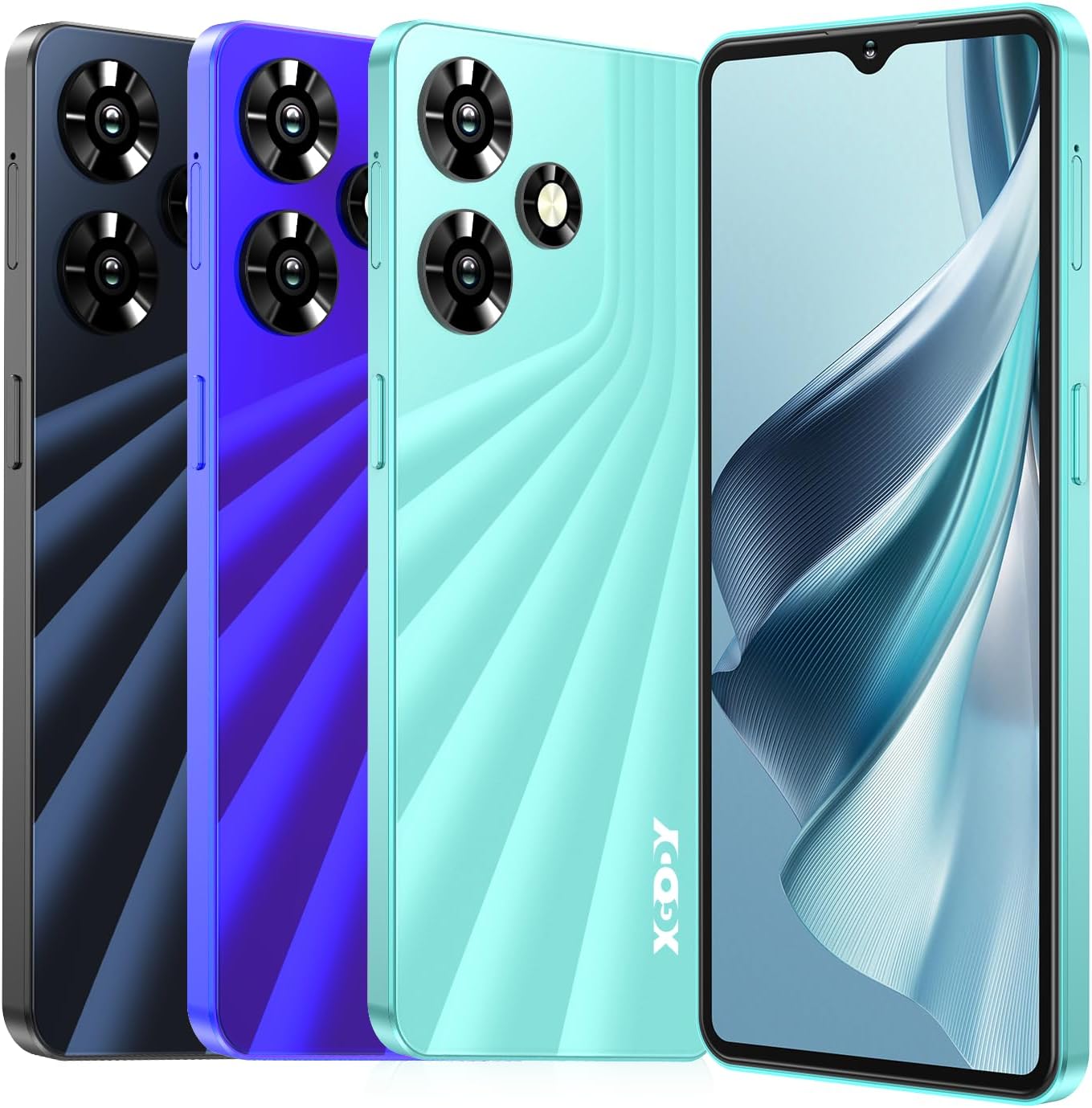
Image: The Xgody 13 Pro smartphone displayed in three different colors (black, blue, and green), showcasing its sleek design and gradient stripe pattern.
What's in the Box

Image: A visual representation of the Xgody 13 Pro packaging contents. It shows the smartphone, a protective phone case, a USB charging cable, a SIM eject tool, a user manual, a screen protector, and an OTG adapter.
- Xgody 13 Pro Smartphone x1
- Phone Case x1
- USB Cable x1
- OTG Adapter x1
- SIM Eject Tool x1
- User Manual x1
- Screen Protector x1
- HD Screen Protector x1
2. Initial Setup
2.1 SIM Card and TF Card Installation
The Xgody 13 Pro supports dual SIM cards and a TF card for expandable storage. Use the provided SIM eject tool to open the SIM tray.
- Locate the SIM tray on the side of the phone.
- Insert the SIM eject tool into the small hole next to the tray and push gently until the tray pops out.
- Place your Nano-SIM cards and/or TF card into the designated slots on the tray. Ensure the gold contacts face downwards.
- Carefully reinsert the tray into the phone.

Image: A diagram illustrating the dual SIM card slots and a separate TF card slot on the Xgody 13 Pro, indicating proper placement for network and storage expansion.
2.2 Powering On and Initial Configuration
Press and hold the Power button until the Xgody logo appears. Follow the on-screen prompts to complete the initial setup, including language selection, Wi-Fi connection, and Google account setup.
The device runs on Android 10.0, providing a stable and user-friendly interface.
3. Operating Your Smartphone
3.1 Calls and Messaging
To make a call, open the Phone app and dial the number or select a contact. For messaging, use the Messages app to send and receive SMS/MMS.
The phone supports 4G LTE, 3G, and 2G networks for reliable communication.
3.2 Camera Functions
Your Xgody 13 Pro is equipped with a 15MP primary rear camera and a 5MP front camera. Open the Camera app to capture photos and videos.
- Tap the shutter button to take a photo.
- Switch between photo and video modes as needed.
- Use the front camera for selfies and video calls.

Image: A detailed view highlighting the 15MP primary camera on the back and the 5MP front camera of the Xgody 13 Pro, illustrating their positions and capabilities for capturing images.
3.3 Face Unlock
For convenient and secure access, the Xgody 13 Pro features Face Unlock. To set it up, navigate to Settings > Security > Face Unlock and follow the instructions to register your face.

Image: A person holding the Xgody 13 Pro smartphone, with the screen displaying a facial recognition interface, demonstrating the device's face unlock capability for quick and secure access.
3.4 Changing Wallpaper
You can personalize your phone's appearance by changing the wallpaper. Follow these steps or watch the video below for a visual guide:
- Go to Settings.
- Tap on Display.
- Select Wallpaper.
- Choose from pre-installed wallpapers or select an image from your Gallery.
- Set the wallpaper for your Home screen, Lock screen, or both.
Video: This video demonstrates how to change the wallpaper on your Xgody 13 Pro cell phone, guiding you through the settings and selection process.
4. Maintenance and Care
4.1 Battery Life and Charging
The Xgody 13 Pro is equipped with a 3670mAh battery. To maximize battery life:
- Reduce screen brightness.
- Close unused apps running in the background.
- Turn off Wi-Fi, Bluetooth, and GPS when not in use.
- Avoid extreme temperatures.
The device supports fast charging. Use the provided USB cable and a compatible charger for optimal charging speed.

Image: A graphic depicting the 3670mAh battery of the Xgody 13 Pro, with icons indicating estimated usage times for gaming (4H), video playback (5H), calling (11H), and music (20H).
4.2 Storage Management
Your phone comes with 2GB RAM and 16GB ROM. You can expand storage up to 256GB using a TF card (sold separately).
- Regularly clear cache and unnecessary files to free up space.
- Move large files like photos and videos to your TF card.
- Uninstall unused applications.
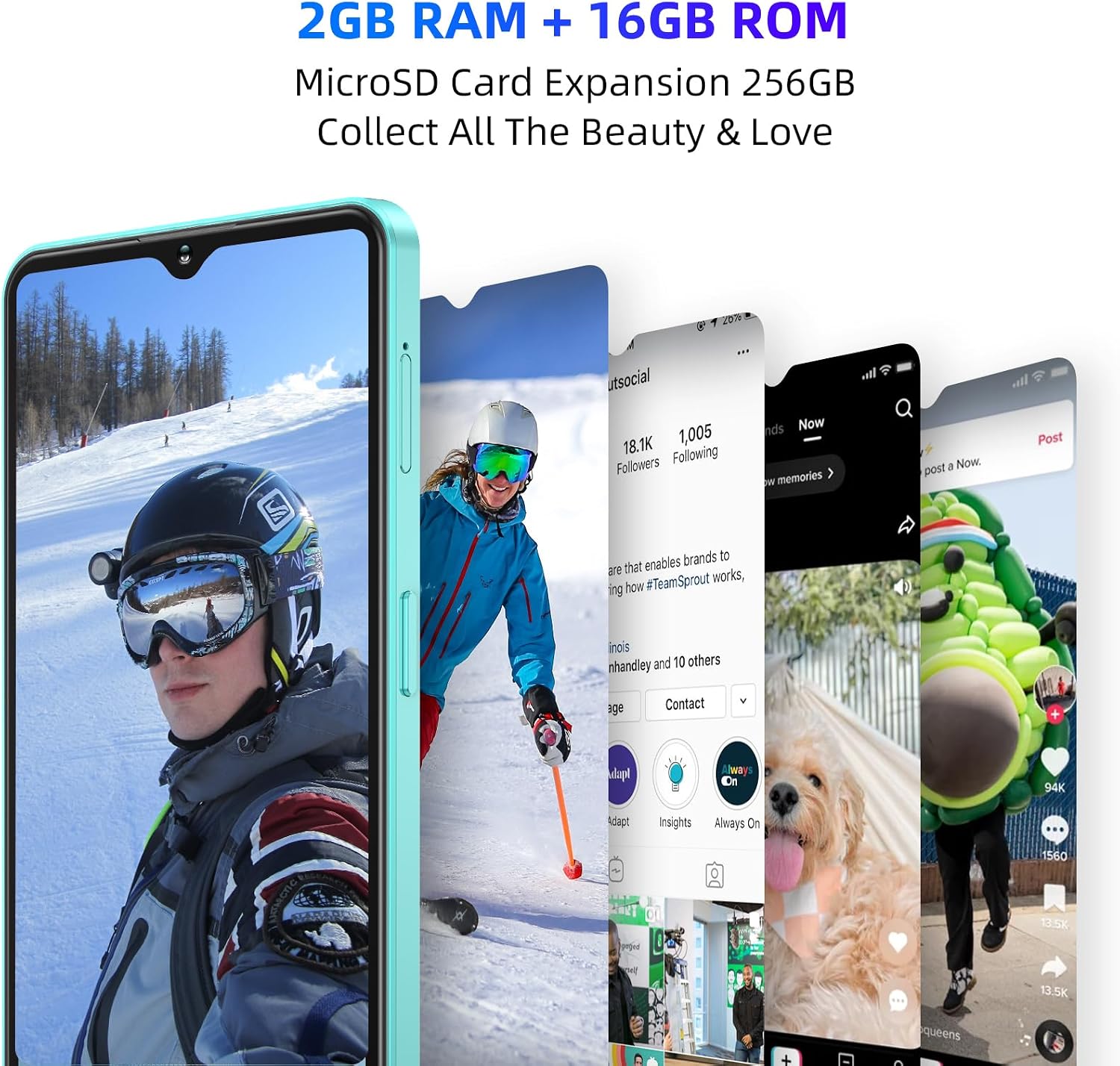
Image: A graphic highlighting the Xgody 13 Pro's 2GB RAM and 16GB internal storage, along with the option for MicroSD card expansion up to 256GB for additional data storage.
5. Troubleshooting
If you encounter issues with your Xgody 13 Pro, try the following solutions before contacting support:
Common Issues and Solutions:
| Issue | Possible Solution |
|---|---|
| Phone is slow/unresponsive | Restart the phone. Close background apps. Clear cache. Check available storage. |
| Cannot connect to Wi-Fi/Mobile Data | Toggle Wi-Fi/Mobile Data off and on. Restart router/phone. Check SIM card insertion. Verify network settings. |
| Battery drains quickly | Reduce screen brightness. Disable unnecessary features (GPS, Bluetooth). Limit background app activity. |
| Apps crashing | Clear app cache/data. Update the app. Reinstall the app. Ensure sufficient RAM. |
6. Specifications
Below are the key technical specifications for the Xgody 13 Pro smartphone:

Image: A graphic displaying the Xgody 13 Pro smartphone alongside its key specifications: MT6737H processor, 6.6-inch HD Incell Screen, 3670mAh Battery, Android 10.0, 2GB RAM + 16GB ROM, and 5MP + 15MP cameras.
| Feature | Detail |
|---|---|
| Model Name | 13 Pro |
| Operating System | Android 10.0 |
| Screen Size | 6.56 Inches |
| Resolution | 720 x 1600 |
| RAM Memory | 2 GB |
| Storage Capacity | 16 GB (Expandable via TF card) |
| Battery Capacity | 3670 Milliamp Hours |
| Rear Camera | 15MP |
| Front Camera | 5MP |
| Connectivity | Bluetooth, USB, Wi-Fi, 4G LTE |
| Special Features | Fast Charging Support, Face Unlock, OTG |
| Dimensions | 7.48 x 5.91 x 1.57 inches |
| Item Weight | 15.5 ounces |

Image: A diagram illustrating the layers of the 6.6-inch Incell Screen technology, showing the integration of the touch panel and LCD screen, protected by a diamond glass cover, designed for a slimmer profile, enhanced touch, and reduced reflection.
7. Warranty and Support
Xgody is committed to providing excellent customer service. If you encounter any issues with your product, please do not hesitate to contact our professional after-sales team.
Contacting Support:
To contact support, please follow these steps:
- Locate your order for the Xgody 13 Pro smartphone.
- Find and click on the "Contact Seller" option.
- Select the relevant topic concerning your issue to initiate contact.
Our team will promptly review your concerns within 12 hours and respond with a solution within 24 hours.
Ask a question about this manual
Ask about setup, troubleshooting, compatibility, parts, safety, or missing instructions. Manuals+ will review the question and use this page’s manual context to help answer it.