
1. Introduction
Thank you for choosing the Maxcom Smartwatch FW53 Nitro. This manual provides essential information for the safe and efficient use of your device. Please read it carefully before using the smartwatch and keep it for future reference.
The Maxcom FW53 Nitro is a versatile smartwatch designed to enhance your daily activities, offering features such as activity tracking, notification alerts, and health monitoring when connected to a compatible smartphone.
2. Safety Information
- Do not attempt to disassemble, repair, or modify the device. This may void the warranty and cause damage.
- Keep the device away from extreme temperatures, direct sunlight, and moisture.
- Avoid exposing the device to strong impacts or vibrations.
- Use only the charger provided or recommended by the manufacturer.
- Consult a medical professional before starting any new exercise regimen or if you have a medical condition that could be affected by using the smartwatch.
- This device is not a medical device and should not be used for diagnosing or treating any medical condition.
3. Package Contents
Please check the package contents upon opening. If any items are missing or damaged, contact your retailer.
- Maxcom Smartwatch FW53 Nitro
- Charging Cable
- User Manual (this document)
4. Device Overview
The Maxcom FW53 Nitro features a rectangular display and a single physical button for navigation and control. The back of the device houses the charging contacts and health sensors.
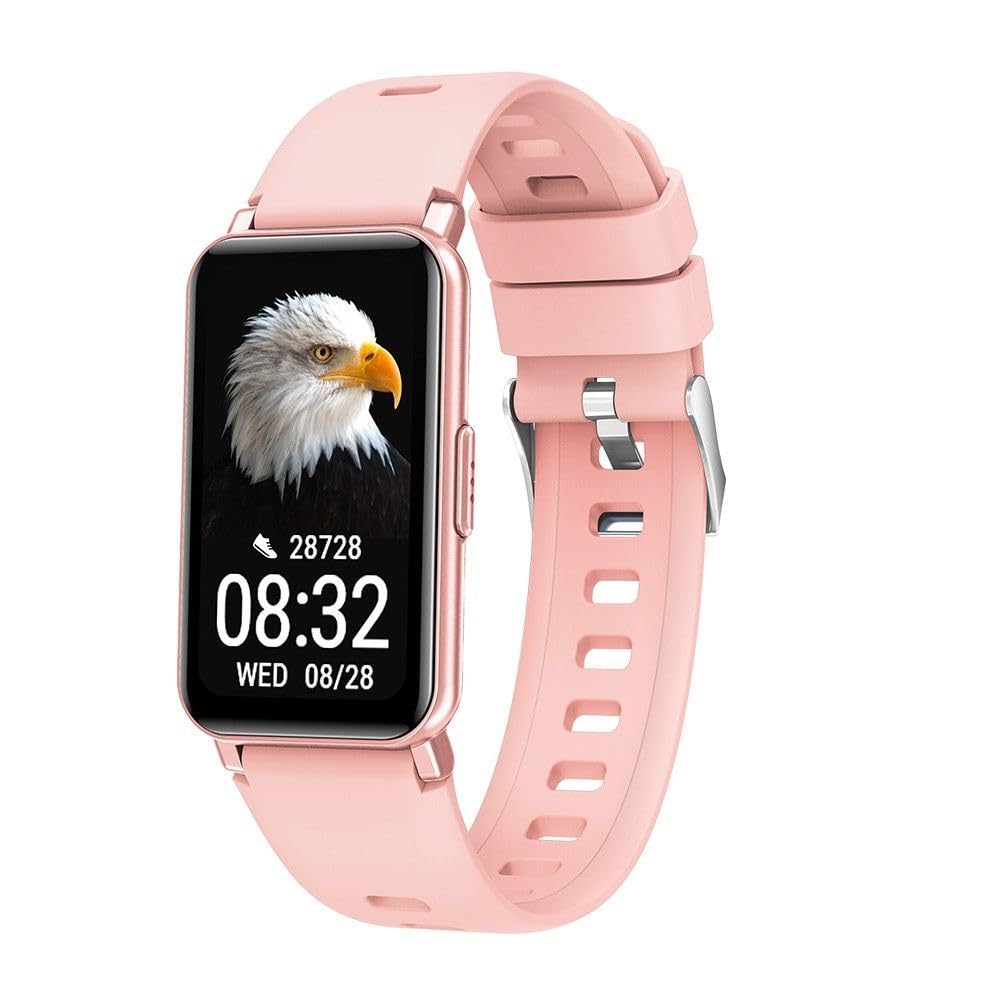
Image 1: Maxcom Smartwatch FW53 Nitro Gold. This image displays the front view of the smartwatch, highlighting its rectangular screen and overall design.
Note: No additional product images or official seller videos were available in the provided data for embedding.
4.1. Components
- Touchscreen Display: For interacting with the user interface.
- Side Button: Typically used for powering on/off, returning to the home screen, or accessing the menu.
- Heart Rate Sensor: Located on the back of the watch, for monitoring heart rate.
- Charging Contacts: Located on the back of the watch, for connecting the charging cable.
5. Setup
5.1. Charging the Smartwatch
- Connect the charging cable to a USB power adapter (not included) or a computer's USB port.
- Align the magnetic charging pins of the cable with the charging contacts on the back of the smartwatch. The cable will snap into place.
- The watch display will show a charging indicator. Allow the device to charge fully before first use. A full charge typically takes 1-2 hours.
5.2. Powering On/Off
- To Power On: Press and hold the side button for a few seconds until the Maxcom logo appears.
- To Power Off: From the home screen, swipe down or navigate to the settings menu, then select the 'Power Off' option. Alternatively, press and hold the side button and select 'Power Off' when prompted.
5.3. Pairing with Your Smartphone
The Maxcom FW53 Nitro connects to your smartphone via Bluetooth using a dedicated companion application.
- Download the App: Search for the official Maxcom smartwatch companion app (refer to the packaging or quick start guide for the exact app name) on the App Store (iOS) or Google Play Store (Android) and install it on your smartphone.
- Enable Bluetooth: Ensure Bluetooth is enabled on your smartphone.
- Open the App: Launch the companion app on your smartphone and follow the on-screen instructions to create an account or log in.
- Add Device: Within the app, navigate to the 'Add Device' or 'Pair Device' section. The app will search for available smartwatches.
- Select Your Smartwatch: Select 'FW53 Nitro' from the list of discovered devices.
- Confirm Pairing: A pairing request may appear on both your smartphone and the smartwatch. Confirm the pairing on both devices.
- Complete Setup: Follow any remaining prompts in the app to complete the setup, including granting necessary permissions for notifications, location, etc.
6. Operating the Smartwatch
6.1. Basic Navigation
- Swipe Up/Down: To scroll through menus or notifications.
- Swipe Left/Right: To switch between different watch faces or quick access widgets.
- Tap: To select an item or open an application.
- Side Button Press: A short press usually returns to the home screen or acts as a back button. A long press may access power options or a specific function.
6.2. Key Features
- Notifications: Receive alerts for calls, messages, and app notifications from your paired smartphone.
- Activity Tracking: Monitors steps taken, distance covered, and calories burned.
- Heart Rate Monitoring: Measures your heart rate throughout the day or on demand.
- Sleep Monitoring: Tracks your sleep patterns, including deep and light sleep stages.
- Sports Modes: Offers various modes for tracking specific exercises (e.g., running, walking).
- Music Control: Control music playback on your smartphone directly from the watch.
- Camera Remote: Use the watch as a remote shutter for your smartphone's camera.
- Weather: Displays current weather information when connected to your smartphone.
6.3. Using the Companion App
The companion app on your smartphone is crucial for unlocking the full potential of your Maxcom FW53 Nitro. It allows you to:
- View detailed activity and health data.
- Customize watch faces.
- Set alarms and reminders.
- Manage notification settings.
- Update the smartwatch firmware.
- Configure personal profile information.
7. Maintenance
7.1. Cleaning
- Wipe the smartwatch and strap regularly with a soft, damp, lint-free cloth.
- Do not use harsh chemicals, abrasive cleaners, or solvents.
- Ensure the device is dry before charging.
7.2. Battery Care
- Avoid fully discharging the battery frequently.
- Charge the device regularly, even if not in use, to maintain battery health.
- Store the device in a cool, dry place if not used for an extended period.
7.3. Software Updates
Periodically check the companion app for available software updates. Updates can improve performance, add new features, and fix bugs. Ensure your watch is sufficiently charged before starting an update.
8. Troubleshooting
| Issue | Possible Solution |
|---|---|
| Smartwatch does not power on | Ensure the device is fully charged. Press and hold the side button for at least 10 seconds. |
| Cannot pair with smartphone | Ensure Bluetooth is enabled on your phone. Restart both the smartwatch and smartphone. Make sure the companion app is installed and running. Forget the device in your phone's Bluetooth settings and try pairing again. |
| Notifications are not received | Check notification permissions in your phone's settings for the companion app. Ensure the app is running in the background. Verify notification settings within the companion app. |
| Inaccurate health data | Ensure the watch is worn snugly on your wrist, not too tight or too loose. Clean the sensor area on the back of the watch. Ensure your personal information (age, height, weight) is accurate in the companion app. |
| Battery drains quickly | Reduce screen brightness. Limit background app refresh. Turn off features like continuous heart rate monitoring if not needed. Ensure no apps are constantly running in the background on the watch. |
8.1. Factory Reset
If you encounter persistent issues, a factory reset may resolve them. This will erase all data on your smartwatch and restore it to its original factory settings.
- Navigate to the 'Settings' menu on your smartwatch.
- Look for an option like 'System', 'Reset', or 'Factory Reset'.
- Confirm the reset when prompted.
9. Specifications
| Feature | Detail |
|---|---|
| Model Name | FW53 Nitro |
| Brand | Maxcom |
| Connectivity | Bluetooth |
| Compatible Devices | Smartphone |
| Battery Composition | Lithium-polymer |
| GPS | Via smartphone (uses phone's GPS) |
| Shape | Rectangular |
| Screen Size | 0.634 inches (Please note this value is as provided in product data and may refer to a specific measurement unit or be a typo. Actual display size may vary.) |
| Target Audience | Adult Mixed |
10. Support
For further assistance, technical support, or warranty information, please refer to the contact details provided with your purchase or visit the official Maxcom website. Keep your purchase receipt as proof of purchase.


