
ItriAce S821
ItriAce S821 Thermal Printer User Manual
Model: S821
Introduction
Thank you for choosing the ItriAce S821 Thermal Printer. This manual provides detailed instructions for setting up, operating, and maintaining your printer. The S821 is an inkless thermal printer designed for efficient and high-quality black and white printing, supporting various paper sizes including US Letter, A4, B5, and A5. It offers versatile connectivity options, including WiFi for mobile devices and USB for computers, making it suitable for home, school, and office environments.

Figure 1: ItriAce S821 Thermal Printer with different paper sizes and mobile app interface.
What's in the Box
Please ensure all the following components are included in your package:
- 1 x S821 Portable Thermal Printer
- 1 x Paper Roll (US Letter)
- 1 x Adapter
- 1 x Data Cable
- 1 x Quick Start Guide
Setup Instructions
1. Initial Setup and Paper Loading
- Unpack the printer and all accessories from the box.
- Open the printer cover.
- Insert the thermal paper roll into the designated holder, ensuring the printing side faces upwards.
- Close the printer cover securely.
- Connect the power adapter to the printer and a power outlet.
- Press the power button to turn on the printer.

Figure 2: Proper paper loading and key features of the S821 printer.
2. Connecting to Your Device
2.1. WiFi Connection (Mobile Devices)
- Download the "Phomemo" app from your device's app store (available on Apple App Store or Google Play Store).
- Open the Phomemo app and follow the on-screen instructions to connect your printer via WiFi.
- Ensure your mobile device and the printer are connected to the same WiFi network.

Figure 3: Steps for WiFi connectivity using the Phomemo app.
2.2. USB Connection (Computers)
- Connect the printer to your computer using the provided USB data cable.
- Download the necessary drivers from the official ItriAce website: s821.phomemo.com.
- Install the drivers following the on-screen prompts.
- Once drivers are installed, your computer should recognize the printer.

Figure 4: Steps for USB connectivity to a computer.
2.3. Linux Setup Video Guide
For detailed instructions on setting up your S821 printer on a Linux system, please refer to the official video guide below:
Video 1: "S821 How to Set up on Linux?" - This video demonstrates the process of installing the necessary drivers and setting up the ItriAce S821 printer on a Linux operating system, including using terminal commands for installation.
Operating the Printer
Printing Documents
Once connected, you can print documents directly from your device. The S821 supports various file formats including Word, PDF, and PNG.
- Inkless Thermal Printing: The S821 uses advanced thermal technology, eliminating the need for ink, toner, or ribbons. This ensures a clean and cost-effective printing experience.
- High-Quality Output: With a resolution of 203 DPI, the printer produces clear and sharp black and white prints.
- Multi-Size Support: The built-in consumable holder allows for printing on different paper sizes, including US Letter (8.5" x 11"), A4, B5, and A5.
- Remote Printing: Utilize the remote printing feature to send print jobs from anywhere, providing convenience for users on the go.
- Flat Paper Function: The printer is designed to minimize paper curling, ensuring documents are printed flat and neatly.
- Fast Printing: Experience quick print speeds of up to 50mm/s, allowing for efficient document output.

Figure 5: The S821 printer delivers clear and high-resolution prints.

Figure 6: The S821's print center ensures accurate and non-skewed printing.

Figure 7: The S821 supports printing on multiple paper sizes.
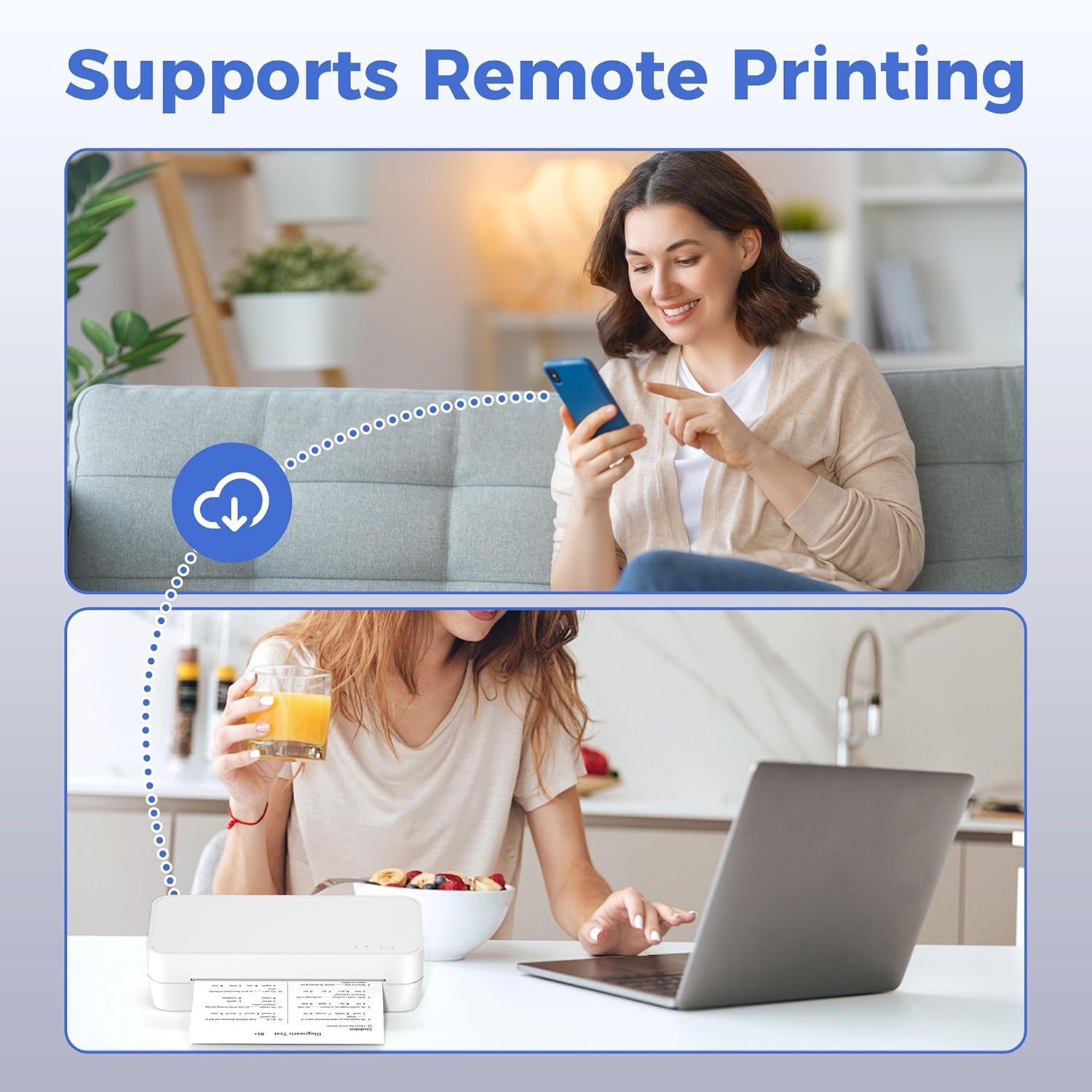
Figure 8: The S821 printer supports convenient remote printing from various devices.
Maintenance
Cleaning the Printer
- Ensure the printer is turned off and unplugged before cleaning.
- Use a soft, lint-free cloth slightly dampened with water or isopropyl alcohol to gently wipe the exterior of the printer.
- For the thermal print head, use a specialized thermal printer cleaning pen or a cotton swab with isopropyl alcohol. Wipe gently across the print head. Allow it to dry completely before use.
- Do not use abrasive cleaners or solvents.
Paper Replacement
When the paper roll is depleted, simply open the printer cover, remove the old roll, and insert a new thermal paper roll as described in the "Initial Setup and Paper Loading" section. Ensure you use thermal paper compatible with the S821 printer.
Troubleshooting
| Problem | Possible Cause | Solution |
|---|---|---|
| Printer not turning on | Power cable not connected; Power outlet issue. | Ensure power cable is securely connected. Try a different power outlet. |
| No print output | No paper; Paper loaded incorrectly; Printer not connected. | Load paper correctly. Check WiFi/USB connection. Restart printer and device. |
| Poor print quality (faint/blurry) | Low quality thermal paper; Dirty print head. | Use recommended thermal paper. Clean the thermal print head. |
| Printer not recognized by computer | Drivers not installed or outdated; USB cable issue. | Install or update drivers from s821.phomemo.com. Try a different USB cable or port. |
| Mobile app connection issues | Incorrect WiFi network; App permissions. | Ensure phone and printer are on the same WiFi. Check app permissions in phone settings. |
Specifications
- Brand: ItriAce
- Model Name: S821
- Printing Technology: Thermal
- Connectivity Technology: USB, Wi-Fi
- Printer Output: Monochrome (Black and White)
- Maximum Print Resolution: 203 DPI
- Max Print Speed Monochrome: 50mm/s (approx. 20 ppm)
- Maximum Print Width: 216mm (8.5 inches)
- Supported Media Sizes: US Letter (8.5" x 11"), A4, B5, A5
- Compatible Devices: Laptops, PC, Smartphones, Tablets (iOS, Android, Windows, Mac OS, Chrome OS, Linux)
- Product Dimensions: 11.8 x 3.9 x 6.2 inches
- Item Weight: 4.74 pounds
- Included Components: S821 Portable Thermal Printer, Paper Roll (US Letter), Adapter, Data Cable, Quick Start Guide
Warranty and Support
The ItriAce S821 Thermal Printer comes with a standard manufacturer's warranty. For specific warranty terms, registration, or technical support, please refer to the warranty card included in your package or visit the official ItriAce website.
For further assistance, you may contact ItriAce customer service through the contact information provided on their official website or within the Phomemo application.
Ask a question about this manual
Ask about setup, troubleshooting, compatibility, parts, safety, or missing instructions. Manuals+ will review the question and use this page’s manual context to help answer it.