
CIMELR 4.3-inch Digital Microscope User Manual
Model: 306
1. Introduction
Thank you for purchasing the CIMELR 4.3-inch Digital Microscope. This device is designed to provide a clear and magnified view of microscopic objects, offering a magnification range of 50X to 1000X. Equipped with an LCD screen and adjustable LED illumination, it is suitable for various applications including circuit board inspection, coin examination, jewelry appraisal, stamp collection, watch repair, and educational purposes. Please read this manual thoroughly before use to ensure proper operation and maintenance.
2. Safety Information
- Do not disassemble or modify the microscope. Unauthorized modifications can lead to malfunction or electric shock.
- Keep the device away from water and high humidity environments to prevent damage.
- Avoid exposing the microscope to direct sunlight or high temperatures.
- Use only the provided power adapter or a compatible 5V DC power source.
- Clean the lens and screen with a soft, lint-free cloth. Avoid using abrasive cleaners.
- This microscope is not suitable for observing living cells or medical diagnostics.
3. Package Contents
Please check the package contents upon unboxing:
- CIMELR Digital Microscope (Model 306)
- Adjustable Stand
- USB Cable
- User Manual
4. Product Overview
Familiarize yourself with the components of your digital microscope:

Figure 4.1: Labeled diagram showing the main parts of the CIMELR Digital Microscope. Key components include the 4.3-inch LCD display, LED brightness dimmer, reset hole, focus adjustment knob, microscope tube, rollers (A and B) for stage movement, stage, DC 5V input port, and Micro TF card slot, all mounted on a stable base.
- 4.3-inch LCD Display: Shows real-time magnified images and videos.
- LED Brightness Dimmer: Adjusts the intensity of the built-in LED lights.
- Reset Hole: Used to reset the device if it becomes unresponsive.
- Focus Adjustment: Knob to achieve clear focus on the specimen.
- Microscope Tube: Contains the lens and camera sensor.
- Stage: Platform for placing specimens.
- DC 5V Input: Power input port.
- Micro TF Card Slot: For inserting a Micro TF card (up to 32GB, not included) to save images and videos.
- Base: Provides stability for the microscope.
5. Setup
Follow these steps to set up your digital microscope:
- Assemble the Stand: Attach the microscope unit to the adjustable stand. Ensure all screws are tightened securely.
- Power Connection: Connect the USB cable to the DC 5V input port on the microscope and then to a power adapter (not included) or a computer's USB port.
- Power On: Press and hold the power button (usually located near the screen) for a few seconds until the LCD screen illuminates.
- Insert Micro TF Card (Optional): If you wish to save images or videos, insert a Micro TF card into the designated slot. Ensure it is inserted correctly.
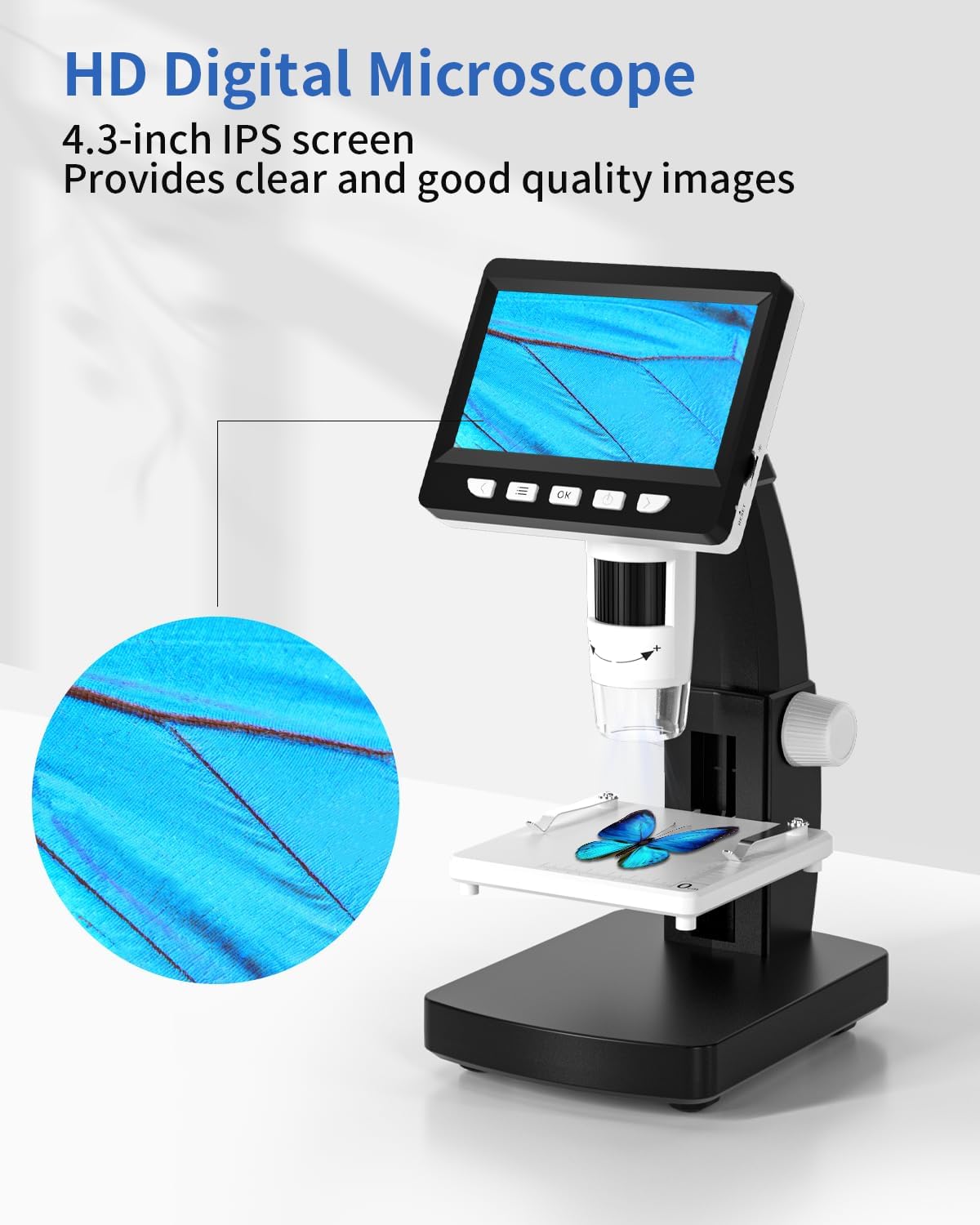
Figure 5.1: The CIMELR Digital Microscope fully assembled on its stand, ready for use. A small specimen is placed on the stage for observation.
6. Operating Instructions
6.1 Adjusting Magnification (50X-1000X)
The microscope offers a magnification range from 50X to 1000X. The actual magnification depends on the distance between the camera and the object, and the size of the display screen. To adjust magnification, move the microscope unit up or down along the stand. Closer proximity to the object increases magnification.

Figure 6.1: Visual representation of different magnification levels (50X, 500X, 1000X) showing details of a leaf bud, circuit board, and an ant, respectively. This illustrates the microscope's capability to reveal fine details at various zoom levels.
6.2 Focus Adjustment
Once the desired magnification is set, rotate the focus adjustment knob (refer to Figure 4.1) until the image on the LCD screen is clear and sharp.
6.3 LED Illumination Control
The microscope features 8 adjustable LED lights to ensure optimal illumination of your specimen. Rotate the LED brightness dimmer wheel (refer to Figure 4.1) to increase or decrease the light intensity. Adequate lighting is crucial for clear observation.

Figure 6.2: Illustration of the LED light adjustment feature, showing the light intensity from off, to 50%, and 100%. This demonstrates how to control the brightness for optimal viewing conditions.
6.4 Capturing Images and Videos
With a Micro TF card inserted, you can capture still images and record videos of your observations. Use the dedicated buttons on the microscope's control panel (typically labeled with camera and video icons) to initiate recording or capture a photo. Refer to the on-screen interface for specific controls.

Figure 6.3: The microscope's display screen indicating options for video and photo capture, highlighting its dual functionality as both a microscope and a camera for documenting observations.
7. PC Connection
The CIMELR Digital Microscope can be connected to a computer for real-time viewing and data storage. It is compatible with Windows Vista/XP/7/8/10/11+ and MacOS X 11.0+.
- Connect to PC: Use the provided USB cable to connect the microscope to your computer.
- Select PC Camera Mode: On the microscope's screen, select the 'PC Camera' option if prompted.
- Software (Optional): For some operating systems, you may need to install a generic webcam software or the recommended software from the manufacturer (if available) to view the live feed. The microscope typically functions as a standard UVC (USB Video Class) device.
- Access Files: When connected in storage mode (if available), your computer will recognize the Micro TF card as a removable drive, allowing you to transfer saved images and videos.

Figure 7.1: The CIMELR Digital Microscope connected to a laptop, displaying a magnified image on the computer screen. This setup allows for real-time viewing and recording on a larger display.
8. Applications
The CIMELR Digital Microscope is a versatile tool suitable for a wide range of applications:
- Industrial Inspection: Circuit board inspection, precision parts examination.
- Hobby & Collection: Coin, stamp, jewelry, and antique appraisal.
- Education: Biological observation (e.g., plant parts, insects), science projects for children.
- Textile Industry: Fabric inspection.
- Repair: Watch repair, electronic component soldering inspection.
- Personal Care: Skin and hair inspection.

Figure 8.1: A collage illustrating diverse applications of the digital microscope, including examining coins, circuit boards, insects, jewelry, and stamps, demonstrating its utility across multiple fields.
9. Maintenance
- Cleaning: Use a soft, dry, lint-free cloth to clean the microscope body. For the lens and screen, use a specialized lens cleaning cloth and solution if necessary. Avoid harsh chemicals.
- Storage: Store the microscope in a cool, dry place, away from direct sunlight and dust. Use the original packaging or a protective case when not in use for extended periods.
- Battery Care: If the microscope has a built-in rechargeable battery, ensure it is charged periodically if not used for a long time to maintain battery health.
10. Troubleshooting
| Problem | Possible Cause | Solution |
|---|---|---|
| No image on screen | Device not powered on; low battery; loose connection. | Press power button; charge battery; check USB cable connection. |
| Image is blurry | Out of focus; incorrect working distance. | Adjust focus knob; adjust height of microscope unit. |
| Screen is too dark/bright | LED brightness not adjusted. | Rotate the LED brightness dimmer wheel. |
| Cannot save images/videos | No Micro TF card inserted; card full or corrupted; incorrect file format. | Insert Micro TF card; delete old files or use new card; format card (if necessary). |
| Device unresponsive | Software glitch. | Use a thin pin to press the reset hole. |
11. Specifications
| Feature | Specification |
|---|---|
| Brand | CIMELR |
| Model Number | 306 |
| Display Screen | 4.3-inch LCD |
| Magnification Range | 50X-1000X |
| Illumination | 8 Adjustable LED Lights |
| PC Compatibility | Windows Vista/XP/7/8/10/11+, MacOS X 11.0+ |
| Storage | Micro TF Card (up to 32GB, not included) |
| Battery Composition | Lithium-ion (1 included) |
| Package Dimensions | 29 x 16.9 x 12.4 cm |
| Item Weight | 690 grams |
12. Warranty and Support
CIMELR provides professional customer support. For any questions regarding your digital microscope, please contact the manufacturer or your retailer. Please refer to your purchase documentation for specific warranty details and contact information.


