
Introduction
Thank you for choosing the LIORQUE S7509 Projection Alarm Clock. This manual provides detailed instructions for setting up and operating your new device. Please read it carefully to ensure proper use and to fully utilize all features.
Package Contents
Upon unpacking, please ensure all the following items are present:
- LIORQUE S7509 Projection Alarm Clock
- Power Adapter
- USB Power Cable
- User Manual

Image: The LIORQUE S7509 Projection Alarm Clock, its power adapter, USB cable, and user manual are displayed next to the product box. Product dimensions are indicated as 18cm (7.1in) width, 9.8cm (3.9in) height, and 5cm (2in) depth.
Product Features Overview
The LIORQUE S7509 Projection Alarm Clock is designed to enhance your daily routine with its versatile features:
- 180° Rotatable Projection: Project the time onto your ceiling or wall with adjustable brightness.
- Large LED Display: Clear time display with 4 adjustable brightness levels.
- Dual Alarms: Set two separate alarms for different schedules.
- FM Radio: Enjoy your favorite radio stations with 15 preset memory slots and 15 adjustable volume levels.
- Snooze Function: Provides an extra 9 minutes of sleep.
- Sleep Timer: Automatically turns off the radio after a set duration (5-90 minutes).
- 12/24 Hour Format: Easily switch between time formats.
- Built-in Battery: For backup power during outages.

Image: The LIORQUE S7509 Projection Alarm Clock is shown with its digital display set to 22:30. Surrounding icons highlight key features including 12/24 hour time, adjustable brightness, FM radio, snooze function, dual alarms, time projection, built-in battery, and a sleep timer.
Setup Instructions
1. Power Connection
Connect the provided USB power cable to the alarm clock and plug the adapter into a standard wall outlet. The display will light up, indicating the device is powered on.

Image: The LIORQUE S7509 Projection Alarm Clock is shown on a bedside table, connected to a wall outlet via its power adapter. The clock displays 8:30, illustrating its readiness for use after power connection.
2. Initial Time Setting
- Press and hold the TIME SET button (usually labeled with a clock icon) for 3 seconds to enter time setting mode.
- Use the HOUR and MINUTE buttons (often labeled with '+' and '-' or arrows) to adjust the current time.
- Press TIME SET again to confirm and exit.
3. 12/24 Hour Format
While in time setting mode, or by a dedicated button (refer to specific button labels on your device), you can toggle between 12-hour (with AM/PM indicator) and 24-hour formats.
Operating Instructions
1. Setting Alarms
The clock supports two independent alarms (Alarm 1 and Alarm 2).
- Press and hold the ALARM 1 or ALARM 2 button for 3 seconds. The alarm time will flash.
- Use the HOUR and MINUTE buttons to set the desired alarm time.
- Press the ALARM button again to confirm the time.
- You can then select the alarm sound (buzzer or FM radio) and alarm volume.
- Press the ALARM button one more time to save settings and activate the alarm. An alarm icon will appear on the display.

Image: Two LIORQUE S7509 Projection Alarm Clocks are displayed side-by-side. One shows an alarm set for 8:30, labeled 'Workday', and the other shows 10:00, labeled 'Weekend', demonstrating the dual alarm capability.
2. Projection Function
The projector allows you to display the time on your ceiling or wall.
- Activate/Deactivate: Press the PROJECTION button (often labeled with a projection icon) to turn the projection on or off.
- Adjust Brightness: Repeatedly press the PROJECTION button to cycle through 3 brightness levels (Low, Medium, High) or turn it off.
- Rotate Projection: The projector lens can be physically rotated 180° to adjust the angle of the projected time.

Image: The LIORQUE S7509 Projection Alarm Clock is shown in a bedroom, projecting the time '22:30' onto the ceiling. Below, three smaller images illustrate the three adjustable brightness levels for the projection.

Image: The LIORQUE S7509 Projection Alarm Clock is depicted with its projection arm extended, casting the time '12:45' onto a nearby surface. This image demonstrates the adjustable angle and direction of the projection feature.
3. Display Brightness
Adjust the main display brightness to your preference.
- Press the DIMMER button (or similar, often labeled with a sun icon) to cycle through 4 levels of display brightness.
- The levels typically range from brightest to off, allowing for comfortable viewing day or night.

Image: The LIORQUE S7509 Projection Alarm Clock shows the time 22:30. Below, four distinct panels illustrate the four adjustable levels of screen brightness, ranging from completely off to maximum illumination, allowing users to select the appropriate brightness for night vision.
4. FM Radio
Listen to your favorite FM radio stations.
- Turn On/Off: Press the RADIO button to turn the FM radio on or off.
- Auto-Scan: Press and hold the RADIO button for 3 seconds to automatically scan and save up to 15 FM stations.
- Change Stations: Use the PREV/NEXT buttons (or '+' and '-') to switch between saved stations.
- Adjust Volume: Use the VOLUME +/- buttons to adjust the radio volume through 15 levels.

Image: The LIORQUE S7509 Projection Alarm Clock displays 'FM 7.84' on its screen, surrounded by graphic representations of radio waves indicating different FM frequencies (e.g., FM90.2, FM95.6, FM96.8, FM97.5, FM98.5). The image also highlights that the device can store 15 favorite radio stations and has 15 adjustable volume levels.
5. Snooze Function
When an alarm sounds, press the large SNOOZE/LIGHT button on top of the clock. The alarm will pause for 9 minutes and then sound again.
6. Sleep Timer
The sleep timer allows the radio to play for a set duration before automatically turning off.
- While the radio is playing, press the SLEEP button (or similar).
- Repeatedly press the SLEEP button to cycle through preset sleep times (e.g., 5, 10, 15, 30, 60, 90 minutes).
- The radio will automatically turn off after the selected time.
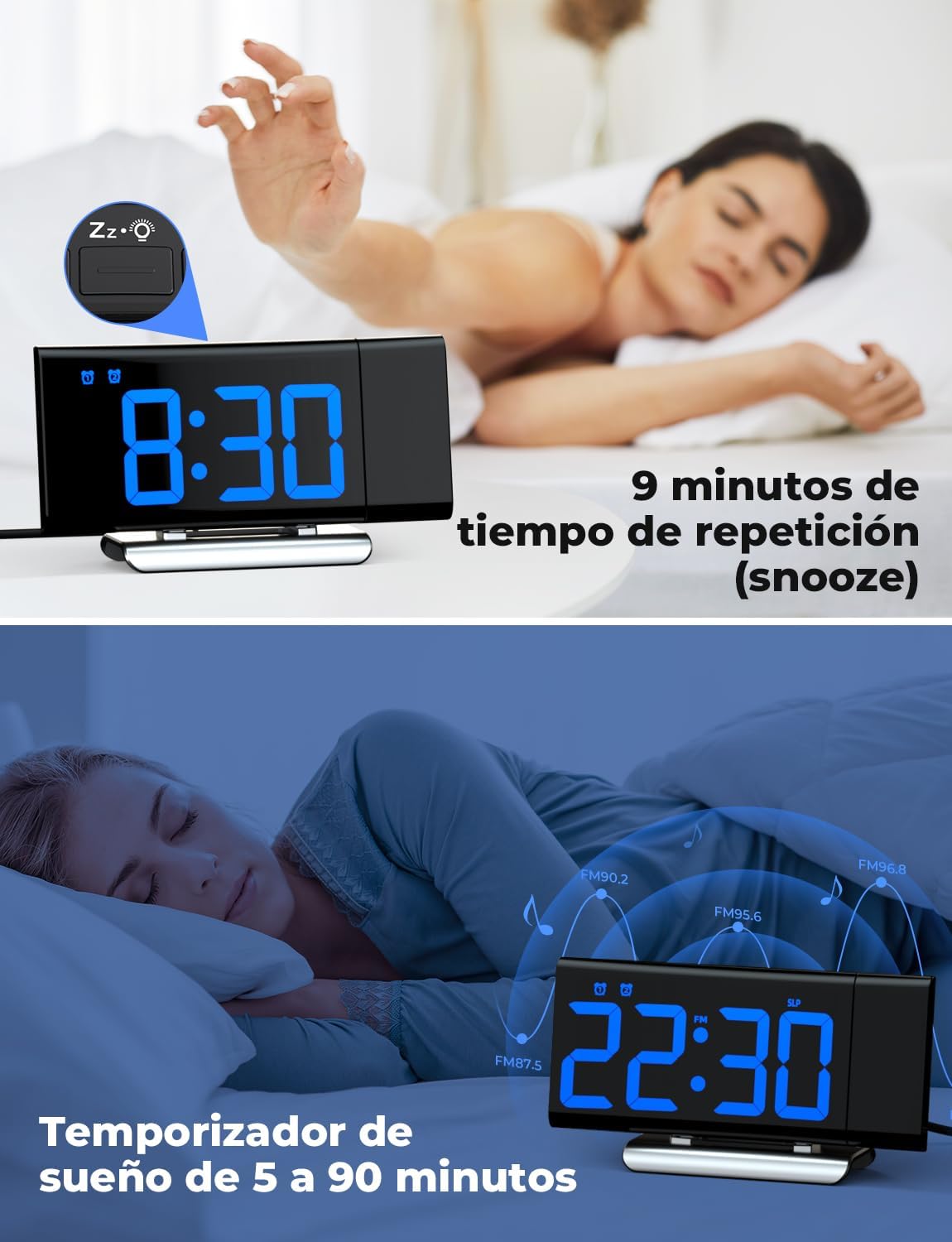
Image: The top section shows a person reaching for the snooze button on the LIORQUE S7509 Projection Alarm Clock, which displays 8:30, indicating a 9-minute snooze period. The bottom section features the clock displaying 22:30 with radio waves, illustrating the sleep timer function which can be set from 5 to 90 minutes, with a person sleeping peacefully in the background.
Maintenance
To ensure the longevity and optimal performance of your LIORQUE S7509 Projection Alarm Clock, follow these simple maintenance guidelines:
- Cleaning: Use a soft, dry cloth to wipe the surface of the clock. Do not use abrasive cleaners, solvents, or chemical sprays, as these can damage the finish and electronic components.
- Dust Removal: Gently wipe the projector lens with a soft, lint-free cloth to maintain clear projection quality.
- Placement: Place the clock on a stable, flat surface away from direct sunlight, heat sources, and excessive moisture.
- Power: Always use the provided power adapter. If the clock is not used for an extended period, you may unplug it. The built-in battery will retain settings for a short duration.
Troubleshooting
If you encounter any issues with your alarm clock, please refer to the following common problems and solutions:
| Problem | Possible Cause | Solution |
|---|---|---|
| Clock display is blank. | No power or power outage. | Ensure the power adapter is securely plugged into the clock and a working outlet. Check if the display brightness is set to 'off'. |
| Projection is blurry or unclear. | Incorrect focus or distance. | Adjust the distance of the clock from the projection surface. Ensure the projector lens is clean. |
| Alarm does not sound. | Alarm not activated or volume too low. | Verify that the alarm icon is displayed on the screen. Check the alarm volume setting. Ensure the alarm time is correctly set. |
| Poor FM radio reception. | Weak signal or antenna position. | Extend the FM antenna fully. Reposition the clock to improve reception. |
| Buttons are unresponsive. | Temporary software glitch. | Unplug the power adapter for a few seconds, then plug it back in to reset the device. |
Specifications
| Feature | Detail |
|---|---|
| Product Dimensions | 10.5 x 3.81 x 6.2 cm; 340 g |
| Model Number | S7509 |
| Brand | LIORQUE |
| Color | Blue |
| Display Type | Digital |
| Power Source | Both: Battery and AC power (with adapter) |
| Shape | Rectangular |
| Usage | Indoor |
| Frame Material | Metal |
| Batteries Included | Yes |
| Mounting Type | Tabletop |
| Alarm Clock | Yes |
| Number of Items | 1 |
Warranty and Support
The LIORQUE S7509 Projection Alarm Clock comes with a manufacturer's warranty. For specific details regarding warranty coverage and duration, please refer to the warranty card included in your package or contact LIORQUE customer support.
If you require further assistance, have questions, or encounter issues not covered in this manual, please contact LIORQUE customer support. Contact information can typically be found on the product packaging, the official LIORQUE website, or through your retailer.


