1. Introduction
The PANTUM M6700DW is a 3-in-1 multifunction laser printer designed for printing, copying, and scanning. This device supports automatic duplex printing and offers multiple connectivity options including WiFi, USB, and Ethernet. It is suitable for various environments, from home offices to small and medium-sized businesses.

Image: The PANTUM M6700DW printer, highlighting its stable, intelligent, fast, and simple operation, with a smartphone showing the mobile application.

Image: The PANTUM M6700DW printer demonstrating its 3-in-1 multifunction capabilities: Print, Copy, and Scan.
2. Safety Information
Please read all safety instructions before using the printer to ensure safe and proper operation. Keep this manual for future reference.
- Do not place the printer in areas with excessive dust, humidity, or direct sunlight.
- Ensure the printer is placed on a stable, level surface.
- Use only the specified power supply and voltage.
- Keep hands clear of moving parts during operation.
- Do not attempt to disassemble or repair the printer yourself. Contact qualified service personnel.
- Keep toner cartridges out of reach of children.
3. Package Contents
Verify that all items are present in the package:
- PANTUM M6700DW Multifunction Laser Printer
- Power Cord
- USB Cable
- Starter Toner Cartridge (1000 pages)
- Starter Drum Unit (9000 pages, pre-installed)
- User Manual (this document)
- Installation CD (or driver download instructions)
4. Product Overview
Familiarize yourself with the main components of your PANTUM M6700DW printer.

Image: Front view of the PANTUM M6700DW printer, showing the control panel and paper trays.

Image: Detailed diagram of the PANTUM M6700DW, indicating the LCD control panel, NFC touch area, USB and Ethernet ports, multipurpose tray, paper input tray (250 pages), and paper output tray (150 pages).
Key Features:
- 3-in-1 Functionality: Print, Copy, Scan.
- High Speed: Up to 30 pages per minute (PPM) for A4, 32 PPM for Letter.
- Automatic Duplex Printing: Saves paper by printing on both sides automatically.
- Multiple Connectivity: USB, Ethernet, Wi-Fi, NFC.
- Mobile Printing: Supports AirPrint, Mopria, and Pantum mobile app for Android/iOS.
- Separate Drum and Toner: Cost-effective maintenance.
- Quiet Operation: Silent mode and automatic standby reduce noise.
5. Setup
5.1 Initial Hardware Setup
- Unpack the Printer: Remove all packaging materials, tapes, and protective films from the printer.
- Install Toner Cartridge and Drum Unit: The drum unit is pre-installed. Insert the toner cartridge into the drum unit as per the instructions provided with the cartridge.
- Load Paper: Open the paper input tray and load paper (up to 250 sheets). Adjust the paper guides to fit the paper size.
- Connect Power: Plug the power cord into the printer and then into a wall outlet.
- Power On: Press the power button to turn on the printer.
5.2 Driver Installation and Connectivity
The printer offers multiple connection methods:

Image: Overview of easy setup options for PC (USB, Ethernet, Wi-Fi) and mobile (Wi-Fi, NFC) for the PANTUM M6700DW printer.

Image: Visual guide for connecting the printer via USB, Ethernet, and Wi-Fi, showing the necessary cable connections and network setup.
5.2.1 USB Connection (for PC)
- Connect the printer to your PC using the provided USB cable.
- Download the driver from global.pantum.com/support/download/driver/.
- Run the installer and select 'connect with USB'.
5.2.2 Ethernet Connection (for PC)
- Ensure your PC is connected to your network.
- Connect the printer to the same network router using an Ethernet cable.
- Download the driver from global.pantum.com/support/download/driver/.
- Run the installer and select 'connect with network'.
5.2.3 Wi-Fi Connection (for PC)
- Ensure your PC is connected to a wired network or Wi-Fi router.
- Connect the PC to the printer via a USB cable to configure wireless printing initially.
- Download the driver from global.pantum.com/support/download/driver/.
- Run the installer and select 'connect with Wi-Fi'. Follow the on-screen instructions to connect the printer to your Wi-Fi network.
- Once configuration is complete, the USB cable can be removed, allowing multiple devices to connect wirelessly. Note: 5G Wi-Fi networks are not supported.
5.2.4 Mobile Device Connection (Wi-Fi Hotspot / Router)
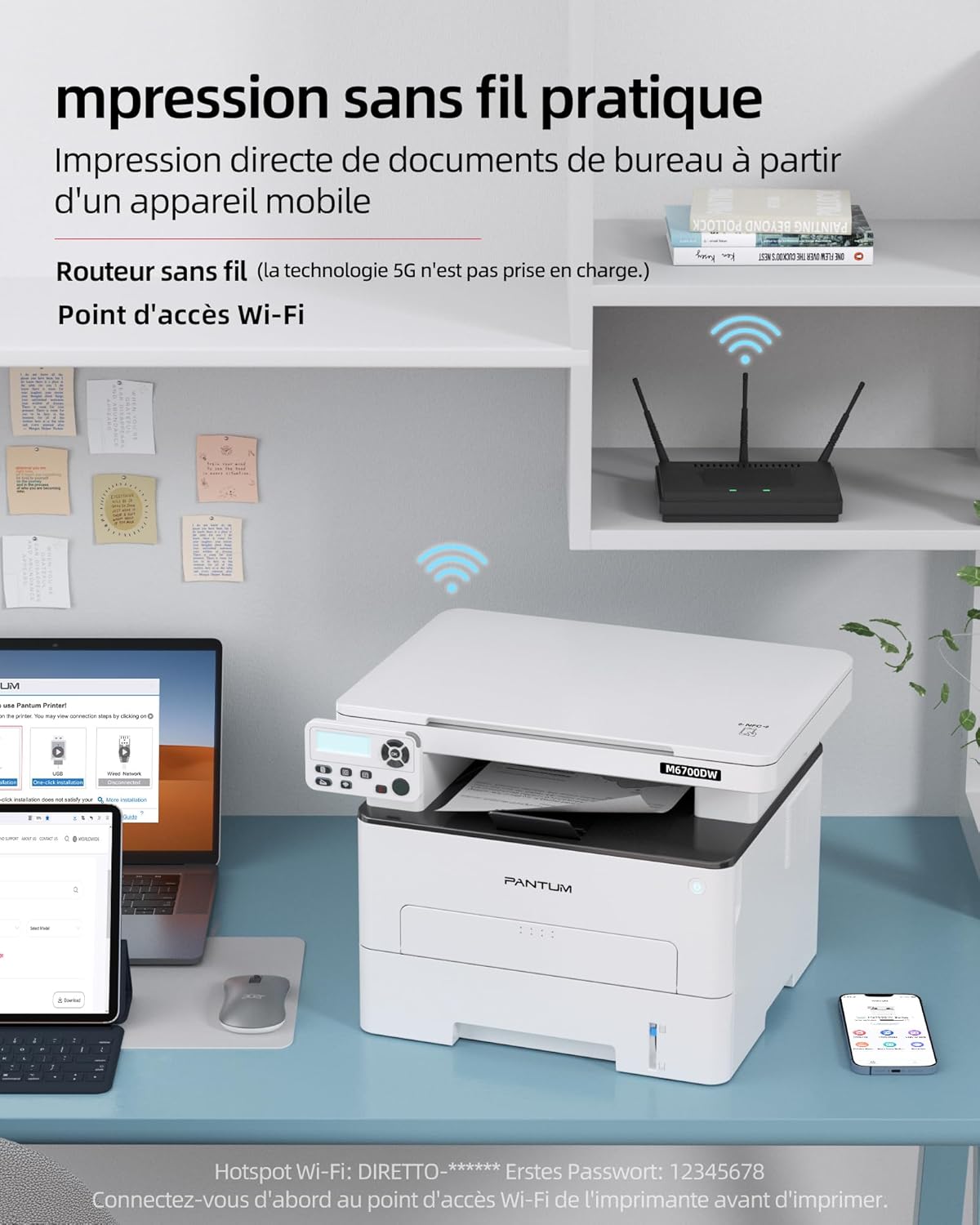
Image: The PANTUM M6700DW printer demonstrating convenient wireless printing from various mobile devices and a laptop.

Image: Explanation of Wi-Fi and wireless connectivity options, including router mode for PC/mobile and hotspot mode for direct mobile printing.
- Via Printer's Wi-Fi Hotspot:
- Connect your mobile device to the printer's Wi-Fi Hotspot (e.g., 'DIRECT-PANTUM M6700...'). The default password might be '12345678'.
- Use your phone's built-in print plug-in or download the PANTUM mobile application.
- Open the document, select print, and choose the printer.
- Via Wi-Fi Router:
- Ensure your mobile device is connected to your Wi-Fi router.
- Open the PANTUM application, add the printer, and find the corresponding printer.
- Enter your Wi-Fi router password to connect.
- NFC Connection (Android only): Tap your NFC-enabled Android device to the NFC touch area on the printer for quick connection.
- AirPrint (iOS): For iOS devices, connect to the printer's hotspot or the same Wi-Fi router to print via AirPrint without additional apps.
- Mopria (Android): For Android devices, connect to the printer's hotspot or the same Wi-Fi router to print via Mopria without additional apps.
6. Operating Instructions
6.1 Printing
- From PC: Open the document, select 'Print' from the application menu, choose the PANTUM M6700DW, adjust settings (e.g., paper size, duplex), and click 'Print'.
- From Mobile Device: Use the PANTUM app or your device's native print function (AirPrint/Mopria) to select the printer and print documents or photos.
- Duplex Printing: Select the duplex option in your print settings to automatically print on both sides of the paper.
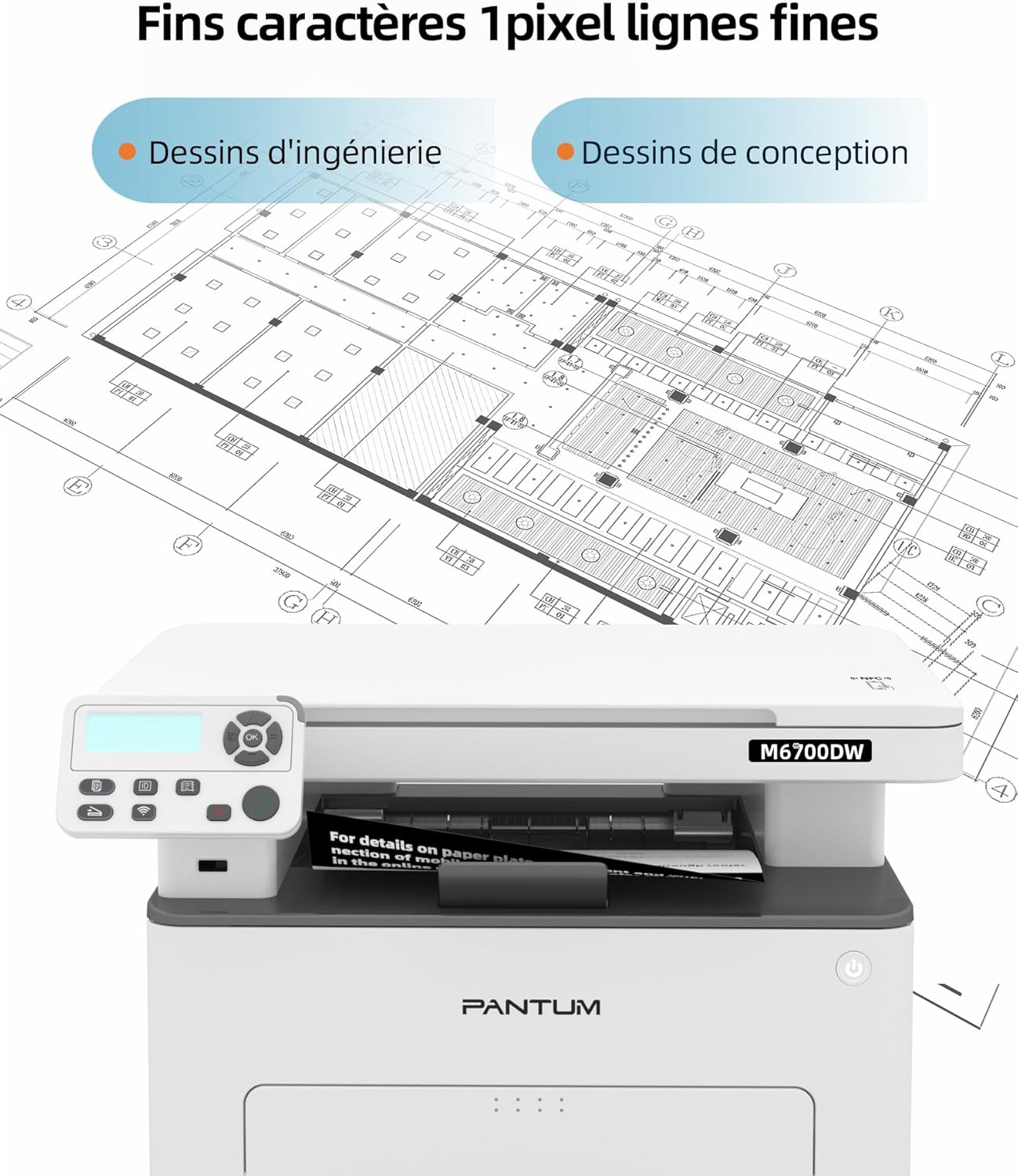
Image: The PANTUM M6700DW printer demonstrating its capability to produce fine characters and detailed engineering or design drawings with 1-pixel line precision.
6.2 Copying
- Place the document face-down on the scanner glass or face-up in the Automatic Document Feeder (ADF).
- Use the control panel to select 'Copy'.
- Adjust settings such as number of copies, darkness, or paper size.
- Press the 'Start' button to begin copying.
6.3 Scanning
- Place the document face-down on the scanner glass or face-up in the ADF.
- From your computer, open the scanning software (usually installed with the printer driver) or use the PANTUM mobile app.
- Select 'Scan' and choose scan settings (e.g., resolution, color/grayscale, destination folder).
- Initiate the scan. The scanned document will be saved to your specified location.

Image: The PANTUM M6700DW performing various tasks: copying documents, color scanning, and printing office materials.
7. Maintenance
7.1 Replacing Toner Cartridge and Drum Unit
The PANTUM M6700DW uses separate toner cartridges and drum units. Replace them when indicated by the printer or when print quality deteriorates.

Image: PANTUM original toner cartridges (TL-410, TL-410H, TL-410X) and drum unit (DL-410) with varying page yields, emphasizing high capacity and RoHS compliance.

Image: PANTUM original toner cartridge, emphasizing its high capacity and environmental considerations. Note: Damages from non-original consumables are not covered by warranty.
- Open the front cover of the printer.
- Remove the old drum unit and toner cartridge assembly.
- Separate the toner cartridge from the drum unit.
- Unpack the new toner cartridge and install it into the drum unit until it clicks into place.
- Insert the new drum unit and toner cartridge assembly back into the printer.
- Close the front cover.
7.2 Cleaning the Printer
- Exterior: Wipe the exterior of the printer with a soft, damp, lint-free cloth.
- Scanner Glass: Clean the scanner glass with a soft cloth moistened with glass cleaner.
- Paper Feed Rollers: Refer to the detailed user manual (Section 14) for instructions on cleaning paper feed rollers if paper jams occur frequently.
8. Troubleshooting
This section addresses common issues you might encounter with your PANTUM M6700DW printer.

Image: An overview of frequently asked questions covering wireless printing, driver installation, and common print quality issues.
Common Questions and Solutions:
Q1: How to print wirelessly via your mobile phone's Wi-Fi Hotspot?
A: 1. Connect your mobile phone to the printer's Wi-Fi Hotspot (e.g., 'DIRECT-PANTUM M6700...'). 2. Use your phone's built-in print plug-in or download the PANTUM application. Open the document, select print, and choose the printer.
Q2: How to install the driver for wireless printing via a Wi-Fi router (for PC)?
A: 1. Connect the printer to the PC with a USB cable. 2. Ensure your PC is connected to the Wi-Fi router. 3. Download and install the driver from the Pantum website, choosing 'connect with Wi-Fi'. The USB cable can be removed after installation. Note: 5G Wi-Fi is not supported.
Q3: How to install the driver via a USB cable (For PC)?
A: 1. Connect the printer to the PC with the USB cable. 2. Download and install the driver from the Pantum website, choosing 'connect with USB'. Only one PC can be connected for printing in this mode.
Q4: How to print wirelessly from your mobile phone via a Wi-Fi router?
A: 1. Ensure your mobile device is connected to your Wi-Fi router. 2. Open the Pantum application and add the printer. 3. Find the printer and enter your Wi-Fi router password to connect. Note: 5G Wi-Fi is not supported.
Q5: What is the difference between printing via a Wi-Fi router and via a Wi-Fi Hotspot?
A: The printer's Wi-Fi Hotspot is a direct connection for mobile devices when a local network is unavailable. A Wi-Fi router connection uses your existing local network, suitable for both PCs and mobile devices (requires the PANTUM app for mobile).
Q6: How to download drivers and user manuals?
A: Drivers and manuals can be downloaded from the official Pantum website: global.pantum.com/support.
Q7: How to resolve a paper jam?
A: Carefully remove any jammed paper. If the issue persists, restart the printer. Refer to Section 14 of the full user manual for detailed instructions.
Q8: Why are there spots or streaks on the print?
A: Ensure the toner cartridge is correctly installed. Clean the paper feed channel inside the device. If the problem continues, clean or replace the toner cartridge. Refer to Section 14 of the full user manual for detailed instructions.
9. Specifications

Image: The PANTUM M6700DW highlighting its high yield with 30 ppm print speed and 50-page Automatic Document Feeder (ADF) capacity.
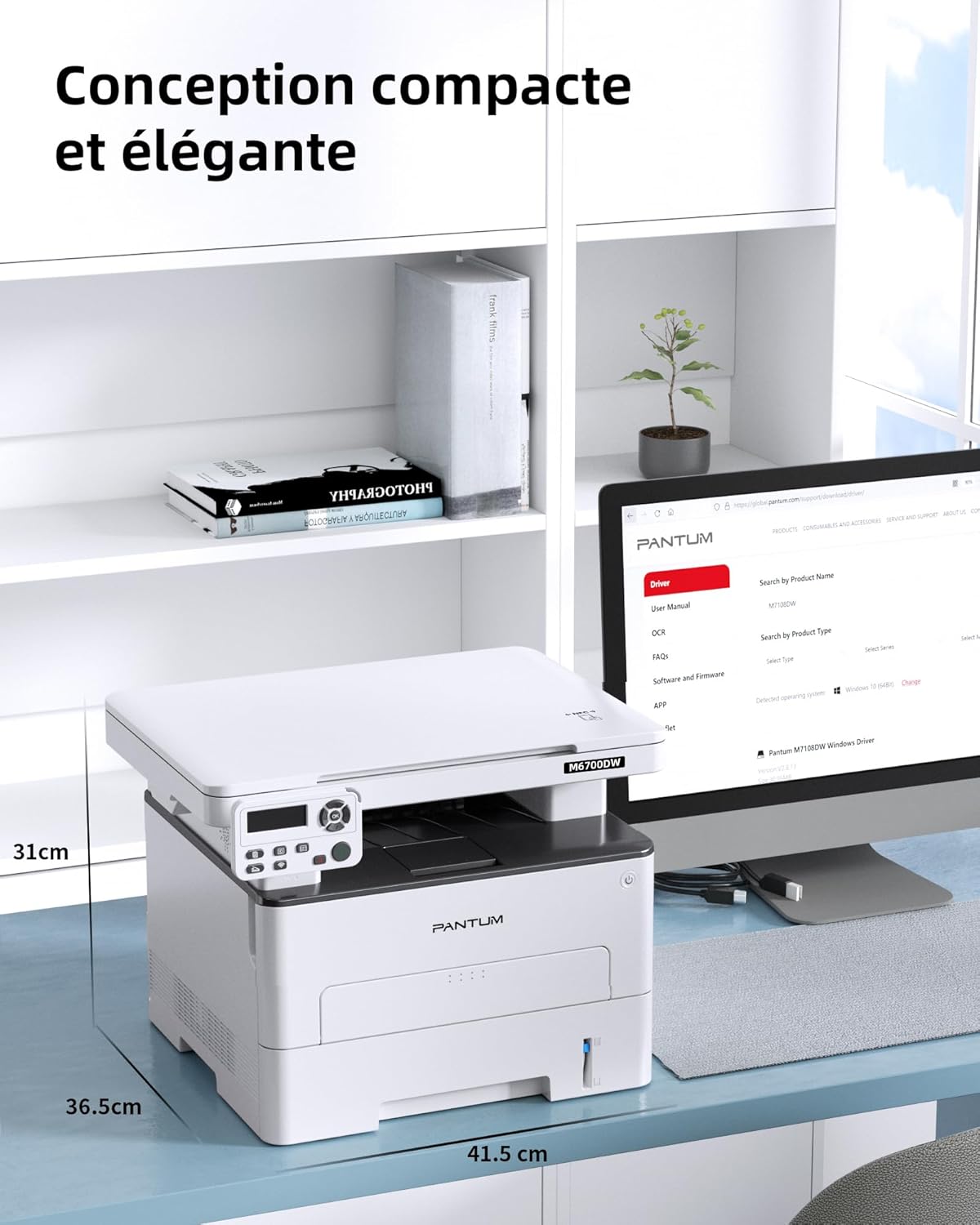
Image: The PANTUM M6700DW printer on a desk, illustrating its compact and elegant design with dimensions of 36.5cm (depth), 41.5cm (width), and 31cm (height).
| Feature | Specification |
|---|---|
| Model Name | M6700DW |
| Brand | PANTUM |
| Printing Technology | Laser |
| Functions | Print, Copy, Scan (3-in-1) |
| Print Speed (Monochrome) | Up to 30 ppm (A4) / 32 ppm (Letter) |
| Print Resolution (Max) | 1200 dpi |
| Duplex Printing | Automatic |
| Scanner Type | Flatbed |
| Copy Speed (Monochrome) | Up to 30 ppm |
| Connectivity | USB, Ethernet, Wi-Fi, NFC |
| Compatible Operating Systems | Windows, Mac OS, Linux |
| Paper Input Capacity | 250 sheets (standard tray) |
| Paper Output Capacity | 150 sheets |
| Supported Media Size | A4, Letter, Legal, etc. |
| Compatible Devices | Laptop, PC, Smartphone, Tablet |
| Item Weight | 10.26 kg |
| Product Dimensions (D x W x H) | 36.5 cm x 41.5 cm x 31 cm |
| Noise Level | ≤48 dB(A) (Silent Mode) |
10. Warranty and Support
10.1 Manufacturer's Warranty
The PANTUM M6700DW printer comes with a 2-year manufacturer's warranty. Please retain your proof of purchase for warranty claims. The warranty does not cover damages caused by the use of non-original Pantum consumables.
10.2 Customer Support
For further assistance, technical support, or to download the latest drivers and full user manuals, please visit the official PANTUM support website:


