
Shaluoman Mobula8
HappyModel Mobula8 Micro FPV Whoop Drone User Manual
Model: Mobula8 | Brand: Shaluoman
1. Introduction
The HappyModel Mobula8 is an 85mm micro FPV (First Person View) Whoop Drone designed for agile and smooth flight performance. It features the X12 series All-in-One (AIO) Flight Controller with built-in 2.4G ELRS V2.0 receiver and a 400mW OpenVTX. Equipped with EX1103 KV11000 motors and Gemfan Hurricane 2023 three-blade propellers, the Mobula8 delivers excellent power and control. This drone is compatible with 1S-2S LiPo/LiHV batteries, offering versatility for various flight styles.
This manual provides essential information for setting up, operating, and maintaining your Mobula8 drone to ensure a safe and enjoyable flying experience.

Image: The HappyModel Mobula8 Micro FPV Whoop Drone, showcasing its compact design, ducted propellers, and the central flight controller with camera.
2. What's in the Box
Please verify that all components are present upon unboxing:
- HappyModel Mobula8 Micro FPV Whoop Drone
- Propellers (Gemfan Hurricane 2023 three-blade)
- Screws
- Camera (Caddx Ant 1200TVL FPV camera)
- Blade (likely referring to spare propellers)
Note: Flight batteries (1S-2S LiPo/LiHV) are not included and must be purchased separately. Recommended capacities are 450mAh/550mAh/650mAh.
3. Setup Guide
3.1. Propeller Installation
Ensure propellers are installed correctly according to motor rotation direction. Each motor typically has a specific rotation (clockwise or counter-clockwise) and requires a matching propeller type (CW or CCW). Refer to the flight controller's default configuration for propeller direction.

Image: Bottom view of the Mobula8 drone, showing the installed propellers and motor wiring. The frame is black with clear propellers.
3.2. Battery Connection
Connect a fully charged 1S or 2S LiPo/LiHV battery to the drone's battery connector. Ensure the polarity is correct before connecting. Incorrect polarity can cause severe damage to the drone's electronics.
3.3. Binding to Remote Controller (ELRS)
The Mobula8 features an integrated ELRS V2.0 receiver. To bind your drone to an ELRS compatible remote controller:
- Power on the drone by connecting the battery.
- Immediately press the bind button on the flight controller (refer to the flight controller diagram for exact location, typically a small button near the receiver).
- The receiver's LED should start flashing rapidly, indicating it's in bind mode.
- On your ELRS remote controller, initiate the binding process. The exact steps vary by radio, but generally involve navigating to the ELRS menu and selecting "Bind".
- Once successfully bound, the receiver's LED on the drone will turn solid.
For detailed ELRS binding instructions, consult your remote controller's manual or the official ELRS documentation.
3.4. Initial Configuration (Betaflight)
The X12 AIO Flight Controller comes pre-flashed with Betaflight firmware. For advanced configuration, PID tuning, or setting up flight modes, connect the drone to a computer using a USB cable and use the Betaflight Configurator software.
- Download and install the latest Betaflight Configurator from the official Betaflight website.
- Connect the drone to your computer via a micro USB cable.
- Open Betaflight Configurator, select the correct COM port, and click "Connect".
- Perform accelerometer calibration and verify sensor orientation.
- Configure modes (Arm, Angle, Acro, etc.) to your remote controller switches.
- Save and reboot the flight controller after making changes.
4. Operating Instructions
4.1. Pre-Flight Checks
- Ensure the battery is fully charged and securely connected.
- Verify all propellers are intact and free from damage.
- Check that the FPV camera lens is clean.
- Confirm your remote controller is powered on and bound to the drone.
- Choose a safe, open area free from obstacles, people, and animals for flight.
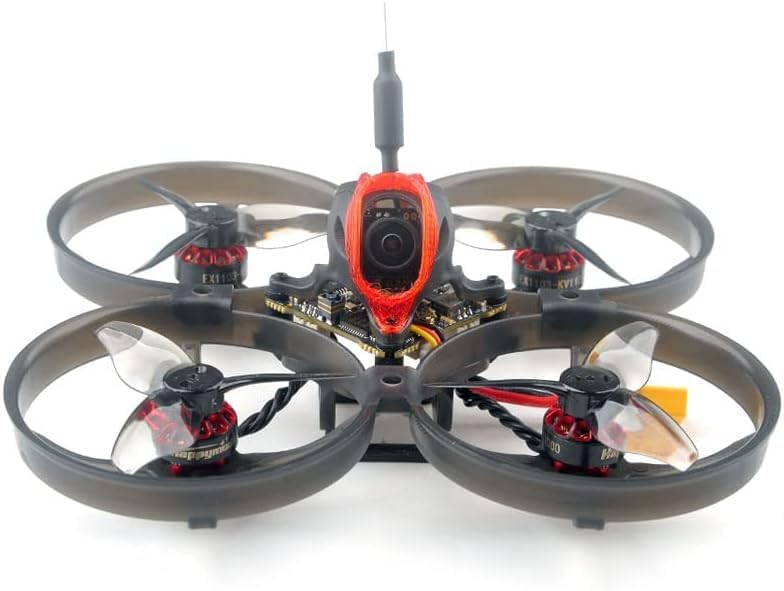
Image: Front view of the Mobula8 drone, highlighting the Caddx Ant FPV camera and the protective ducts around the propellers.
4.2. Arming and Disarming
To arm the motors, move the throttle stick to its lowest position and the yaw stick to the bottom-right (default Betaflight arming gesture). Alternatively, if configured, flip the designated arming switch on your remote controller. The motors will spin slowly, indicating they are armed and ready for flight.
To disarm, perform the reverse gesture (throttle lowest, yaw bottom-left) or flip the arming switch off. The motors will stop spinning.
4.3. Basic Flight Controls
- Throttle: Controls altitude. Increase to go up, decrease to go down.
- Roll: Controls side-to-side movement (left/right).
- Pitch: Controls forward/backward movement.
- Yaw: Controls rotation around the vertical axis (turning left/right).
Practice these controls in a safe environment before attempting advanced maneuvers.
4.4. FPV System Usage
The Mobula8 is equipped with a Caddx Ant 1200TVL FPV camera and a 400mW OpenVTX. To receive the video feed, you will need FPV goggles or a monitor with a compatible 5.8GHz receiver.
- Ensure your FPV goggles/monitor are powered on and set to the correct 5.8GHz frequency band and channel that matches your drone's VTX.
- The VTX channel can be changed via Betaflight OSD (On-Screen Display) menu or SmartAudio/TrampHV protocol if supported by your flight controller and VTX.
- Always power on your FPV receiver before powering on the drone to avoid VTX overheating, especially when not flying.
5. Maintenance
Regular maintenance ensures the longevity and optimal performance of your Mobula8 drone.
- Propeller Inspection: After each crash or hard landing, inspect propellers for cracks, bends, or chips. Replace damaged propellers immediately as they can cause vibrations and affect flight stability.
- Cleaning: Use a soft brush or compressed air to remove dust, dirt, and debris from motors, flight controller, and camera. Avoid using liquids directly on electronics.
- Motor Health: Check motors for smooth rotation. If a motor feels gritty or makes unusual noises, it may require cleaning or replacement.
- Battery Care: Store LiPo/LiHV batteries at storage voltage (around 3.8V per cell) when not in use for extended periods. Do not overcharge or over-discharge.
- Firmware Updates: Periodically check for updated Betaflight firmware for your X12 flight controller. Updates can improve performance, add features, or fix bugs. Follow official Betaflight flashing guides carefully.
6. Troubleshooting
This section addresses common issues you might encounter with your Mobula8 drone.
6.1. Motors Not Spinning / Drone Not Arming
- Battery Low: Ensure the flight battery is fully charged.
- Receiver Not Connected: Verify the ELRS receiver is properly bound to your remote controller (solid LED on receiver).
- Arming Switch/Gesture: Confirm you are performing the correct arming procedure as configured in Betaflight.
- Safety Features: Betaflight has safety checks. Check the OSD or Betaflight Configurator for warnings (e.g., "ARMING DISABLED", "NO RX INPUT", "ACCEL CALIB"). Calibrate accelerometer if needed.
- Motor/ESC Issues: If only one or some motors are not spinning, inspect the motor for physical damage or debris. Check ESC (Electronic Speed Controller) connections. A faulty ESC or motor can prevent arming.
6.2. No FPV Video Feed
- Channel Mismatch: Ensure your FPV goggles/monitor are on the exact same frequency band and channel as the drone's VTX.
- Antenna Connection: Check that the VTX antenna on the drone and the receiver antenna on your goggles are securely connected.
- Camera/VTX Damage: Inspect the camera lens and VTX for physical damage. A hard crash can dislodge or damage internal components.
- Power Issue: Verify the camera and VTX are receiving power. This can be checked in Betaflight's OSD or by visual inspection of LEDs on the VTX.
6.3. Unstable Flight / Vibrations
- Damaged Propellers: The most common cause. Replace any bent, cracked, or chipped propellers.
- Loose Motors/Screws: Ensure all motor mounting screws are tight.
- Frame Damage: Inspect the drone frame for any cracks or deformities that could affect rigidity.
- PID Tuning: If the drone exhibits oscillations or wobbles, the PID (Proportional-Integral-Derivative) values in Betaflight may need adjustment. This is an advanced topic and requires careful research.
7. Specifications

Image: The Mobula8 drone placed on a digital scale, indicating its lightweight design, which is approximately 1.6 ounces (45 grams).
| Feature | Detail |
|---|---|
| Brand | Shaluoman |
| Model Name | Mobula8 |
| Special Feature | First Person View (FPV) |
| Age Range (Description) | Adult |
| Color | Grey |
| Video Capture Resolution | 720p |
| Connectivity Technology | HDMI (Internal FC connectivity) |
| Included Components | Propeller, Screw, Camera, Blade |
| Item Weight | 1.6 ounces (approx. 45g) |
| Battery Capacity (Recommended) | 450 Milliamp Hours (for compatible batteries, not included) |
| Video Capture Format | CVBS (Composite Video Blanking and Sync) |
| Remote Control Technology | Wi-Fi (for configuration, not flight control) |
| Control Type | Remote Control (via ELRS receiver) |
| Material | Plastic |
| Wireless Communication Technology | Radio Frequency (ELRS) |
| Battery Cell Composition | Lithium Polymer |
| Are Batteries Included | No |
| Video Output Resolution | 1200 TVL (Caddx Ant Camera) |
| Product Dimensions | 4.7"L x 4.7"W x 0.9"H (approx. 120mm x 120mm x 23mm) |
| UPC | 764126151304 |
| Manufacturer | Shaluoman |
| Manufacturer Part Number | M8SG19J |
8. Warranty and Support
The HappyModel Mobula8 drone is covered by a manufacturer's warranty against defects in materials and workmanship. Please retain your proof of purchase for warranty claims.
For technical support, troubleshooting assistance, or warranty inquiries, please contact the manufacturer or your point of purchase. You can also visit the official Shaluoman Store for more information and resources:
Online communities and forums dedicated to FPV drones and Betaflight can also be valuable resources for tips, tricks, and community support.
Related Documents - Mobula8
 |
Happymodel Mobula8 UART ELRS Pro v1.1 5-in-1 AIO Flight Controller Manual Comprehensive guide for the Happymodel Mobula8 UART ELRS Pro v1.1 AIO flight controller, covering features, specifications, setup, binding procedures, and firmware updates for this 2S 85mm micro FPV drone. |
 |
Happymodel Mobula8 1-2S 85mm Micro FPV Drone Manual & Setup Guide Comprehensive guide for the Happymodel Mobula8 1-2S 85mm Micro FPV whoop drone, covering features, specifications, setup, binding, configuration, ESC settings, VTX channels, and firmware updates. Includes detailed instructions for optimal performance. |
 |
Happymodel Mobula8 1-2S 85mm Micro FPV Drone Manual and Settings Comprehensive guide to the Happymodel Mobula8 1-2S 85mm Micro FPV drone, covering receiver wiring diagrams, ESC settings, PID and filter configurations, VTX setup, and firmware updates. |
 |
Nikon NIKKOR Z 85mm f/1.8 S Lens User Manual and Specifications User manual, safety instructions, usage guide, accessories, specifications, and warranty information for the Nikon NIKKOR Z 85mm f/1.8 S lens. |
 |
Nikon D610 FX-Format DSLR Camera: Full-Scale Photography Explore the Nikon D610, a full-frame FX-format DSLR camera offering exceptional image quality with its 24.3MP sensor, advanced features, and compact design. Discover its capabilities for professional and enthusiast photographers. |
 |
ZHIYUN CRANE 4E 相机与镜头兼容性列表 查阅ZHIYUN CRANE 4E稳定器官方相机与镜头兼容性列表。本指南详细列出了Canon、Nikon等品牌相机型号及其兼容镜头,提供安装类型、调平状态、跟焦器安装和调平说明,确保用户获得最佳稳定器使用体验。 |
Ask a question about this manual
Ask about setup, troubleshooting, compatibility, parts, safety, or missing instructions. Manuals+ will review the question and use this page’s manual context to help answer it.