
X68
VGN X68 Mechanical Gaming Keyboard User Manual
Model: X68 | Brand: Generic
1. Introduction
Thank you for choosing the VGN X68 Mechanical Gaming Keyboard. This user manual provides detailed instructions on setting up, operating, and maintaining your new keyboard. The VGN X68 is a versatile mechanical keyboard designed for gaming and productivity, featuring three connectivity modes (wired, 2.4G wireless, and Bluetooth 5.0), vibrant RGB backlighting, and hot-swappable switches for personalized customization.

Image: The VGN X68 Mechanical Gaming Keyboard with its retail packaging, showcasing its design and RGB lighting.
2. Package Contents
Please verify that all items listed below are included in your package:
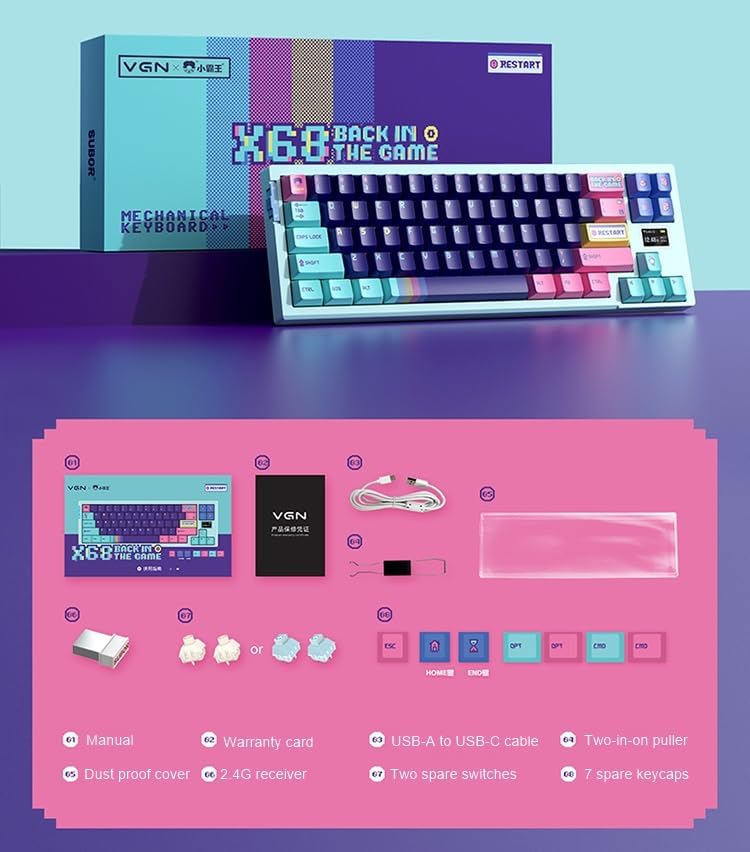
Image: A visual representation of all items included in the VGN X68 keyboard package.
- VGN X68 Mechanical Gaming Keyboard
- User Manual
- Warranty Card
- USB-A to USB-C Cable
- Two-in-one Puller (for keycaps and switches)
- Dust Proof Cover
- 2.4G Wireless Receiver
- Two Spare Switches
- Seven Spare Keycaps
3. Setup
3.1 Initial Charging
Before first use, it is recommended to fully charge the keyboard. Connect the provided USB-A to USB-C cable to the keyboard's Type-C port and a USB power source (e.g., computer USB port, wall adapter). The charging indicator will show the charging status.
3.2 Connecting Your Keyboard
The VGN X68 supports three connection modes: Wired, 2.4G Wireless, and Bluetooth 5.0. Use the switch located on the keyboard to select your desired mode.

Image: A detailed view of the physical switch on the keyboard used to toggle between 2.4G wireless, wired, and Bluetooth modes.
3.2.1 Wired Mode
- Set the mode switch to 'Wired' (usually indicated by a cable icon or 'USB').
- Connect the USB-C end of the cable to the keyboard and the USB-A end to your computer.
- The keyboard will be automatically recognized by your operating system (e.g., Windows 10) and ready for use.
3.2.2 2.4G Wireless Mode
- Set the mode switch to '2.4G' (usually indicated by a wireless icon).
- Plug the 2.4G wireless receiver into an available USB port on your computer.
- The keyboard should connect automatically. If not, press Fn + R (or a similar key combination indicated in the manual) to initiate pairing.
3.2.3 Bluetooth Mode
- Set the mode switch to 'BT' (Bluetooth).
- On your computer or device, enable Bluetooth and search for new devices.
- The keyboard will appear as 'VGN X68' or similar. Select it to pair.
- You may need to press Fn + 1/2/3 to select a Bluetooth profile if the keyboard supports multiple Bluetooth connections.
4. Operating Instructions
4.1 Key Functions and Layout
The VGN X68 is a 61-key mechanical keyboard. Many functions are accessed via the 'Fn' key in combination with other keys. Refer to the keycap legends for specific shortcuts.
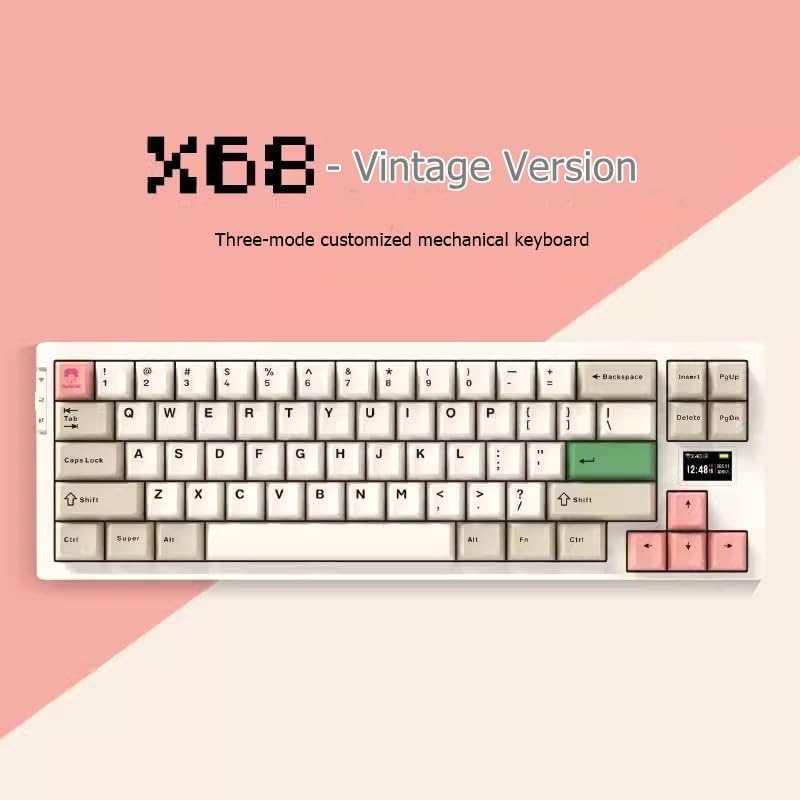
Image: The VGN X68 keyboard, showcasing its compact layout and keycap design.
4.2 RGB Backlight Control
The keyboard features multicolor RGB backlighting. Use the following key combinations to control the lighting effects:
- Fn + \|: Cycle through different RGB lighting modes.
- Fn + ↑/↓: Adjust backlight brightness.
- Fn + ←/→: Adjust lighting effect speed or direction.
- Fn + Del: Change backlight color (for static modes).
4.3 Screen Display Functions
The VGN X68 features a small screen display that provides useful information at a glance:
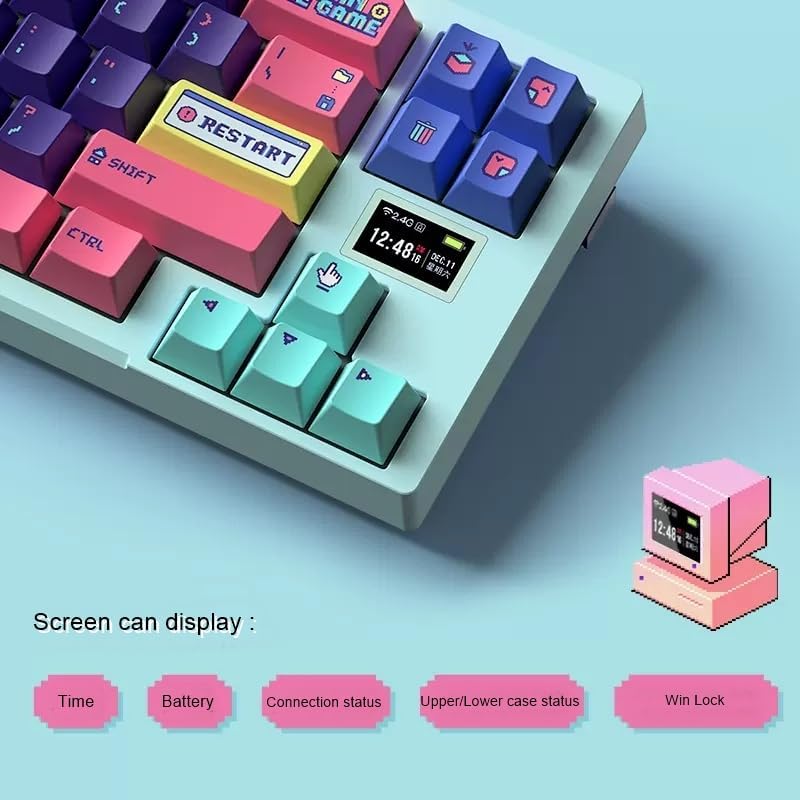
Image: A close-up of the keyboard's integrated screen, displaying icons for time, battery level, connection status, case status, and Win Lock.
- Time: Displays the current time.
- Battery: Shows the current battery level.
- Connection Status: Indicates the active connection mode (Wired, 2.4G, or Bluetooth).
- Upper/Lower Case Status: Shows if Caps Lock is enabled.
- Win Lock: Indicates if the Windows key is locked (to prevent accidental presses during gaming).
5. Maintenance
5.1 Cleaning
To maintain your keyboard's performance and appearance:
- Disconnect the keyboard from your computer before cleaning.
- Use a soft brush or compressed air to remove dust and debris from between the keycaps.
- Wipe the keycaps and keyboard surface with a slightly damp, lint-free cloth. Avoid excessive moisture.
- Use the provided dust proof cover when the keyboard is not in use to prevent dust accumulation.
5.2 Keycap and Switch Replacement
The VGN X68 features hot-swappable switches, allowing you to easily change switches without soldering. Use the provided two-in-one puller for both keycaps and switches.
- To remove a keycap: Use the keycap puller end of the tool to gently pull the keycap straight up.
- To remove a switch: Use the switch puller end of the tool to grasp the switch from its top and bottom clips, then gently pull it straight up.
- To install a switch: Align the pins of the new switch with the holes on the PCB and press down firmly until it clicks into place. Ensure pins are not bent.
- To install a keycap: Align the keycap with the switch stem and press down firmly.
6. Troubleshooting
If you encounter issues with your VGN X68 keyboard, please refer to the following common solutions:
- Keyboard not responding: Ensure the keyboard is charged. Check the connection mode switch (Wired, 2.4G, Bluetooth) and ensure it matches your connection method. For wired, try a different USB port. For wireless, ensure the receiver is properly plugged in or Bluetooth is paired.
- Keys not registering: Check if any keycaps or switches are loose. Re-seat them if necessary. Test on another device to rule out software issues.
- Backlight not working/flickering: Ensure the keyboard is charged. Try cycling through backlight modes (Fn + \|) or adjusting brightness (Fn + ↑/↓).
- Bluetooth connection unstable: Ensure no other devices are interfering with the Bluetooth signal. Try re-pairing the keyboard. Ensure your device's Bluetooth drivers are up to date.
- 2.4G wireless lag: Ensure the receiver is not too far from the keyboard. Avoid placing the receiver near other wireless devices that might cause interference.
If problems persist, please refer to the Warranty and Support section.
7. Specifications
| Feature | Specification |
|---|---|
| Brand | Generic |
| Model | X68 |
| Manufacturer | Genie |
| Color | Cyan |
| Operating System Compatibility | Windows 10 |
| Connectivity Technology | Bluetooth 5.0, 2.4G Wireless, Type-C Wired |
| Keyboard Description | Mechanical |
| Recommended Uses | Gaming |
| Special Feature | Backlit |
| Number of Keys | 61 |
| Keyboard Backlight Color Support | RGB (Red, Green, Blue) |
| Style | Modern |
| Keycap Printing | Doubleshot |
| Keycap Material | PBT Plastic |
| Hot-swappable Switches | Yes |
| Switch Manufacturer | Kailh |
| Axis Body Brand | Kailh Box |
| Full-size Keyboard | No |
| Wrist Rest Support | No |
8. Warranty and Support
Your VGN X68 Mechanical Gaming Keyboard comes with a manufacturer's warranty. For any product issues, including damaged or incorrect items, please do not hesitate to contact our support team. We are committed to providing prompt assistance and will respond to your inquiries within 24 hours.
Please refer to the warranty card included in your package for specific terms and conditions.
Related documentsX68


Ask a question about this manual
Ask about setup, troubleshooting, compatibility, parts, safety, or missing instructions. Manuals+ will review the question and use this page’s manual context to help answer it.