
G308 (Three Modes)
Eweadn G308 Wireless Mouse User Manual
Model: G308 (Three Modes)
Introduction
This manual provides comprehensive instructions for the Eweadn G308 Wireless Mouse. Designed for versatility, this mouse offers three connectivity modes, ergonomic comfort, and customizable RGB lighting, making it suitable for both PC office work and gaming. Please read this manual thoroughly to ensure proper use and maintenance of your device.
Key Features
- Three-Mode Connectivity: Supports 2.4Ghz Wireless, Bluetooth, and Wired USB connections for maximum flexibility.
- Rechargeable Battery: Built-in rechargeable battery for convenience and environmental friendliness.
- Ergonomic Design: Crafted for comfortable grip during extended use, reducing hand fatigue.
- Mute Click Buttons: Silent click design for a quiet working or gaming environment.
- Customizable RGB Lighting: Dynamic RGB lighting with multiple effects to personalize your setup.
- 7 Programmable Buttons: Enhance productivity and gaming performance with customizable button functions.
- Opto-electronic Tracking: Precise and responsive cursor control.
Package Contents
Before proceeding, please ensure all items are present in your package:
- Eweadn G308 Wireless Mouse
- USB Receiver (for 2.4Ghz Wireless mode)
- USB Charging Cable
- User Manual (this document)
Setup
1. Charging the Mouse
Before first use, it is recommended to fully charge the mouse. Connect the provided USB charging cable to the mouse's charging port and the other end to a USB power source (e.g., computer USB port, USB wall adapter).

Image: The Eweadn G308 mouse, highlighting its design and button layout.
2. Connecting the Mouse
The Eweadn G308 mouse supports three connection modes:
2.1. 2.4Ghz Wireless Mode
- Locate the USB receiver, usually stored in a compartment on the underside of the mouse.
- Plug the USB receiver into an available USB port on your computer.
- Turn on the mouse using the power switch on its underside. The mouse should automatically connect.
- The mouse is ready for use.
2.2. Bluetooth Mode
- Ensure your computer's Bluetooth is enabled.
- Switch the mouse to Bluetooth mode (refer to the operating instructions for mode switching).
- On your computer, go to Bluetooth settings and search for new devices.
- Select "Eweadn G308" from the list of available devices to pair.
- The mouse is ready for use.
2.3. Wired USB Mode
- Connect the USB charging cable directly from the mouse to a USB port on your computer.
- The mouse will function as a wired mouse and will also charge simultaneously.
- No drivers are typically required for basic functionality.
Operating Instructions
1. Mode Switching
The Eweadn G308 mouse features a mode switch on its underside or a dedicated button to cycle between 2.4Ghz Wireless, Bluetooth, and Wired modes. Refer to the markings on the mouse for the exact switch position.

Image: The Eweadn G308 mouse, emphasizing its quiet operation and power-saving features.
2. Button Functions
The mouse is equipped with 7 buttons. Standard functions include left click, right click, scroll wheel click, and DPI adjustment. The side buttons and additional top buttons may be programmable depending on your operating system or specific software.
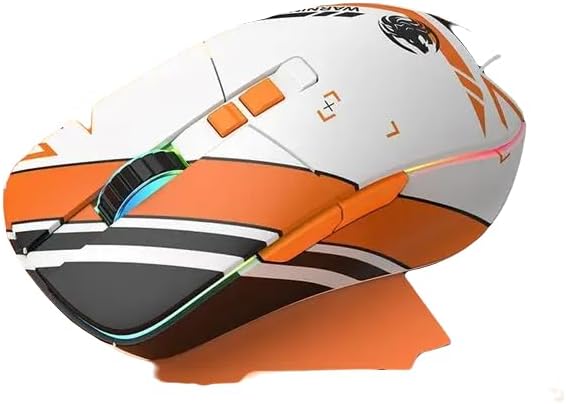
Image: A white and orange variant of the Eweadn G308 mouse, showcasing its ergonomic shape and RGB lighting.
3. RGB Lighting Control
The RGB lighting can be adjusted or turned off using a dedicated button, often located near the scroll wheel or on the underside. Cycle through different lighting modes and colors to find your preferred aesthetic.
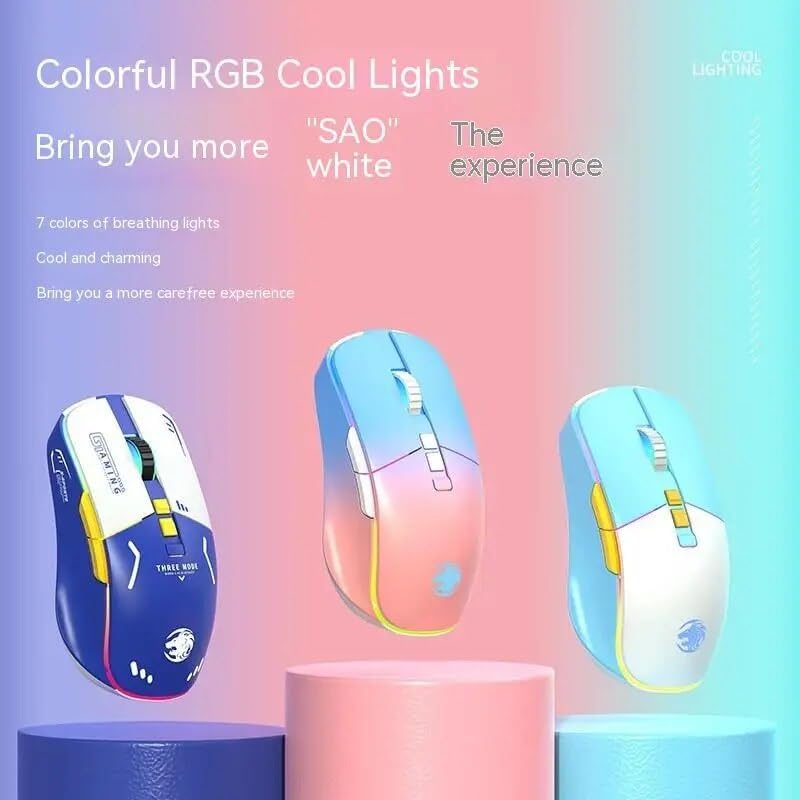
Image: Multiple color variants of the Eweadn G308 mouse demonstrating the customizable RGB lighting.
4. DPI Adjustment
The DPI (Dots Per Inch) button allows you to change the mouse's sensitivity on the fly. Press the DPI button to cycle through preset DPI levels, indicated by changes in the RGB lighting or a dedicated indicator light. Higher DPI means faster cursor movement.
Maintenance
1. Cleaning
To clean your mouse, use a soft, dry cloth. For stubborn dirt, a slightly damp cloth with mild soap can be used, but ensure no liquid enters the mouse. Avoid using harsh chemicals or abrasive materials.
2. Battery Care
To prolong battery life, avoid fully discharging the mouse frequently. Charge the mouse when the battery indicator light suggests low power. Store the mouse in a cool, dry place when not in use for extended periods.
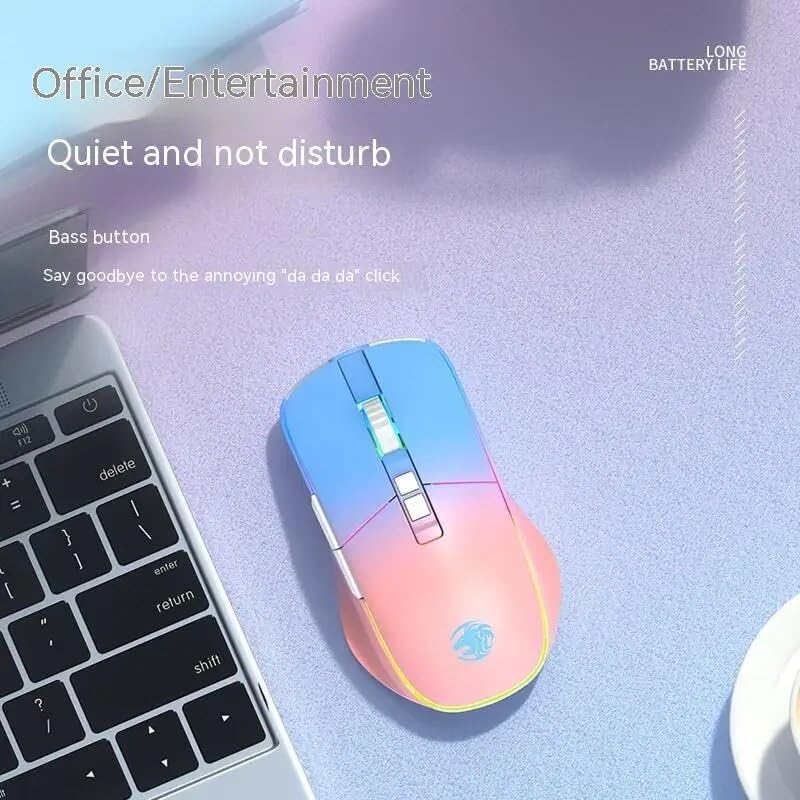
Image: The Eweadn G308 mouse in a typical usage scenario, highlighting its quiet operation.
Troubleshooting
- Mouse not responding:
- Ensure the mouse is charged.
- Check if the mouse is turned on.
- Verify the correct connection mode (2.4Ghz, Bluetooth, or Wired) is selected.
- For 2.4Ghz, ensure the USB receiver is securely plugged in. Try a different USB port.
- For Bluetooth, ensure Bluetooth is enabled on your device and the mouse is paired. Try re-pairing.
- Try connecting via wired USB to see if the mouse functions.
- Cursor movement is erratic or slow:
- Clean the optical sensor on the underside of the mouse.
- Ensure you are using the mouse on a suitable surface (non-reflective, non-transparent).
- Adjust the DPI setting to a higher level.
- Check for interference if using wireless modes.
- RGB lighting not working:
- Ensure the mouse is powered on.
- Press the RGB control button to cycle through modes or turn it on.
- Check battery level; low battery might disable RGB to conserve power.
- Buttons not responding:
- Ensure the mouse is properly connected and powered.
- Restart your computer.
- If specific buttons are not working, check for software conflicts or custom keybindings.
Specifications
| Feature | Description |
|---|---|
| Model | G308 |
| Operation Mode | Opto-electronic |
| Power Type | Rechargeable |
| Number of Buttons | 7 |
| Number of Rollers | 1 pcs (Scroll Wheel) |
| Hand Orientation | Right |
| Interface Type | USB |
| Connectivity Technology | 2.4Ghz Wireless, Bluetooth, Wired USB |
| Special Features | Wireless, RGB Lighting, Mute Click |
| Compatible Devices | Personal Computer (PC, Laptop) |
| Material | Other |
Warranty and Support
Your Eweadn G308 Wireless Mouse comes with a 12 Months Warranty from the date of purchase. This warranty covers manufacturing defects and malfunctions under normal use.
What is covered:
- Defects in materials and workmanship.
- Malfunctions under normal operating conditions.
What is not covered:
- Damage caused by misuse, abuse, accident, or neglect.
- Unauthorized repairs or modifications.
- Normal wear and tear.
For Warranty Claims or Support:
If you encounter any issues with your product, such as receiving a damaged or incorrect item, or if you experience any operational problems, please contact the seller directly. We aim to respond to all inquiries within 24 hours to provide assistance and resolution.
Please retain your proof of purchase for warranty validation.
Ask a question about this manual
Ask about setup, troubleshooting, compatibility, parts, safety, or missing instructions. Manuals+ will review the question and use this page’s manual context to help answer it.