Introduction
This manual provides detailed instructions for the setup, operation, and maintenance of your Globalsades Wired RGB Backlit Gaming Keyboard and Mouse Bundle. Please read this manual thoroughly before using the product to ensure proper functionality and longevity.

Image: The Globalsades wired gaming keyboard and mouse bundle, including a mouse pad.
Package Contents
Verify that all items are present in your package:
- 1 x Globalsades Wired RGB Backlit Gaming Keyboard
- 1 x Globalsades Wired Gaming Mouse
Setup
Follow these steps to connect your gaming keyboard and mouse to your computer:
- Connect the Keyboard: Locate an available USB port on your computer. Insert the USB connector of the gaming keyboard into the USB port.
- Connect the Mouse: Locate another available USB port on your computer. Insert the USB connector of the gaming mouse into the USB port.
- Driver Installation: The keyboard and mouse are plug-and-play devices. Your operating system (Windows or Mac OS) will automatically detect and install the necessary drivers. No additional software installation is typically required for basic functionality.
- System Compatibility: This bundle is compatible with Windows 10, Windows 8, Windows 7, Windows Vista, Windows XP, and offers limited support for Mac OS.

Image: The SADES D10-RGB gaming keyboard and mouse connected to a computer setup.
Operating Instructions
Keyboard Functions
- Standard Layout: The keyboard features a 104-key layout for comprehensive input.
- Multimedia Keys: Access 12 multimedia functions (F1-F12) by pressing the FN key simultaneously with the corresponding F-key. Note: Multimedia keys are not available on Mac OS.
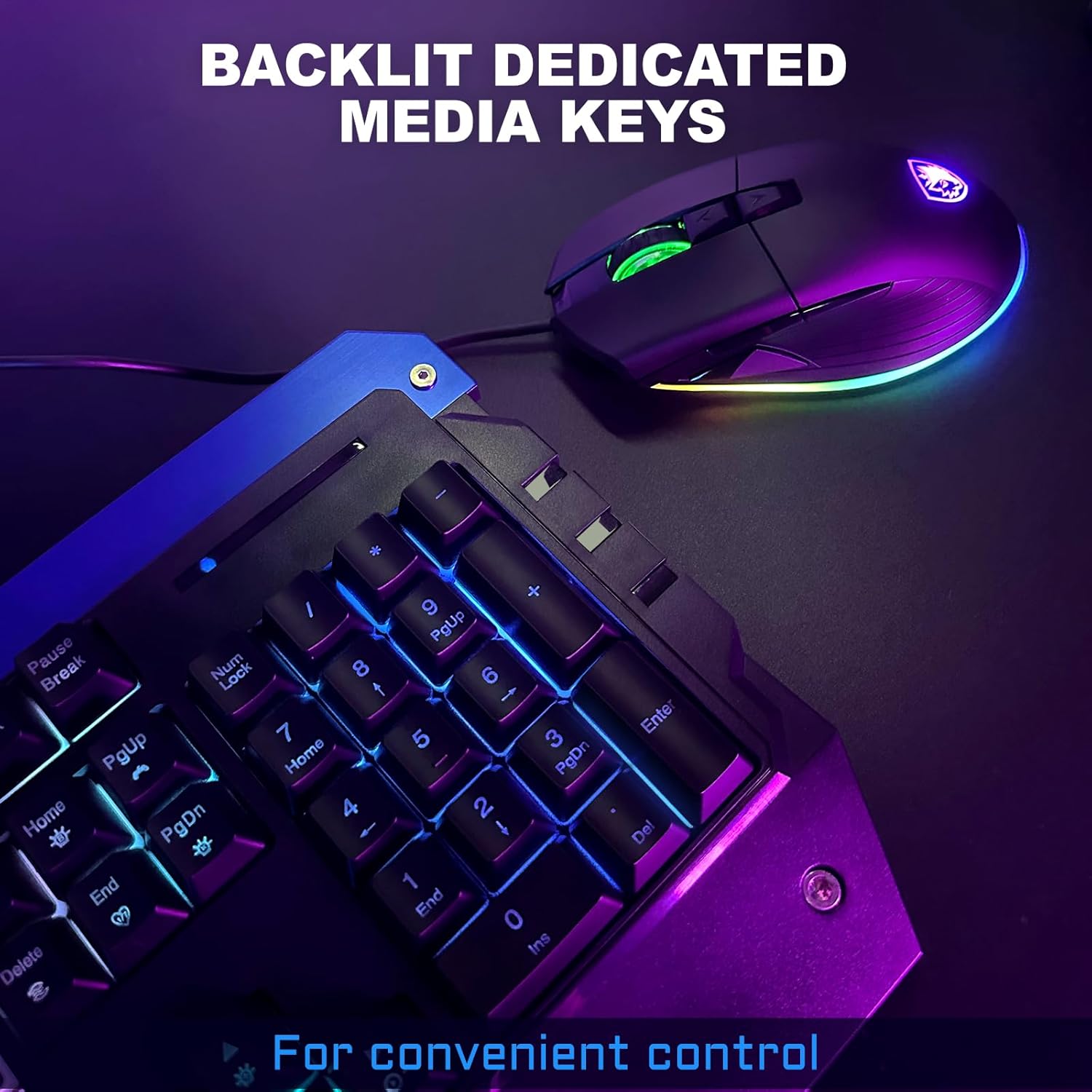
Image: Close-up of the keyboard's backlit multimedia keys and the gaming mouse.
- Anti-Ghosting: The keyboard supports 19 anti-interference keys, ensuring accurate registration of multiple simultaneous key presses.
- WSAD and Arrow Key Swap: To swap the functionality of the WSAD keys with the arrow keys, press FN + W. Repeat the combination to revert to the default setting.
- WIN Key Lock: To prevent accidental interruptions during gameplay, you can lock the Windows key by pressing FN + WIN. Press again to unlock.
- RGB Backlighting: The keyboard features dynamic LED rainbow backlighting with two modes: pulsating and steady. Use dedicated keys or key combinations (refer to specific product documentation if available) to switch modes or turn the lights on/off.

Image: The SADES gaming keyboard showcasing its RGB lighting zones.
- Keycap Design: The keycaps are UV-coated for improved fade and scratch resistance, ensuring durability.

Image: Close-up of the UV-coated keycaps on the SADES gaming keyboard.
- Switch Type: The keyboard utilizes mecha-membrane switches, designed for a clicky keystroke feel with a soft, cushioned touch.

Image: Diagram illustrating the internal structure of a SADES mecha-membrane switch.
- Built-in Wrist Rest: The keyboard features a built-in wrist rest for extended gaming comfort.

Image: The SADES gaming keyboard with its integrated wrist rest.
Mouse Functions
- Adjustable DPI: The mouse offers 6 adjustable DPI settings: 800, 1200, 1600, 2400, 3200, and 4200. Use the dedicated DPI buttons (usually located below the scroll wheel) to cycle through these settings.
- Ambient Light Ribbon: The mouse features an enchanting ambient light ribbon that changes colors.
- Programmable Buttons: The mouse includes programmable buttons. Note: The program function for these buttons is only available on Windows systems.
Maintenance
To ensure the longevity and optimal performance of your gaming keyboard and mouse, follow these maintenance guidelines:
- Cleaning: Use a soft, dry cloth to wipe down the surfaces of the keyboard and mouse. For stubborn dirt, slightly dampen the cloth with water or a mild cleaning solution. Avoid harsh chemicals or abrasive materials.
- Dust Removal: Use compressed air to remove dust and debris from between the keycaps and around the mouse sensor.
- Avoid Liquid Spills: Keep liquids away from the devices to prevent damage to internal components.
- Cable Care: Avoid bending or twisting the USB cables excessively to prevent internal wire damage.
Troubleshooting
If you encounter issues with your Globalsades Gaming Keyboard and Mouse Bundle, refer to the following common solutions:
| Problem | Possible Cause | Solution |
|---|---|---|
| Keyboard/Mouse not responding | Loose USB connection, faulty USB port, driver issue. | Ensure USB cables are securely plugged in. Try a different USB port. Restart your computer. |
| Backlighting not working | Lighting turned off, software conflict. | Check if the lighting is toggled off (refer to keyboard functions). Ensure no conflicting software is running. |
| Mouse cursor erratic or unresponsive | Dirty sensor, unsuitable surface. | Clean the mouse sensor with a soft cloth. Use the mouse on a clean, opaque surface or a mouse pad. |
| Multimedia keys not working on Mac | Limited Mac OS support. | This is expected behavior. Multimedia keys are not supported on Mac OS. |
Specifications
| Feature | Detail |
|---|---|
| Brand | Globalsades |
| Model | B0CPDZYH38 |
| Connectivity | Wired USB |
| Keyboard Keys | 104 Keys |
| Keyboard Backlight | RGB (Rainbow) with pulsating and steady modes |
| Keyboard Switches | Mecha-Membrane, 50 million keystroke lifespan |
| Mouse DPI Settings | 800/1200/1600/2400/3200/4200 |
| Compatibility | Windows 10/8/7/Vista/XP, Limited Mac OS support |
| Package Dimensions | 22.3 x 10.36 x 1.89 inches |
| Item Weight | 3.25 pounds |
Warranty and Support
Globalsades is committed to product quality. If you encounter any issues with your Dacoity wired keyboard, including but not limited to keycap fading, key malfunction, or non-operation, please contact Globalsades customer support for assistance. We promise a 100% refund or replacement for qualifying issues.
For further support or warranty claims, please refer to the contact information provided with your product packaging or visit the official Globalsades website.