
1. Introduction
The EZVIZ SD7 is a versatile smart indoor screen designed to enhance your home security and communication. This mobile, wireless 7-inch color touch screen features a built-in 4600 mAh rechargeable lithium battery, offering flexible placement options. It provides real-time preview, video playback, and two-way voice communication, integrating seamlessly with various EZVIZ devices such as video doorbells, peepholes, DIY locks, and cameras.
This manual provides detailed instructions for setting up, operating, maintaining, and troubleshooting your SD7 Smart Indoor Screen to ensure optimal performance and user experience.
2. Package Contents
Verify that all items are present in your package:
- EZVIZ SD7 Smart Screen
- Charging Cable
- Desk Stand
- Regulatory Information
- Quick Start Guide
3. Setup
3.1 Charging the Device
Before initial use, fully charge the SD7 Smart Screen using the provided charging cable. The built-in 4600mAh lithium battery ensures wireless operation.

Image: Internal view of the EZVIZ SD7 screen highlighting its 4600mAh rechargeable lithium battery.
3.2 Mounting Options
The SD7 offers flexible installation:
- Wall-Mounted: Securely attach the screen to a wall for a fixed viewing station.
- Desk Stand: Use the included stand to place the screen on any flat surface, such as a table or desk.
- Portable: The wireless design allows you to carry the screen with you around your home.
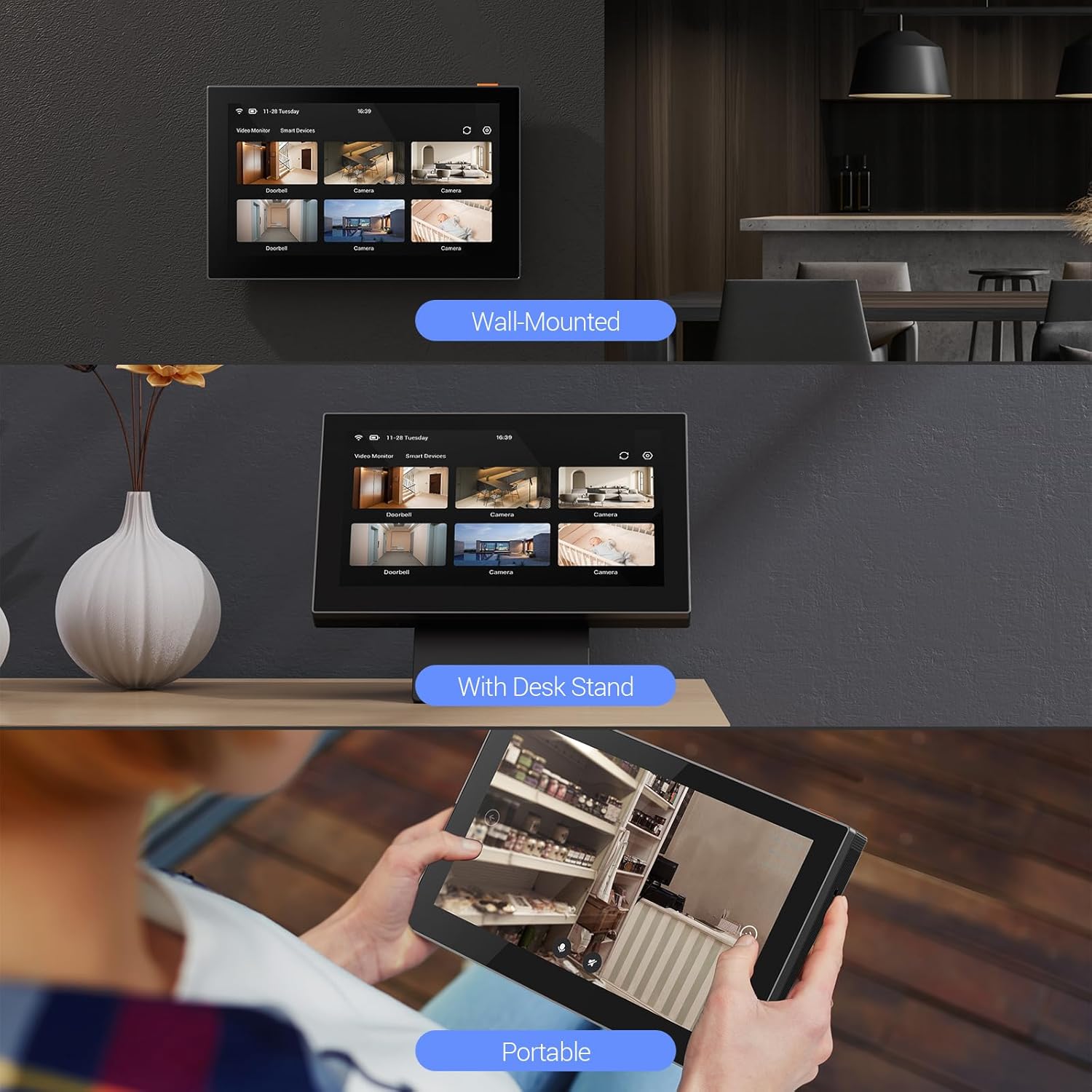
Image: The EZVIZ SD7 screen demonstrating its versatile mounting options: wall-mounted, placed on a desk with its stand, and being used portably.
3.3 Connecting to Wi-Fi
The SD7 connects to your home network via 2.4GHz Wi-Fi. Ensure your Wi-Fi network is active and within range during setup.

Image: The EZVIZ SD7 screen indicating its 2.4GHz Wi-Fi connectivity, shown in a home environment.
3.4 Integrating with EZVIZ Devices
The SD7 is designed for smart integration with other EZVIZ devices. It supports connecting to doorbells, peepholes, cameras, and DIY locks. Up to 30 additional devices can be connected simultaneously to the SD7, and more than 10 SD7 screens can be interconnected.

Image: A schematic diagram illustrating the smart integration capabilities of the EZVIZ SD7 with various other EZVIZ smart home devices, including doorbells and cameras.
4. Operating Instructions
4.1 Touch Screen Interface
The 7-inch color touch screen provides an intuitive interface for managing your connected devices. Navigate through menus and control functions directly on the screen.

Image: A hand interacting with the 7-inch color touch screen of the EZVIZ SD7, demonstrating its touch functionality.
4.2 Live View and Playback
Access real-time video feeds from your connected EZVIZ cameras and doorbells. The screen also supports video playback of recorded events.

Image: The EZVIZ SD7 screen and a smartphone simultaneously displaying live video feeds and playback options from connected security devices.
4.3 Two-Way Audio Communication
Engage in two-way voice calls with visitors at your door or communicate with individuals near connected cameras. This feature allows for direct interaction through the screen.
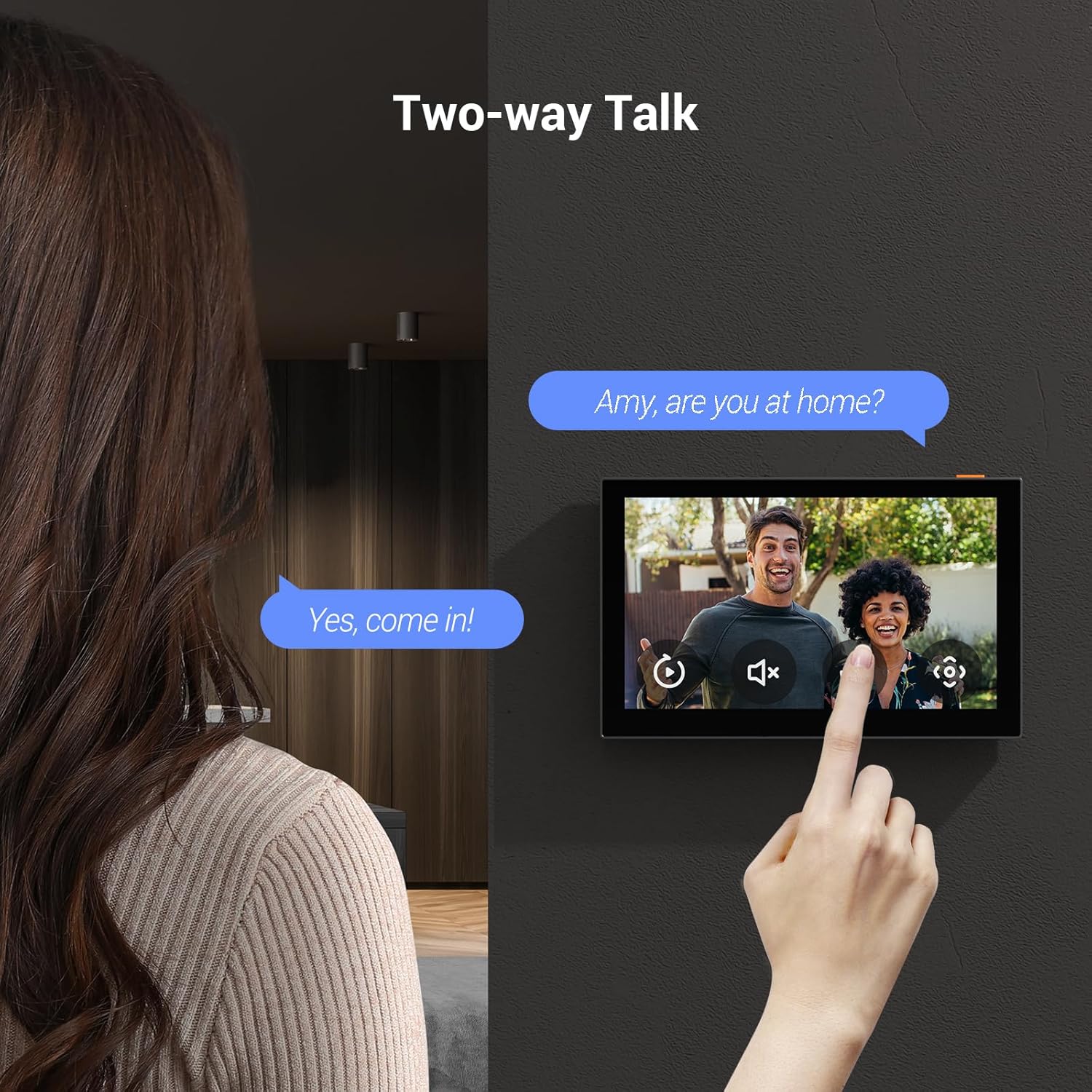
Image: A user engaging in a two-way conversation with a visitor visible on the EZVIZ SD7 screen, demonstrating the audio communication feature.
4.4 EZVIZ App Integration
For comprehensive management and control, add your SD7 screen to the EZVIZ App. This allows you to manage your screen and other connected devices remotely, view real-time monitoring, and access recorded footage from anywhere.

Image: The EZVIZ SD7 screen alongside a smartphone displaying the EZVIZ mobile application, illustrating how devices are managed and monitored.
5. Maintenance
5.1 Cleaning
To clean the screen, use a soft, lint-free cloth. Avoid abrasive cleaners or solvents that may damage the screen surface. For stubborn marks, lightly dampen the cloth with water.
5.2 Battery Care
To prolong battery life, avoid exposing the device to extreme temperatures. Charge the device regularly, even if not in constant use, to prevent deep discharge.
5.3 Software Updates
Periodically check for software updates through the EZVIZ App or the device settings. Keeping the firmware updated ensures optimal performance and access to new features.
6. Troubleshooting
6.1 Device Not Powering On
- Ensure the device is fully charged. Connect it to the charging cable and allow it to charge for at least 30 minutes before attempting to power it on again.
- Verify the charging cable and adapter are functioning correctly.
6.2 No Wi-Fi Connection
- Check if your 2.4GHz Wi-Fi network is active and the signal strength is adequate.
- Ensure the SD7 is within range of your Wi-Fi router.
- Restart your Wi-Fi router and the SD7 device.
- Re-enter the Wi-Fi password in the device settings.
6.3 Unable to Connect to EZVIZ Devices
- Ensure both the SD7 and the EZVIZ devices you are trying to connect are powered on and connected to the same Wi-Fi network.
- Follow the pairing instructions in the EZVIZ App for each device.
- Check for any firmware updates for both the SD7 and the connected devices.
6.4 Poor Video Quality or Lag
- Verify your Wi-Fi signal strength. A weak signal can cause video issues.
- Reduce the number of devices connected to your Wi-Fi network if bandwidth is limited.
- Ensure there are no obstructions between the SD7 and the connected camera/doorbell that might interfere with the signal.
7. Specifications
| Feature | Detail |
|---|---|
| Brand | EZVIZ |
| Model Name | SD7 |
| Model Number | CS-SD7-R100-1WTC |
| Color | Black Touch Screen |
| Size | 7 Inches |
| Item Dimensions (L x W x H) | 18.03 x 11.16 x 1.56 cm |
| Product Weight | 690 grams |
| Material | Metal |
| Power Source | Battery Powered |
| Battery Type | 1 Lithium-ion (included) |
| Battery Capacity | 4600 mAh |
| Connectivity Technology | Wireless (Wi-Fi) |
| Connectivity Protocol | Wi-Fi (2.4GHz) |
| Special Features | Two-Way Audio, Local Recording, HD Resolution |
| Recommended Uses | Indoor Security |
| Indoor/Outdoor Use | Indoor |
| Compatible Devices | Smartphone (via EZVIZ App) |
| Mounting Type | Wall Mount, Desk Stand |
| Viewing Angle | 110 Degrees |
| Frame Rate | 30 fps |
| Included Components | Smart Screen SD7, Charging Cable, Regulatory Information, Quick Start Guide |

Image: A diagram illustrating the physical dimensions of the EZVIZ SD7 Smart Indoor Screen.
8. Warranty and Support
For warranty information and technical support, please refer to the official EZVIZ website or contact EZVIZ customer service. The included regulatory information and quick start guide may also contain specific warranty details for your region.
You can also visit the EZVIZ Brand Store for additional product information and support resources.