
1. Introduction
Thank you for choosing the jjphonecase RW3917 Capybara Family Flip Case. This manual provides essential information for the proper installation, use, and maintenance of your new phone case. Please read these instructions carefully before use to ensure optimal protection and longevity for your Motorola Razr 40 Ultra.
2. Product Overview
The RW3917 Capybara Family Flip Case is designed to provide comprehensive protection for your Motorola Razr 40 Ultra. It features a durable PU leather exterior with a unique graphic print and a slim-fit, lightweight design.
Key Features:
- Material: High-quality PU Leather.
- Design: Graphic printed on both front and back.
- Card Slots: Three integrated slots for ID and credit cards.
- Protection: Slim-fit, scratch-resistant, and robust phone protection.
- Accessibility: Easy access to all ports, controls, and sensors.
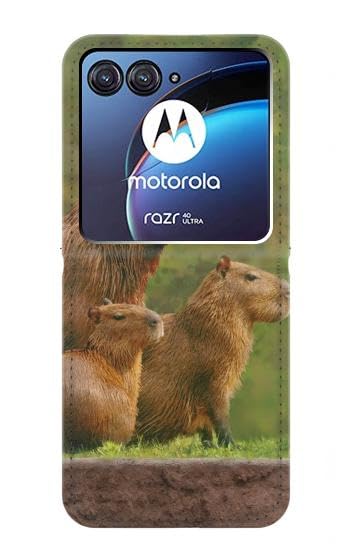
Figure 1: Front view of the jjphonecase RW3917 Capybara Family Flip Case. This image displays the closed case, highlighting the graphic print and overall design.
3. Setup and Installation
Follow these steps to properly install your Motorola Razr 40 Ultra into the flip case:
- Prepare Your Device: Ensure your Motorola Razr 40 Ultra is clean and free of dust or debris.
- Open the Case: Gently open the flip cover of the case.
- Align the Phone: Carefully align your Motorola Razr 40 Ultra with the hard plastic shell inside the case. Ensure that the camera cutouts, ports, and buttons on the case match those on your phone.
- Insert the Phone: Press your phone firmly but gently into the hard plastic shell until it snaps securely into place. Start with one side and work your way around.
- Verify Fit: Check that all edges of your phone are fully seated within the case and that all ports and buttons are accessible and functional.
Note: Do not force the phone into the case. If it does not fit easily, re-align and try again. Improper installation may damage the case or your device.
4. Operating Instructions
Using your jjphonecase flip case is straightforward:
- Opening/Closing: The flip cover protects your screen when closed. Simply open the cover to access your phone's screen and close it when not in use.
- Card Storage: Utilize the three internal card slots to store ID, credit cards, or transit passes. Avoid overfilling the slots, as this may stretch the material or prevent the case from closing properly.
- Access to Ports and Buttons: The case is designed with precise cutouts for the charging port, headphone jack (if applicable), speakers, and camera. Buttons are covered but remain fully functional.
- Folding Stand (if applicable): While this specific model does not explicitly state a stand feature, some flip cases can be folded to create a viewing stand. If your case allows this, gently fold the back cover to prop up your phone for hands-free viewing.
5. Care and Maintenance
To keep your jjphonecase flip case in optimal condition and extend its lifespan, follow these maintenance guidelines:
- Cleaning: Wipe the exterior PU leather surface with a soft, damp cloth. For stubborn dirt, use a mild soap solution, then wipe with a clean, damp cloth and dry thoroughly. Avoid harsh chemicals, abrasive cleaners, or excessive moisture.
- Avoid Extreme Conditions: Do not expose the case to direct sunlight for prolonged periods, high temperatures, or extreme cold, as this can damage the material and print.
- Prevent Scratches: While the case is scratch-resistant, avoid placing it with sharp objects that could potentially damage the graphic print or leather surface.
- Card Slot Care: Do not overstuff the card slots, as this can stretch the material and make cards fall out over time.
6. Troubleshooting
If you encounter any issues with your jjphonecase flip case, refer to the following common problems and solutions:
| Problem | Possible Cause | Solution |
|---|---|---|
| Phone does not fit properly. | Incorrect alignment or wrong phone model. | Ensure the case is designed for Motorola Razr 40 Ultra. Re-align the phone carefully and press firmly. |
| Case does not close completely. | Overstuffed card slots or new case material. | Remove some cards from the slots. Allow the new case material to soften and conform over time. |
| Buttons are stiff or unresponsive. | Phone not fully seated in the case. | Press the phone firmly into the case, ensuring it is fully seated. Check for any obstructions. |
7. Specifications
| Feature | Detail |
|---|---|
| Model Number | RW3917 |
| Compatible Device | Motorola Razr 40 Ultra |
| Material | PU Leather, Hard Plastic (inner shell) |
| Features | 3 Card Slots, Graphic Print, Slim-fit, Scratch-resistant |
| Manufacturer | jjphonecase |
| ASIN | B0CPDS5WS5 |
8. Warranty and Support
For information regarding warranty coverage, returns, or technical support, please refer to the official jjphonecase website or contact their customer service directly. Details are typically provided with your purchase documentation or on the manufacturer's product page.
You can often find support information on the jjphonecase brand page on Amazon.