
1. Product Overview
The UMIDIGI G2 Tab is a 10.1-inch Android 13 tablet designed for versatile use, from entertainment to productivity. It features expandable memory, a large battery, and dual cameras, offering a balanced performance for daily tasks.
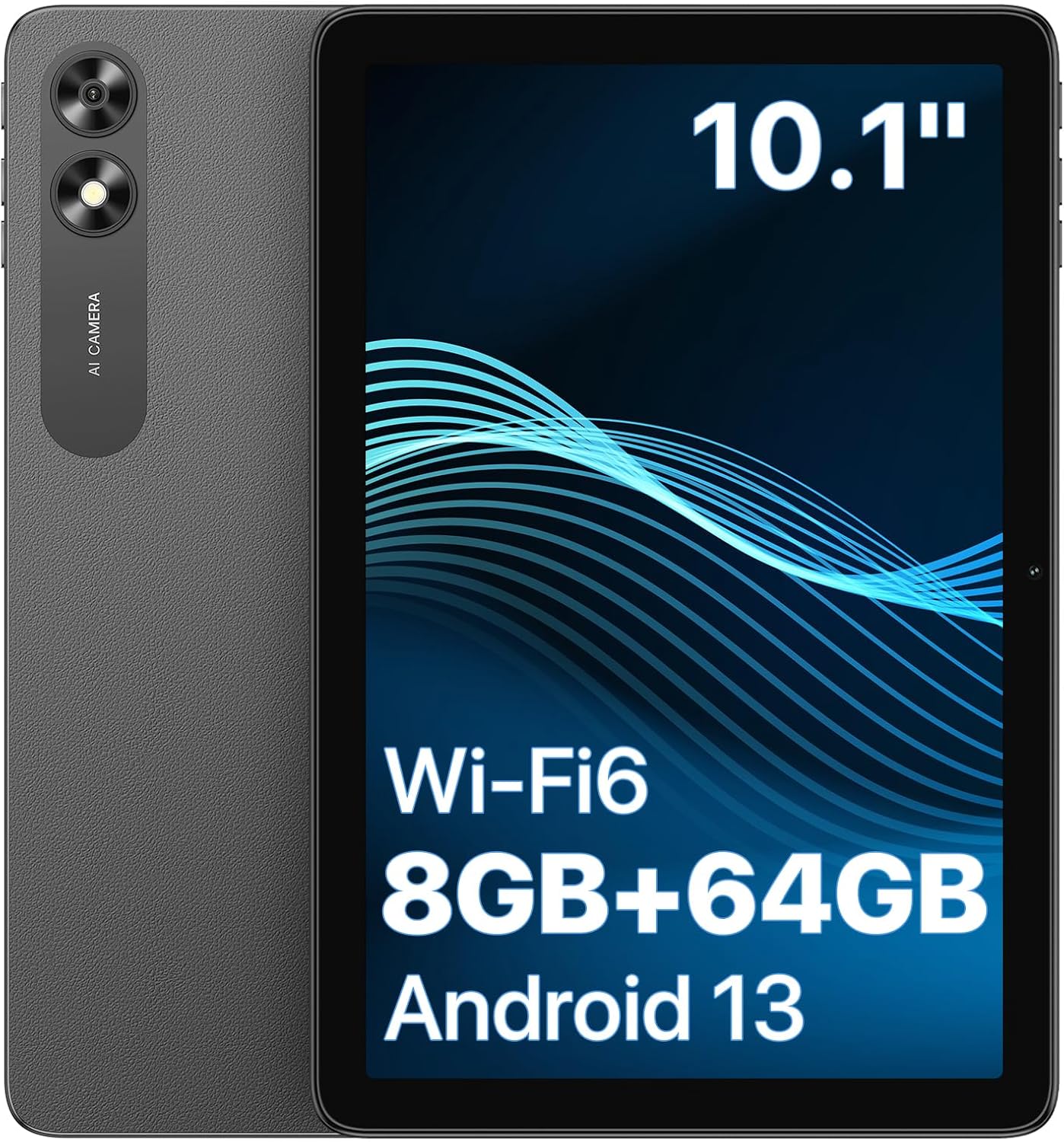
Front and rear view of the UMIDIGI G2 Tab, highlighting its 10.1-inch display, Wi-Fi 6, 8GB RAM, 64GB storage, and Android 13 operating system.
2. Setup
2.1 Initial Setup
Follow these steps to set up your UMIDIGI G2 Tab for the first time:
- Power on the tablet by pressing and holding the power button.
- Select your preferred language.
- Connect to a Wi-Fi network. You can skip this step to set up offline, but internet is recommended for full functionality.
- Set date and time.
- Review Google Services and accept terms.
- Set up a screen lock (PIN, pattern, or password) or skip for now.
This video provides a step-by-step guide on how to perform the initial setup of your UMIDIGI G2 Tab, including language selection, Wi-Fi connection, and setting up security features.
2.2 Memory Expansion
The UMIDIGI G2 Tab supports RAM expansion and microSD card storage expansion up to 1TB.
- To expand RAM from 4GB to 8GB: Go to [Settings] - [Memory Expansion] and restart the device after setting.
- To expand storage: Insert a microSD card (sold separately) into the designated slot.

This image highlights key specifications such as Quad-Core RK3562 processor, Wi-Fi 6, Bluetooth 5.0, 3.5mm headphone jack, and OTG support, along with the unique memory expansion technology.
3. Operating Instructions
3.1 Basic Navigation
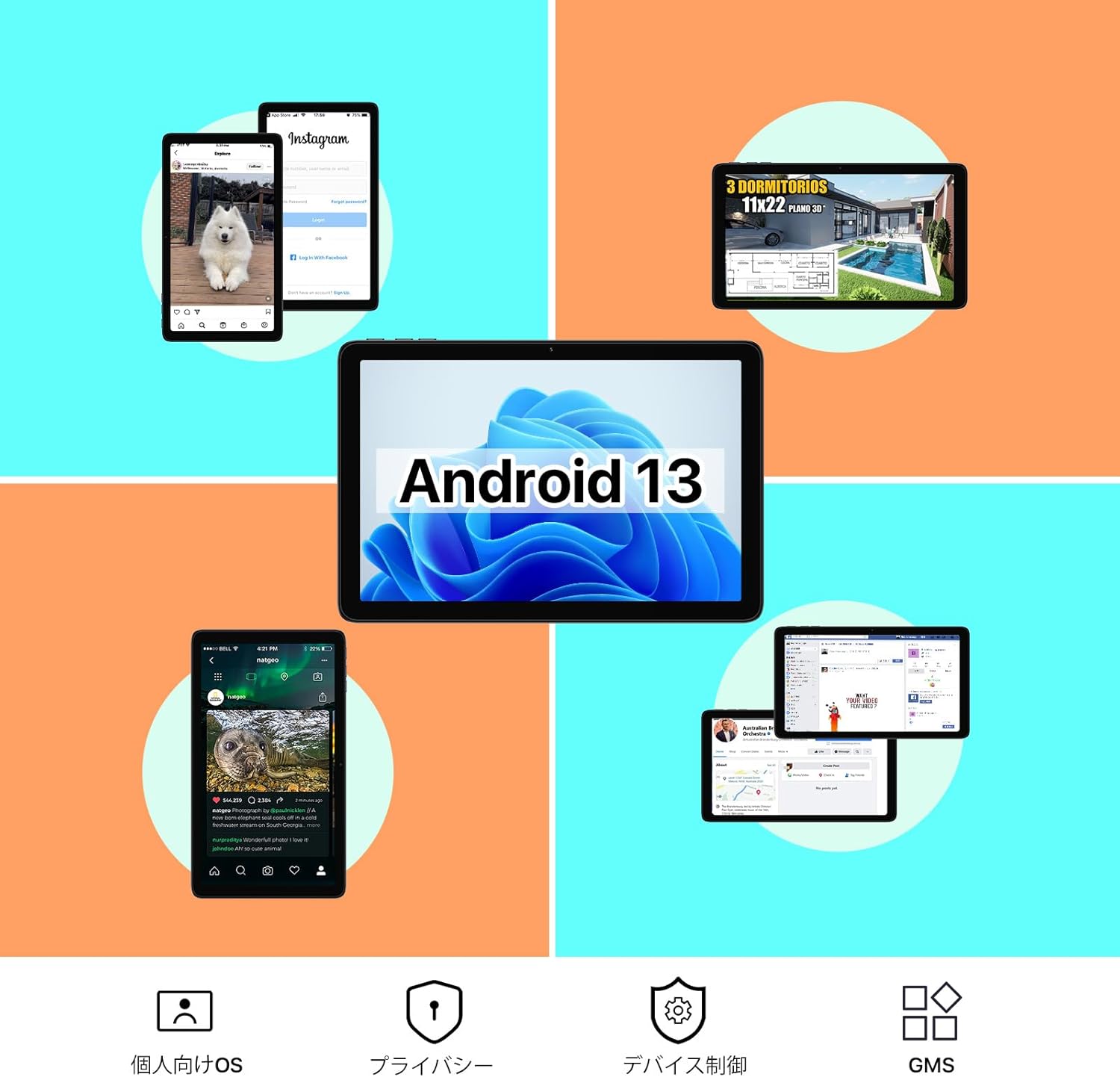
The tablet runs on Android 13, offering an intuitive user interface.
- Swipe down from the top for quick settings and notifications.
- Swipe up from the bottom to access the app drawer.
- Use the navigation buttons at the bottom of the screen for Home, Back, and Recent Apps.
3.2 Split Screen Mode
The split-screen function allows you to run two different applications simultaneously, enhancing multitasking efficiency.
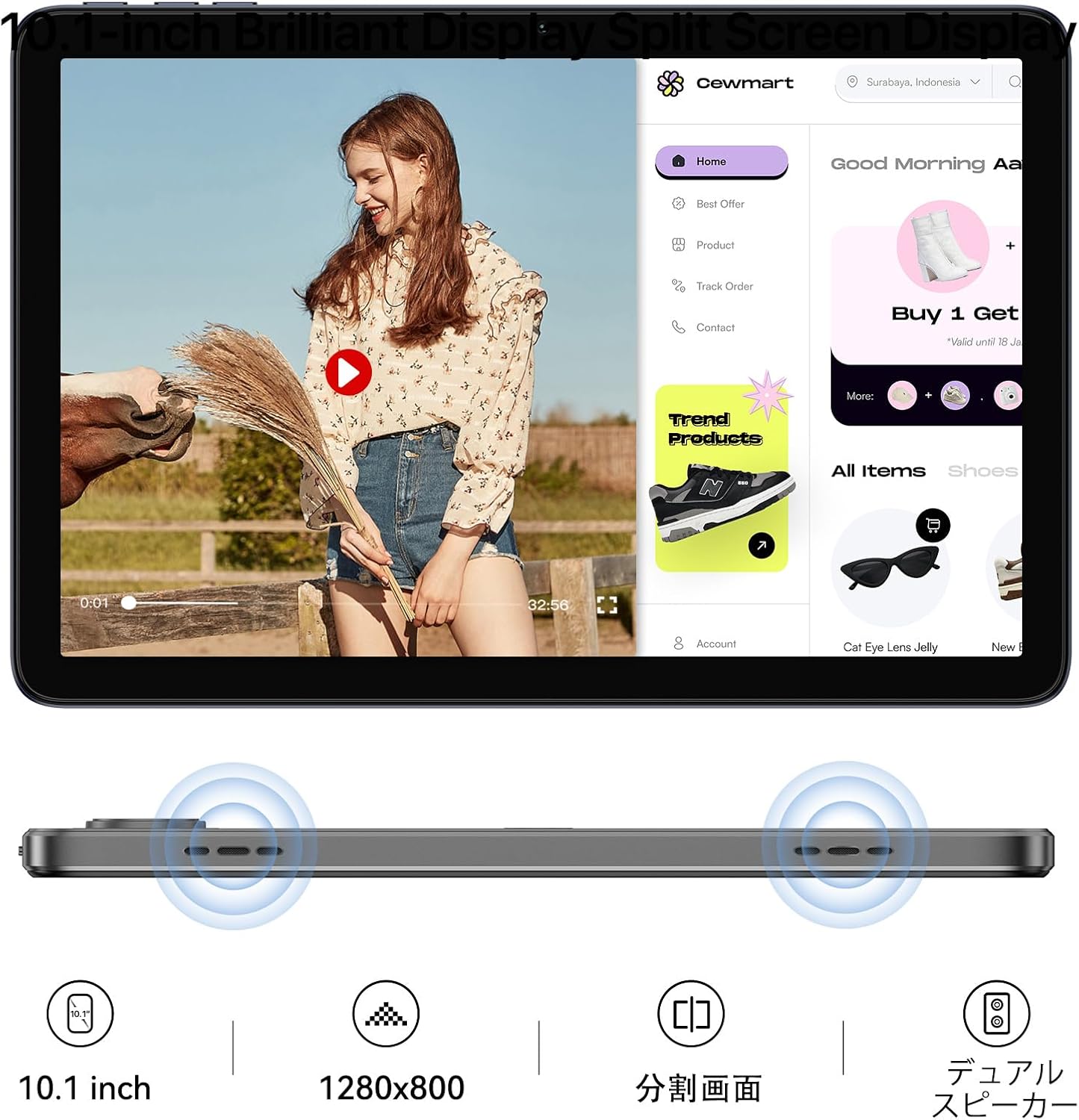
The 10.1-inch display with 1280x800 resolution supports split-screen mode, enabling users to easily create dual windows for improved work efficiency.
3.3 Wireless Projection
Project your tablet's screen wirelessly to compatible displays for a larger viewing experience.

This image demonstrates the tablet's wireless screen projection capability, allowing users to enjoy content like movies, music, and work on a larger display.
4. Key Features
4.1 Performance and Storage
The UMIDIGI G2 Tab is equipped with a powerful processor and ample memory for smooth operation.
- RAM: 8GB (4GB physical + 4GB expandable RAM)
- Internal Storage: 64GB ROM
- Expandable Storage: Up to 1TB via microSD card (sold separately)
- Operating System: Android 13
- GMS Certified: Ensures stable and smooth Google services.
This graphic illustrates the powerful processor, 4GB RAM (+4GB expandable RAM), 64GB ROM, and up to 1TB expandable storage, ensuring smooth performance.
4.2 Display and Audio
- Display Size: 10.1 inches
- Resolution: 1280x800 dots TFT Display
- Audio: Dual speakers for high-quality sound.
- Headphone Jack: 3.5mm headphone jack for private listening.
The tablet features a 10.1-inch brilliant display with 1280x800 resolution and dual speakers for an immersive audio-visual experience.
4.3 Battery Life
The tablet is equipped with a large capacity battery for extended use.
- Battery Capacity: 6000mAh
- Standby Time: Up to 480 hours
- Video Playback: Up to 7 hours
- Music Playback: Up to 20 hours
- Charging: Type-C 10W charging.

The 6000mAh battery provides up to 480 hours of standby, 20 hours of music playback, and 7 hours of video playback, with convenient Type-C charging.
4.4 Cameras
- Rear Camera: 8MP main camera
- Front Camera: 8MP front camera
Suitable for video calls, online meetings, and capturing everyday moments.

Equipped with an 8MP main camera on the back and an 8MP front camera, this tablet is ideal for video calls and capturing clear photos.
5. Maintenance
5.1 Software Updates
Regularly check for and install system updates to ensure optimal performance and security.
5.2 Cleaning
Use a soft, lint-free cloth to clean the screen and body of the tablet. Avoid abrasive materials or harsh chemicals.
5.3 Battery Care
To prolong battery life, avoid extreme temperatures and do not let the battery fully drain frequently.
6. Troubleshooting
6.1 Common Issues and Solutions
| Issue | Possible Cause | Solution |
|---|---|---|
| Tablet won't turn on | Low battery, system crash | Charge the tablet for at least 30 minutes. Press and hold the power button for 10-15 seconds to force restart. |
| Wi-Fi connection issues | Incorrect password, router problem, signal interference | Verify Wi-Fi password. Restart your router. Move closer to the Wi-Fi router. |
| Apps crashing or freezing | Insufficient RAM, app bug, outdated app | Close background apps. Clear app cache. Update the app or reinstall it. |
| Slow performance | Too many apps, low storage, outdated software | Free up storage space. Uninstall unused apps. Check for system updates. |
If issues persist, contact customer support.
7. Specifications
| Feature | Detail |
|---|---|
| Screen Size | 10.1 inches |
| RAM | 4 GB (expandable to 8GB) |
| Storage | 64 GB (expandable to 1TB) |
| Operating System | Android 13.0 |
| Connectivity | Wi-Fi (802.11ac), Bluetooth 5.0 |
| USB Ports | 1 (Type-C) |
| Battery | 6000mAh |
| Cameras | 8MP Rear, 8MP Front |
| Dimensions | 24.48 x 16.22 x 0.93 cm |
| Weight | 576 g |
| Model Number | G2 Tab |
| Brand | UMIDIGI |
8. Warranty and Support
UMIDIGI provides a 1-year warranty service for this product.
For any issues or inquiries, please contact UMIDIGI customer support through the seller's page on Amazon or by navigating to your order history and contacting the seller directly.
Contact methods:
- Click on the store name "YKD-JP" on the product page and then click "Ask a question" (質問する).
- Go to Order History (注文履歴) → Select the relevant order (該当注文) → Contact Seller (出品者にお問い合わせ).
For more information, visit the official UMIDIGI store: UMIDIGI Store.