
1. Product Overview
This manual provides instructions for the IVEOPPE Keyboard Case designed for the Samsung Galaxy Tab S6 Lite 10.4 inch (2022/2020 models). This accessory combines a protective case with a detachable wireless Bluetooth keyboard, enhancing the functionality of your tablet.

Image 1.1: The IVEOPPE Keyboard Case with a Samsung Galaxy Tab S6 Lite, showcasing the tablet in the case with the backlit keyboard.
2. Compatibility
The IVEOPPE Keyboard Case is specifically designed for the following Samsung Galaxy Tab S6 Lite 10.4 inch models:
- SM-P610
- SM-P613
- SM-P615
- SM-P619
Please verify your tablet's model number, typically found on the back of the device, to ensure compatibility.

Image 2.1: Visual guide illustrating the compatible Samsung Galaxy Tab S6 Lite 10.4 inch (2020) model (SM-P610/P615) versus an incompatible Samsung Galaxy Tab S6 10.5 inch (2019) model.
3. Setup Instructions
3.1 Package Contents
Before proceeding, ensure all items are present in the package:
- 1 x Wireless Bluetooth Keyboard
- 1 x Protective Case
- 1 x USB-C Charging Cable
- 1 x User Manual
Note: S Pen and Tablet are not included.
3.2 Case Installation
- Gently align your Samsung Galaxy Tab S6 Lite with the precise cutouts of the case.
- Press the tablet firmly into the flexible TPU inner shell until it is securely seated. Ensure all edges are protected.
3.3 Keyboard Charging
The keyboard comes with a built-in rechargeable Lithium-ion battery. Before first use, fully charge the keyboard.
- Locate the USB-C charging port on the keyboard.
- Connect the provided USB-C cable to the keyboard and the other end to a USB power adapter (not included).
- The charging indicator light will illuminate. Once fully charged (approximately 4 hours), the light will change or turn off.
3.4 Bluetooth Pairing
To connect the wireless keyboard to your Samsung Galaxy Tab S6 Lite:
- Ensure the keyboard is charged.
- Turn on the keyboard by sliding the power switch to the 'ON' position. The indicator light will briefly flash.
- Press the 'Connect' button (often labeled with a Bluetooth symbol) on the keyboard. The Bluetooth indicator light will start blinking, indicating it is in pairing mode.
- On your Samsung Galaxy Tab S6 Lite, go to 'Settings' > 'Connections' > 'Bluetooth'.
- Turn on Bluetooth. Your tablet will search for available devices.
- Select 'Bluetooth Keyboard' (or a similar name) from the list of available devices.
- If prompted, enter the pairing code displayed on your tablet onto the keyboard and press 'Enter'.
- Once paired, the Bluetooth indicator light on the keyboard will stop blinking and remain solid or turn off, and your tablet will show the keyboard as 'Connected'.

Image 3.1: The detachable wireless Bluetooth keyboard, highlighting its magnetic attachment to the case and compatibility with various operating systems.
4. Operating Instructions
4.1 Keyboard Functions
The keyboard features a standard QWERTY layout with additional function keys for tablet control.
- Backlight Control: Press the Light Bulb key to cycle through 7 different backlight colors. Press Fn + Light Bulb to adjust the backlight brightness (3 levels).
- Shortcut Keys: A row of dedicated shortcut keys allows quick access to functions like brightness adjustment, media control, volume, and more. Refer to the keyboard's key labels for specific functions.
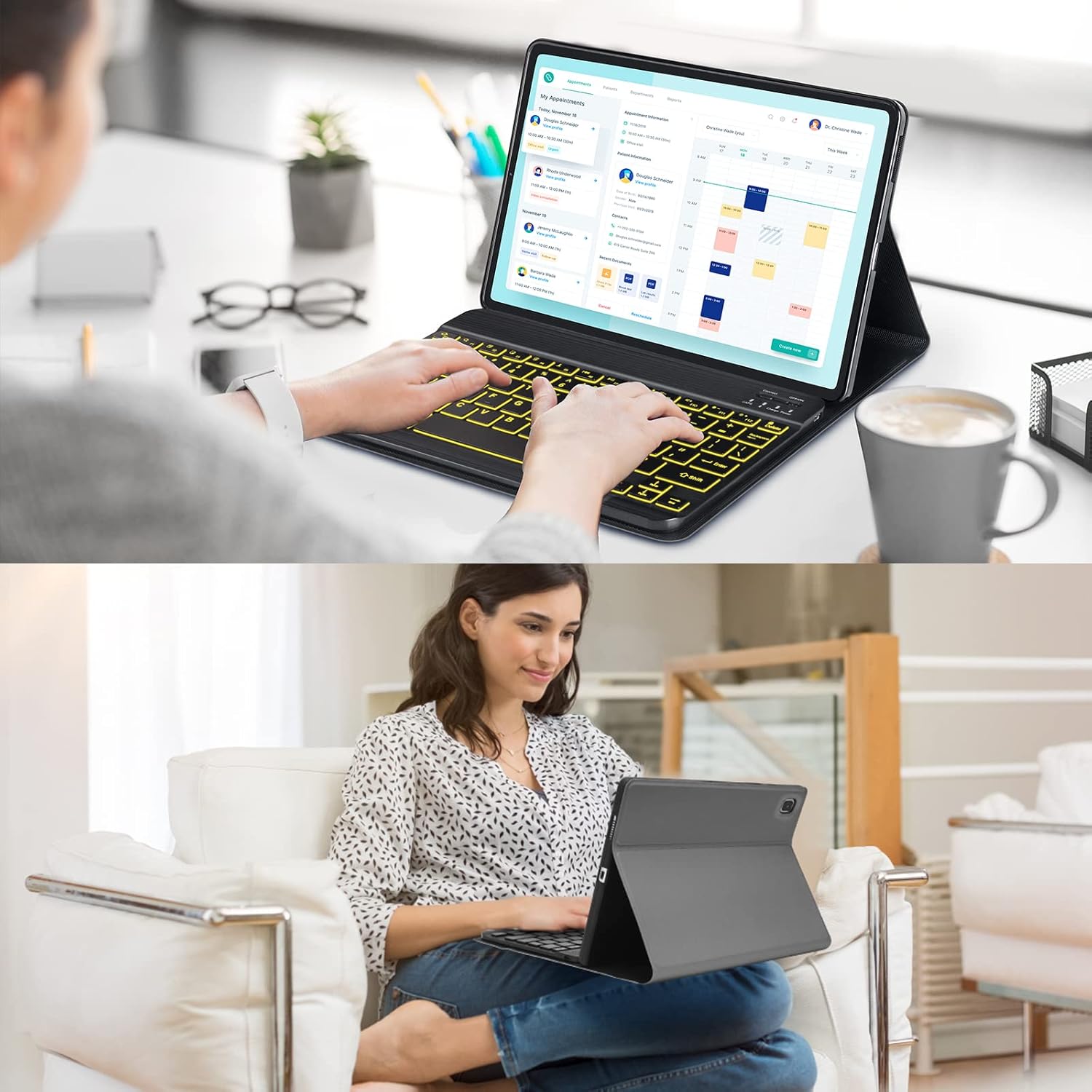
Image 4.1: The keyboard displaying its 7-color backlight feature, enhancing visibility in low-light conditions.
4.2 Adjustable Viewing Angles
The case is designed with anti-slip grooves to support multiple viewing angles, allowing you to adjust the tablet to your preference for typing, viewing, or drawing.
- Place the tablet in the case.
- Adjust the keyboard's position along the magnetic cover to create a stable stand.
- The anti-slip grooves will hold the tablet securely at various angles (e.g., 120°, 125°, 130°).

Image 4.2: The tablet case configured to demonstrate three different viewing angles (120°, 125°, 130°).
4.3 S Pen Holder
The case includes a dedicated slot for your S Pen, ensuring it is securely stored and readily accessible. The design supports S Pen charging when placed in the designated area.
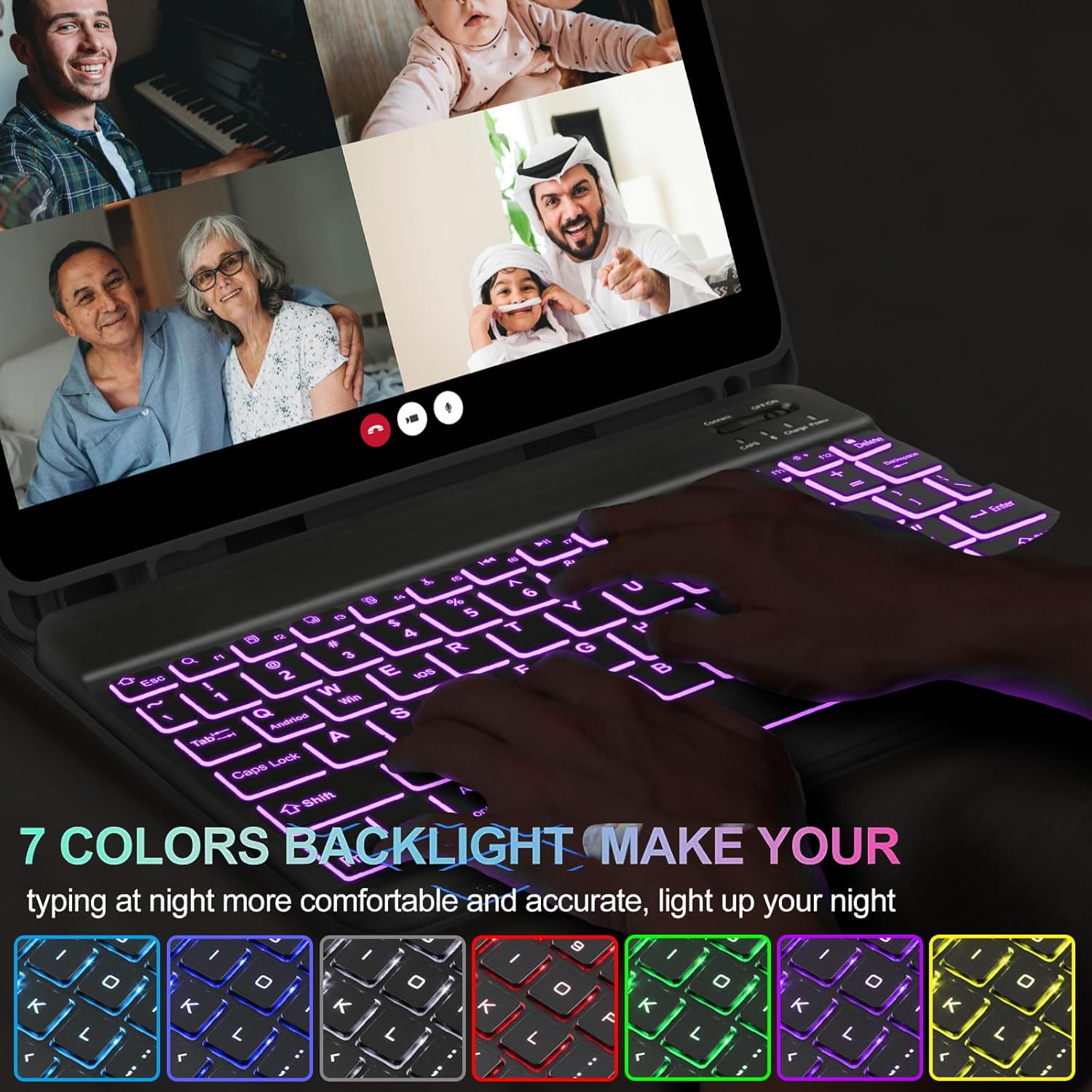
Image 4.3: A close-up of the integrated S Pen holder within the tablet case, showing an S Pen being inserted.
4.4 Automatic Sleep/Wake Function
The case supports the tablet's automatic sleep/wake function. Opening the cover will wake the tablet, and closing it will put the tablet to sleep, helping to conserve battery life.

Image 4.4: Illustration of the automatic sleep/wake function, showing the tablet screen turning on when the case is opened and turning off when closed.
5. Maintenance
5.1 Cleaning the Case and Keyboard
- Use a soft, damp cloth to wipe the exterior of the case. Avoid harsh chemicals or abrasive cleaners.
- For the keyboard, use a dry, lint-free cloth. For stubborn dirt between keys, a can of compressed air can be used. Ensure the keyboard is powered off before cleaning.
5.2 Battery Care
- To prolong battery life, avoid fully discharging the keyboard battery frequently.
- Charge the keyboard regularly, even if not in constant use.
- Store the keyboard in a cool, dry place when not in use for extended periods.
6. Troubleshooting
6.1 Keyboard Not Connecting via Bluetooth
- Check Power: Ensure the keyboard is powered on and has sufficient battery charge.
- Re-pair: Delete the keyboard from your tablet's Bluetooth device list and attempt to re-pair it following the instructions in Section 3.4.
- Distance: Ensure the keyboard is within the effective Bluetooth range (typically 10 meters or 33 feet) of your tablet.
- Interference: Move away from other wireless devices that might cause interference.
6.2 Backlight Not Working
- Check Power: Ensure the keyboard is adequately charged. Low battery can disable the backlight.
- Activate Backlight: Press the Light Bulb key to turn on the backlight.
6.3 Keys Not Responding or Repeating
- Recharge: A low battery can cause erratic key behavior. Charge the keyboard fully.
- Restart: Turn the keyboard off and then on again.
- Clean: Ensure no debris is lodged under the keys.
7. Specifications
| Feature | Detail |
|---|---|
| Product Dimensions | 11 x 10 x 1.2 inches |
| Item Weight | 1.54 pounds |
| Connectivity Technology | Bluetooth, USB-C |
| Keyboard Description | Detachable, Magnetic, Auto Sleep/Wake Up, Long Battery Life |
| Special Features | Backlit (7 colors, 3 levels brightness), Ergonomic, Foldable, Lightweight, Rechargeable |
| Compatible Devices | Samsung Galaxy Tab S6 Lite 10.4" 2022/2020 (SM-P610/P613/P615/P619) |
| Manufacturer | IVEOPPE |
8. Warranty and Support
IVEOPPE products are manufactured with attention to quality and performance. For specific warranty details, please refer to the product packaging or contact IVEOPPE customer support directly.
If you encounter any issues or have questions regarding your IVEOPPE Keyboard Case, please visit the official IVEOPPE store on Amazon or contact their customer service for assistance. You can find the brand store at: IVEOPPE Amazon Store.