
HIDevolution FA617NT
HIDevolution ASUS TUF Gaming A16 Advantage Edition FA617NT User Manual
Model: FA617NT-A16.R77700-HID2
Introduction
This manual provides essential information for setting up, operating, maintaining, and troubleshooting your HIDevolution ASUS TUF Gaming A16 Advantage Edition FA617NT laptop. This high-performance laptop features an AMD Ryzen 7 7735HS processor, AMD Radeon RX 7700S graphics, 16 GB DDR5 RAM, and a 1 TB PCIe SSD, running on Windows 11 Home.
HIDevolution is an authorized ASUS build-to-order (BTO) dealer, ensuring high-quality customization and thorough quality control. Each unit undergoes comprehensive checks, including BIOS/driver installation, stress testing, benchmark testing, and physical inspection, to ensure optimal performance and reliability.

Figure 1: HIDevolution ASUS TUF Gaming A16 Advantage Edition FA617NT Laptop.
Setup
Initial Setup
- Unpacking: Carefully remove the laptop and all accessories from the packaging.
- Power Connection: Connect the power adapter to the laptop's charging port and then to a power outlet.
- First Boot: Open the laptop lid and press the power button. Follow the on-screen instructions to complete the Windows 11 Home setup process.
- Updates: After initial setup, connect to the internet and allow Windows to download and install any pending updates. Ensure all drivers and BIOS firmware are up to date for optimal performance.
Connecting Peripherals
Your laptop is equipped with various ports for connecting external devices.
- Power Adapter: Use the provided power adapter for charging. The laptop also supports charging via one of the USB-C ports.
- External Display: Connect an external monitor using the HDMI port.
- USB Devices: Utilize the USB-A (USB 3.2 Gen 1) and USB-C (USB 4) ports for connecting external storage, mice, keyboards, and other compatible devices.
- Network: Connect to a wired network using the Ethernet port or use the integrated 802.11ax Wi-Fi for wireless connectivity.
- Audio: Use the 3.5mm combo audio jack for headphones or a headset.

Figure 2: Side view of the laptop, illustrating port locations and indicating Genuine Windows 11 Home and 90WHrs, 4-Cell Li-ion battery.
Operating Instructions
Power Management
- Power On: Press the power button located on the keyboard deck.
- Sleep Mode: Close the lid or select 'Sleep' from the Windows Start menu.
- Shut Down: Select 'Shut down' from the Windows Start menu.
- Restart: Select 'Restart' from the Windows Start menu.
Keyboard and Touchpad
The laptop features a backlit Chiclet keyboard and a responsive touchpad for navigation.
- Keyboard Backlight: Adjust the keyboard backlight brightness using the dedicated function keys (Fn + Fx keys).
- Touchpad Gestures: Utilize multi-touch gestures for scrolling, zooming, and other functions as configured in Windows settings.

Figure 3: Top-down view of the backlit Chiclet keyboard and touchpad.
Display and Graphics
The 16-inch FHD+ (1920 x 1200) display offers a 165Hz refresh rate, IPS-level panel, anti-glare coating, and supports FreeSync Premium. It also features a MUX Switch and AMD Smart Access Graphics for optimized performance.

Figure 4: Close-up of the 16-inch FHD+ (1920 x 1200) 165Hz display, highlighting its IPS-Level, Anti-glare, FreeSync Premium, MUX Switch, and AMD Smart Access Graphics features.
Audio
The integrated speakers provide clear audio. Adjust volume using the dedicated function keys or through Windows sound settings.
Connectivity
The laptop supports Wi-Fi 802.11ax for high-speed wireless internet and Bluetooth for connecting wireless peripherals.
Maintenance
Cleaning
- Screen: Use a soft, lint-free cloth lightly dampened with water or a screen cleaner. Avoid harsh chemicals.
- Keyboard and Chassis: Use a soft cloth to wipe surfaces. A can of compressed air can remove dust from between keys and ventilation grilles.
- Ports: Ensure ports are free of dust and debris.
Battery Care
To prolong battery life, avoid fully discharging the battery frequently. For long-term storage, charge the battery to approximately 50-60% and store the laptop in a cool, dry place.
Software Updates
Regularly update your Windows operating system, drivers, and BIOS firmware to ensure system stability, security, and optimal performance. These updates often include performance enhancements and bug fixes.
Thermal Management
The laptop is designed with advanced thermal solutions, including Gelid GC Extreme thermal interface materials on the CPU and GPU, to maintain optimal system temperatures. Ensure ventilation grilles are unobstructed to allow for proper airflow. Avoid operating the laptop on soft surfaces that can block vents.

Figure 5: Bottom view of the laptop, showing ventilation areas critical for thermal management.
Troubleshooting
Common Issues
- Laptop does not power on: Ensure the power adapter is securely connected to both the laptop and a working power outlet. Try a different outlet if available.
- Display issues (no image, flickering): Ensure the laptop is powered on. If using an external monitor, check the cable connection and ensure the correct input source is selected on the monitor. Try pressing Fn + F8 (or similar function key) to cycle display outputs.
- No Wi-Fi connection: Check if Wi-Fi is enabled in Windows settings. Restart the laptop and your wireless router. Ensure drivers are up to date.
- Slow performance: Close unnecessary applications. Check for background processes consuming high resources (Task Manager). Ensure sufficient free storage space. Run system diagnostics.
- Battery not charging: Verify the power adapter is functioning correctly. Check the charging port for damage or debris.
For persistent issues, refer to the Warranty & Support section for contact information.
Specifications
| Feature | Detail |
|---|---|
| Model Name | TUF Gaming A16 Advantage Edition FA617NT |
| Item Model Number | FA617NT-A16.R77700-HID2 |
| Processor | AMD Ryzen™ 7 7735HS (3.2 GHz, 8 Cores, 16 Threads) |
| Graphics | AMD Radeon™ RX 7700S with 8 GB GDDR6 Dedicated VRAM |
| RAM | 16 GB DDR5 (2 x 8 GB, 4800MHz) |
| Storage | 1 TB M.2 PCIe 4.0 x4 NVMe SSD |
| Display | 16-inch FHD+ (1920 x 1200) IPS-Level, Anti-glare, 165Hz, FreeSync Premium, MUX Switch |
| Operating System | Windows 11 Home (64-bit, English) |
| Wireless Connectivity | 802.11ax Wi-Fi, Bluetooth |
| Ports | HDMI, Ethernet, 2x USB-C (USB 4), 2x USB-A (USB 3.2 Gen 1), 3.5mm Combo Audio Jack |
| Battery | 90WHrs, 4S1P, 4-Cell Li-ion |
| Weight | 4.85 pounds (approx. 2.2 kg) |
| Dimensions (LxWxH) | 13.98 x 9.92 x 1.06 inches (approx. 35.5 x 25.2 x 2.7 cm) |

Figure 6: Laptop open, illustrating the 16 GB DDR5 4800MHz RAM configuration (2 x 8 GB modules).
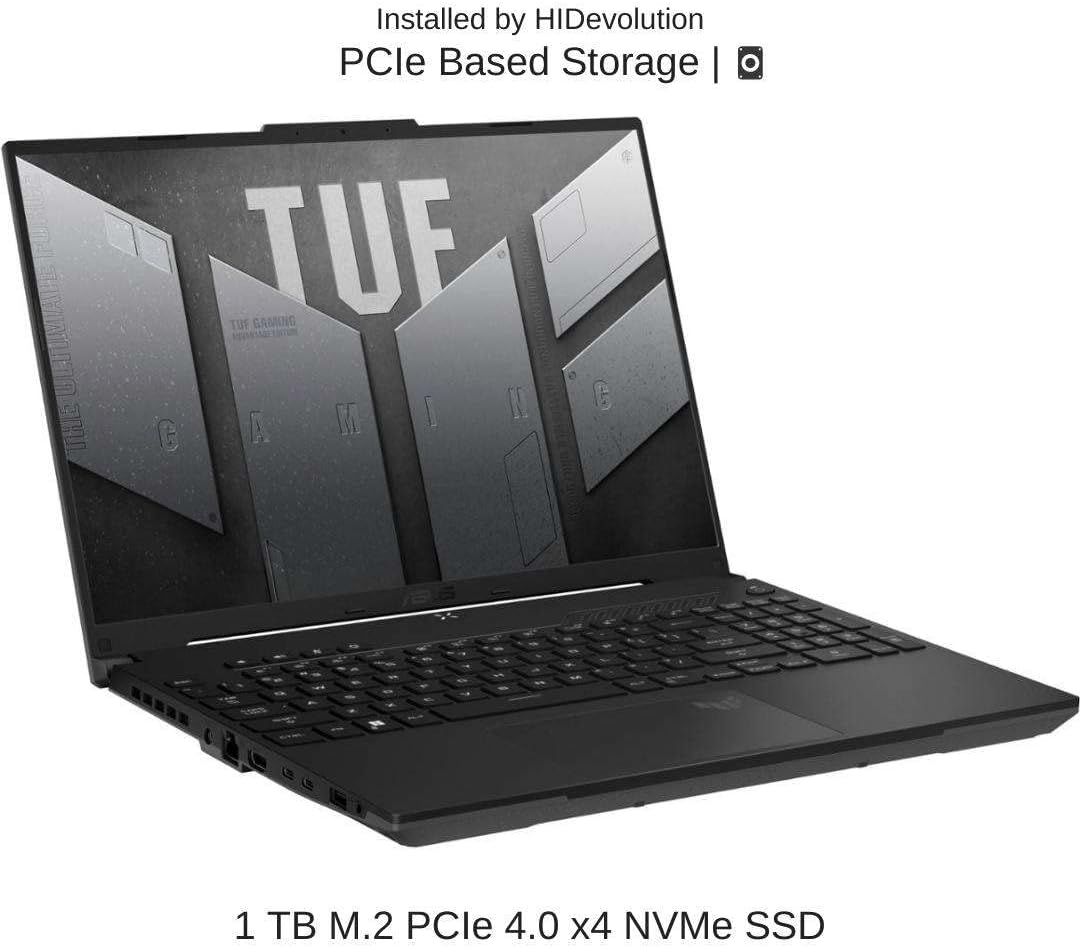
Figure 7: Laptop open, indicating the 1 TB M.2 PCIe 4.0 x4 NVMe SSD storage installed by HIDevolution.
Warranty & Support
Your HIDevolution ASUS TUF Gaming A16 laptop comes with a standard manufacturer's warranty. HIDevolution, as an authorized ASUS BTO Dealer, provides dedicated support for your product.
- Support Duration: 1-Year support is provided.
- Expert Staff: Access to expert support staff for technical assistance.
- Quality Assurance: All products undergo thorough quality testing to ensure reliability.
For warranty claims, technical assistance, or any product-related inquiries, please contact HIDevolution customer support directly.

Figure 8: Overview of the HIDevolution Promise, detailing support and quality assurance.
Ask a question about this manual
Ask about setup, troubleshooting, compatibility, parts, safety, or missing instructions. Manuals+ will review the question and use this page’s manual context to help answer it.