
1. Introduction
This manual provides essential information for the safe and efficient use of your PIXPEAK 2K Tablet. Please read it thoroughly before operating the device and keep it for future reference.
Package Contents
Verify that all items are present in the package:
- 1 x Android 14.0 10-inch Tablet
- 1 x Earphones
- 1 x Protective Case
- 1 x Bluetooth Wireless Keyboard
- 1 x Wireless Mouse
- 1 x Capacitive Pen
- 1 x USB Cable
- 1 x OTG Adapter
- 1 x EU Charger
- 1 x User Manual

2. Setup
Charging the Tablet
Before first use, fully charge the tablet using the provided EU charger and USB cable. Connect the USB cable to the tablet's charging port and the charger to a power outlet.

Powering On/Off
- To Power On: Press and hold the Power button until the screen lights up.
- To Power Off: Press and hold the Power button, then select "Power Off" from the options.
- To Restart: Press and hold the Power button, then select "Restart" from the options.
Initial Setup
Follow the on-screen prompts to complete the initial setup, including language selection, Wi-Fi connection, and Google account login.
Inserting SIM Card and Micro SD Card
The tablet supports 4G LTE connectivity and expandable storage up to 2TB via a Micro SD card. Locate the SIM/SD card tray on the side of the tablet. Use the provided SIM ejector tool to open the tray. Carefully insert your SIM card(s) and/or Micro SD card into the designated slots, ensuring correct orientation. Close the tray securely.

Connecting Accessories (Keyboard, Mouse, Pen)
- Bluetooth Keyboard: Turn on the keyboard and enable Bluetooth on your tablet (Settings > Connected devices > Bluetooth). Pair the keyboard with your tablet.
- Wireless Mouse: Insert the USB receiver for the wireless mouse into the OTG adapter, then connect the OTG adapter to the tablet's USB-C port.
- Capacitive Pen: The capacitive pen is ready for use directly on the screen.

3. Operating Instructions
Navigation and Interface
Your tablet runs on Android 14, offering an intuitive user interface. Swipe gestures, taps, and long presses are used for navigation. Familiarize yourself with the home screen, app drawer, and notification panel.
Wi-Fi and Mobile Data
- Wi-Fi: Go to Settings > Network & internet > Wi-Fi. Turn Wi-Fi on and select your desired network.
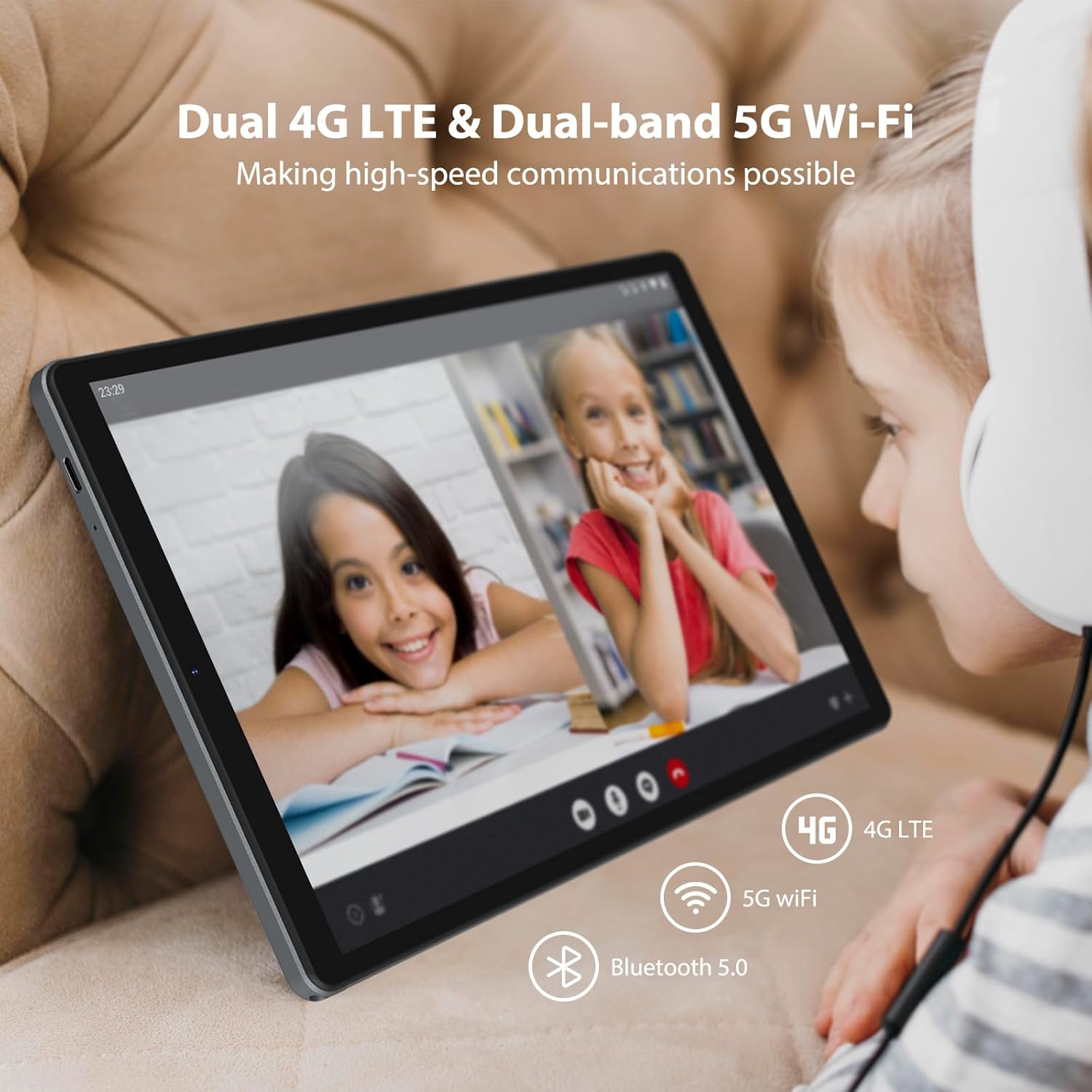
- Mobile Data (4G LTE): Go to Settings > Network & internet > Mobile network. Ensure your SIM card is active and mobile data is enabled.
Camera Usage
The tablet features a 13MP rear camera and an 8MP front camera. Open the Camera app to take photos or record videos. Tap the screen to focus and press the shutter button to capture.
Display Settings
Adjust brightness, font size, and display mode (e.g., dark theme) in Settings > Display. The 10.4-inch 2K FHD (2000x1200) IPS display offers clear visuals.

Audio
The tablet is equipped with dual speakers for enhanced audio. Connect the included earphones for private listening or use Bluetooth headphones via Bluetooth 5.0.

4. Maintenance
Cleaning the Tablet
Use a soft, lint-free cloth to clean the screen and body of the tablet. Avoid using harsh chemicals or abrasive materials. For stubborn smudges, slightly dampen the cloth with water or a screen cleaner designed for electronics.
Battery Care
- Avoid extreme temperatures, as they can degrade battery life.
- Do not leave the tablet fully charged or fully discharged for extended periods.
- Use only the provided charger or a certified compatible charger.
Software Updates
Regularly check for and install software updates to ensure optimal performance, security, and access to new features. Go to Settings > System > System update.
Storage Management
To maintain performance, periodically clear unnecessary files, uninstall unused apps, and transfer large media files to external storage (Micro SD card or cloud services). The tablet has 256GB ROM and supports up to 2TB TF expansion.
5. Troubleshooting
| Problem | Possible Solution |
|---|---|
| Tablet does not turn on. | Ensure the battery is charged. Connect the charger and wait a few minutes before attempting to power on again. If unresponsive, perform a force restart by holding the Power button for 10-15 seconds. |
| Wi-Fi connection issues. | Check if Wi-Fi is enabled. Restart your router and the tablet. Forget the network and reconnect. Ensure you are within range of the Wi-Fi signal. |
| Slow performance. | Close unused applications. Clear cache for frequently used apps. Free up storage space. Restart the tablet. The tablet utilizes 12GB physical RAM with an additional 24GB virtual RAM (total 36GB) for smooth multitasking. |
| Accessories (keyboard/mouse) not connecting. | For Bluetooth devices, ensure Bluetooth is enabled on the tablet and the accessory is in pairing mode. For the wireless mouse, verify the USB receiver is correctly inserted via the OTG adapter. Check battery levels of accessories. |
| Apps crashing or freezing. | Update the app to the latest version. Clear the app's cache and data (Settings > Apps > [App Name] > Storage & cache). If the issue persists, uninstall and reinstall the app. |
6. Specifications
Detailed technical specifications for the PIXPEAK 2K Tablet Model X608:
| Feature | Detail |
|---|---|
| Brand | PIXPEAK |
| Model Number | X608 |
| Operating System | Android 14 |
| Display Size | 10.4 Inches |
| Display Resolution | 2000 x 1200 pixels (2K FHD IPS) |
| Processor | Octa-Core (Qualcomm), up to 2.0 GHz |
| RAM | 36 GB (12GB physical + 24GB virtual expansion) |
| Internal Storage (ROM) | 256 GB |
| Expandable Storage | Up to 2 TB via Micro SD card |
| Rear Camera | 13 MP |
| Front Camera | 8 MP |
| Battery Capacity | 8000 mAh |
| Average Battery Life | Up to 72 hours (usage dependent) |
| Connectivity | 4G LTE, 5G Wi-Fi (Dual-band 802.11ac), Bluetooth 5.0 |
| Dimensions | 26 x 18 x 1.5 cm |
| Weight | 490 grams |

7. Warranty and Support
Your PIXPEAK 2K Tablet is covered by a comprehensive warranty and dedicated customer support.
- Warranty: 24-month manufacturer warranty and statutory guarantee.
- Return Policy: 30-day return policy for dissatisfaction or dislike.
- Customer Service: Response guaranteed within 24 hours, including holidays.
- Warranty Claims: Free returns in case of a valid warranty claim.
For support, please refer to the contact information provided in your product packaging or visit the official PIXPEAK website.


