
1. Introduction
This manual provides detailed instructions for the installation, setup, operation, and maintenance of your Warmall WiStat Wi-Fi Thermostat for electric in-floor heating systems. Please read this manual thoroughly before installation and use to ensure proper function and safety.
2. Safety Information
- Installation must be performed by a qualified electrician in accordance with local electrical codes.
- Disconnect power at the circuit breaker before installing or servicing the thermostat.
- Do not install the thermostat in areas exposed to direct sunlight, drafts, or extreme temperatures.
- Ensure all wiring connections are secure to prevent electrical hazards.
- This thermostat is designed for electric in-floor heating systems only. Do not use with other heating types.
3. Package Contents
Verify that all items are present in the package:
- Warmall WiStat Wi-Fi Thermostat
- Floor Sensor
- Instruction Manual (this document)
4. Product Features
The Warmall WiStat Wi-Fi Thermostat offers advanced features for optimal comfort and energy efficiency:
- Smart Home Integration: Compatible with smart home ecosystems for voice control and remote management.
- Remote Control: Adjust floor temperature via an intuitive mobile application from any location.
- Intelligent Scheduling: Customize heating schedules to align with daily routines.
- Energy Insights: Monitor energy consumption and receive suggestions for usage optimization.
- Sleek Design: Modern and minimalist aesthetic with a touchscreen display.
- Safety & Security: Equipped with advanced safety features and encrypted Wi-Fi connections.
- Dual-Band Wi-Fi: Supports both 2.4 GHz and 5 GHz Wi-Fi networks for flexible connectivity.
5. Installation
The thermostat is designed for wall mounting and requires connection to your electric in-floor heating system. Refer to the wiring diagram below.

Image 5.1: Rear view of the Warmall WiStat thermostat, illustrating the wiring terminals for power input (L, N) and heating load (LOAD). The floor sensor connection is also visible.
- Power Disconnection: Turn off the main power supply to the heating circuit at the breaker.
- Mounting: Secure the thermostat's backplate to a standard electrical junction box on the wall.
- Wiring: Connect the live (L) and neutral (N) wires from your power supply to the corresponding terminals on the thermostat. Connect the heating load wires to the LOAD terminals. Connect the floor sensor wires to the designated sensor terminals. Ensure all connections are tight and secure.
- Sensor Placement: Install the floor sensor cable into the floor according to your heating system's instructions, ensuring it is positioned correctly to measure floor temperature.
- Final Assembly: Attach the thermostat's front panel to the backplate.
- Power Restoration: Restore power at the circuit breaker.
6. Setup
After installation, configure your thermostat for Wi-Fi connectivity and initial settings.

Image 6.1: Front view of the Warmall WiStat Wi-Fi Thermostat, displaying the current temperature, auto mode, and control buttons.
- Initial Power On: The thermostat display will illuminate.
- Wi-Fi Connection: Follow the on-screen prompts or refer to the dedicated app instructions to connect the thermostat to your home Wi-Fi network. The WiStat supports both 2.4 GHz and 5 GHz networks.
- App Download: Download the Warmall smart home application from your device's app store.
- Device Pairing: Open the app and follow the instructions to pair your WiStat thermostat.
- Basic Settings: Set the current time, date, and desired temperature units (Celsius/Fahrenheit) through the thermostat's touchscreen or the mobile app.
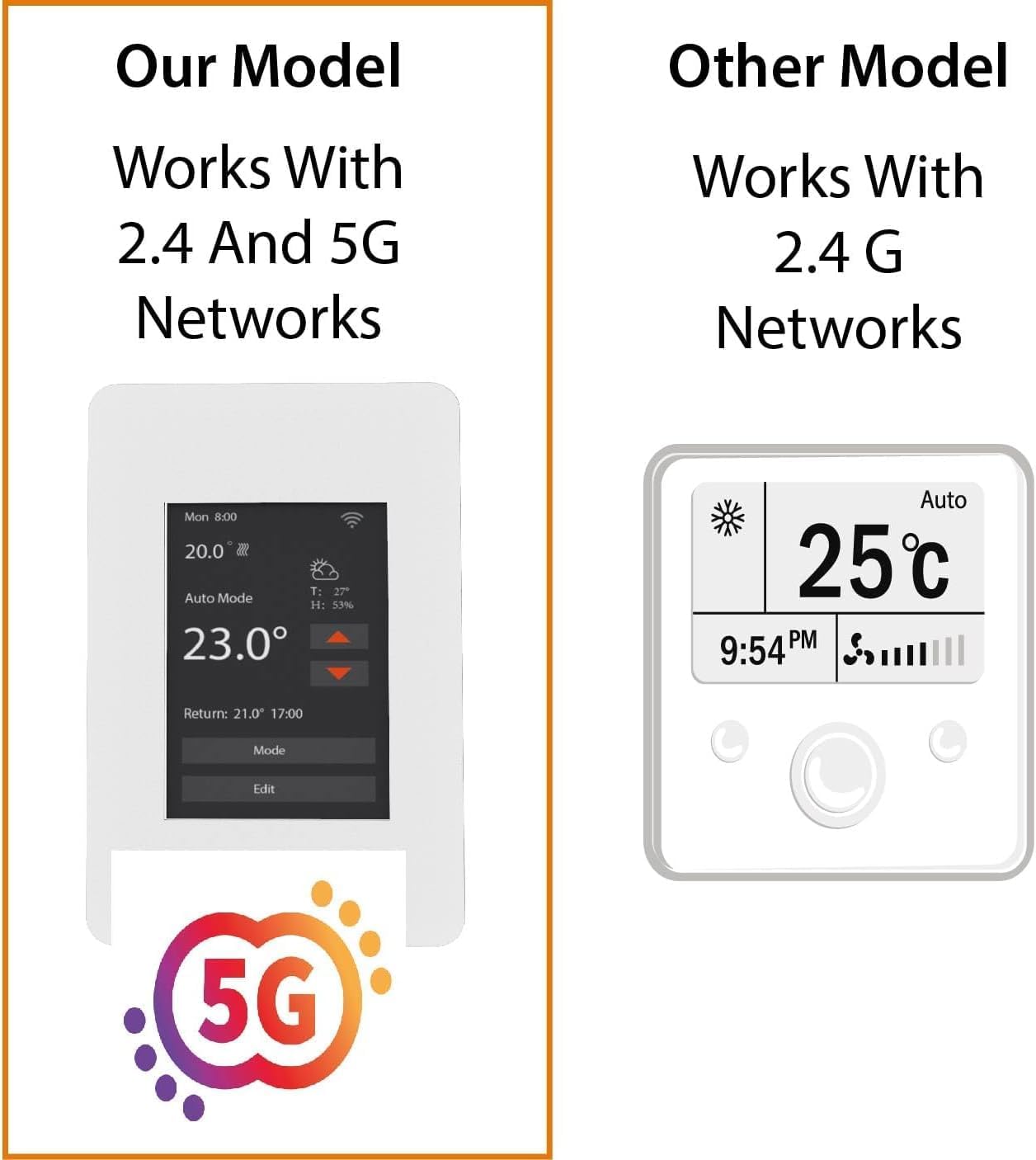
Image 6.2: This image highlights the Warmall WiStat's compatibility with both 2.4 GHz and 5 GHz Wi-Fi networks, offering enhanced connectivity options compared to some other models.
7. Operating Instructions
Control your in-floor heating system using the touchscreen or the mobile application.
7.1. Touchscreen Operation
- Adjusting Temperature: Use the up/down arrows on the display to set the desired temperature.
- Mode Selection: Press the 'Mode' button to cycle through available operating modes (e.g., Auto, Manual).
- Editing Schedules: Press the 'Edit' button to access and modify heating schedules.
- Display Backlight: The display backlight will dim or turn off after a few seconds of inactivity to save energy. Touch the screen to reactivate it.
7.2. Mobile App Operation
The Warmall app provides comprehensive control and monitoring features:
- Remote Temperature Control: Adjust the set temperature from anywhere.
- Scheduling: Create and manage detailed heating schedules for different days and times.
- Energy Monitoring: View historical energy consumption data.
- Mode Management: Switch between heating modes.
- Voice Control: Integrate with Amazon Alexa for hands-free operation.
8. Maintenance
The Warmall WiStat Thermostat requires minimal maintenance.
- Cleaning: Wipe the display and casing with a soft, damp cloth. Do not use abrasive cleaners or solvents.
- Software Updates: Ensure your mobile app is up-to-date for the latest features and security enhancements. Firmware updates for the thermostat may be pushed automatically or require manual initiation via the app.
9. Troubleshooting
If you encounter issues with your Warmall WiStat Thermostat, refer to the following common problems and solutions.
- Thermostat not powering on:
- Check the circuit breaker for the heating system.
- Verify all wiring connections are secure and correct.
- No Wi-Fi connection:
- Ensure your Wi-Fi router is powered on and functioning.
- Confirm the thermostat is within range of your Wi-Fi signal.
- Verify correct Wi-Fi password entry during setup.
- The thermostat supports both 2.4 GHz and 5 GHz networks. Ensure your router is configured appropriately.
- Inaccurate or fluctuating temperature readings:
- Ensure the floor sensor is correctly installed and not damaged.
- Avoid placing the thermostat in direct sunlight or near heat sources/drafts that could affect its internal temperature sensor.
- If the issue persists, contact customer support.
- Ground Fault trips frequently:
- A ground fault trip indicates a potential electrical issue. This should be investigated by a qualified electrician.
- Ensure the heating mat/cable is not damaged and is properly insulated.
- If the ground fault trips even when heating is off, it suggests a persistent electrical issue that requires immediate attention.
- Thermostat display turns off too quickly:
- This is a normal energy-saving feature. Touch the screen to reactivate the display. There is no option to keep the display permanently on.
10. Specifications
| Feature | Specification |
|---|---|
| Brand | Warmall |
| Model Name | WiStat |
| Item Model Number | 831459009418 |
| UPC | 831459009418 |
| Connectivity Technology | Wi-Fi (2.4 GHz & 5 GHz) |
| Control Method | App, Voice (Amazon Alexa), Touchscreen |
| Display Type | Touchscreen |
| Power Source | Corded Electric |
| Material | Plastic |
| Mounting Type | Wall Mount |
| Product Dimensions | 6 x 3 x 3 inches |
| Item Weight | 12 ounces |
11. Warranty and Support
For warranty information and technical support, please refer to the contact details provided with your purchase or visit the official Warmall website. Keep your proof of purchase for warranty claims.