
Nideocion TS20
Wireless 7-inch Double Din Car Stereo User Manual
Model: TS20
Brand: Nideocion
1. Introduction
This user manual provides comprehensive instructions for the installation, operation, and maintenance of your Nideocion Wireless 7-inch Double Din Car Stereo (Model TS20). This advanced car stereo system features wireless Apple CarPlay and Android Auto, a high-definition IPS touch screen, Bluetooth 5.1, FM radio, and support for a rearview camera. Please read this manual thoroughly before using the product to ensure proper functionality and safety.
2. What's in the Box
Upon opening the package, please verify that all the following components are included:
- 7'' Double Din Car Stereo Unit
- Car Backup Camera
- Steering Wheel Control Remote
- Installation Instruction Manual
- ISO Wiring Harness
- Remote Control
- Frame
- Camera Cable
- Brackets
- Disassembly Tool

Image: All components included in the product package, showing the main stereo unit, backup camera, steering wheel remote, standard remote, wiring harness, mounting brackets, and installation tools.
3. Key Features
3.1 Wireless Apple CarPlay and Android Auto
Connect your smartphone wirelessly to the car stereo. This allows seamless access to your phone's apps, navigation (Google Maps, Apple Maps), music, and messages directly on the car's display. Enjoy a focused and safe driving experience using either the touchscreen or voice control, eliminating the need for physical cables.

Image: The car stereo displaying the Apple CarPlay interface, with a smartphone showing the CarPlay logo, indicating wireless connectivity.

Image: A car dashboard showing the stereo unit with both Apple CarPlay and Android Auto interfaces, emphasizing wireless connectivity with smartphones.
3.2 1024*600 HD Touchscreen
The 7-inch display features a high resolution of 1024*600, providing clear visuals and vibrant colors. The responsive touch interface allows for easy navigation through menus, settings, and media, enhancing your overall driving enjoyment.

Image: A visual comparison demonstrating the superior clarity of the 1024x600 resolution display compared to lower resolutions, highlighting the vividness of colors.
3.3 7-inch Double Din Car Stereo Dimensions
The car radio is designed with dimensions of 178mm (W) × 100mm (H) to ensure a seamless fit into your vehicle's dashboard. If your dashboard opening does not match these dimensions, a compatible double din dashboard kit can be purchased separately for a customized installation.
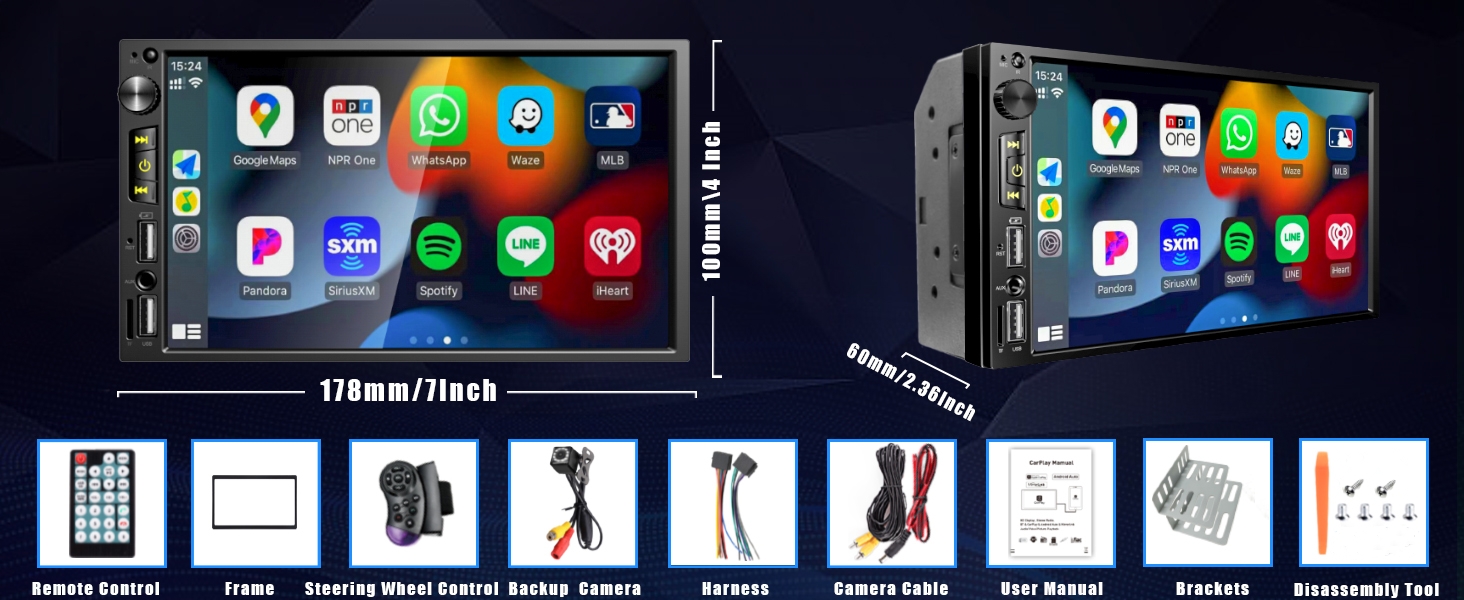
Image: A diagram illustrating the precise dimensions of the car stereo unit (178mm width, 100mm height, 60mm depth) and its various components.
3.4 Bluetooth 5.1 Connectivity
Stay connected with the built-in Bluetooth 5.1. This feature enables hands-free calling and wireless music streaming from your smartphone or other Bluetooth-enabled devices. The integrated microphone ensures clear communication, and the included steering wheel controller provides convenient control.

Image: The car stereo screen showing a map with a Bluetooth icon and speech bubbles indicating voice commands for calling and navigation.
3.5 HD Car Rearview Camera
The included HD car backup camera features night vision for enhanced safety during reversing maneuvers. Equipped with 12 high-intensity night vision lights, it provides clear visibility even in low-light conditions. The camera is waterproof and offers a wide 170-degree viewing angle to minimize blind spots, along with reversing guidelines for precise parking.

Image: The car stereo screen displaying the live feed from the backup camera, showing parking guidelines and a clear view of the area behind the vehicle.

Image: A graphic illustrating the key features of the backup camera, including high definition, wide-angle view, waterproof design, and night vision capabilities.
3.6 Car FM Radio
Enhance your driving experience by tuning into your favorite FM radio stations. The car stereo provides clear reception, user-friendly controls, and excellent sound quality for music, news, and entertainment.

Image: The car stereo screen showing the FM radio interface with frequency display and preset buttons, set against a background of sound waves.
3.7 Car GPS Navigation
Utilize Google Maps or Apple Maps through CarPlay for real-time updates and accurate navigation. Access up-to-date traffic information, turn-by-turn directions, and efficient route planning for stress-free travel.
4. Setup and Installation
Proper installation is crucial for optimal performance. It is recommended to have the unit installed by a professional if you are not familiar with car audio wiring.
4.1 Confirm Fitment
Before installation, use the "Amazon Confirm Fit" tool on the product page to verify compatibility with your vehicle. This tool helps ensure the stereo's dimensions align with your car's dashboard opening.

Image: A step-by-step guide demonstrating how to use the "Amazon Confirm Fit" tool on the product page to check vehicle compatibility for the car stereo.
4.2 Wiring Diagram
Refer to the provided ISO wiring harness and the diagram below for correct electrical connections. Ensure all connections are secure to prevent malfunctions.

Image: A detailed wiring diagram showing the connections for the car stereo, including power, speakers, camera input, and other auxiliary connections.
4.3 Backup Camera Installation
The backup camera should be mounted at the rear of your vehicle, typically near the license plate. Connect the camera's video output to the "CAMERA-IN" input on the stereo and its power to the vehicle's reverse light circuit for automatic activation when reversing.
5. Operating Instructions
5.1 Power On/Off
Press the power button (usually marked with a power symbol) on the front panel to turn the unit on or off. The unit will typically power on automatically with the vehicle's ignition.
5.2 Wireless CarPlay / Android Auto
- Ensure Bluetooth and Wi-Fi are enabled on your smartphone.
- On the car stereo, navigate to the CarPlay or Android Auto icon.
- Follow the on-screen prompts to pair your phone. Once paired, your phone's compatible apps will appear on the stereo display.
- Use the touchscreen or voice commands (e.g., "Hey Siri" or "Hey Google") to control functions.
5.3 Bluetooth Audio and Hands-Free Calling
- Go to the Bluetooth menu on the stereo.
- Enable Bluetooth on your phone and search for available devices. Select "TS20" or similar from the list.
- Confirm the pairing code if prompted.
- Once connected, you can stream audio or make/receive calls directly through the stereo.

Image: The car stereo screen displaying the Bluetooth calling interface, showing a dial pad and options for contacts and music streaming, with two smartphones on either side.
5.4 FM Radio Operation
Select the FM Radio source. Use the scan or tune buttons to find stations. You can save your favorite stations to preset buttons for quick access.
5.5 Steering Wheel Control
The included steering wheel control remote allows you to manage basic functions like volume, track skipping, and call answering without taking your hands off the wheel. Ensure the remote is properly paired or configured according to the installation instructions.

Image: A visual representation of the steering wheel control remote and the corresponding functions it can perform on the car stereo, such as volume adjustment and track navigation.
5.6 Multimedia Input (USB/AUX/TF)
The unit supports various multimedia inputs including USB, AUX, and TF card. Simply insert your device or card into the corresponding port to play audio or video files.

Image: The car stereo unit highlighting its various input ports, including AUX, USB, and TF card slot, indicating its multimedia capabilities.
6. Maintenance
- Cleaning the Screen: Use a soft, lint-free cloth to gently wipe the touchscreen. For stubborn smudges, slightly dampen the cloth with water or a screen-safe cleaner. Avoid abrasive materials or harsh chemicals.
- General Cleaning: Keep the unit free from dust and debris. Use a soft brush or compressed air to clean around buttons and ports.
- Software Updates: Periodically check the Nideocion official website for any available firmware updates to ensure optimal performance and compatibility.
7. Troubleshooting
| Problem | Possible Cause | Solution |
|---|---|---|
| Unit does not power on. | No power supply; incorrect wiring; blown fuse. | Check power connections (ACC, BATT, GND). Verify vehicle fuse and stereo fuse. Consult a professional for wiring inspection. |
| No sound from speakers. | Incorrect speaker wiring; volume too low; mute function active. | Check speaker connections. Increase volume. Deactivate mute. Ensure correct audio source is selected. |
| Wireless CarPlay/Android Auto disconnects frequently. | Weak Wi-Fi/Bluetooth signal; phone interference; outdated firmware. | Ensure phone is close to the unit. Disable other Wi-Fi/Bluetooth devices. Update stereo firmware if available. Try resetting network settings on your phone. |
| Backup camera not displaying. | Camera not powered; incorrect video input; reverse trigger wire not connected. | Check camera power supply. Ensure video cable is securely connected to "CAMERA-IN". Verify the reverse trigger wire (REVERSE) is correctly connected to the vehicle's reverse light. |
| Poor FM radio reception. | Antenna not connected; weak signal area; damaged antenna. | Ensure car antenna is properly connected to the stereo's "RADIO ANT" input. Try a different location. Inspect antenna for damage. |
| Touchscreen unresponsive or lagging. | Temporary software glitch; excessive dust/debris on screen. | Restart the unit. Clean the screen thoroughly. If issue persists, a factory reset might be necessary (consult support). |
8. Specifications
| Feature | Detail |
|---|---|
| Model | TS20 |
| Brand | Nideocion |
| Display Size | 7 inches |
| Display Resolution | 1024 x 600 HD IPS |
| Connectivity Technology | Bluetooth 5.1, Wi-Fi, USB, AUX |
| Special Features | Wireless Apple CarPlay, Wireless Android Auto, Subwoofer Output, GPS Navigation (via CarPlay/Android Auto), HD Display Screen, Built-In Microphone |
| Compatible Devices | iOS, Android |
| Product Dimensions | 2.36 x 7 x 3.98 inches (59.9 x 177.8 x 101.1 mm) |
| Item Weight | 1.97 pounds (0.89 kg) |
| Audio Output Mode | Stereo |
| Surround Sound Channel Configuration | 2.0 |
| Power Output (Wattage) | 240 Watts (Max) |
| Country of Origin | China |
9. Warranty and Support
Nideocion offers a 1-year free replacement service for any machine malfunctions. We are committed to providing reliable after-sales support.
For installation guidance, troubleshooting assistance, or any other inquiries, please reach out to our dedicated support team through the backend platform where you purchased the product. Customer satisfaction is our priority.
Ask a question about this manual
Ask about setup, troubleshooting, compatibility, parts, safety, or missing instructions. Manuals+ will review the question and use this page’s manual context to help answer it.