
PureGear 64718PG
PureGear PureBoom Wireless Earbuds User Manual
Model: 64718PG | Brand: PureGear
Introduction
The PureGear PureBoom Wireless Earbuds are designed to provide a superior audio experience with convenient touch controls and broad compatibility. This manual will guide you through the setup, operation, and maintenance of your new earbuds to ensure optimal performance and longevity.
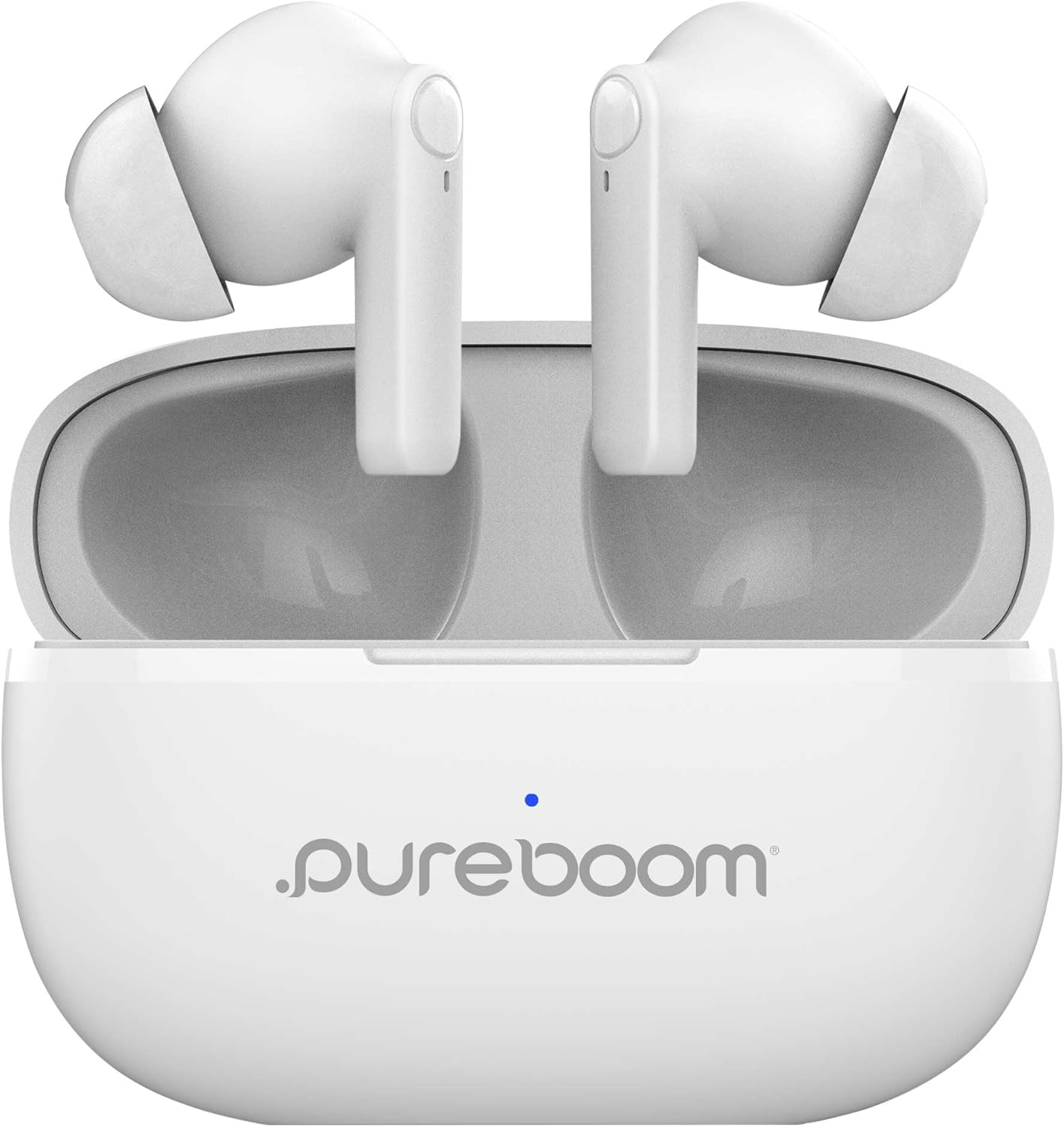
Image: PureGear PureBoom Wireless Earbuds in their charging case, ready for use.
What's Included
Your PureGear PureBoom Wireless Earbuds package includes the following components:
- PureBoom Orbs True Wireless Earbuds (Left and Right)
- Wireless Charging Case
- Adjustable Earbud Ear Tips (S, M, L sizes)
- USB-A to USB-C Charging Cable

Image: All components included in the PureGear PureBoom Earbuds package: earbuds, charging case, various ear tip sizes, and a USB-C charging cable.
Setup
1. Charging the Earbuds and Case
Before first use, it is recommended to fully charge both the earbuds and the charging case. The charging case provides up to 18 hours of additional listening time.
- Place the earbuds into their respective slots in the charging case. Ensure they are seated correctly to initiate charging.
- Connect the provided USB-A to USB-C charging cable to the charging port on the case and plug the other end into a compatible USB power source (e.g., wall adapter, computer USB port).
- The indicator light on the charging case will show the charging status. Refer to the light indicators section for details (if available on product, otherwise omit).
- Once fully charged, disconnect the charging cable.
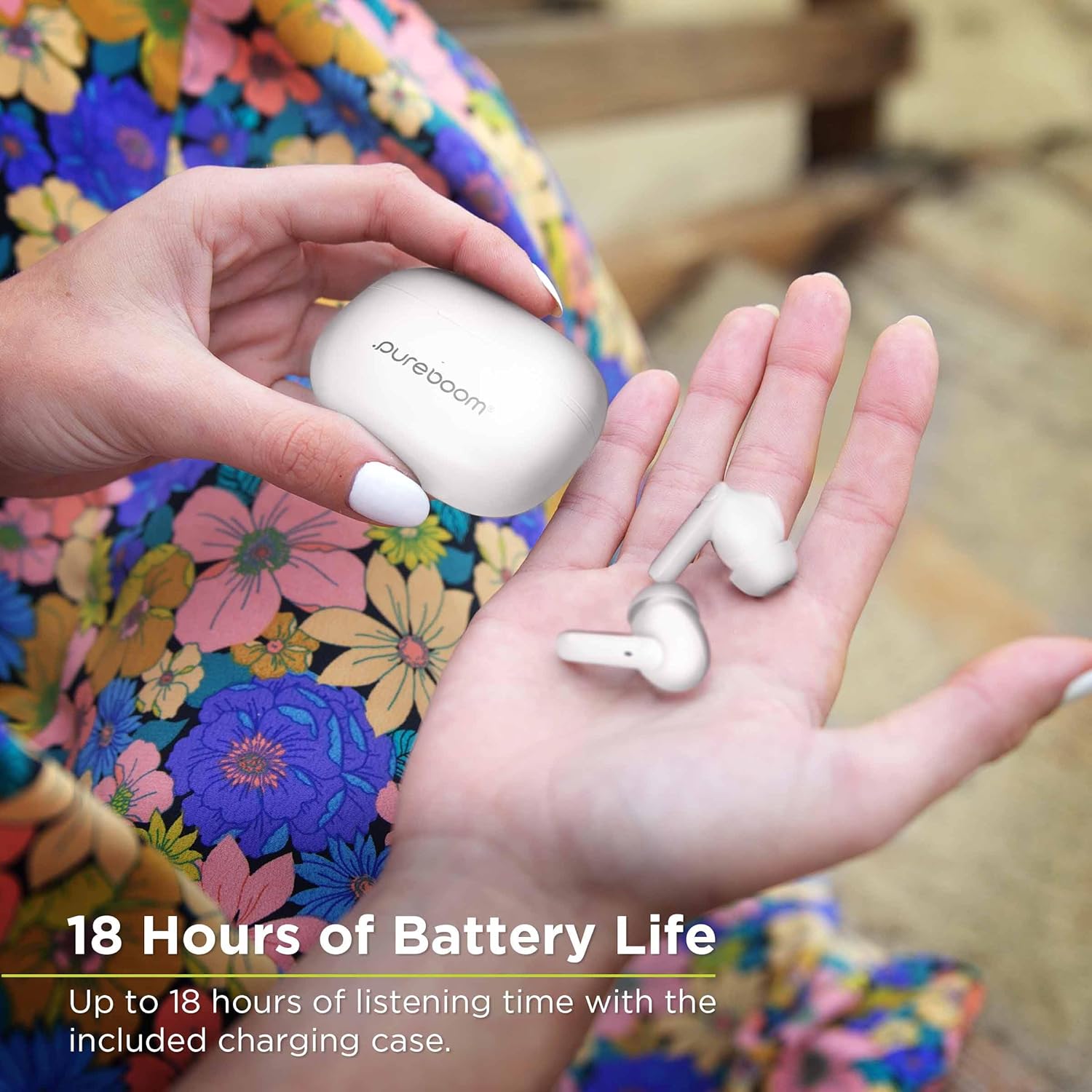
Image: A hand holding the PureBoom earbuds and their charging case, highlighting the extended battery life of up to 18 hours with the case.
2. Bluetooth Pairing
Pair your PureBoom Wireless Earbuds with your device for the first time:
- Open the charging case. The earbuds will automatically enter pairing mode.
- On your device (smartphone, tablet, laptop, etc.), navigate to the Bluetooth settings.
- Ensure Bluetooth is enabled.
- Search for available devices. You should see "PureBoom" or a similar name appear in the list.
- Select "PureBoom" to connect. Once connected, you will hear an audible confirmation, and the indicator light on the earbuds may change.
- The earbuds will automatically reconnect to the last paired device when removed from the case, provided Bluetooth is enabled on the device.
Operating the Earbuds
Touch Controls
The PureBoom earbuds feature intuitive touch controls on each earbud for easy management of music, calls, and voice assistance. The specific functions are as follows:
- Play/Pause: Single tap on either earbud.
- Answer Call: Single tap on either earbud during an incoming call.
- End Call: Single tap on either earbud during a call.
- Reject Call: Press and hold on either earbud during an incoming call.
- Skip Track (Next): Double tap on the right earbud.
- Skip Track (Previous/Repeat): Double tap on the left earbud.
- Volume Control: Triple tap on the right earbud to increase volume, triple tap on the left earbud to decrease volume.
- Voice Assistance: Press and hold on either earbud for 2 seconds to activate your device's voice assistant (Siri, Google Assistant, etc.).

Image: Visual representation of the touch control functions on the PureBoom earbuds, including play/pause, answer call, skip track, volume control, repeat track, and voice assistance.
Hands-Free Calling
The built-in microphone allows for clear hands-free calling. Ensure the earbuds are connected to your phone via Bluetooth. Use the touch controls to manage calls as described above.
Music and Media Playback
Enjoy your favorite music, podcasts, and streaming content with high-quality stereo sound. Use the touch controls to play, pause, skip tracks, and adjust volume. The earbuds are compatible with various devices, including smartphones, laptops, PCs, tablets, iPads, smart TVs, and gaming consoles.

Image: A woman smiling while wearing PureGear PureBoom Wireless Earbuds, illustrating the enjoyment of music.
Maintenance
To ensure the longevity and optimal performance of your PureBoom Wireless Earbuds, follow these maintenance guidelines:
- Cleaning: Regularly clean the earbuds and charging case with a soft, dry, lint-free cloth. Do not use abrasive cleaners, alcohol, or chemical solvents. Gently clean the ear tips and speaker mesh to remove earwax or debris.
- Storage: When not in use, store the earbuds in their charging case to protect them from dust, dirt, and physical damage. Store in a cool, dry place away from extreme temperatures.
- Battery Care: Avoid fully depleting the battery for extended periods. Charge the earbuds and case regularly, even if not in frequent use, to maintain battery health.
- Water Resistance: These earbuds are not water resistant. Avoid exposure to water, sweat, and high humidity to prevent damage.
Troubleshooting
If you encounter issues with your PureGear PureBoom Wireless Earbuds, try the following solutions:
| Problem | Solution |
|---|---|
| Earbuds not pairing/connecting |
|
| No sound from one earbud |
|
| Low volume or poor sound quality |
|
| Earbuds not charging |
|
Specifications
| Feature | Detail |
|---|---|
| Connectivity Technology | Wireless |
| Wireless Communication Technology | Bluetooth |
| Control Type | Touch Control |
| Battery Life (Earbuds) | Up to 18 Hours (with charging case) |
| Bluetooth Range | 9.75 Meters (approx. 32 feet) |
| Frequency Range | 20 Hz - 20,000 Hz |
| Water Resistance Level | Not Water Resistant |
| Item Weight | 3.04 ounces |
| Model Number | 64718PG |
| UPC | 810096258229 |
| Manufacturer | PureGear |
| Country of Origin | China |
Warranty and Support
PureGear stands behind the quality of its products. Your PureBoom Wireless Earbuds come with:
- Lifetime Warranty: For details on warranty coverage and claims, please refer to the official PureGear website or contact customer support.
- 30-Day Money-Back Guarantee: If you are not satisfied with your purchase within 30 days, you may be eligible for a full refund.
For further assistance, technical support, or warranty claims, please visit the official PureGear website or contact their customer service department.
PureGear Official Website: www.pure-gear.com
Related documents64718PG


Ask a question about this manual
Ask about setup, troubleshooting, compatibility, parts, safety, or missing instructions. Manuals+ will review the question and use this page’s manual context to help answer it.