1. Introduction and Overview
This manual provides instructions for the Manhattan Spanish Layout Wireless Keyboard and Optical Mouse Combo, Model 180955. This combo is designed to enhance your productivity and comfort with its reliable wireless connectivity and ergonomic features.
Enjoy comfortable and easy typing with the standard ergonomic keyboard design. The adjustable tilt mechanism provides comfortable typing positions, and the keyboard boasts a lifespan of 10,000,000 keystrokes. The optical mouse offers adjustable DPI settings (800/1200/1600) for precise control.
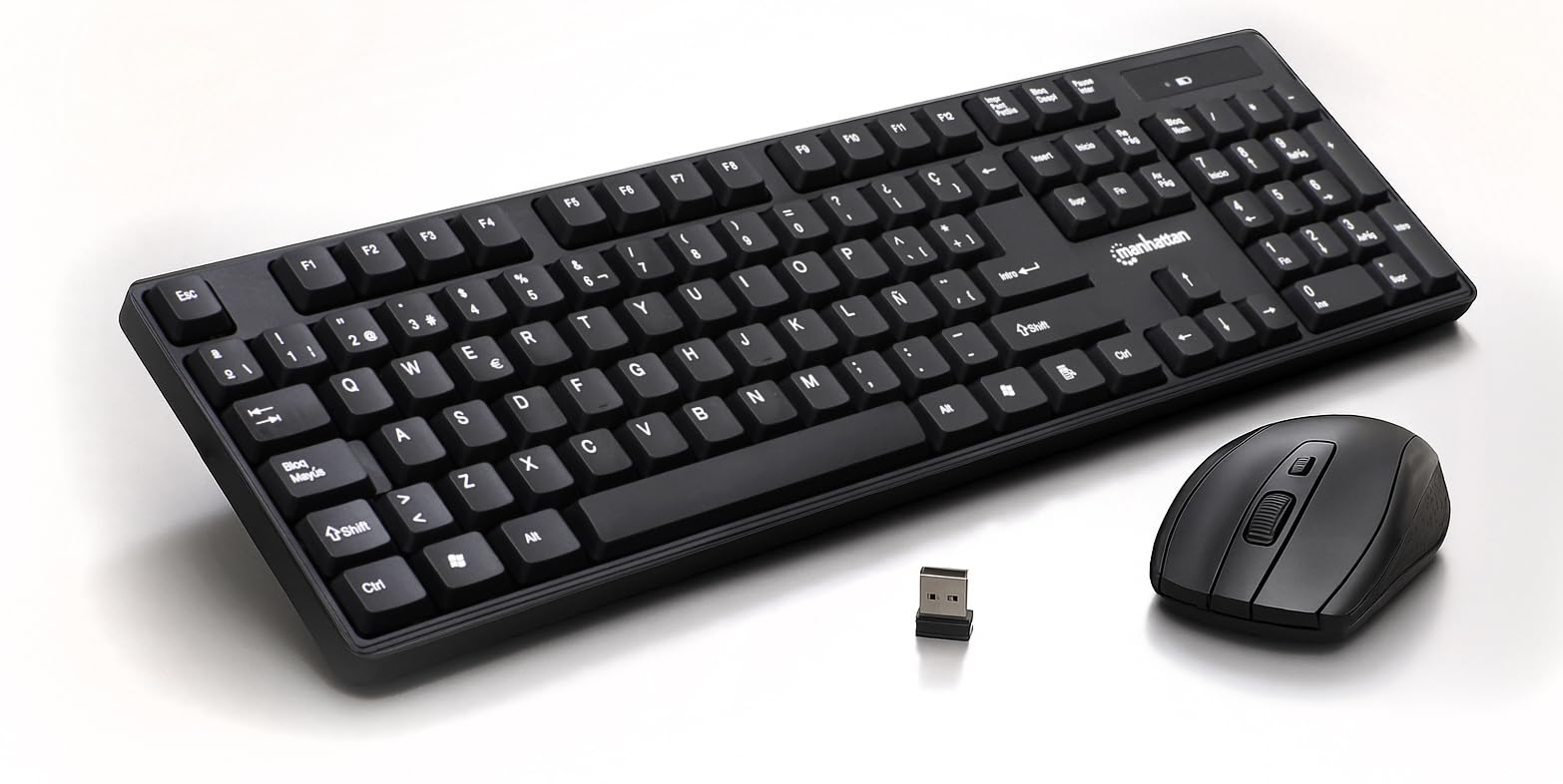
Figure 1: Manhattan Spanish Layout Wireless Keyboard and Mouse Combo
2. Package Contents
Verify that all items are present in your package:
- Manhattan Spanish Layout Wireless Keyboard
- Manhattan Wireless Optical Mouse
- USB 2.4 GHz Receiver
- 2 AAA Batteries (for keyboard)
- 1 AA Battery (for mouse)
3. Setup Instructions
- Install Batteries:
- For the keyboard: Open the battery compartment on the underside of the keyboard and insert 2 AAA batteries, ensuring correct polarity.
- For the mouse: Open the battery compartment on the underside of the mouse and insert 1 AA battery, ensuring correct polarity.
- Connect USB Receiver: Locate an available USB port on your computer (laptop or desktop). Insert the 2.4 GHz USB receiver into the port.
- Power On Devices:
- For the keyboard: Locate the ON/OFF switch, usually on the top right edge or underside, and slide it to the 'ON' position.
- For the mouse: Locate the ON/OFF switch on the underside of the mouse and slide it to the 'ON' position.
- Automatic Connection: The keyboard and mouse should automatically connect to your computer. No additional drivers are typically required for most operating systems.

Figure 2: Easy Setup with Batteries and USB Receiver
4. Operating Instructions
4.1 Keyboard Operation
- Standard Typing: Use the full-size Spanish layout keyboard for all your typing needs.
- Numeric Keypad: The dedicated numeric keypad on the right allows for efficient data entry.
- Multimedia Keys: Utilize the function keys (F1-F12) for quick access to multimedia controls (e.g., volume, play/pause) and other shortcuts.
- Adjustable Tilt: Flip out the integrated foldable supports on the underside of the keyboard to adjust the typing angle for maximum comfort.

Figure 3: Full-Size 104-Key Spanish Layout Keyboard

Figure 4: Keyboard LED Indicators and Numeric Keypad

Figure 5: Adjustable Tilt Legs for Ergonomic Typing
4.2 Mouse Operation
- Standard Use: The optical mouse features standard left, right, and scroll wheel buttons.
- DPI Adjustment: Use the DPI button (often located near the scroll wheel) to cycle through 800, 1200, and 1600 DPI settings to adjust cursor sensitivity.

Figure 6: Wireless Optical Mouse with Adjustable DPI
5. Features
- Wireless Connectivity: 2.4 GHz RF wireless technology with a range of up to 25 feet.
- Spanish Layout: Full-size keyboard with a dedicated numeric keypad and Spanish character set.
- Ergonomic Design: Comfortable typing experience with adjustable tilt legs.
- Automatic Power Management: Conserves battery life by entering sleep mode when idle.
- Durable Construction: Keyboard designed for a lifespan of 10,000,000 keystrokes.
- Adjustable Mouse Sensitivity: Optical mouse with 800/1200/1600 DPI settings.
- Broad Compatibility: Works with most computer operating systems including Windows XP/Vista/7/8.1/10 and Mac OS.
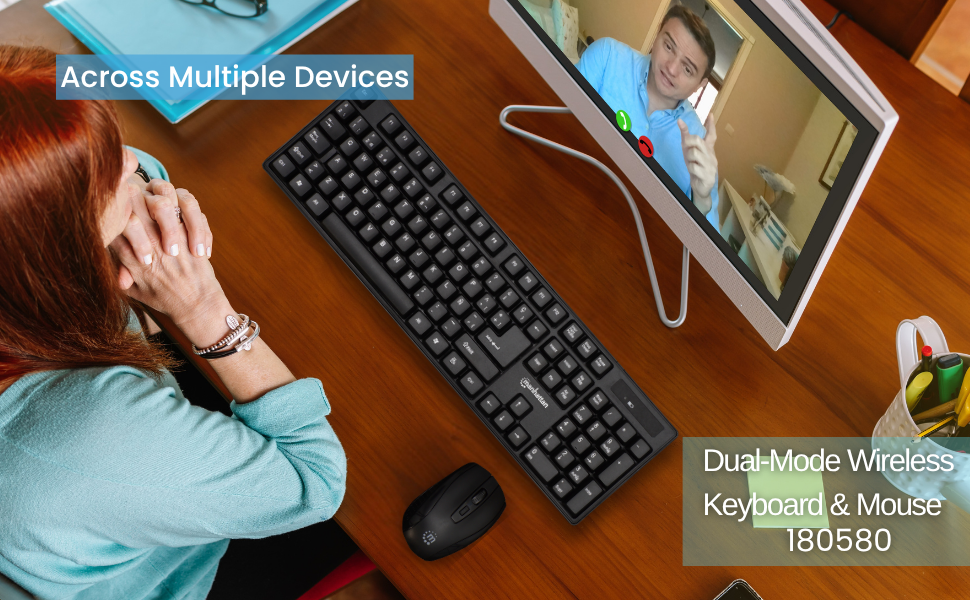
Figure 7: Maximum Compatibility with various Operating Systems
6. Maintenance
- Cleaning: Use a soft, dry cloth to clean the surfaces of the keyboard and mouse. For deeper cleaning, a slightly damp cloth can be used, ensuring no liquid enters the device.
- Battery Replacement: Replace batteries when performance degrades. Refer to Section 3.1 for battery installation.
- Storage: When not in use for extended periods, turn off both the keyboard and mouse to conserve battery life. Store in a cool, dry place.
7. Troubleshooting
- No Connection/Unresponsive:
- Ensure the USB receiver is securely plugged into a working USB port on your computer.
- Check that both the keyboard and mouse are switched 'ON'.
- Replace the batteries in both devices with fresh ones.
- Move the keyboard and mouse closer to the USB receiver to rule out range issues.
- Try plugging the USB receiver into a different USB port on your computer.
- Lagging/Delayed Response:
- Reduce the distance between the devices and the USB receiver.
- Avoid using the devices near strong electromagnetic interference sources (e.g., other wireless devices, large metal objects).
- Mouse Cursor Jumps/Erratic Movement:
- Ensure the mouse is used on a clean, non-reflective surface.
- Adjust the DPI setting of the mouse to a lower sensitivity if needed.
8. Specifications
- Product Dimensions: 17.32 x 5.12 x 0.87 inches
- Item Weight: 1.25 pounds
- Manufacturer: MANHATTAN
- Connectivity Technology: RF (2.4 GHz)
- Keyboard Layout: Spanish
- Keyboard Lifespan: 10,000,000 keystrokes
- Mouse DPI: Adjustable 800/1200/1600
- Batteries: 2 AAA (keyboard), 1 AA (mouse)
- Color: Black
- Material: Plastic
- Compatible Devices: Laptop, PC
- Compatible OS: Windows XP/Vista/7/8.1/10, Mac OS
9. Warranty and Support
This Manhattan product comes with a 3-year warranty when purchased from the manufacturer or an authorized dealer. For technical support, troubleshooting assistance, or warranty claims, please contact your authorized dealer or visit the official MANHATTAN website for support resources.
10. Product Overview Video
Watch this official product overview video for a visual guide to the features and functionality of the Manhattan Wireless Keyboard and Mouse Combo.
Video 1: Product Overview. This video provides a general overview of a wireless keyboard and mouse combo, demonstrating its features and ease of use.


