1. Product Overview
The JEYI 2230 M.2 Enclosure is a compact, direct-attached USB-C adapter designed to convert your M.2 NVMe 2230 solid state drive into a portable, high-speed external storage device. It offers 10Gbps data transfer speeds, allowing for rapid file transfers and efficient data management across various devices.

Image: The JEYI 2230 M.2 Enclosure, showcasing its compact design and direct USB-C connection.
2. Package Contents
Please verify that all items listed below are included in your package:
- 1x JEYI 10Gbps Type-C Enclosure
- 1x Screwdriver
- 1x Screw (for SSD retention)
- Multiple Thermal Pads

Image: Visual representation of the items included in the JEYI 2230 M.2 Enclosure package.
3. Setup and Installation
Follow these steps to install your M.2 NVMe 2230 SSD into the enclosure:
- Open the Enclosure: Use the provided screwdriver to loosen the screws on the enclosure and carefully remove the outer cover.
- Insert the SSD: Gently insert your M.2 NVMe 2230 SSD into the designated slot within the enclosure. Ensure it is fully seated.
- Apply Thermal Pads: Place the provided thermal pads onto the SSD chip to ensure proper heat dissipation.
- Secure and Close: Tighten the screw to secure the SSD in place. Then, reattach the outer cover and tighten the screws to close the enclosure.

Image: Illustration of opening the enclosure by loosening screws.

Image: Illustration of inserting the SSD into the enclosure slot.

Image: Illustration of applying thermal pads over the SSD.

Image: Illustration of closing and securing the enclosure.
Installation Video Guide
Video: A step-by-step guide demonstrating the installation process of the M.2 NVMe SSD into the JEYI 2230 M.2 Enclosure.
4. Operating Instructions
The JEYI 2230 M.2 Enclosure is designed for plug-and-play functionality with various devices.
Connecting to a Smartphone
Simply open the magnetic protective cover and plug the USB-C interface directly into your smartphone. The enclosure will be recognized as external storage, allowing you to access files.

Image: The enclosure directly connected to a smartphone, ready for use.
Connecting to a Computer (Laptop/Desktop)
Plug the USB-C interface of the enclosure directly into an available USB-C port on your computer. The device will appear as a removable drive. For optimal performance, ensure your computer's USB-C port supports USB 3.2 Gen2 (10Gbps).

Image: The enclosure connected to a tablet, demonstrating its direct-attached capability.

Image: The enclosure directly connected to a laptop, showing its compact form factor.
LED Indicator Status
- Green Light: Indicates Work Mode (active data transfer or ready for use).
- Blue Light: Indicates Sleep Mode (idle or low power state).

Image: Close-up of the enclosure showing the intelligent LED indicator.
5. Maintenance
To ensure the longevity and optimal performance of your JEYI 2230 M.2 Enclosure and the installed SSD, consider the following maintenance tips:
- Heat Dissipation: The aluminum casing is designed to dissipate heat. Ensure the enclosure is not covered during heavy use to allow for proper airflow. The included thermal pads are crucial for efficient heat transfer from the SSD to the enclosure.
- Safe Ejection: Always safely eject the drive from your operating system before unplugging it to prevent data corruption.
- Cleaning: Use a soft, dry cloth to clean the exterior of the enclosure. Avoid using liquid cleaners or abrasive materials.
- Storage: When not in use, keep the protective cap on the USB-C connector to prevent dust and damage. The magnetic attraction ensures the cap stays securely in place.

Image: Exploded view illustrating the aluminum case and thermal pads for effective heat dissipation.

Image: The enclosure with its magnetic protective cover, designed for secure attachment and portability.
Understanding Operating Temperatures
Video: This video demonstrates temperature readings during operation. While the enclosure is designed for heat dissipation, it may become warm during intensive use. This is normal and indicates the heat is being effectively transferred away from the SSD.
6. Troubleshooting
- Device Not Recognized:
- Ensure the SSD is correctly installed and secured within the enclosure.
- Try plugging the enclosure into a different USB-C port on your device.
- Verify that your operating system (Windows, Mac, Android) is up to date.
- Check if the SSD itself is functional by testing it in another compatible enclosure or system, if possible.
- Slow Transfer Speeds:
- Ensure your host device's USB-C port supports USB 3.2 Gen2 (10Gbps). Older USB versions will result in lower speeds.
- Confirm that the SSD installed is an NVMe M.2 2230 model. SATA M.2 SSDs are not compatible and will not function.
- Close any background applications that might be consuming system resources or disk I/O.
- Verify that the thermal pads are correctly installed to prevent thermal throttling due to overheating.
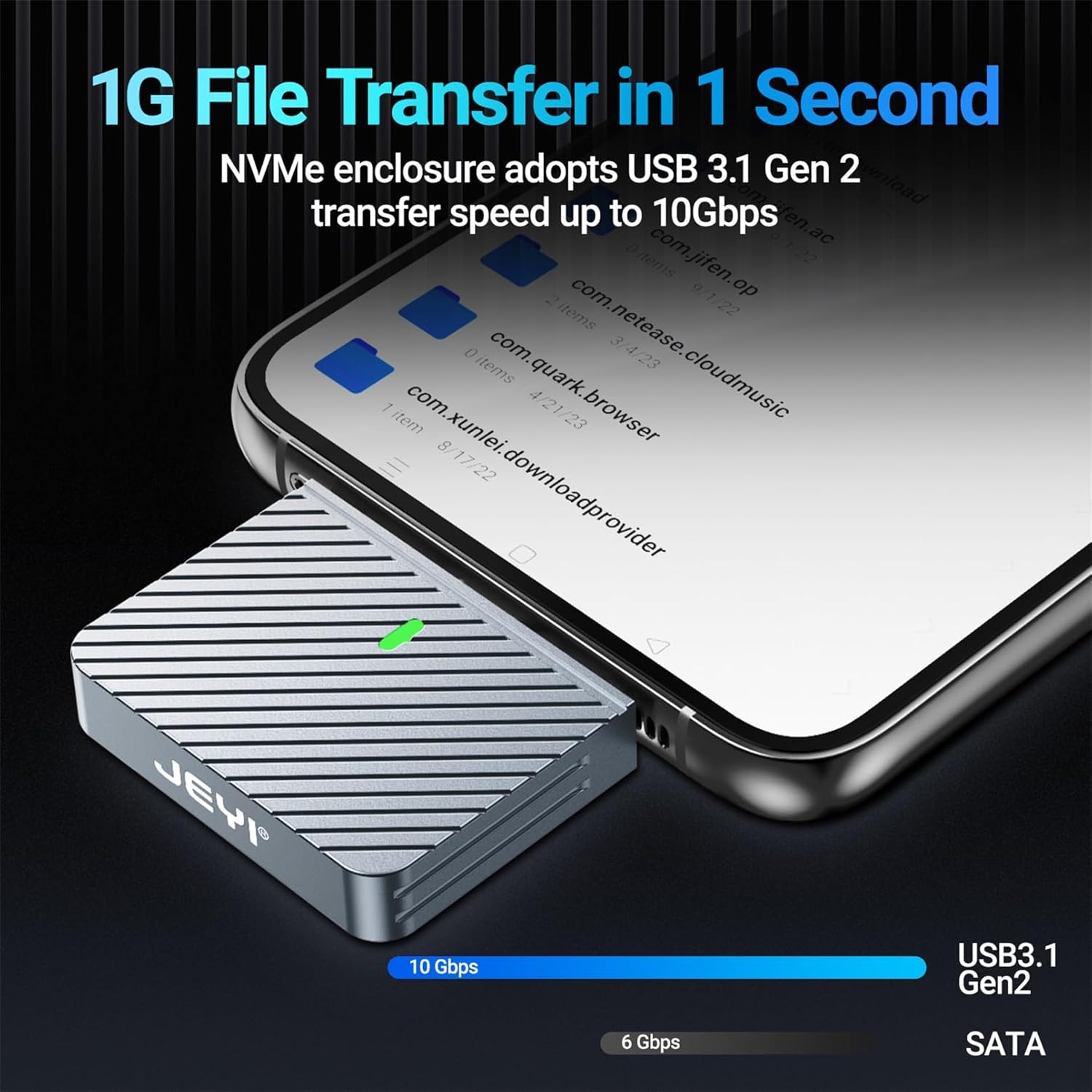
Image: Illustration highlighting the 10Gbps transfer speed capability of the enclosure.
- Enclosure Gets Hot:
- It is normal for the aluminum enclosure to become warm during heavy data transfers, as it is designed to dissipate heat from the SSD.
- Ensure the thermal pads are properly placed between the SSD and the enclosure for efficient heat transfer.
- If temperatures are excessively high and causing performance issues, ensure the enclosure is in an open area with good airflow.
- Incompatible SSD:
- This enclosure supports ONLY 2230 NVME M.2 SSDs. It is not compatible with SATA M.2 SSDs or M.2 SSDs of other form factors (e.g., 2242, 2260, 2280).

Image: Diagram illustrating the compatible M.2 NVMe key types (M-Key, B&M-Key) and incompatible NGFF (B-Key) for this enclosure.
7. Specifications
| Model Number | i9_Zebra_2230C |
| Material | Metal (Aluminum) |
| Compatible SSD Form Factor | M.2 NVMe 2230 (3 Centimeters) |
| Max Supported Capacity | 2TB |
| Data Transfer Rate | 10Gbps (USB 3.2 Gen 2) |
| Hardware Interface | USB 3.2 Gen 2, PCIE x 4 |
| Product Dimensions | 1.57 x 1.57 x 0.31 inches (40 x 40 x 8 mm) |
| Item Weight | 1.76 ounces |
| Color | Black |

Image: Diagram illustrating the precise dimensions of the JEYI 2230 M.2 Enclosure.
8. Warranty and Support
JEYI products are manufactured with high-quality standards. For any warranty claims, technical support, or inquiries regarding your JEYI 2230 M.2 Enclosure, please contact the manufacturer directly through their official support channels. Keep your purchase receipt as proof of purchase for warranty purposes.
For more information, you may visit the JEYI Store on Amazon.


