Introduction
The Thunder Glow is a medium-sized drone featuring all-around LED lights. It is equipped with a 6-axis gyroscopic stabilizer, 2.4 GHz long-range control, low/medium/high speeds, and an auto-trim function. Key features include Return to Home and Headless Mode. The Thunder Glow is designed for both indoor and outdoor enjoyment.
Please read this manual thoroughly before operating your drone to ensure safe and optimal performance. Keep this manual for future reference.
Safety Precautions
- Always operate the drone in open areas, away from people, animals, and obstacles.
- Do not fly near power lines, buildings, or busy roads.
- Ensure the drone's battery is fully charged and securely installed before each flight.
- Do not touch the propellers when they are spinning.
- Adult supervision is recommended for younger users.
- Do not expose the drone or its components to water or extreme temperatures.
- Use only original replacement parts and accessories.
Setup
1. Package Contents
Verify that all items are present in the package:
- Thunder Glow Drone
- Remote Control
- USB Charging Cable
- Spare Propellers
- User Manual

Image: The Thunder Glow Drone, its remote control, USB charging cable, and spare propellers laid out, indicating package contents.
2. Battery Installation and Charging
Drone Battery: The drone comes with a built-in rechargeable battery. Connect the drone's charging port to the USB charging cable, then plug the USB cable into a USB power source (e.g., computer USB port, USB wall adapter). The charging indicator light will show the charging status. Charging typically takes 60-90 minutes.
Remote Control Batteries: The remote control requires 3 AAA batteries (included). Open the battery compartment on the back of the remote control, insert the batteries according to the polarity markings (+/-), and close the compartment.
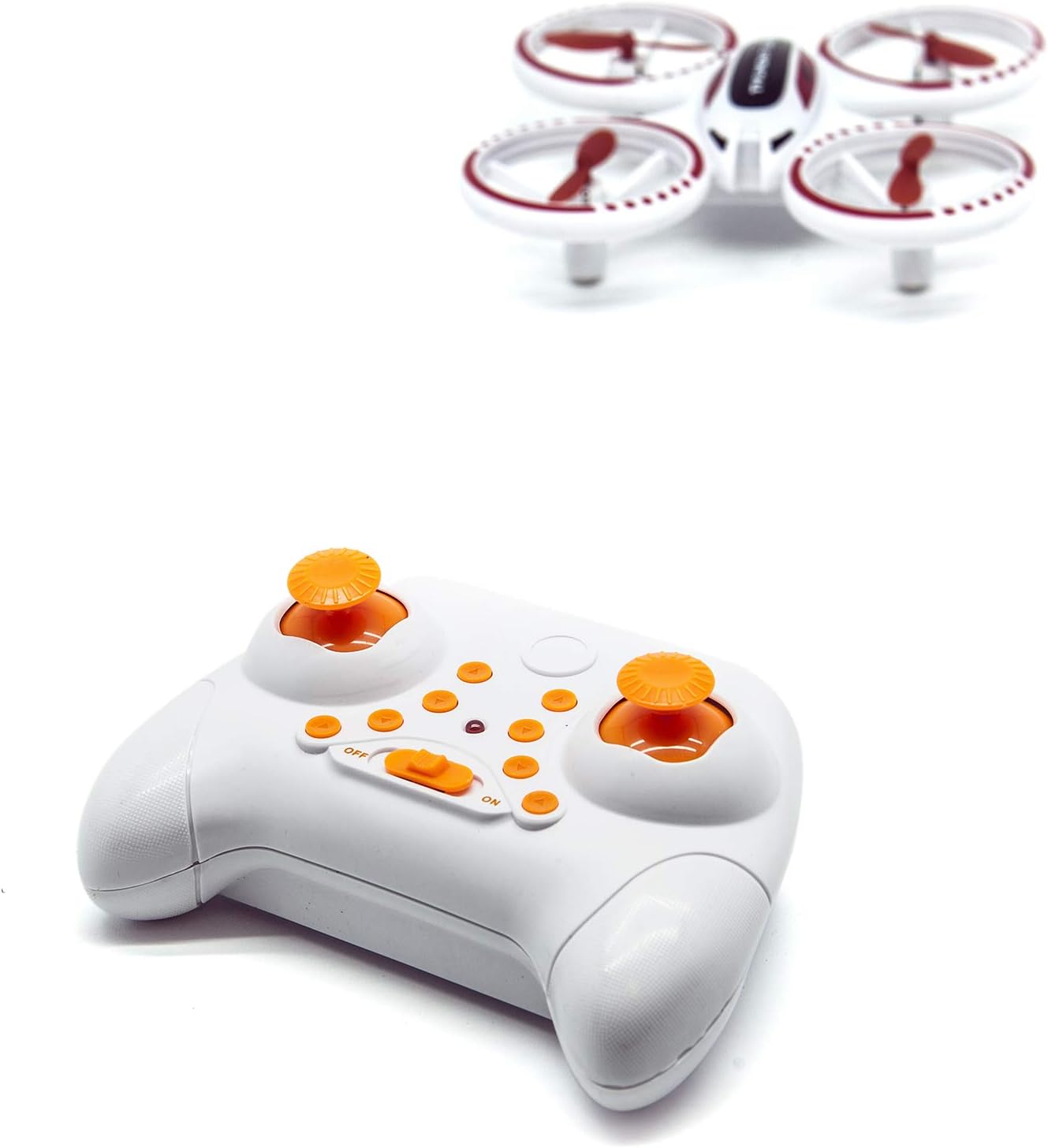
Image: The white remote control for the Thunder Glow Drone, showing its various buttons and joysticks.
3. Pairing the Drone and Remote Control
- Place the drone on a flat, level surface.
- Turn on the drone by pressing the power button. The drone's LED lights will flash.
- Turn on the remote control. The indicator light on the remote will flash.
- Push the left joystick (throttle) all the way up, then pull it all the way down. You will hear a beep, and the drone's LED lights will become solid, indicating successful pairing.

Image: A top-down view of the white Thunder Glow Drone with red propellers and protective rings.
Operating Instructions
1. Basic Controls
- Left Joystick (Throttle): Push up to ascend, pull down to descend.
- Left Joystick (Yaw): Push left to rotate left, push right to rotate right.
- Right Joystick (Directional): Push up for forward flight, down for backward flight, left for left sideward flight, right for right sideward flight.
- Trim Buttons: Used to fine-tune the drone's stability if it drifts in any direction.
2. Take-off and Landing
- Manual Take-off: After pairing, slowly push the left joystick (throttle) up. The propellers will start spinning, and the drone will ascend.
- Manual Landing: Slowly pull the left joystick (throttle) down. The drone will descend gradually. Once it lands, release the joystick.
3. Special Features
- Speed Modes: Press the speed button on the remote to cycle through low, medium, and high-speed settings.
- Headless Mode: Press the headless mode button. In this mode, the drone's orientation is relative to the pilot, regardless of the drone's front direction. Press again to exit.
- Return to Home (RTH): Press the RTH button. The drone will attempt to fly back towards its take-off point. This feature is most effective in open areas and should be used with caution. Press any directional joystick to cancel RTH.
- 360° Flip: Press the flip button, then push the right joystick in the desired flip direction (forward, backward, left, or right).
- LED Lights: The drone features bright LED lights all around, enhancing visibility and making it suitable for night flights.
Maintenance
- Cleaning: Use a soft, dry cloth to clean the drone and remote control. Do not use water or chemical cleaners.
- Propeller Replacement: If a propeller is damaged, carefully remove it and replace it with a new one from the spare parts kit. Ensure the correct propeller (A or B) is installed in the corresponding motor.
- Storage: When not in use, store the drone and remote control in a cool, dry place, away from direct sunlight. Remove batteries from the remote control if storing for extended periods.
Troubleshooting
| Problem | Possible Cause | Solution |
|---|---|---|
| Drone does not respond to remote. | Not paired; low battery (drone or remote); out of range. | Re-pair the drone and remote; charge drone battery, replace remote batteries; ensure drone is within 2.4 GHz range. |
| Drone drifts during flight. | Needs trimming; uneven surface at take-off; damaged propeller. | Use trim buttons to adjust; ensure drone is on a flat surface for pairing/take-off; replace damaged propeller. |
| Propellers do not spin. | Drone not powered on; battery not charged; motor issue. | Ensure drone is powered on; charge drone battery; contact support if motor issue persists. |
| Short flight time. | Battery not fully charged; old battery. | Ensure battery is fully charged before each flight; consider replacing battery if it's old and capacity has diminished. |
Specifications
- Model Name: Thunder Glow
- Manufacturer Model Number: 9868
- Dimensions (L x W x H): 24 x 5.4 x 17 cm
- Weight: 90 Grams
- Control Frequency: 2.4 GHz
- Drone Battery: Rechargeable (built-in)
- Remote Control Battery: 3 x AAA (included)
- Special Features: LED Lights, 6-axis Gyro, Headless Mode, Return to Home, Multiple Speed Modes, 360° Flip
- Skill Level: Beginner
Warranty and Support
For warranty information or technical support, please refer to the contact details provided on the product packaging or visit the official Buzz Toys website. Keep your proof of purchase for warranty claims.


