
1. Introduction
This manual provides detailed instructions for the setup, operation, maintenance, and troubleshooting of your CoolKiller CK75 Mechanical Keyboard and CK21 Numeric Keypad. Please read this manual thoroughly before using the product to ensure optimal performance and longevity.
The CoolKiller CK75 is a high-performance mechanical keyboard featuring a gasket structure for an enhanced typing experience, vibrant RGB backlighting, and multiple connectivity options. The CK21 is a complementary numeric keypad designed for seamless integration and extended functionality.
2. Package Contents
Before proceeding with the setup, please verify that all items are present in your package:
- CoolKiller CK75 Mechanical Keyboard
- CoolKiller CK21 Numeric Keypad
- USB Type-C Cable
- 2-in-1 Switch Puller Tool
- Supplementary Keycaps (if included in your specific package)
- Experience Switch (if included in your specific package)

This image shows the complete contents of the product packaging, including the CK75 keyboard, CK21 numeric keypad, USB cable, switch puller, and supplementary keycaps.
3. Setup and Connection
The CoolKiller CK75 and CK21 offer three connection modes: Wired (USB Type-C), 2.4G Wireless, and Bluetooth 5.1.
3.1 Wired Connection
- Connect the provided USB Type-C cable to the port on the keyboard/numeric keypad.
- Connect the other end of the USB cable to an available USB port on your computer.
- The device will be automatically recognized and ready for use.
3.2 2.4G Wireless Connection
- Locate the 2.4G USB receiver (dongle) for your device. For the CK75, it is typically stored in a magnetic slot on the keyboard.
- Plug the 2.4G USB receiver into an available USB port on your computer.
- Turn on the keyboard/numeric keypad using the power switch.
- The device should automatically connect to the receiver. If not, refer to the troubleshooting section.
3.3 Bluetooth 5.1 Connection
- Ensure the keyboard/numeric keypad is powered on and in Bluetooth pairing mode (refer to device-specific instructions for activating pairing mode, usually a key combination or switch position).
- On your computer or device, navigate to Bluetooth settings.
- Search for new devices and select "CoolKiller CK75" or "CoolKiller CK21" from the list.
- Follow any on-screen prompts to complete the pairing process.

The image displays the CoolKiller CK75 mechanical keyboard and the CK21 numeric keypad alongside a laptop, illustrating the three connection modes: Type-C, 2.4G wireless, and Bluetooth 5.1.
4. Operating Instructions
4.1 Basic Keyboard and Keypad Use
The CK75 keyboard and CK21 numeric keypad function as standard input devices. Simply connect them using your preferred method and begin typing or entering numerical data.
4.2 RGB Backlighting
The CK75 keyboard features customizable RGB backlighting with 16.8 million colors. Lighting effects can be adjusted directly on the keyboard using specific key combinations (refer to the quick start guide for your model) or through the dedicated CoolKiller driver software.

This composite image displays four different vibrant RGB lighting patterns and colors achievable on the CoolKiller CK75 mechanical keyboard.

This image shows a detailed view of the transparent keycaps and the underlying switches, illuminated with a red backlight, highlighting the clear design and light effects.
4.3 Driver Software (Wired Mode Only)
For advanced customization of lighting effects and macro key assignments, install the CoolKiller driver software. Note: The driver software can only be used when the keyboard is connected in wired mode.

A screenshot of the CoolKiller driver software interface, demonstrating options for customized lighting effects with 16.8 million colors and macro key assignments, noting that the driver functions only in wired mode.
4.4 Gasket Structure and Typing Experience
The CK75 keyboard features a gasket-mounted design with double layers of silicon sound-absorbing foam. This structure provides a softer, more cushioned typing feel and reduces acoustic resonance for a quieter and more pleasant sound profile.
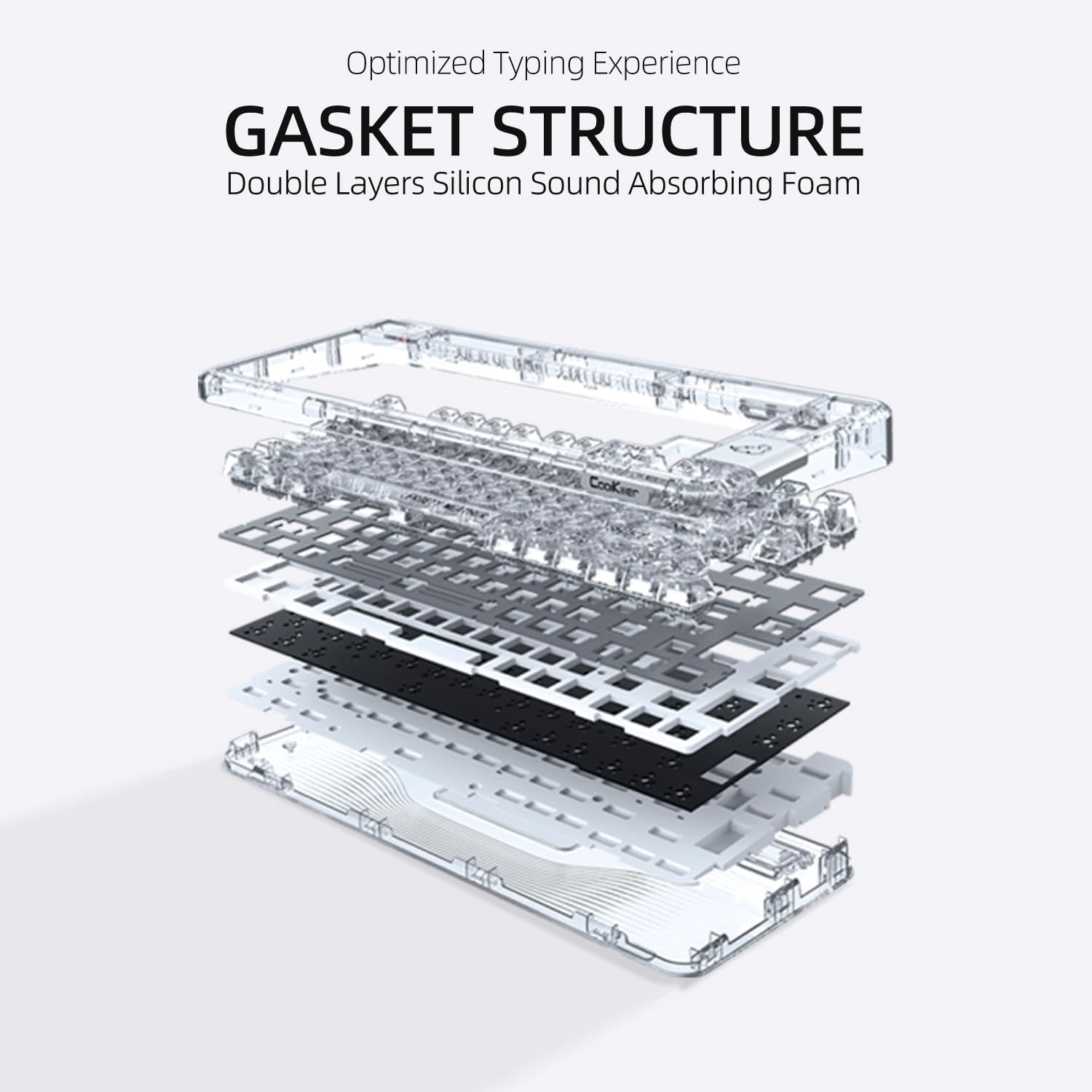
This diagram illustrates the internal gasket structure of the keyboard, featuring double layers of silicon sound-absorbing foam for an optimized typing experience.
4.5 Hot-Swappable PCB
Both the CK75 and CK21 feature a hot-swappable PCB, allowing you to easily change mechanical switches without soldering. This enables customization of typing feel and sound.
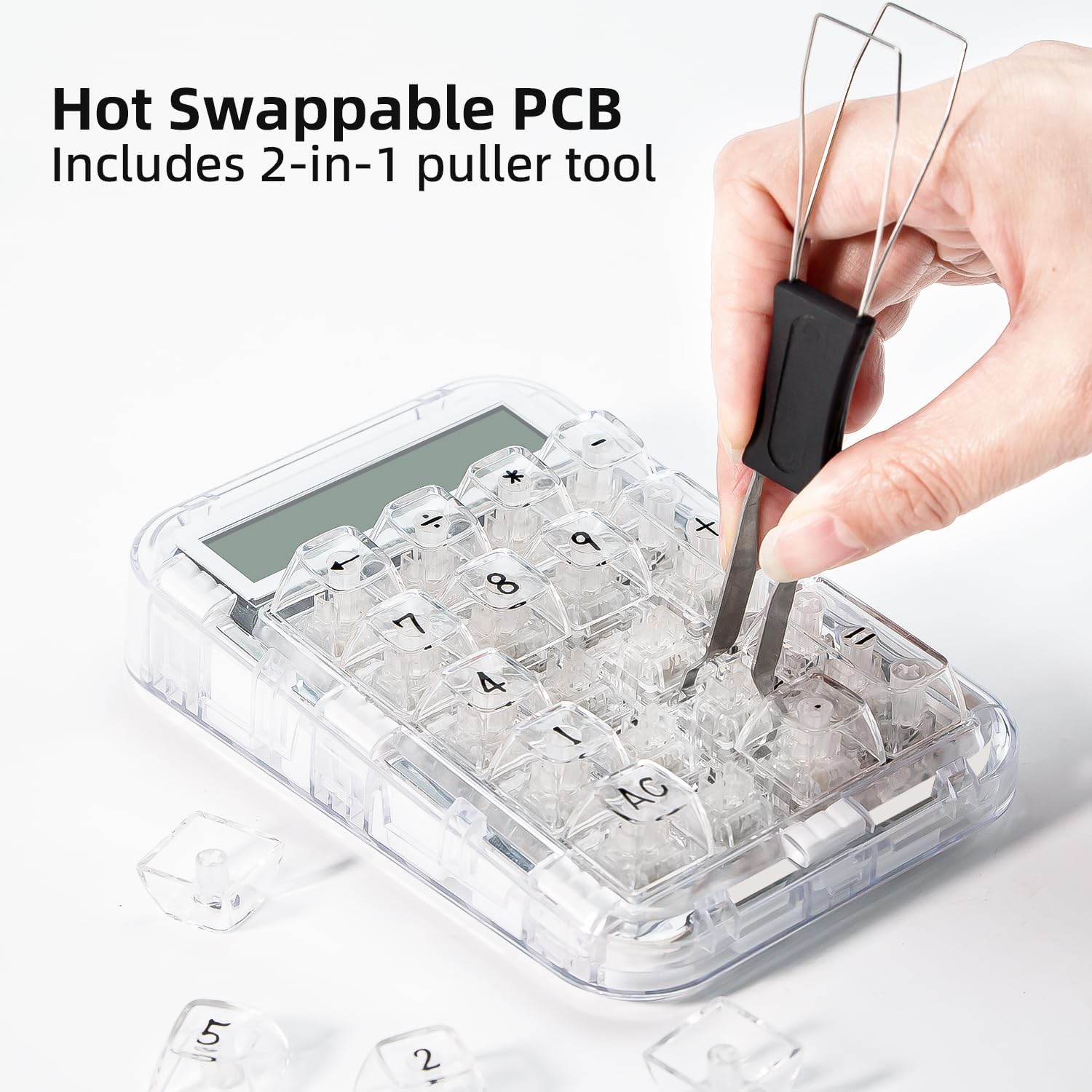
A hand demonstrates the hot-swappable feature by using the included 2-in-1 puller tool to remove a switch from the CK21 numeric keypad.
4.6 Ergonomic Design (CK21 Numeric Keypad)
The CK21 numeric keypad is designed with an ergonomic angle to help relieve input fatigue during extended use. It also features anti-slip pads for stability on your desk.
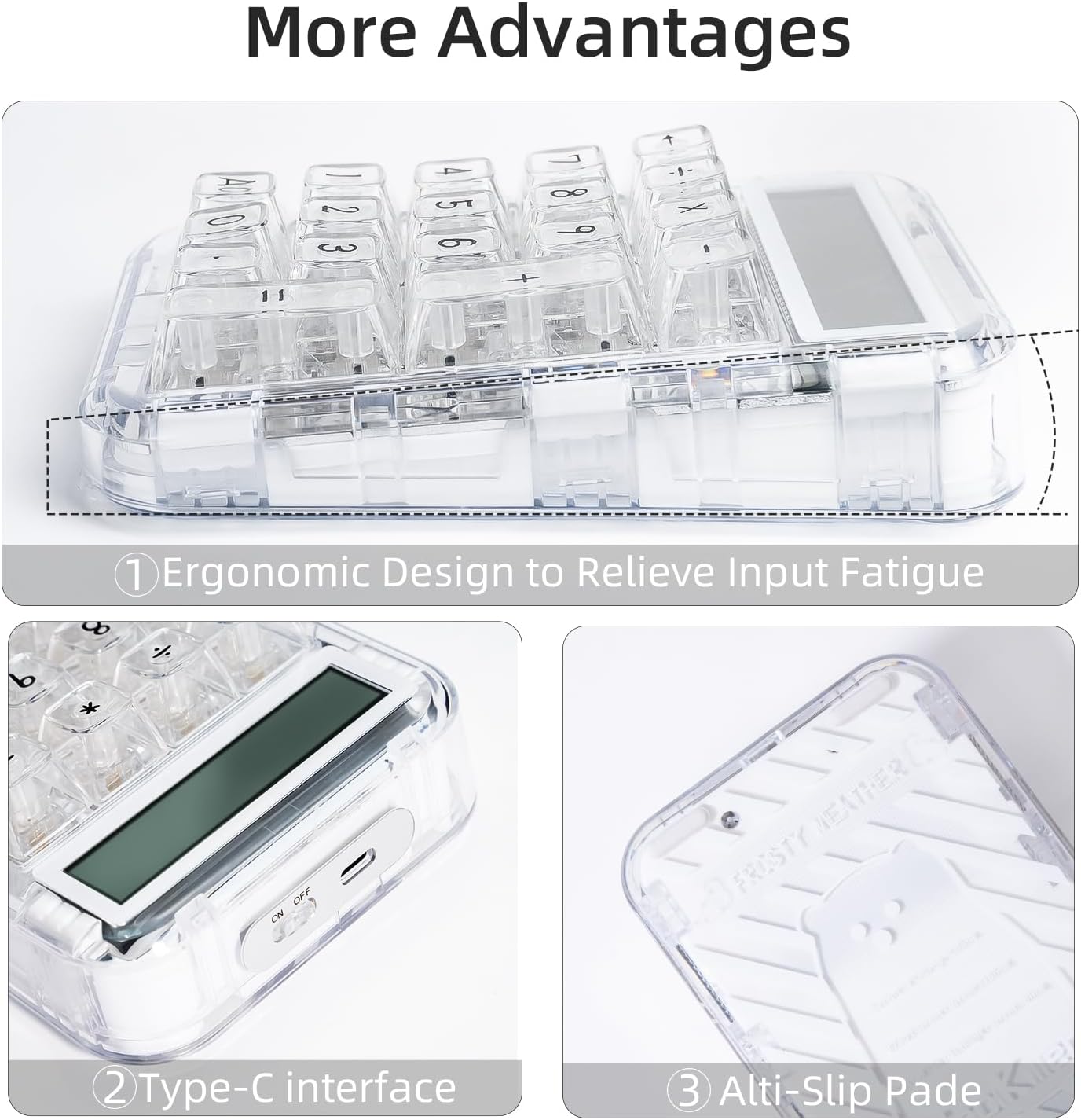
The image highlights the ergonomic design of the CK21 numeric keypad, its Type-C interface for connectivity, and anti-slip pads on the base for stability.
5. Maintenance
5.1 Cleaning
To clean your keyboard and numeric keypad, power them off and disconnect them from your computer. Use a soft, lint-free cloth slightly dampened with water or a mild cleaning solution. Avoid spraying liquids directly onto the devices. For cleaning between keycaps, use compressed air or a small brush.
5.2 Switch Replacement
Due to the hot-swappable design, individual switches can be replaced if they become faulty or if you wish to change the typing feel. Use the provided 2-in-1 switch puller tool to carefully remove switches. Align new switches correctly before pressing them firmly into place.
6. Troubleshooting
6.1 Device Not Connecting
- Wired: Ensure the USB-C cable is securely connected to both the device and the computer. Try a different USB port or cable.
- 2.4G Wireless: Ensure the 2.4G dongle is plugged in and the device is powered on. Try re-pairing by turning the device off and on, or re-inserting the dongle.
- Bluetooth: Ensure Bluetooth is enabled on your computer/device. Make sure the keyboard/keypad is in pairing mode. Forget the device in your Bluetooth settings and try pairing again.
6.2 RGB Lighting Not Working
- Check if the lighting is turned off or set to a very low brightness level.
- Ensure the device has sufficient battery charge if operating wirelessly.
- If using the driver software, ensure the keyboard is in wired mode.
6.3 Keys Not Responding
- Check the connection as described in "Device Not Connecting."
- If a specific key is not responding, it might be a faulty switch. Utilize the hot-swappable feature to replace the switch.
- Ensure the device is not in sleep mode.
6.4 Battery Issues
- If the device is not charging, ensure the USB-C cable and power source are functional.
- Battery life can vary based on usage and RGB lighting intensity. Reduce lighting brightness to extend battery life.
7. Specifications
| Brand | CoolKiller |
| Model Number | CK75 & CK21 |
| ASIN | B0CP5VMXHF |
| Keyboard Layout | QWERTY |
| Keyboard Backlighting | RGB (16.8 million colors) |
| Material | Aluminum (case), Transparent (keycaps/switches) |
| Power Source | Battery Powered (Rechargeable) |
| Connectivity | USB Type-C, 2.4G Wireless, Bluetooth 5.1 |
| Item Weight | 7.26 pounds (total package) |
| Keyboard Dimensions (CK75) | Approx. 329mm x 145mm x 28mm |
| Numeric Keypad Dimensions (CK21) | Approx. 97mm x 143.7mm x 43mm |
7.1 Switch Specifications (Ice Blade Switch)
| Type | Tactile |
| Trigger Pressure | 45g |
| Bottom Pressure | 60g |
| Conduction Force | 45 ± 10g |
| Conduction Stroke | 2.30mm |
| Total Stroke | 3.0mm |

This image provides detailed specifications for the Ice Blade Tactile Switch, including trigger pressure, bottom pressure, conduction force, conduction stroke, and total stroke, along with a corresponding stroke pressure diagram.

Technical drawings providing precise dimensions for both the CoolKiller CK75 keyboard and the CK21 numeric keypad.
8. Warranty and Support
For warranty information and technical support, please refer to the official CoolKiller website or contact their customer service directly. Keep your proof of purchase for any warranty claims.


