
1. Introduction
Thank you for choosing the NLOFIN KB16 16-Key Programmable Macro Pad. This device is designed to enhance your workflow and gaming experience through customizable key assignments and rotary controls. This manual will guide you through the setup, operation, and maintenance of your macro pad.
2. Product Overview
Key Features
- 16 Programmable Keys: Fully customizable for various functions, macros, and key combinations.
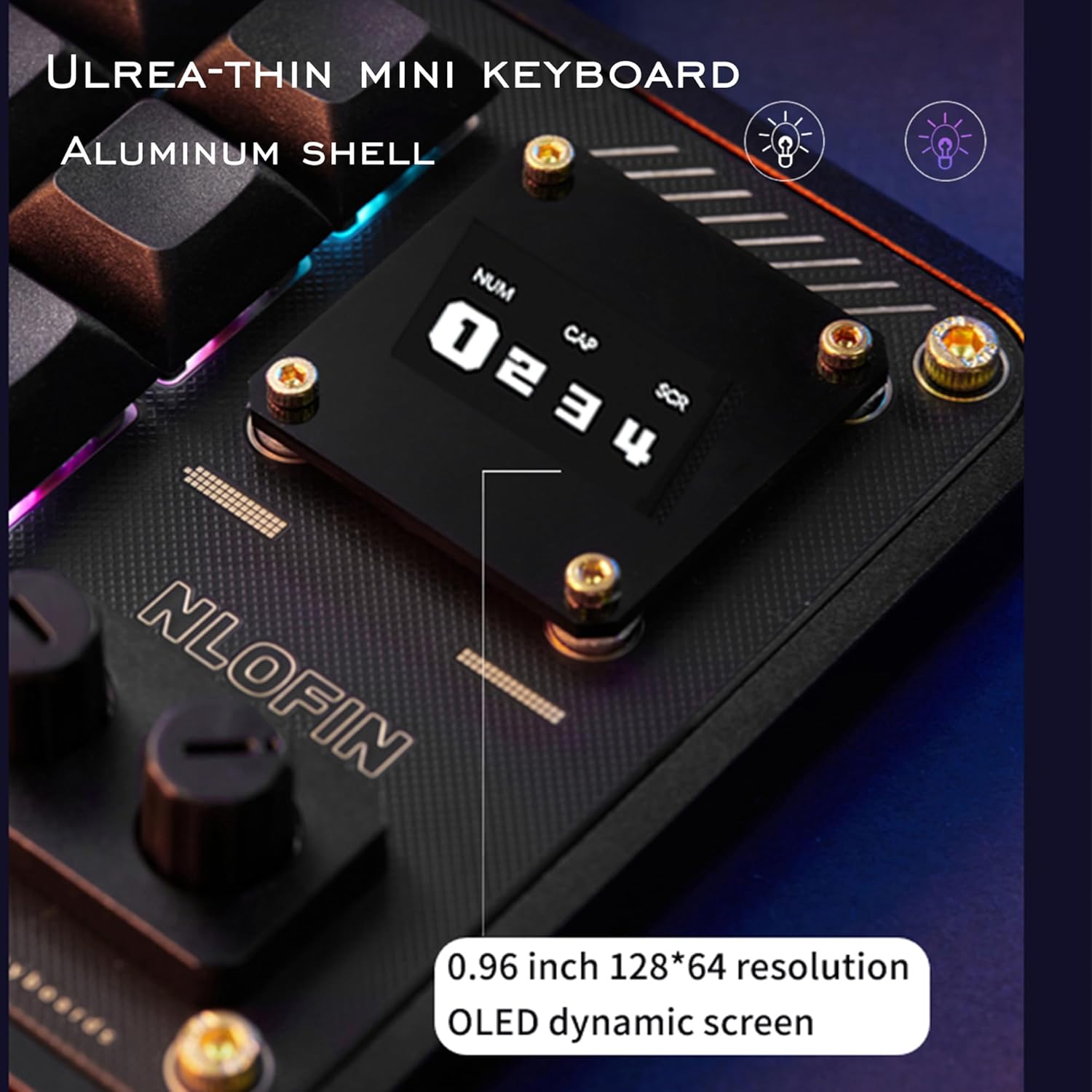
- Durable Design: Aluminum casing ensures durability and a sleek, ultra-slim appearance.
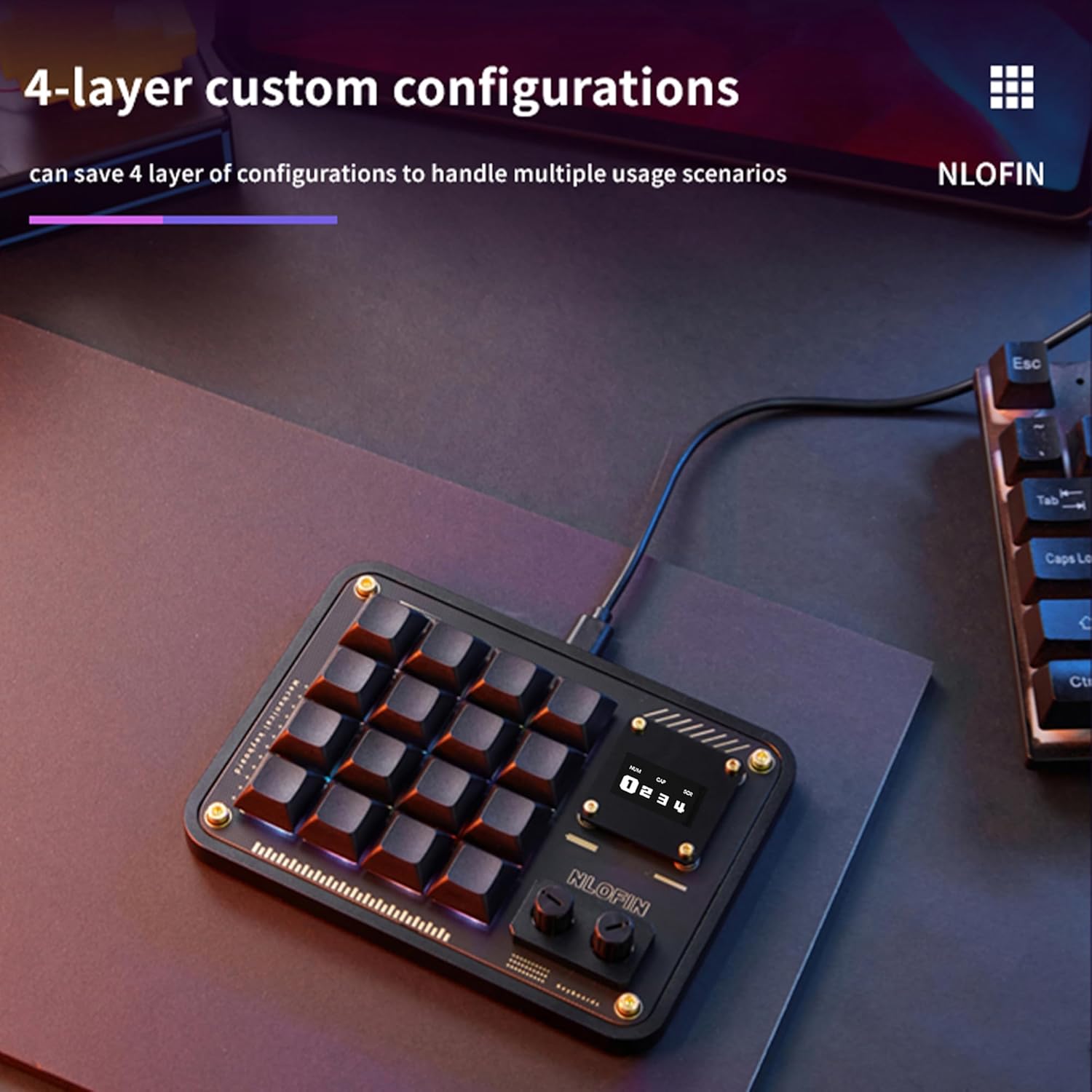
- 4-Layer Custom Configuration: Save and switch between different setup schemes easily. Settings are stored in the keyboard's MCU.
- Adjustable RGB Lighting: Customize lighting with various colorful options.
- Programmable Rotary Buttons: Two sets of rotary buttons offer versatile control (left rotation, right rotation, and press).
- Hot-Swappable: Conveniently replace mechanical keys without soldering.
- Plug and Play: Connects via USB-C and does not interfere with other keyboards.
- OLED Dynamic Screen: A 0.96-inch 128x64 resolution screen displays current layer information.
What's in the Box
- NLOFIN Programmable Keyboard (KB16)
- USB-C (Type C) to USB-A cable
Product Visuals


3. Setup
Initial Connection
Connect the NLOFIN KB16 macro pad to your computer using the provided USB-C to USB-A cable. The device is plug-and-play and should be recognized automatically by your operating system.
VIA Software Setup
The NLOFIN KB16 is compatible with VIA software for advanced customization. Follow these steps to set up VIA:
- Download the VIA software and the base configuration file for the NLKB16-01 model from the official NLOFIN support page or the provided link in the product documentation.
- Open the VIA software. If it shows "Searching for devices...", ensure the macro pad is connected.
- Navigate to the settings (gear icon) and enable "Show Design tab".
- Go to the "Design" tab (upload icon) and click "Load" to load the base configuration file (e.g., NLKB16-01 base configuration.json).
- Once loaded, the macro pad layout should appear, indicating successful connection and configuration loading.


Video Tutorial: NLOFIN Custom 16 Keys Keyboard Setting Tutorial
This video provides a step-by-step guide on how to set up and customize the NLOFIN KB16 macro pad using the VIA software. It covers loading configuration files, setting composite keys, and saving layouts.
4. Operation
Key Programming with VIA
Once the VIA software is set up, you can customize each of the 16 keys and the rotary encoders.
- Select the desired key on the virtual keyboard layout in VIA.
- Choose a function from the categories (Basic, Media, Macro, Layers, Special, Lighting) at the bottom of the interface.
- Click the desired function to assign it to the selected key. The change is applied instantly.
Setting Composite Keys (e.g., Ctrl+C)
To assign a combination of keys:
- Select the key you wish to assign the composite function to.
- Go to the "Special" tab and click "ANY".
- A pop-up will appear. Enter the QMK keycode for the desired combination (e.g.,
C(KC_C)for Ctrl+C). Refer to VIA documentation for more keycodes. - Click "Confirm". The assigned key will display the composite function.


Layer Management
The KB16 supports 4 layers of configuration. You can switch between layers using assigned keys or the programmable knobs. The OLED screen will display the active layer.
- Switching Layers: By default, the right knob press may be configured to cycle through layers. You can also assign specific keys to switch to a particular layer (e.g., TO(1) for Layer 1).
- Saving Layouts: VIA allows you to save and load keyboard layouts as JSON files. This is useful for backing up your configurations or sharing them.


RGB Lighting Adjustment
The KB16 features customizable RGB lighting. You can adjust the brightness, effect, effect speed, and color through the VIA software under the "Lighting" tab.

Usage Scenarios
The NLOFIN KB16 is versatile and can be used for various applications:
- Gaming: Assign complex combos or frequently used actions to single keys.
- Office Work: Create shortcuts for common tasks like copy, paste, undo, or opening applications.
- Design & Video Editing: Map tools and functions for faster and more efficient creative work.

Video: NLOFIN Custom Programmable Designer Mini Keyboard with Screen
This video showcases the physical features of the NLOFIN KB16 macro pad, including its design, customizable keys, programmable knobs, and various usage scenarios like video editing and image processing. It also highlights the hot-swappable switches and RGB lighting.
5. Maintenance
Hot-Swappable Switches
The NLOFIN KB16 features hot-swappable switches, allowing you to easily replace them without soldering. To replace a switch:
- Gently remove the keycap using a keycap puller.
- Use a switch puller to carefully extract the switch from the PCB.
- Align the pins of the new switch with the sockets on the PCB and press firmly until it clicks into place.
- Reattach the keycap.
This feature allows for customization of typing feel and easy replacement of faulty switches.

6. Troubleshooting
Device Not Recognized
- Ensure the USB-C cable is securely connected to both the macro pad and your computer.
- Try connecting to a different USB port on your computer.
- Test with a different USB-C cable if available.
- Restart your computer.
VIA Software Issues
- If VIA shows "Searching for devices..." after loading the configuration, try reloading the base configuration file.
- Ensure you have the correct JSON definition file for the NLKB16-01 model.
- Some users report better compatibility with the web-based VIA tool (vial.rocks) if the desktop application encounters issues.
- Verify that "Show Design tab" is enabled in VIA settings.
Keys Not Registering or Incorrect Output
- Check your key assignments in the VIA software for the active layer.
- Ensure the switches are properly seated in their sockets.
- If using composite keys, verify the QMK keycode syntax is correct.
- Reset the macro pad to factory defaults if persistent issues occur (refer to VIA documentation for this process).
7. Specifications
| Feature | Detail |
|---|---|
| Brand | NLOFIN |
| Model Name | Nlofin Programm Keyboard (KB16) |
| Number of Keys | 16 |
| Connectivity Technology | USB-C |
| Keyboard Description | Macro |
| Special Features | Hot-Swappable, Portable, Programmable Keys, OLED Screen |
| Keyboard Backlighting | RGB |
| Material | Acrylonitrile Butadiene Styrene (ABS) |
| Power Source | USB-powered |
| Compatible Devices | Gaming Console, Laptop, PC |
8. Warranty and Support
Warranty Information
The NLOFIN KB16 Programmable Macro Pad comes with a 1-year warranty from the date of purchase. This warranty covers manufacturing defects and malfunctions under normal use. It does not cover damage caused by misuse, accidents, unauthorized modifications, or normal wear and tear.
Customer Support
For technical assistance, troubleshooting, or warranty claims, please contact NLOFIN customer support through the retailer where you purchased the product or visit the official NLOFIN website for contact information.