
Introduction
Thank you for choosing the FANTECH WK895 Dual Mode Wireless Keyboard and Mouse Combo. This set provides versatile connectivity options, silent operation, and multimedia functionality for enhanced productivity across various operating systems. Please read this manual carefully to ensure proper setup and optimal performance of your device.
Package Contents
- FANTECH WK895 Wireless Keyboard
- FANTECH WK895 Wireless Mouse
- USB 2.4GHz Receiver
- User Manual
Setup
1. Battery Installation
The keyboard requires two AAA batteries, and the mouse requires one AA battery (batteries are not included). Follow these steps to install them:
- Locate the battery compartment on the underside of the keyboard and mouse.
- Open the battery compartment cover.
- Insert the batteries, ensuring correct polarity (+ and -).
- Close the battery compartment cover securely.

This image illustrates the battery compartments for both the keyboard and mouse, along with the location of the USB receiver.
2. Connecting the Devices
The FANTECH WK895 combo offers dual-mode connectivity: 2.4GHz wireless via USB receiver and Bluetooth.
2.1. 2.4GHz Wireless Connection
- Take out the USB 2.4GHz receiver from the mouse's battery compartment.
- Plug the USB receiver into an available USB port on your computer.
- Turn on the keyboard and mouse. They should connect automatically.
2.2. Bluetooth Connection
The combo supports pairing with up to three Bluetooth devices (BT1, BT2).
- Turn on the keyboard and mouse.
- On the keyboard, press and hold the FN + BT1 or FN + BT2 key combination for 3-5 seconds until the indicator light flashes, indicating pairing mode.
- On your device (PC, laptop, tablet), go to Bluetooth settings and search for new devices.
- Select "FANTECH WK895 Keyboard" and "FANTECH WK895 Mouse" from the list of available devices to pair.
- Repeat for additional Bluetooth devices using the other BT channel.

This image demonstrates the stable two-mode connectivity of the FANTECH WK895 combo, supporting both 2.4GHz wireless and Bluetooth connections.

This image illustrates the multi-device pairing capability and the dual layout design for Mac and Windows operating systems.
Operating Instructions
1. Switching Between Connected Devices
To switch between connected devices, simply press the corresponding key combination on the keyboard:
- For 2.4GHz connection: Press FN + 2.4G
- For Bluetooth Device 1: Press FN + BT1
- For Bluetooth Device 2: Press FN + BT2
2. Multimedia Function Keys
The keyboard features multimedia function keys for quick access to various controls. To use them, press the FN key simultaneously with the desired function key (F1-F12).
| Key Combination | Function |
|---|---|
| FN + F1 | Mute |
| FN + F2 | Volume - |
| FN + F3 | Volume + |
| FN + F4 | Previous Track |
| FN + F5 | Play/Pause |
| FN + F6 | Next Track |
| FN + F7 | Brightness - |
| FN + F8 | Brightness + |
| FN + F9 | Select All |
| FN + F10 | Copy |
| FN + F11 | Paste |
| FN + F12 | Cut |

This image provides a visual guide to the multimedia function keys and their uses.
3. Mac and Windows Layout Switching
The keyboard supports dual layouts for Mac and Windows operating systems. To switch between layouts, use the dedicated keys or key combinations as indicated on the keyboard (e.g., Opt/Win and Cmd/Alt keys).
4. Silent Click Feature
Both the keyboard and mouse are designed with silent switches, providing a quiet user experience without distracting click sounds.
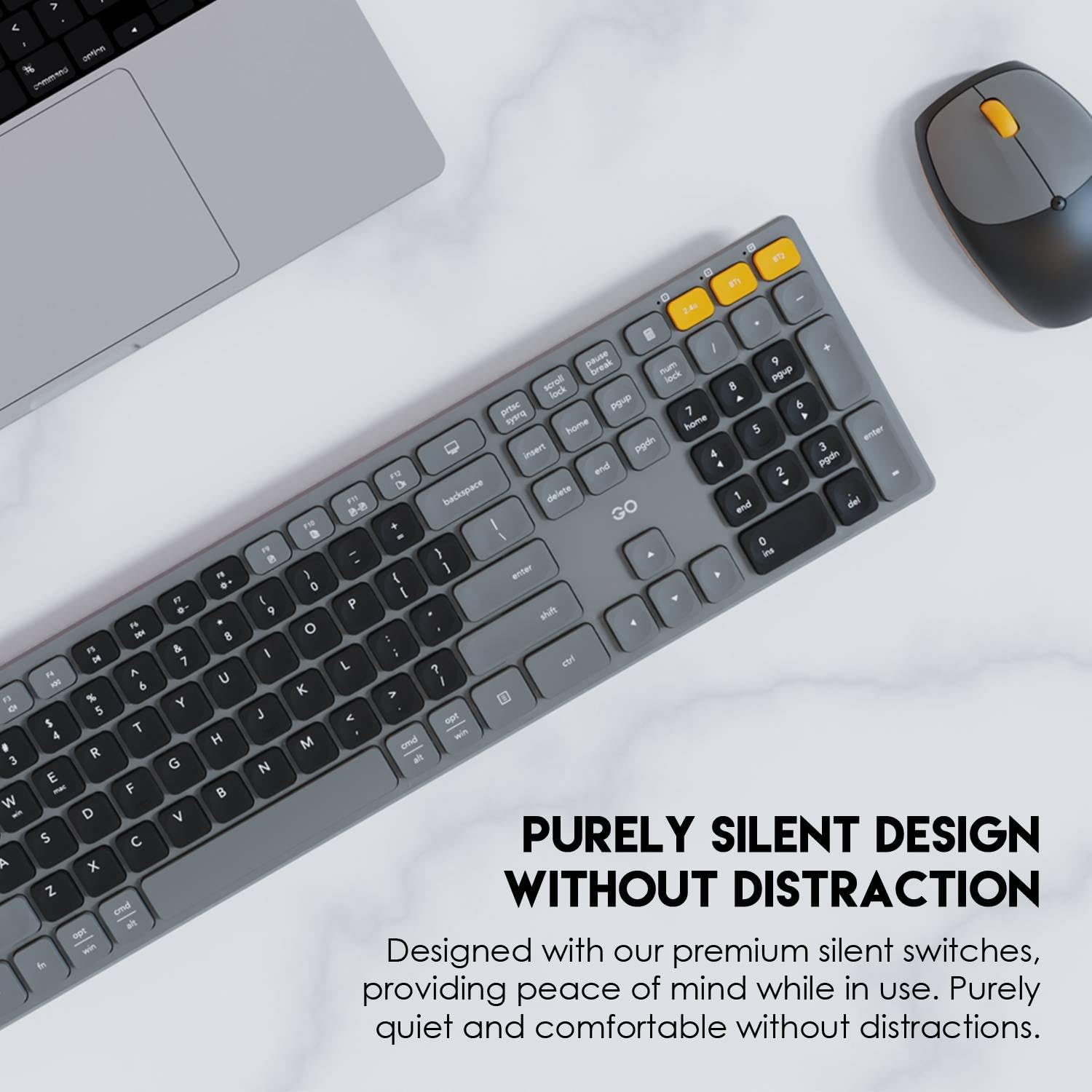
This image highlights the silent design of the keyboard and mouse, ensuring a quiet working environment.
Maintenance
1. Cleaning
- Use a soft, dry cloth to wipe the surfaces of the keyboard and mouse.
- For stubborn dirt, slightly dampen the cloth with water or a mild cleaning solution. Avoid excessive moisture.
- Do not use harsh chemicals, abrasive cleaners, or solvents.
2. Battery Replacement
When the keyboard or mouse performance degrades (e.g., delayed response, intermittent connection), it may be time to replace the batteries. Refer to the "Battery Installation" section under Setup for instructions.
The devices feature excellent power-saving technology for extended battery life.
Troubleshooting
1. Device Not Connecting
- Check Batteries: Ensure batteries are correctly installed and have sufficient charge. Replace if necessary.
- Power On: Make sure both the keyboard and mouse are switched on.
- USB Receiver (2.4GHz): Ensure the USB receiver is securely plugged into a working USB port. Try a different USB port.
- Bluetooth Pairing: For Bluetooth, ensure the device is in pairing mode (indicator light flashing) and your computer's Bluetooth is enabled and searching. Re-pair if needed.
- Distance: Ensure the devices are within the effective operating range (up to 10 meters).
2. Lag or Intermittent Connection
- Interference: Move the devices away from other wireless devices (e.g., Wi-Fi routers, cordless phones) that might cause interference.
- Battery Level: Low battery can affect performance. Replace batteries.
- Obstructions: Ensure there are no large metal objects between the devices and the receiver/computer.
3. Keys or Mouse Buttons Not Responding
- Re-establish Connection: Turn off and then on the keyboard/mouse, or re-pair them.
- Clean: Check for any debris under the keys or buttons and clean as per maintenance instructions.
- Test on Another Device: If possible, test the combo on another computer to determine if the issue is with the devices or your computer.
Specifications
| Feature | Detail |
|---|---|
| Number of Keys | 110 |
| Battery Type | 2 x AAA (not included) |
| Dimensions (LxWxH) | 430 x 125 x 30 mm |
| Weight | 403 grams |
| Feature | Detail |
|---|---|
| Number of Buttons | 5 |
| Battery Type | 1 x AA (not included) |
| Dimensions (LxWxH) | 110 x 70 x 30 mm |
| Weight | 55.5 grams |
| Movement Detection | Optical |
| Hand Orientation | Right |
| Feature | Detail |
|---|---|
| Connectivity Technology | 2.4GHz Wireless (via USB Dongle), Bluetooth |
| Compatible Devices | PC, Laptop (Mac, Windows) |
| Color | Black |

This image provides a visual summary of the technical specifications and physical dimensions for both the keyboard and mouse.
Warranty and Support
This FANTECH WK895 product comes with a 30-day warranty from the date of purchase. This warranty covers manufacturing defects under normal use. It does not cover damage caused by misuse, accidents, unauthorized modifications, or normal wear and tear.
For technical support or warranty claims, please contact your retailer or the FANTECH customer service department through their official website or contact channels.


