
K500
Machenike K500 Mechanical Keyboard User Manual
Model: K500 | Brand: Generic
1. Introduction
The Machenike K500 is a high-performance mechanical gaming keyboard designed for an enhanced typing and gaming experience. Featuring 94 keys, hot-swappable switches, and customizable RGB backlighting, this wired keyboard offers durability, responsiveness, and personalization. This manual will guide you through its features, setup, operation, and maintenance.
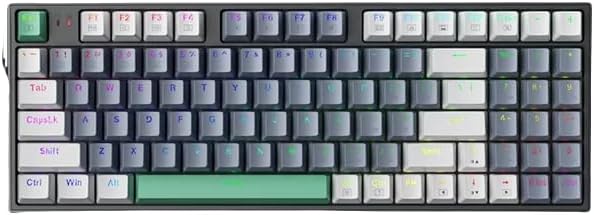
Figure 1: Overview of the Machenike K500 Mechanical Keyboard, showcasing its compact layout and keycap design.
2. Setup
2.1 Connecting the Keyboard
The Machenike K500 keyboard utilizes a detachable Type-C cable for connection, ensuring both portability and a stable connection.
- Locate the Type-C port on the back or side of the keyboard.
- Connect one end of the provided Type-C cable to the keyboard.
- Connect the other end of the cable to an available USB port on your computer (desktop, all-in-one PC, or notebook).
- The keyboard is plug-and-play and should be automatically recognized by your Windows 10 operating system.

Figure 2: Illustration of the detachable Type-C cable connection, highlighting its compatibility with various devices.
3. Operating Instructions
3.1 Hot-Swappable Switches
The K500 features hot-swappable switches, allowing you to easily change mechanical switches without soldering. This enables customization of your typing feel and sound.
- To remove a switch, use the provided switch puller tool to gently grip the switch and pull it straight up.
- To install a new switch, align the pins of the new switch with the holes on the PCB and press down firmly until it clicks into place. Ensure pins are not bent.

Figure 3: Close-up view of the hot-swappable switch mechanism, showing how switches can be easily installed and removed.
3.2 RGB Backlighting and Customization
The keyboard features MULTICOLOR RGB backlighting with 16.8 million colors, offering various lighting modes and effects. You can customize these settings using the dedicated software.
- Default Lighting Modes: Cycle through pre-set lighting effects using specific key combinations (refer to keyboard function keys, often Fn + a specific key like Ins, Home, PgUp, etc.).
- Pro Software Customization: Download and install the official Machenike software to design your own lighting modes, adjust brightness, speed, and create custom profiles. This software also allows for macro editing.

Figure 4: Screenshot of the keyboard's professional software interface, demonstrating options for customizing RGB lighting and creating profiles.
3.3 Compact 94-Key Layout
The K500 features a compact 94-key layout, which is approximately 90% the size of a full-size 104-key keyboard. This design is optimized for comfort and portability, making it suitable for office, travel, and gaming environments while retaining essential keys.

Figure 5: Comparison illustrating the compact 94-key layout of the K500 versus a standard 104-key keyboard, highlighting its space-saving design.

Figure 6: The Machenike K500 keyboard integrated into a typical gaming and work setup, demonstrating its practical use.
4. Maintenance
Proper maintenance ensures the longevity and optimal performance of your mechanical keyboard.
- Regular Cleaning: Use a soft brush or compressed air to remove dust and debris from between the keycaps.
- Keycap Cleaning: Keycaps can be removed for deeper cleaning. Use a mild soap solution and a soft cloth, then ensure they are completely dry before reattaching.
- Switch Care: If you frequently swap switches, handle them carefully to avoid bending the pins. Store unused switches in a clean, dry place.
- Cable Management: Avoid sharp bends or excessive pulling on the detachable Type-C cable to prevent damage.
5. Troubleshooting
If you encounter issues with your Machenike K500 keyboard, try the following solutions:
- Keyboard Not Responding:
- Ensure the Type-C cable is securely connected to both the keyboard and the computer.
- Try connecting the keyboard to a different USB port on your computer.
- Restart your computer.
- RGB Lights Not Working/Incorrect:
- Check if the lighting is turned off or set to a very low brightness level using the keyboard's function keys.
- Ensure the keyboard software is installed and updated to the latest version.
- Reset the keyboard to factory settings (refer to software or specific key combination if available).
- Keys Not Registering:
- If a specific key is not working, try removing and re-inserting its hot-swappable switch to ensure it is properly seated.
- Clean any debris that might be under the keycap or around the switch.
- If possible, swap the problematic switch with a known working switch to determine if the issue is with the switch or the keyboard PCB.
6. Specifications
| Feature | Detail |
|---|---|
| Brand | Generic |
| Model | K500 |
| Keyboard Type | Mechanical Gaming Keyboard |
| Connectivity | Wired (Detachable Type-C Cable) |
| Number of Keys | 94 |
| Switches | Hot-Swappable (Huano Axis Body Brand) |
| Keycap Material | PBT plastic |
| Keycap Printing | Doubleshot |
| Backlight Type | MULTICOLOR RGB (16.8 Million Colors) |
| Full Size Keyboard | No |
| Wrist Support | No |
| Compatible Devices | PC |
| Operating System | Windows 10 |
| Hand Orientation | Ambidextrous |
| Material | Other |
7. Warranty and Support
Your Machenike K500 Mechanical Keyboard comes with a commitment to quality and customer satisfaction.
- Warranty: We commit to a 12-month warranty for all products.
- Customer Support: If you encounter any issues with your product, such as receiving a damaged or incorrect item, please send us a message through the platform where you purchased the product. Our support team will reply to you within 24 hours to assist with your concerns.
Related documentsK500


Ask a question about this manual
Ask about setup, troubleshooting, compatibility, parts, safety, or missing instructions. Manuals+ will review the question and use this page’s manual context to help answer it.