
Introduction
Thank you for choosing the Langtu GK65 Mechanical Keyboard. This compact 65-key keyboard offers versatile connectivity options including wired USB Type-C, 2.4G wireless, and Bluetooth 5.0, making it suitable for various computing environments. It features hot-swappable mechanical switches and a multicolor backlight for an enhanced user experience. This manual provides detailed instructions for setup, operation, maintenance, and troubleshooting to ensure optimal performance of your device.

Image: The Langtu GK65 Mechanical Keyboard showcasing its 65-key arrangement and multicolor backlighting.
Setup
1. Unboxing and Initial Inspection
Carefully remove the keyboard and all accessories from the packaging. Ensure all components are present and undamaged. The package typically includes the GK65 keyboard, a USB Type-C cable, and a 2.4G wireless receiver.
2. Connectivity Modes
The Langtu GK65 supports three connection modes: Wired, 2.4G Wireless, and Bluetooth. A switch on the keyboard allows you to select the desired mode.
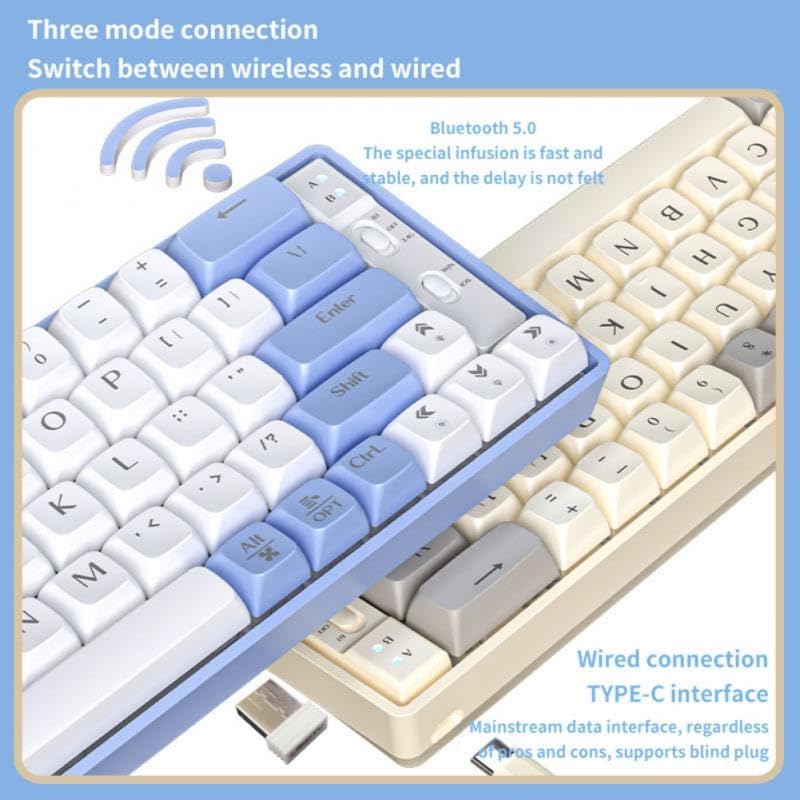
Image: Visual representation of the keyboard's three connection modes: Bluetooth 5.0, 2.4G wireless, and wired USB Type-C interface.
2.1. Wired Connection
- Locate the USB Type-C port on the keyboard.
- Connect one end of the provided USB Type-C cable to the keyboard.
- Connect the other end of the cable to an available USB port on your computer.
- Ensure the mode switch on the keyboard is set to the wired (USB) position. The keyboard will be recognized automatically by your operating system.
2.2. 2.4G Wireless Connection
- Locate the 2.4G USB receiver, usually stored in a compartment on the keyboard or included separately.
- Plug the 2.4G USB receiver into an available USB port on your computer.
- Set the mode switch on the keyboard to the 2.4G wireless position.
- The keyboard should automatically connect to your computer. If not, press the designated pairing key combination (refer to specific key combinations if provided in a quick start guide, otherwise, it should connect automatically).
2.3. Bluetooth Connection
- Set the mode switch on the keyboard to the Bluetooth position.
- On your computer or device, open Bluetooth settings.
- Search for new Bluetooth devices. The keyboard should appear as "GK65" or similar.
- Select the keyboard to pair. You may be prompted to enter a code on the keyboard and press Enter.
- The keyboard supports Bluetooth 5.0, offering a stable connection up to 10 meters.
3. Charging the Keyboard
When the battery is low, the keyboard's indicator light may flash. Connect the keyboard to a USB power source using the provided USB Type-C cable to charge it. The indicator light will typically show charging status and turn off or change color when fully charged.
Operating Instructions
1. Switching Between Modes
Use the physical switch located on the keyboard to toggle between Wired, 2.4G Wireless, and Bluetooth modes. Ensure the correct mode is selected for your desired connection type.
2. Backlight Control
The GK65 features a multicolor backlight. Specific key combinations, often involving the Fn key, are used to control backlight effects, brightness, and color. Refer to the quick start guide or keyboard legends for exact key combinations (e.g., Fn + \| for mode, Fn + Arrow keys for brightness/speed).
3. Multimedia and Function Keys
The 65-key layout utilizes the Fn key to access secondary functions printed on keycaps. These typically include multimedia controls (play/pause, volume), application shortcuts, and other system functions.
4. Hot-Swappable Switches
The GK65 keyboard features hot-swappable switches, allowing you to change individual mechanical switches without soldering. This enables customization of typing feel and sound. Use the provided switch puller tool (if included) to carefully remove and insert switches.

Image: A detailed view of a linear mechanical switch, highlighting its specifications, alongside an illustration of the keyboard's wireless usage up to 10 meters.
Maintenance
1. Cleaning
- Disconnect the keyboard from all power sources before cleaning.
- Use a soft, lint-free cloth slightly dampened with water or a mild cleaning solution to wipe the keycaps and casing.
- For dust and debris between keycaps, use compressed air or a small brush.
- Avoid using harsh chemicals, solvents, or abrasive materials.
2. Storage
When not in use for extended periods, store the keyboard in a cool, dry place away from direct sunlight and extreme temperatures. If storing for a long time, ensure the battery is partially charged (around 50%) to prolong its lifespan.
Troubleshooting
- Keyboard not responding (Wired):
Ensure the USB Type-C cable is securely connected to both the keyboard and the computer. Try a different USB port or cable. Verify the mode switch is set to wired. - Keyboard not responding (2.4G Wireless):
Ensure the 2.4G USB receiver is properly plugged into a USB port. Check that the mode switch is set to 2.4G. Ensure the keyboard battery is charged. Try plugging the receiver into a different USB port. - Keyboard not connecting (Bluetooth):
Ensure the mode switch is set to Bluetooth. Verify Bluetooth is enabled on your device. Remove any previous "GK65" pairings from your device's Bluetooth list and attempt to pair again. Ensure the keyboard battery is charged. - Keys not registering or double-typing:
Clean around the affected keycap. If using hot-swappable switches, carefully remove and re-insert the switch to ensure it is seated correctly. - Backlight not working:
Ensure the backlight is not turned off via key combination. Check brightness settings. Ensure the keyboard battery is sufficiently charged. - Charging issues:
Ensure the USB Type-C cable is functional and properly connected. Try a different USB power source or cable.
Specifications
| Model | GK65 |
| Brand | Generic |
| Connectivity | Wired (USB Type-C), 2.4G Wireless, Bluetooth 5.0 (3-mode) |
| Switches | Mechanical, Hot-swappable (Linear axis: 45g+5g downward pressure, 68g rebound, extended metal springs, 4mm+0.3mm full stroke, 2mm+0.6mm trigger stroke) |
| Backlight | Multicolor |
| Keyboard Layout | 65-key (Not Full Size) |
| Compatible Devices | Laptop, Computer |
| Bluetooth Range | Up to 10 meters |
| Material | Other |
| Wrist Support | No |

Image: The Langtu GK65 Mechanical Keyboard, showcasing its compact 65-key layout and classic color design.
Warranty and Support
The Langtu GK65 Mechanical Keyboard comes with a 12-month warranty from the date of purchase. This warranty covers manufacturing defects and malfunctions under normal use.
If you encounter any issues with your product, such as damage or incorrect items, please contact the seller or retailer through your purchase platform. Provide your order details and a clear description of the problem for prompt assistance.
For further support or inquiries, please refer to the contact information provided by your point of purchase.

