
1. Introduction
The Nillkin Bumper Combo Keyboard Case is a versatile accessory designed to enhance your Apple iPad experience. It features a removable keyboard, an adjustable stand, and a trackpad, facilitating typing, viewing, reading, and sketching. The case also provides robust protection for your device, including an anti-fall design and a patented sliding camera cover.
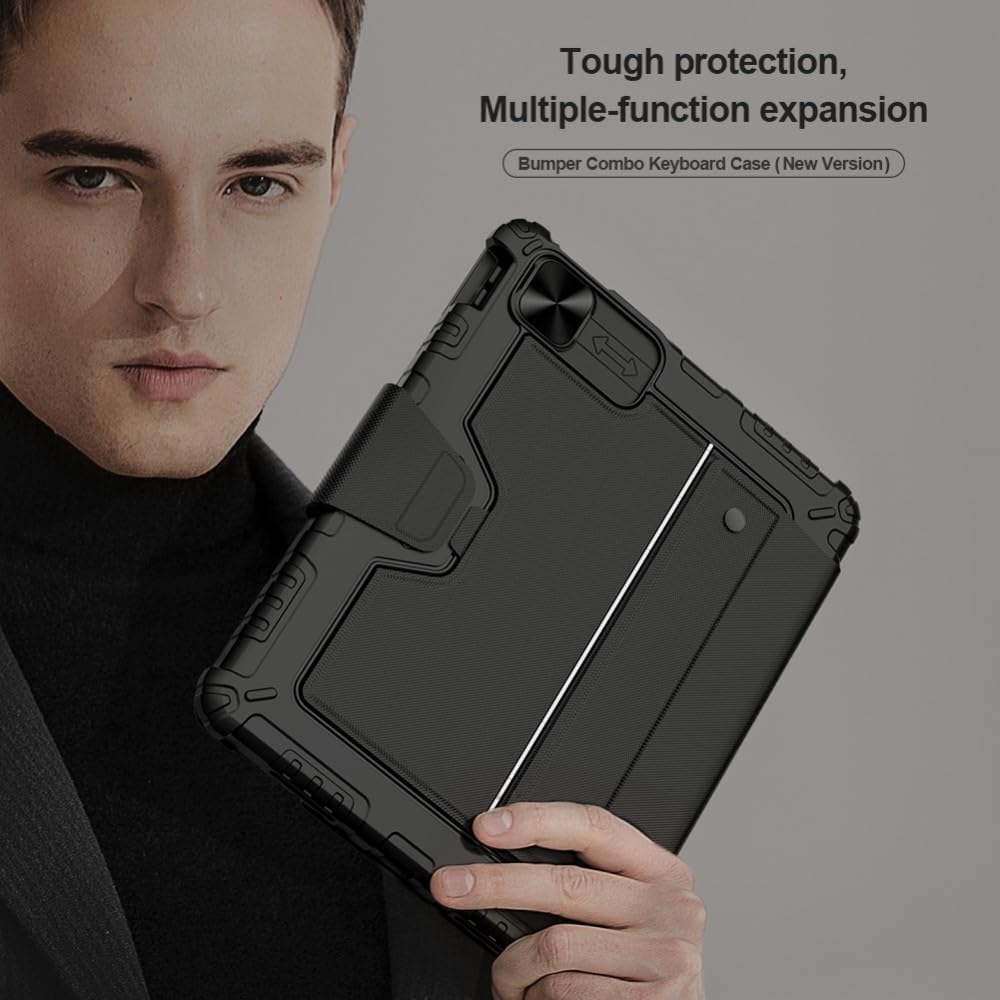
Image: The Nillkin Bumper Combo Keyboard Case, highlighting its protective and multi-functional design.
2. Compatibility
This keyboard case is specifically designed for the following Apple iPad models:
- iPad Air 11-inch (M2, 2024)
- iPad Air 5th Generation (2022)
- iPad Air 4th Generation (2020)
- iPad Pro 11-inch (2022/2021/2020/2018)
Compatible iPad model numbers include: A2435, A2761, A27759, A2316, A2324, A2325, A2072, A2377, A2459, A2301, A2460, A2068, A2228, A2230, A2231, A1980, A2013, A1934, A1979.
Important: Please verify your iPad's model number before use. The Apple Pencil is not included.

Image: A visual guide to identifying compatible iPad models and their corresponding model numbers.
3. Package Contents
The package includes:
- 1 x Nillkin Bumper Combo Keyboard Case for Apple iPad
4. Setup
4.1 Attaching Your iPad
- Carefully align your iPad with the case.
- Gently press the iPad into the bumper case, ensuring all edges are securely fitted. The anti-fall design will wrap tightly around the iPad's edges.
4.2 Connecting the Keyboard (Bluetooth Pairing)
- Ensure the keyboard is charged (refer to section 4.3).
- Turn on the keyboard using its power switch.
- On your iPad, go to Settings > Bluetooth.
- Enable Bluetooth and select the Nillkin keyboard from the list of available devices.
- Follow any on-screen prompts to complete the pairing process.
4.3 Charging the Keyboard
Connect the keyboard to a power source using the provided charging cable. A full charge typically takes 2-3 hours. Once fully charged, the wireless keyboard can remain on standby for up to 90 days.
5. Operating Instructions
5.1 Keyboard Usage
The keyboard features silent keys with a scissor foot structure for a comfortable and quiet typing experience. It includes various shortcut keys for quick access to functions.
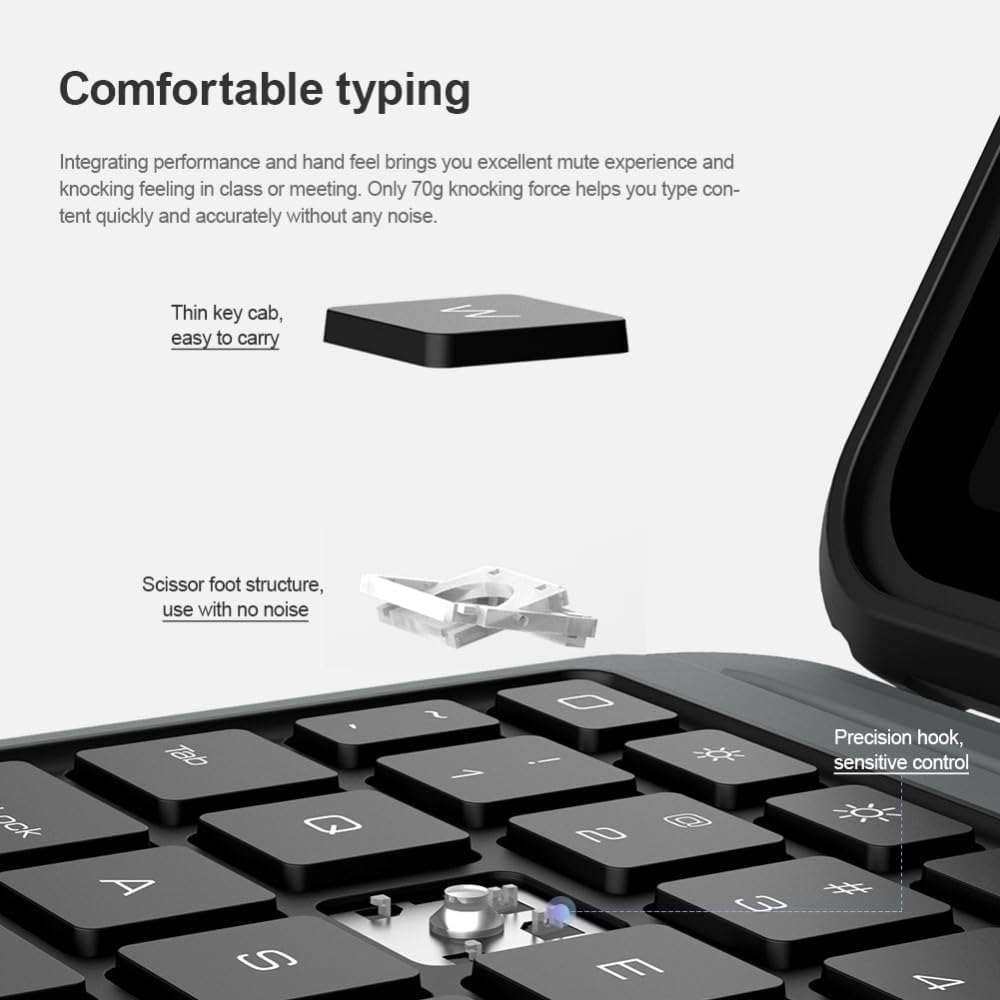
Image: Detail of the keyboard's thin keycaps and scissor foot structure, designed for quiet and precise typing.
Shortcut Keys:
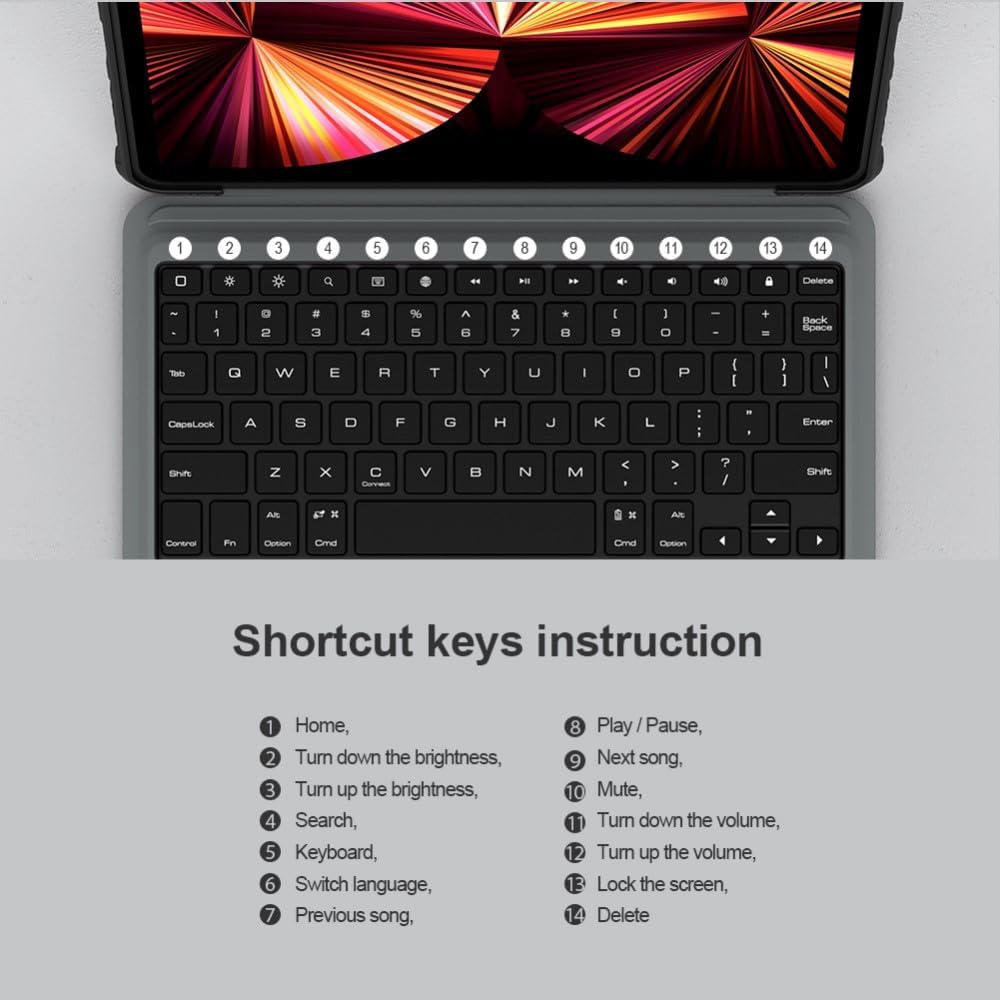
Image: An instruction guide for the keyboard's shortcut keys, detailing functions like Home, brightness adjustment, search, language switching, media playback control, and screen lock.
- Home: Return to the home screen.
- Turn down brightness: Decrease screen brightness.
- Turn up brightness: Increase screen brightness.
- Search: Activate search function.
- Keyboard: Toggle virtual keyboard.
- Switch language: Change input language.
- Previous song: Go to the previous track.
- Play/Pause: Play or pause media.
- Next song: Go to the next track.
- Mute: Mute audio.
- Turn down volume: Decrease volume.
- Turn up volume: Increase volume.
- Lock the screen: Lock your iPad screen.
- Delete: Delete character.
5.2 Trackpad Operations
The integrated trackpad supports various gestures for flexible control. To enable trackpad functionality after connecting to iPad, go to Settings > General > Trackpad > Tap to Click > Setting finished.

Image: A comprehensive guide to trackpad gestures, illustrating single-finger (swipe, click), two-finger (right click, move left/right, move up/down), and three-finger (back to home, switch multiple tasks, switch different pages) operations.
Gesture Guide:
- Single Finger:
- Swipe: Move the mouse.
- Click: Left click.
- Two Fingers:
- Click with two fingers: Right click.
- Swipe left or right: Move left or right.
- Swipe up or down: Move up or down.
- Three Fingers:
- Swipe up: Back to the home page.
- Swipe up and hold: Switch between multiple tasks.
- Swipe left or right: Switch between different pages.
The keyboard also features anti-mistouch technology, which automatically disables the touchpad when typing to prevent accidental cursor movements, allowing you to concentrate on your work.

Image: An iPad in the keyboard case, illustrating the anti-mistouch technology that disables the trackpad during typing.
5.3 Adjustable Stand
The flexible stand allows you to adjust the viewing angle between 0° and 180° to suit your needs for typing, viewing, reading, or sketching. The mechanical hinge structure ensures stability.

Image: The adjustable stand in action, demonstrating the range of viewing angles from 0° to 180° for optimal comfort.
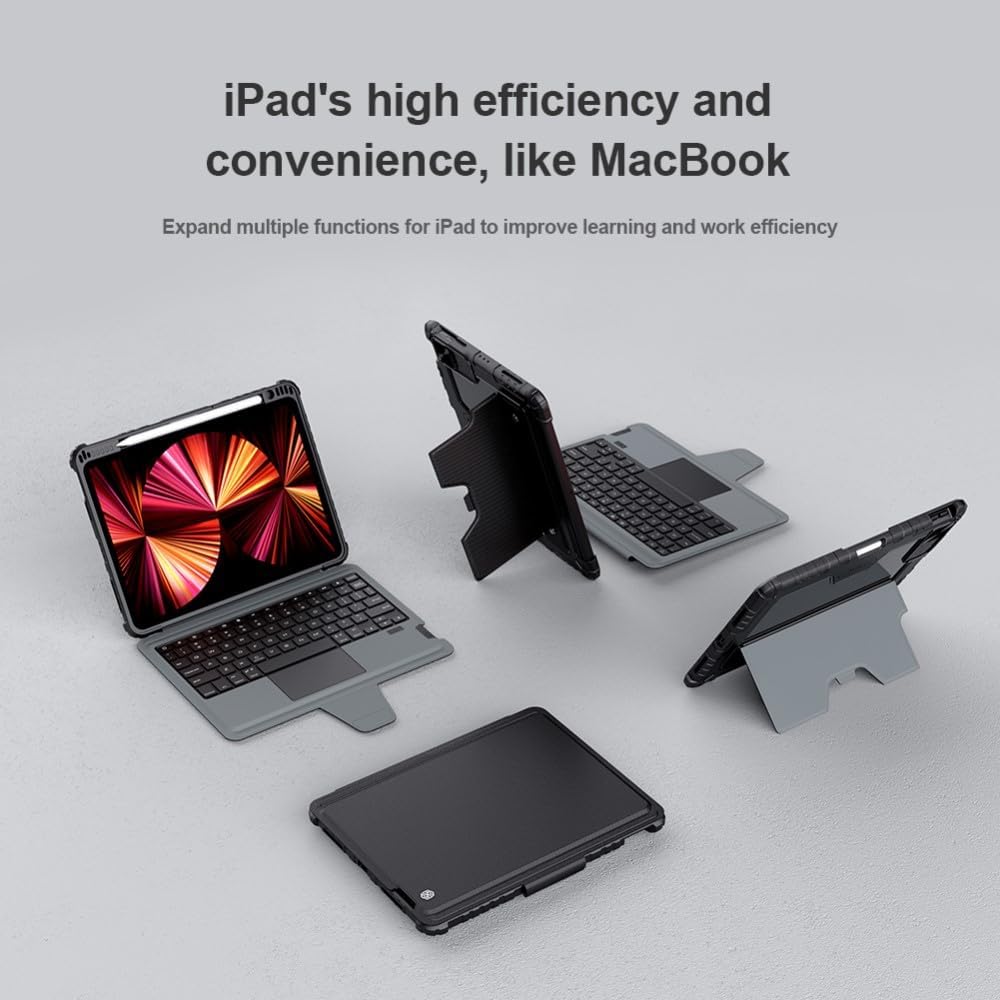
Image: Various usage modes of the keyboard case, illustrating how it can be configured for different tasks like typing, viewing, and drawing.
5.4 Camera Protection
The case features a patented sliding camera cover made of metal, with a 1.1mm lifted bezel. This design effectively protects your iPad's camera from wear, scratches, and collisions.

Image: A detailed view of the sliding camera cover, demonstrating its protective function and how it prevents scratches and dust accumulation.
5.5 Apple Pencil Holder
The case includes a dedicated holder for your Apple Pencil. When placed in the slot, the Apple Pencil will charge securely.

Image: The Apple Pencil holder, showing the pencil securely stored and charging within the case.
5.6 Power Management (Intelligent Sleep)
To conserve power, the keyboard will automatically enter standby mode if there is no operation within 10 minutes. You can wake it up by pressing any key. Closing the case will also automatically put the tablet to sleep.

Image: The keyboard's intelligent sleep feature, which automatically puts the device into standby after 10 minutes of inactivity to save power.
6. Maintenance
- Clean the case and keyboard regularly with a soft, dry cloth.
- Avoid using harsh chemicals or abrasive materials, as these may damage the surface.
- Keep the case away from extreme temperatures and direct sunlight.
- Ensure the charging port is free of dust and debris.
7. Troubleshooting
- Keyboard not connecting: Ensure Bluetooth is enabled on your iPad and the keyboard is powered on and charged. Try re-pairing the keyboard via iPad's Bluetooth settings.
- Keys not responding: Check if the keyboard is charged. If the issue persists, try restarting both the iPad and the keyboard.
- Trackpad not working: Ensure the trackpad is enabled in iPad settings (Settings > General > Trackpad > Tap to Click). Check for any physical obstructions.
- Short battery life: Ensure the keyboard is fully charged. Reduce usage of backlight (if applicable) and ensure the intelligent sleep function is active.
8. Specifications
- Brand:
- Nillkin
- Model Number:
- 6902048257955
- Color:
- Black
- Compatible Devices:
- Apple iPad Air 11 2024/10.9 2020/Air 4/Air 5/Pro 11 2020/2021/2022
- Form Factor:
- Case
- Case Type:
- Hard
- Material:
- Polycarbonate
- Max. Compatible Device Size:
- 11 Inch
- Special Features:
- Sliding Camera Cover, Pencil Holder, Trackpad
- Pattern:
- Solid
- Water Resistance Level:
- Not water resistant
- Included Components:
- 1 x Nillkin Bumper Combo Keyboard Case for Apple
- Batteries:
- 1 Product specific battery required (included)
- Package Dimensions:
- 31 x 22 x 3.5 cm; 840 g
- Country of Origin:
- Taiwan
9. Warranty and Support
Information regarding product warranty and customer support is not specified in the provided product data. Please refer to the retailer or manufacturer's official website for details on warranty coverage and support options.