1. Product Overview
This manual provides detailed instructions for the installation, operation, and maintenance of your Android 13 Car Stereo system. Designed specifically for Kia Optima K5 models from 2010 to 2013, this head unit features a 9-inch capacitive touchscreen, 4GB RAM, and 64GB ROM for fast and smooth operation. It integrates wireless Apple CarPlay, Android Auto, GPS navigation, Bluetooth connectivity, FM/RDS radio, and DSP audio processing.

Image: The main unit of the Android 13 Car Stereo, showing the 9-inch touchscreen display and the custom mounting frame designed for Kia Optima K5.
2. Package Contents
Before beginning installation, please verify that all components listed below are present in your package:

Image: A visual representation of the package contents, including the Android device, plastic panel, power cord, RCA line, reversing camera input cable, 2x USB cables, setting tool, GPS antenna, reverse camera, and user manual.
- 1 × Android Device (9-inch touchscreen head unit)
- 1 × Plastic Panel (Custom fit for Kia Optima K5)
- 1 × ISO Wiring Harness
- 1 × RCA Cable
- 1 × Camera Cable
- 1 × Original USB Adapter
- 2 × USB Cables
- 1 × Radio Antenna Cable
- 1 × CANbus Cable
- 1 × CANbus Box
- 1 × GPS Antenna
- 1 × User Manual
- 1 × Setting Tool
- 1 × Reverse Camera (AHD 720P)
3. Installation Guide
This section provides general guidelines for installing the car stereo. Professional installation is recommended.
3.1. Vehicle Compatibility Check
Ensure your vehicle's dashboard configuration matches the compatible models. This unit is designed for Kia Optima K5 2010, 2011, 2012, and 2013 models.
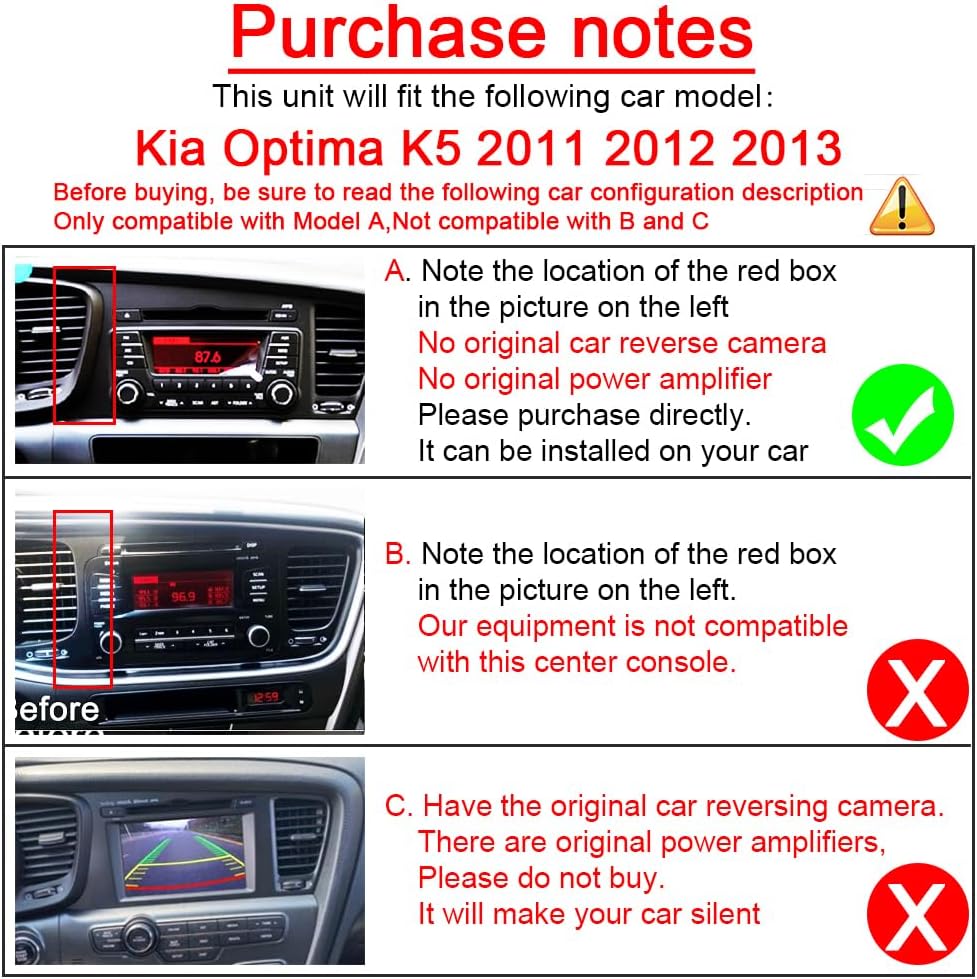
Image: "Purchase notes" illustrating compatible (Model A) and incompatible (Models B and C) dashboard types for Kia Optima K5. Model A is compatible if there is no original car reverse camera or original power amplifier. Models B and C are incompatible due to center console design or presence of original power amplifiers.
3.2. Pre-Installation Steps
- Disconnect the vehicle's battery to prevent electrical shorts.
- Carefully remove the original car radio and dashboard trim using the provided setting tool.

Image: A side-by-side comparison showing the original car radio setup ("Before") and the new Android 13 Car Stereo installed ("After") in a Kia Optima K5 dashboard.
3.3. Wiring Connections
- Connect the ISO Wiring Harness to the vehicle's wiring.
- Connect the GPS Antenna and position it for optimal signal reception.
- Connect the RCA Cable for audio/video output if using external amplifiers or monitors.
- Connect the Camera Cable for the included AHD backup camera. The camera automatically displays the reversing image when reverse gear is engaged.
- Connect the USB Cables for external devices and data transfer.
- Connect the Radio Antenna Cable.
- If your vehicle has a CANbus system, connect the CANbus Cable and CANbus Box as instructed.
3.4. Post-Installation
- Securely mount the head unit into the dashboard.
- Reinstall all trim pieces.
- Reconnect the vehicle's battery.
- Power on the unit and perform initial setup.
4. Operating Instructions
4.1. Wireless Apple CarPlay & Android Auto
Connect your smartphone wirelessly via Bluetooth and Wi-Fi to access Apple CarPlay or Android Auto. Alternatively, use the 4-pin or 6-pin USB cable for a wired connection.
- To activate, tap the "X-Car" icon on the head unit's main screen.
- This feature allows for navigation, calls, messages, and music playback directly from your phone's interface on the car stereo display.

Image: The car stereo display showing the Apple CarPlay interface with various app icons (Phone, Maps, Messages, Music) and the Android Auto interface with navigation and media controls. A smartphone is also shown demonstrating the CarPlay connection.
4.2. GPS Navigation & Wi-Fi Connection
The head unit supports online and offline navigation. Connect to Wi-Fi or a mobile hotspot to download applications and offline maps.
- The included GPS Antenna provides accurate positioning for navigation.
- Pre-installed Google Maps/Waze are available.
- Download additional map data packages for offline use.

Image: The car stereo display showing the Google Maps online navigation interface, with a route displayed and various navigation controls.
4.3. Bluetooth Connectivity
Pair your smartphone via Bluetooth for hands-free calling and audio streaming.
- Built-in microphone and external microphone support clear communication.
- Access your phone's contacts and call history directly from the stereo.
4.4. FM/RDS Radio
Tune into your favorite radio stations with the built-in FM/RDS radio. Preset stations for quick access to real-time traffic, news, and weather forecasts.
4.5. Steering Wheel Control (SWC)
The unit is compatible with your vehicle's original steering wheel control buttons. Configure the buttons to control functions like answering/hanging up calls, skipping tracks, and adjusting volume.

Image: The car stereo display showing the "Steering Learn" interface for configuring steering wheel controls, alongside an image of a car's steering wheel with buttons for call answer/hang up, track control, and volume adjustment.
4.6. Digital Sound Processor (DSP) & Equalizer (EQ)
Experience enhanced audio quality with the built-in DSP and 36-band EQ. Adjust sound settings to optimize music playback for various seating positions and preferences.

Image: The car stereo display showing the graphical equalizer interface with 36 bands, allowing for precise audio tuning. Also depicted are sound delay settings for different speaker positions within the car.
4.7. Rear View Camera
The included 720P HD rear view camera automatically activates when the vehicle is shifted into reverse gear, providing a clear view of the area behind your car.
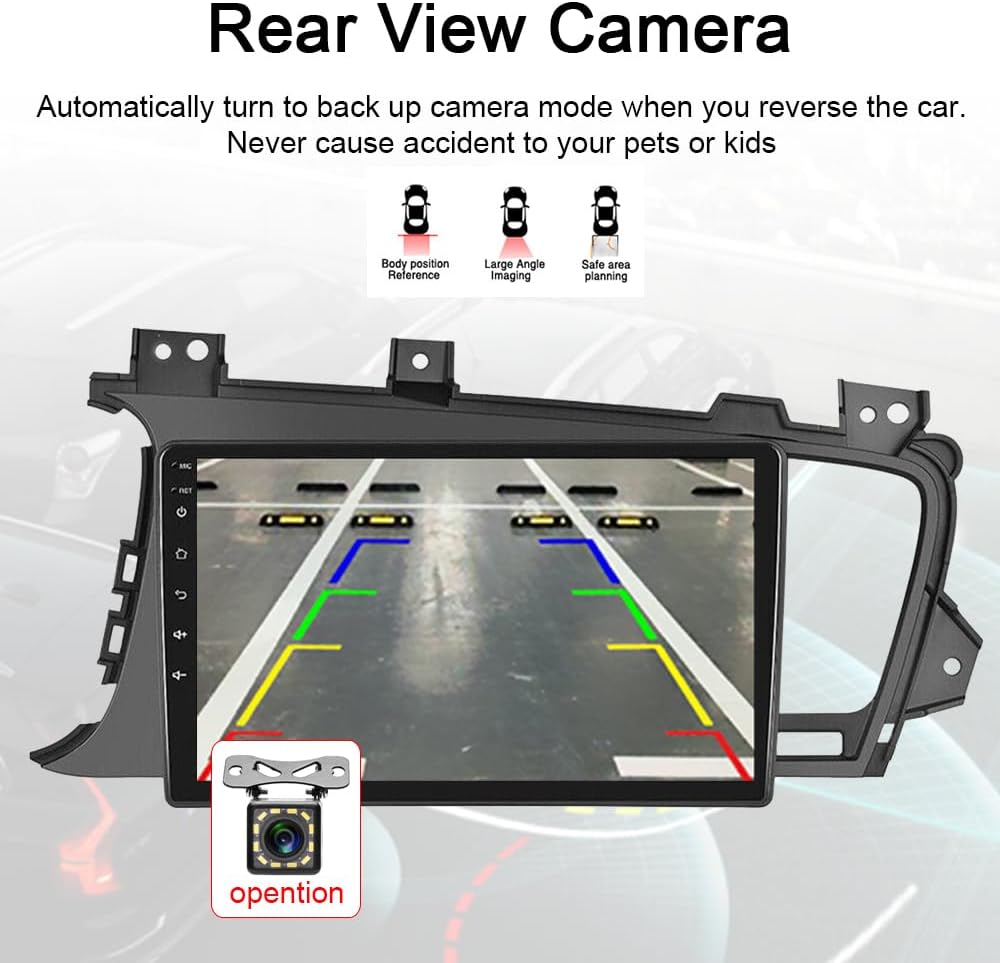
Image: The car stereo display showing the live feed from the rear view camera, complete with dynamic parking guidelines to assist with safe reversing.
5. Maintenance
To ensure the longevity and optimal performance of your car stereo, follow these maintenance guidelines:
- Cleaning: Use a soft, dry cloth to clean the touchscreen and unit exterior. Avoid abrasive cleaners or solvents.
- Temperature: Avoid exposing the unit to extreme temperatures, both hot and cold, for extended periods.
- Software Updates: Periodically check for and install software updates to ensure system stability and access to new features.
6. Troubleshooting
If you encounter issues with your car stereo, refer to the following common troubleshooting steps:
- No Power: Check all power connections and the vehicle's fuse box. Ensure the battery is properly reconnected.
- No Sound: Verify speaker connections. Check audio settings (volume, mute, EQ). Ensure the correct audio source is selected.
- GPS Signal Loss: Ensure the GPS antenna is properly installed and has a clear view of the sky.
- CarPlay/Android Auto Not Connecting: Ensure Bluetooth and Wi-Fi are enabled on your phone and the stereo. Try restarting both devices. Check USB cable if using a wired connection.
- Touchscreen Unresponsive: Try restarting the unit. If the issue persists, a factory reset might be necessary (refer to system settings).
For persistent issues, contact customer support or consult a qualified technician.
7. Specifications
| Feature | Detail |
|---|---|
| Operating System | Android 13 |
| RAM | 4GB |
| ROM | 64GB |
| Display Size | 9 Inches |
| Resolution | 720 x 1280 |
| Connectivity | Bluetooth, USB, Wi-Fi |
| Special Features | Wireless Apple CarPlay, Android Auto, GPS Navigation, FM/RDS Radio, DSP, Touchscreen, Steering Wheel Control |
| Included Camera | AHD 720P Rear View Camera |
| Item Weight | 3.63 pounds |
| Package Dimensions | 14.76 x 10.04 x 5.94 inches |
8. Warranty and Support
This product comes with a 1-YEAR warranty from the date of purchase. Please retain your proof of purchase for warranty claims.
For technical support, troubleshooting assistance, or warranty inquiries, please contact your retailer or the manufacturer directly. Refer to the contact information provided on the product packaging or the manufacturer's official website.