
Introduction
This manual provides detailed instructions for the proper use, setup, operation, and maintenance of your OSALO Scientific Calculator OS-82ES II. Please read this manual thoroughly to ensure optimal performance and longevity of your device. Keep this manual for future reference.
Product Overview
The OSALO OS-82ES II is a scientific calculator designed for students and professionals, featuring 252 functions and a natural display for easy input and output. It operates on a dual power source (solar and battery) and comes with a protective sliding cover.

Figure 1: OSALO Scientific Calculator OS-82ES II with its protective cover.
This image shows the calculator from a slightly elevated angle, highlighting its black body, white keys, and the clear display. The protective sliding cover is partially visible at the bottom.

Figure 2: The OSALO Scientific Calculator OS-82ES II being used on a desk.
This image shows the calculator placed on a light-colored desk, next to a laptop and a camera, illustrating its compact size and suitability for various study or work environments.
Setup
Power Source
The OSALO OS-82ES II calculator utilizes a dual power system: solar energy and two LR44 button cell batteries. The solar panel provides power in well-lit environments, while the batteries ensure continuous operation in low-light conditions.
Battery Installation/Replacement
- Ensure the calculator is turned OFF.
- Locate the battery compartment on the back of the calculator.
- Use a small screwdriver to open the battery compartment cover.
- Remove the old batteries (if replacing) and insert two new LR44 batteries, ensuring correct polarity (+/-).
- Replace the battery compartment cover and secure it with the screw.
Initial Power On and Display Adjustment
To turn on the calculator, press the ON button. The display should illuminate. If the display appears dim or too bright, you can adjust its contrast.
The brightness of the screen can be adjusted for optimal viewing and to reduce eye strain. Refer to the 'Contrast Adjustment Function' section under Operating Instructions for detailed steps.
Operating Instructions
Basic Operations
Perform standard arithmetic operations using the number keys and the +, -, ×, ÷ buttons. Press = to get the result.
Written Display (Natural Input & Output)
The OS-82ES II features a "Written Display" that allows you to input expressions and view results as they would appear in a textbook, making complex calculations easier to understand. The 2-line display shows both the input expression and the calculated result simultaneously.
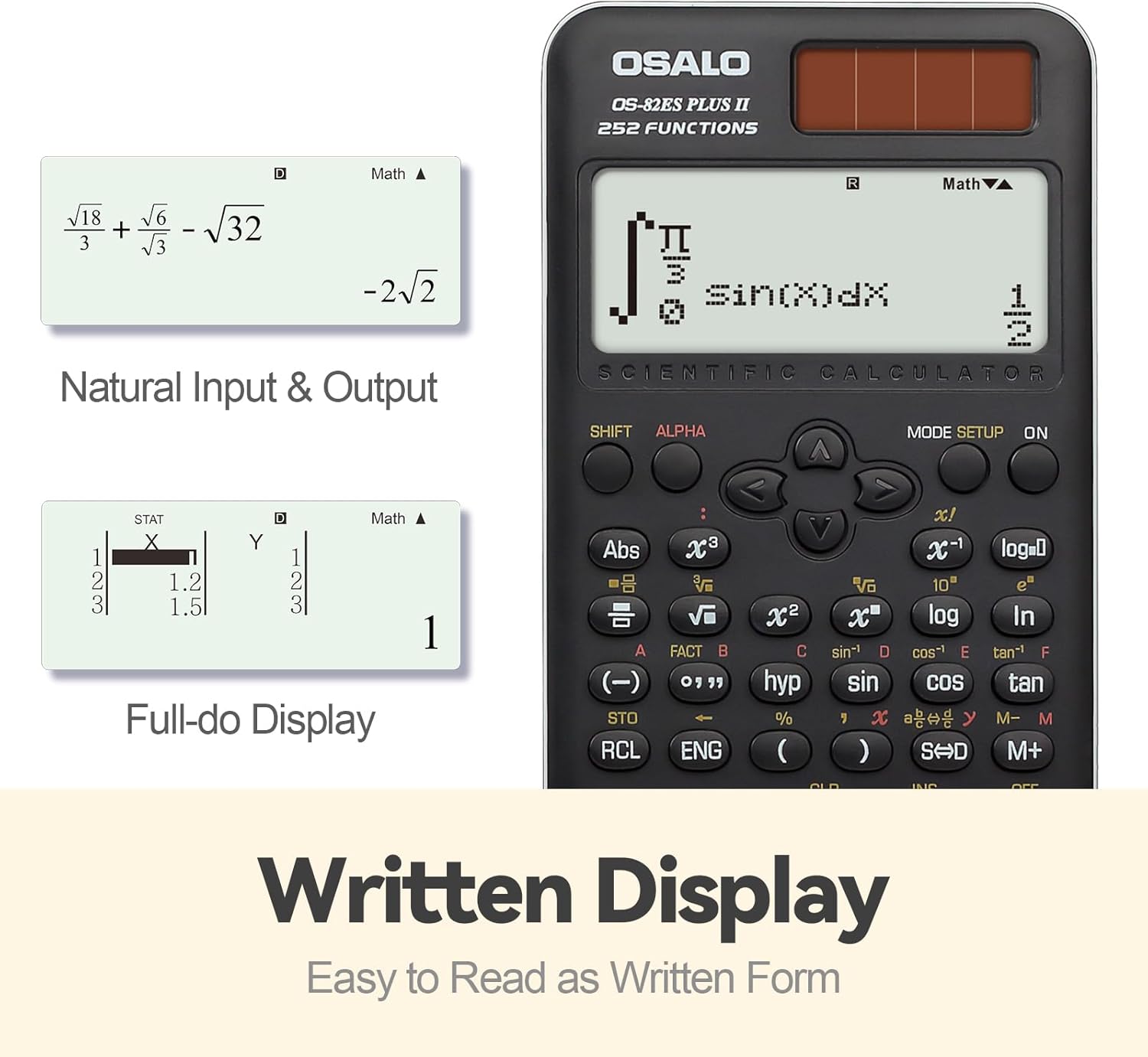
Figure 3: Examples of Natural Input & Output and Full-do Display.
This image illustrates the calculator's display capabilities, showing how mathematical expressions like fractions and integrals are displayed naturally, similar to how they are written. It also shows a "Full-do Display" for statistical data input.
Key Functions Overview
Familiarize yourself with the calculator's key layout and their primary and secondary functions. Secondary functions are typically accessed by pressing the SHIFT or ALPHA keys before the desired function key.

Figure 4: Key layout and main components of the OSALO Scientific Calculator.
This diagram labels key components such as the solar panel, extra-large display, control keys, SHIFT key, Mode key, Power on button, Function keys, Delete key, and Last answer key, providing a visual guide to the calculator's interface.
252 Functions
The OS-82ES II offers 252 functions, covering a wide range of mathematical and scientific calculations. These include:
- Fractions: Input and calculate with fractions directly.
- Statistics: Includes STAT data editor, standard deviation, and regression analysis.
- Trigonometric Functions: Sine, Cosine, Tangent, and their inverses.
- Exponential and Logarithmic Functions: ex, 10x, ln, log.
- Multi-replay Function: Quickly recall and re-execute previously performed formulas for editing.
- Combination and Permutation: Functions for combinatorial mathematics.
- 9 Variable Memories: Store and recall values for efficient calculations.

Figure 5: Overview of key functions available on the OSALO Scientific Calculator.
This image highlights the calculator's capabilities, including multi-replay, combination and permutation, statistics (STAT-data editor, standard deviation, regression analysis), fraction calculation, and 9 variable memories. It also notes that the calculator comes with a slide-on hard case and is suitable for students.
Contrast Adjustment Function
To adjust the display contrast:
- Press SHIFT.
- Press MODE SETUP (which has 'CONTRAST' as a secondary function).
- Use the arrow keys (LEFT or RIGHT) to adjust the contrast. Moving left will darken the display (relieve visual fatigue), and moving right will brighten it (clearer results).
- Press AC to exit the contrast adjustment mode.

Figure 6: Demonstrating the contrast adjustment feature of the calculator's display.
This image shows two calculator displays side-by-side, one with a darker contrast (labeled "Dark" for relieving visual fatigue) and one with a brighter contrast (labeled "Bright" for clear and intuitive viewing), illustrating the effect of the contrast adjustment function.
Maintenance
Cleaning
To clean the calculator, wipe it gently with a soft, dry cloth. Do not use abrasive cleaners, solvents, or spray directly onto the calculator, as this may damage the surface or internal components.
Storage
Always use the provided protective sliding cover when the calculator is not in use. This protects the display and keys from dust, scratches, and impact. Store the calculator in a cool, dry place, away from direct sunlight and extreme temperatures.
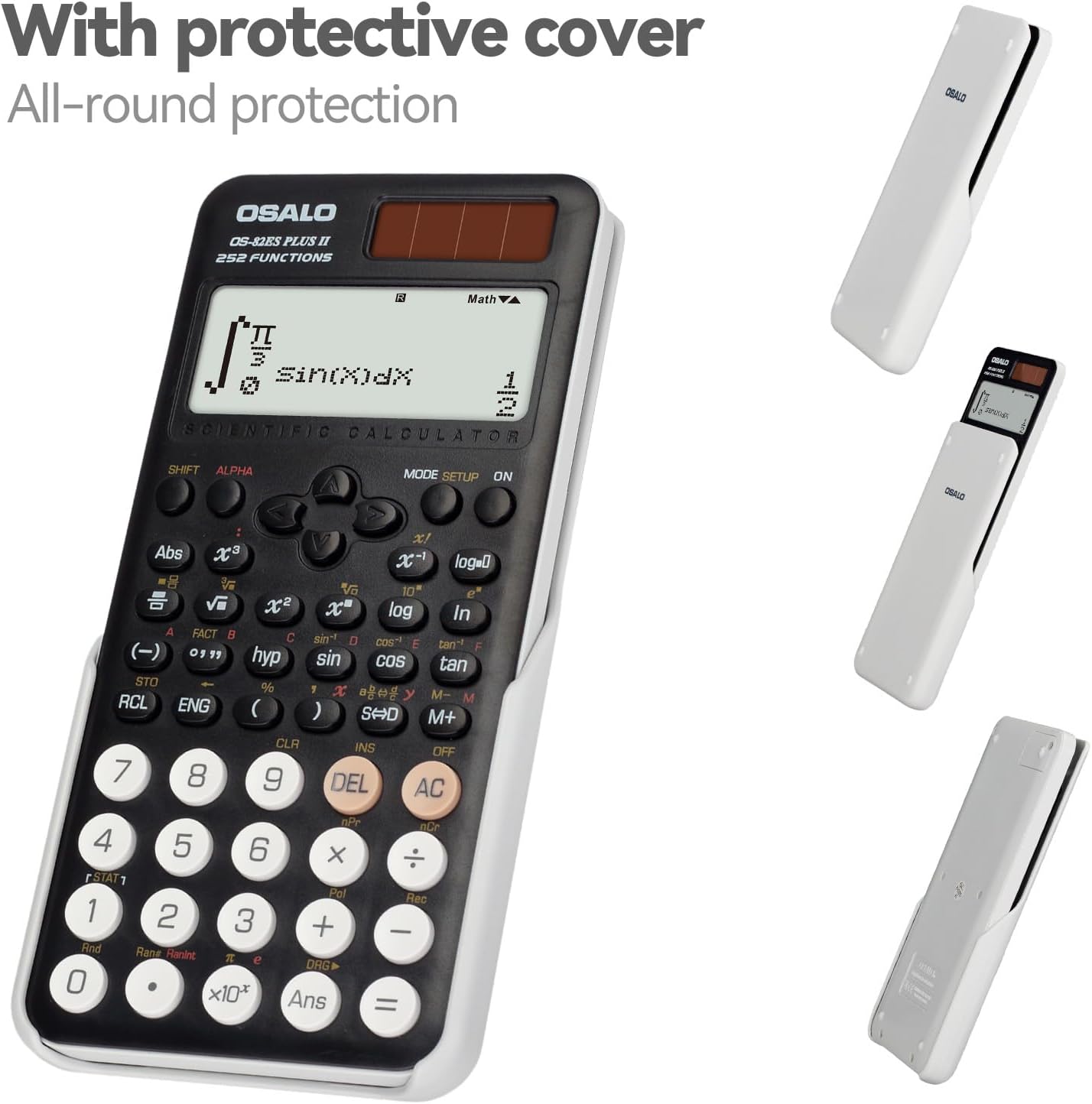
Figure 7: The calculator shown with its protective sliding cover.
This image displays the calculator alongside its white protective cover, demonstrating how the cover slides on to provide all-round protection for the device.
Disassembly Warning
WARNING: Disassembly of the calculator should only be performed by qualified professionals. Attempting to disassemble the device yourself may result in damage and void the warranty.
Troubleshooting
Common Issues and Solutions
- Display is blank or dim:
- Ensure sufficient light for the solar panel.
- Check battery levels and replace LR44 batteries if necessary.
- Adjust display contrast (refer to 'Contrast Adjustment Function' section).
- Calculator does not respond to key presses:
- Press the ON button firmly.
- If unresponsive, try performing a reset (see below).
- Incorrect calculation results:
- Verify the input expression.
- Check the current mode (e.g., DEG/RAD/GRAD for angles). Press MODE SETUP to change.
- Perform a reset if the issue persists.
Resetting the Calculator
If the calculator malfunctions or behaves unexpectedly, a reset may resolve the issue. To perform a full reset:
- Press SHIFT.
- Press CLR (Clear).
- Select option 3: All to clear all settings and memory.
- Press = to confirm.
Note that performing a reset will erase all data stored in memory and revert settings to their factory defaults.
Specifications
| Feature | Detail |
|---|---|
| Model Number | OS-82ES II |
| Number of Functions | 252 |
| Display Type | 2-line LCD (Natural Textbook Display) |
| Power Source | Solar and Battery (2 x LR44 included) |
| Dimensions (L x W) | 16.4 cm x 8 cm (6.46 in x 3.15 in) |
| Weight | 141 g (4.9 oz) |
| Material | ABS Plastic |
| Color | Black |

Figure 8: Physical dimensions and weight of the OSALO Scientific Calculator.
This image provides a visual representation of the calculator's dimensions (length, width, and thickness) and its net weight, emphasizing its thin and lightweight design.
Warranty and Support
Warranty Information
Please refer to the warranty card included with your product packaging for specific warranty terms and conditions. Typically, OSALO products come with a limited warranty covering manufacturing defects from the date of purchase.
Customer Support
For technical assistance, troubleshooting not covered in this manual, or warranty claims, please contact OSALO customer support through the contact information provided on the product packaging or the official OSALO website. When contacting support, please have your product model number (OS-82ES II) and purchase details ready.