
LOQRON LOQRON-SKLB-FP-APP-NV
LOQRON Smart Key Lock Box User Manual
Model: LOQRON-SKLB-FP-APP-NV
Introduction
Thank you for choosing the LOQRON Smart Key Lock Box. This device provides a secure and convenient solution for key management, offering multiple access methods including fingerprint recognition, passcodes, access cards, and smartphone app control. It is designed for versatile use in various environments, from residential homes to Airbnb properties and real estate operations.

Image: The LOQRON Smart Key Lock Box, showcasing its sleek design, digital keypad, fingerprint sensor, and a compartment for keys. A separate view shows the lock box open with keys inside, highlighting its functionality.
Safety Information
- Ensure the lock box is installed securely to prevent unauthorized removal.
- Do not expose the device to extreme temperatures or direct sunlight for prolonged periods.
- Use only specified AAA Alkaline batteries (not included). Do not mix old and new batteries.
- The USB-C port is for emergency power only; it is not for charging the batteries.
- Keep manual keys in a safe place, separate from the lock box.
- Regularly check battery levels via the Tuya App to avoid lockout situations.
Package Contents
Please verify that all items are present in the package:
- Smart Lockbox *1
- Manual Key *2
- Access Card *2
- User Manual *1
- USB Cable *1 (for emergency power only)
- Removable Shackle *1
- Wood Screw *4
- Plastic Expansion Tube *4
- Silicon Hole Plug *5
Product Overview and Features
The LOQRON Smart Key Lock Box is constructed from premium zinc alloy, ensuring durability and security. It features multiple access methods and is designed for both wall-mounted and door-hanging installations.

Image: An exploded view diagram of the Smart Key Lock Box, highlighting its components: Premium Zinc Alloy Body, Numeric Keypad, Card Reader Area, Fingerprint Sensor, Waterproof-IP 65 Certified rating, Manual Key Access, and USB-C Port for emergency unlock.
Key Features:
- Advanced Access Control: Supports Tuya App, fingerprint recognition, access card, and passcodes.
- Durable Construction: Made from premium zinc alloy for enhanced security.
- IP65 Certified: Dustproof and waterproof for outdoor use.
- Flexible Installation: Can be wall-mounted or hung on doorknobs.
- Emergency Power: USB-C port for emergency unlock if batteries are depleted.
- Low Battery Alert: Timely notifications via the Tuya App.

Image: The Smart Key Lock Box shown in a split image, demonstrating its dustproof and waterproof capabilities with water droplets on its surface, indicating its IP65 certification.
Setup Instructions
1. Battery Installation
- Open the battery compartment on the back of the lock box.
- Insert 4 AAA Alkaline batteries (not included), ensuring correct polarity.
- Close the battery compartment securely.
2. App Installation and Pairing (Tuya App)
- Download the "Tuya Smart" or "Smart Life" app from your smartphone's app store (iOS or Android).
- Register an account or log in if you already have one.
- Open the app and tap "Add Device" or the "+" icon.
- Select "Security & Sensor" category, then choose "Lock (Wi-Fi)" or "Smart Lock".
- Follow the on-screen instructions to put the lock box into pairing mode. This usually involves waking the screen by swiping the keypad surface.
- Confirm the device is found and complete the pairing process.
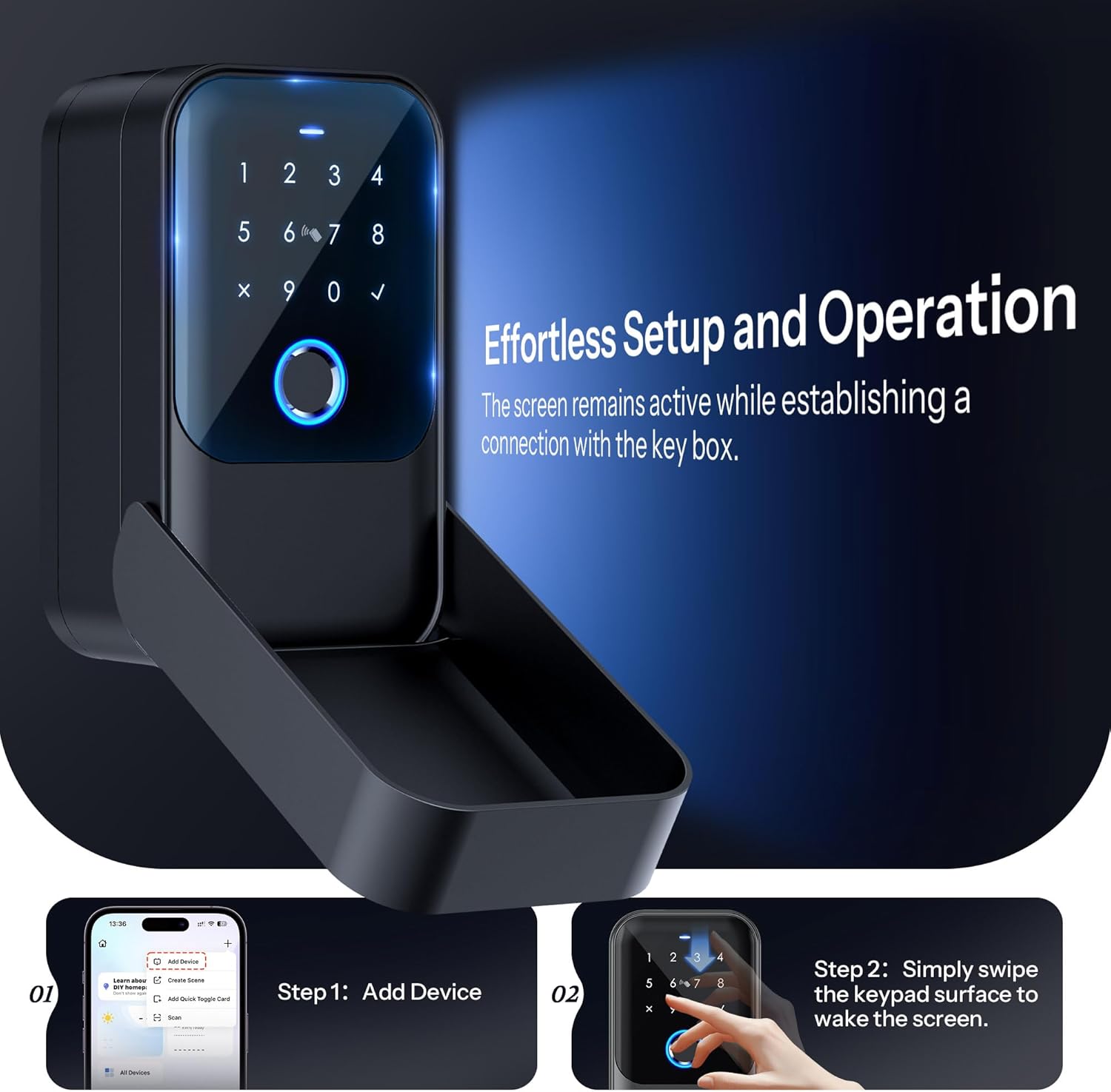
Image: A visual guide demonstrating the two steps for effortless setup: Step 1 shows the "Add Device" screen in the Tuya app, and Step 2 shows a hand swiping the keypad surface to wake the screen for connection.
3. Adding Fingerprints, Passcodes, and Access Cards
Once paired with the app, you can manage access credentials:
- Fingerprints: In the app, navigate to "Member Management" or "Fingerprint Management" and follow the prompts to register new fingerprints. You will need to place your finger on the sensor multiple times.
- Passcodes: Generate various types of passcodes (dynamic, one-time, time-limited, recurring, permanent) directly from the app. Share these codes with authorized users.
- Access Cards: Use the app to add new access cards. Present the card to the card reader area on the lock box when prompted by the app.
Operating Instructions

Image: An infographic illustrating the five different methods to unlock the Smart Key Lock Box: Passcode, Fingerprint, Access Card, App Control, and Manual Key.
- Fingerprint: Place your registered finger on the fingerprint sensor. The lock will unlock if the fingerprint is recognized.
- Passcode: Wake the keypad by swiping the surface, then enter your valid passcode followed by the checkmark (✓) button.
- Access Card: Present the registered access card to the card reader area on the keypad.
- App Control: Open the Tuya App, select your lock box, and tap the unlock icon. Ensure Bluetooth is enabled on your phone and you are within range, or use a gateway for remote access.
- Manual Key: In case of emergency or battery depletion, use one of the provided manual keys to unlock the box. The keyhole is typically located discreetly on the device.
Remote Access (Gateway Sold Separately)
For remote unlocking and real-time activity logs, a Tuya gateway (sold separately) is required. Pair the gateway with your lock box via the Tuya App. This allows you to manage access and monitor usage from anywhere with an internet connection.

Image: An illustration showing a person using a smartphone to remotely unlock the Smart Key Lock Box, with a Tuya gateway depicted as the central hub enabling the remote connection over a global map.
Maintenance
Battery Replacement and Emergency Power
The lock box is powered by 4 AAA Alkaline batteries. The Tuya App will provide low battery alerts. When the battery is critically low or depleted, you can use the provided USB cable for emergency power or the manual key.
- Emergency USB Power: Connect the USB cable to the USB-C port on the lock box and a power source (e.g., power bank). This will temporarily power the device for unlocking. Note: This port is for emergency power only and does not charge the internal batteries.
- Manual Key: Use the physical key as a backup to open the lock box.

Image: A depiction of the Smart Key Lock Box's underside, showing the USB-C port being used with a cable for emergency unlocking. Text indicates that it's for emergency unlock only and not for charging non-rechargeable batteries.
Cleaning
Wipe the lock box surface with a soft, damp cloth. Avoid using abrasive cleaners or solvents that could damage the finish or electronic components.
Troubleshooting
| Problem | Possible Cause | Solution |
|---|---|---|
| Lock box does not respond. | Batteries are dead or not installed correctly. | Replace batteries or use emergency USB power. Ensure correct polarity. |
| Fingerprint not recognized. | Finger is wet/dirty, or fingerprint not properly registered. | Ensure finger is clean and dry. Try re-registering the fingerprint in the app. |
| Cannot connect to Tuya App. | Bluetooth is off, device is out of range, or pairing issue. | Ensure Bluetooth is on. Move closer to the lock box. Try re-pairing the device following setup instructions. Check if a gateway is needed for remote access. |
| Passcode not working. | Incorrect passcode entered, or passcode expired. | Verify the passcode. Check passcode validity and type (one-time, time-limited) in the Tuya App. |
Specifications
| Feature | Detail |
|---|---|
| Brand | LOQRON |
| Model Number | LOQRON-SKLB-FP-APP-NV |
| Product Dimensions | 7.05"D x 5.35"W x 2.72"H |
| Lock Type | App, Electronic, Key |
| Color | Black |
| Material | Aluminum, Zinc |
| Special Feature | Portable, Sturdy |
| Item Weight | 1.96 pounds (0.89 Kilograms) |
| Power Source | 4 AAA Alkaline batteries (not included) |
| Connectivity | Bluetooth (Tuya App), Wi-Fi (with optional gateway) |
| Waterproof Rating | IP65 Certified |
Warranty and Support
LOQRON provides a standard warranty for this product. Please refer to the warranty card included in your package for specific terms and conditions. For technical support, troubleshooting assistance, or warranty claims, please contact LOQRON customer service through the contact information provided in the product packaging or on the official LOQRON website.
Return Policy: This product is eligible for a refund/replacement within 30 days of purchase, as per standard Amazon return policies.
Related documentsLOQRON-SKLB-FP-APP-NV

Ask a question about this manual
Ask about setup, troubleshooting, compatibility, parts, safety, or missing instructions. Manuals+ will review the question and use this page’s manual context to help answer it.