
HP Probook 460
HP Probook 460 AI Business Laptop User Manual
Model: Probook 460
1. Introduction
This manual provides essential information for setting up, operating, maintaining, and troubleshooting your HP Probook 460 AI Business Laptop. This high-performance laptop is designed for business professionals, featuring an Intel Core Ultra 7 155U processor, a 16.0-inch IPS WUXGA display, 64GB DDR5 RAM, and a 4TB PCIe SSD, running on Windows 11 Pro.

Figure 1.1: HP Probook 460 AI Business Laptop with included Dockztorm Port Expander. This image displays the laptop's screen highlighting key features like Copilot, IPS WUXGA display, WiFi 6E, Backlit Keyboard, and Fingerprint reader.
2. Initial Setup
2.1 Unboxing and Inspection
Carefully remove all components from the packaging. Verify that the following items are present:
- HP Probook 460 AI Business Laptop
- Power Adapter (65W PSU with Type-C Power-In)
- Dockztorm Portable USB Hub
- Documentation (this manual)
2.2 Connecting Power
- Connect the power adapter to a wall outlet.
- Plug the USB Type-C power connector into the designated power port on your laptop.
- Allow the battery to charge for at least 30 minutes before initial use, or until the battery indicator shows sufficient charge.
2.3 Initial Boot and Windows 11 Pro Configuration
- Press the power button to turn on the laptop.
- Follow the on-screen instructions to complete the Windows 11 Pro setup. This includes selecting your region, language, connecting to a Wi-Fi network, and creating a user account.
- Ensure all critical updates are installed after the initial setup for optimal performance and security.
2.4 Connecting the Dockztorm Portable USB Hub
The included Dockztorm Portable USB Hub provides additional connectivity options. Connect the hub to an available USB port on your laptop. The hub is plug-and-play and should be recognized automatically by Windows 11 Pro.

Figure 2.1: Side view of the HP Probook 460 AI Business Laptop, showing available ports for connecting peripherals and the Dockztorm hub.
3. Operating Your Laptop
3.1 Keyboard and Input Devices
- Backlit Keyboard: The laptop features a backlit keyboard for improved visibility in low-light conditions. Use the designated function key (often Fn + F5 or F6, refer to keyboard icons) to adjust or toggle the backlight.
- Touchpad: The integrated touchpad supports multi-touch gestures for navigation.
- Fingerprint Reader: For enhanced security, configure the fingerprint reader through Windows Hello settings. This allows for quick and secure login.
3.2 Display
Your HP Probook 460 features a 16.0-inch IPS WUXGA (1920x1200) display with a 60Hz refresh rate. This display provides clear visuals and wide viewing angles. You can adjust display settings (resolution, brightness, color) via Windows display settings.
3.3 Connectivity
- Wi-Fi 6E AX211: Connect to high-speed wireless networks. Ensure your router supports Wi-Fi 6E for optimal performance.
- Bluetooth 5.3: Pair with Bluetooth-enabled devices such as headphones, mice, or external speakers.
- RJ-45 (Ethernet): For a stable wired network connection, use the Ethernet port.
3.4 Ports and Connectors
The laptop is equipped with various ports for connecting external devices:
- HDMI: Connect to external monitors or projectors.
- USB 3.2 Type-C (x2): Versatile ports for data transfer, video output, and power delivery.
- Headphone/Microphone Combo Jack: For audio input and output.

Figure 3.1: Close-up view of the HP Probook 460 AI Business Laptop's side, illustrating the various ports including USB-C, HDMI, and audio jack.
3.5 Webcam
The integrated webcam allows for video conferencing and online communication. Ensure proper lighting for best video quality.
3.6 Windows 11 Pro Features
Your laptop comes pre-installed with Windows 11 Pro, offering advanced features for productivity and security, including:
- BitLocker: For full disk encryption.
- Remote Desktop: Access your PC remotely.
- Windows Hello: Biometric login (fingerprint).
- Copilot: AI-powered assistant for enhanced productivity.
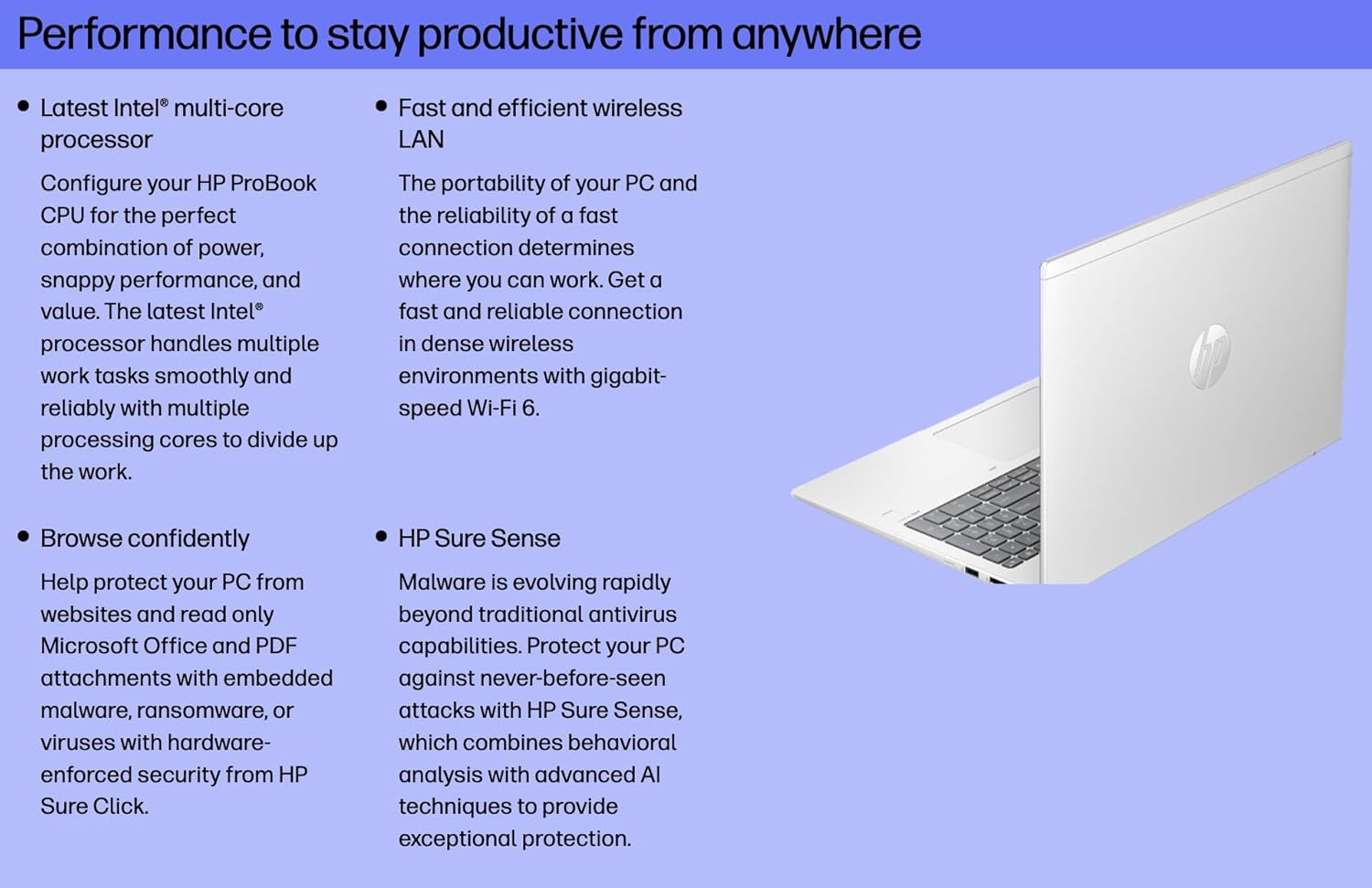
Figure 3.2: An illustrative image emphasizing the performance and security features of the HP Probook 460, such as the Intel Core Ultra processor, fast wireless LAN, and HP Sure Sense for protection.
4. Care and Maintenance
4.1 Cleaning the Laptop
- Screen: Use a soft, lint-free cloth lightly dampened with water or a screen cleaner. Do not spray liquid directly onto the screen.
- Keyboard and Chassis: Use a soft, dry cloth. For stubborn dirt, a slightly damp cloth with mild soap solution can be used, ensuring no liquid enters openings.
- Ports: Keep ports free of dust and debris. Use compressed air if necessary, holding the can upright.
4.2 Battery Care
To prolong battery life:
- Avoid extreme temperatures.
- Do not fully discharge the battery frequently.
- If storing the laptop for an extended period, ensure the battery is charged to approximately 50%.
4.3 Software Updates
Regularly check for and install Windows updates and HP driver updates to ensure optimal performance, security, and compatibility.
5. Troubleshooting
5.1 Laptop Does Not Power On
- Ensure the power adapter is securely connected to both the laptop and a working power outlet.
- Verify the power outlet is functional by plugging in another device.
- If the battery is completely drained, allow it to charge for a few minutes before attempting to power on.
5.2 Display Issues
- If the screen is blank, try pressing the display toggle key (often Fn + F4 or F7) to cycle through display modes.
- Adjust screen brightness using the dedicated function keys.
- If connecting to an external monitor, ensure the cable is secure and the correct input source is selected on the monitor.
5.3 Connectivity Problems (Wi-Fi/Bluetooth)
- Wi-Fi: Check if Wi-Fi is enabled in Windows settings. Restart your router and modem. Ensure you are within range of the Wi-Fi network.
- Bluetooth: Ensure Bluetooth is enabled in Windows settings. Try unpairing and re-pairing the device.
5.4 Dockztorm Hub Not Recognized
- Ensure the Dockztorm hub is firmly connected to a USB port on the laptop.
- Try connecting the hub to a different USB port.
- Restart the laptop.
6. Technical Specifications
| Feature | Specification |
|---|---|
| Processor | Intel Core Ultra 7 155U (1.70GHz, up to 4.8 GHz, 12MB Cache, 12-Cores, 14-Threads) |
| Memory (RAM) | 64GB DDR5 SO-DIMM |
| Storage | 4TB PCIe NVMe SSD |
| Graphics | Intel Graphics Integrated Graphics |
| Display | 16.0" IPS WUXGA (1920x1200) 60Hz 16:10 Display |
| Operating System | Windows 11 Pro-64 |
| Wireless Connectivity | Wi-Fi 6E AX211, Bluetooth 5.3 |
| Wired Connectivity | RJ-45 Ethernet |
| Ports | HDMI, 2x USB 3.2 Type-C, Headphone/Microphone Combo Jack |
| Input Devices | Backlit Standard Keyboard, Fingerprint Reader |
| Camera | Integrated Webcam |
| Battery | 3-Cell 48 WHr Battery |
| Power Supply | 65W PSU, Type-C Power-In |
| Color | Pike Silver |
| Dimensions (WxLxH) | 14.15 x 9.9 x 0.8 inches |
| Weight | 3.85 lbs |
| Model Number | A38F9ET#ABA |
7. Warranty Information
Your HP Probook 460 AI Business Laptop comes with a 1-Year Manufacturer Warranty provided by GreatPriceTech. This warranty covers defects in materials and workmanship under normal use. For specific terms and conditions, please refer to the warranty documentation included with your purchase or contact GreatPriceTech directly.
8. Customer Support
For technical assistance, troubleshooting, or warranty claims, please contact:
- GreatPriceTech: Refer to the contact information provided with your purchase documentation.
- HP Official Support: For general product information and drivers, visit the official HP support website.
When contacting support, please have your laptop's model number (Probook 460) and serial number ready.
Ask a question about this manual
Ask about setup, troubleshooting, compatibility, parts, safety, or missing instructions. Manuals+ will review the question and use this page’s manual context to help answer it.