
1. Introduction
This manual provides essential information for setting up, operating, maintaining, and troubleshooting your HP 14-inch High-Performance Laptop, model TPN-Q242. Please read this manual thoroughly to ensure proper use and to maximize the lifespan of your device. Keep this manual for future reference.
2. Product Overview
The HP 14-inch High-Performance Laptop TPN-Q242 is designed for productivity and everyday computing, featuring an AMD Ryzen 7 5700U processor, 32GB RAM, and a 2TB SSD. It operates on Windows 11 Home and includes a 14-inch HD touchscreen display.
2.1 Laptop Components
Familiarize yourself with the main components of your laptop:
- Display: 14-inch HD Touchscreen.
- Keyboard: Standard QWERTY layout.
- Touchpad: Integrated pointing device.
- Webcam: Integrated for video communication.
- Ports: USB 3.0 Type-A, USB Type-C, HDMI, SD Card Reader, Headphone/Microphone Combo.
- Power Button: Located on the keyboard deck.
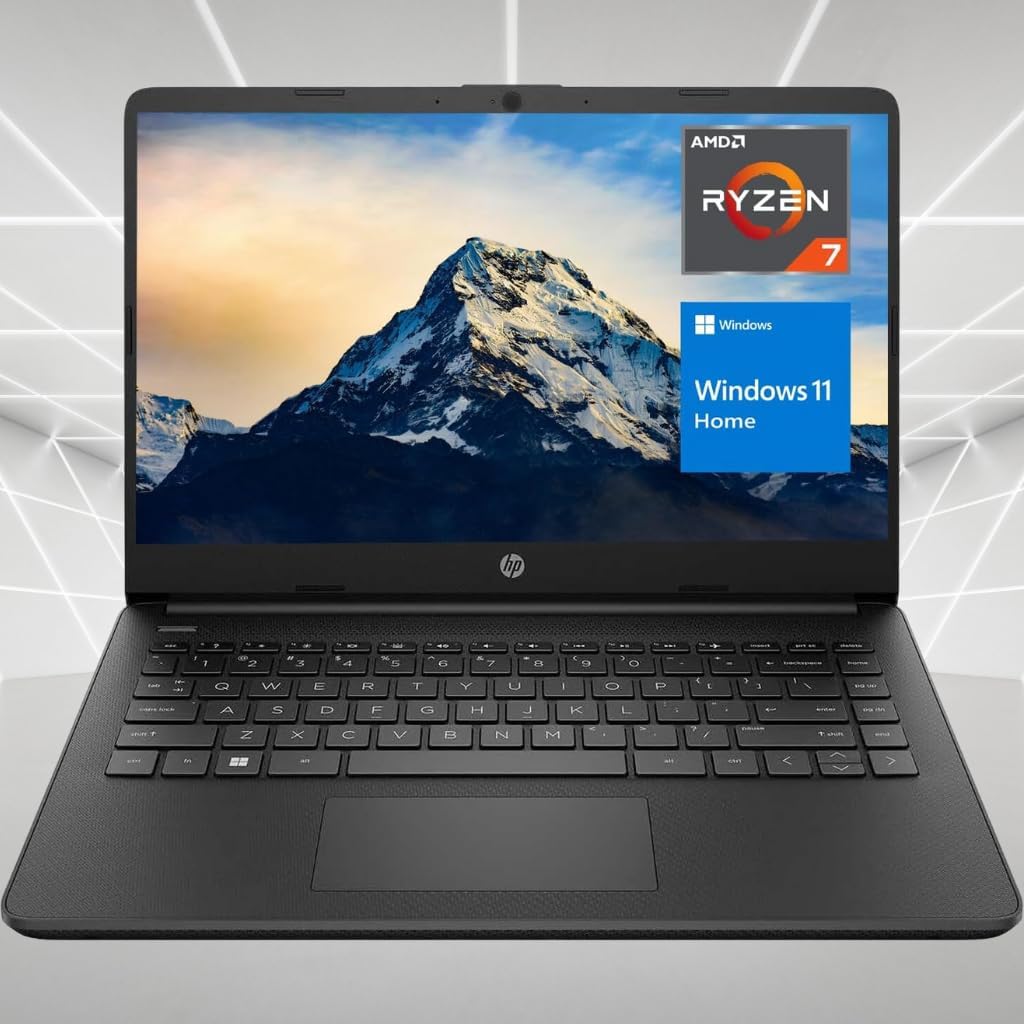
Figure 2.1: Front view of the HP 14-inch Laptop, showcasing the display and keyboard.

Figure 2.2: Left side view of the laptop, illustrating the placement of USB and other ports.

Figure 2.3: Rear view of the HP 14-inch Laptop, highlighting the design of the lid.
2.2 Processor Information
Your laptop is equipped with an AMD Ryzen 7 5700U processor, designed for efficient performance across various tasks.

Figure 2.4: The AMD Ryzen 7 5700U processor, a key component for the laptop's performance.
3. Setup
3.1 Initial Power-On
- Connect Power: Plug the AC adapter into the laptop's power port and then into a wall outlet.
- Power On: Press the power button located on the top right of the keyboard.
- Follow On-Screen Prompts: The laptop will guide you through the initial Windows 11 setup process, including language selection, region, and network connection.
3.2 Connecting to Wi-Fi
During the initial setup or at any time:
- Click the Wi-Fi icon in the taskbar (bottom right of the screen).
- Select your desired Wi-Fi network from the list.
- Enter the network password if prompted, then click 'Connect'.
4. Operating Your Laptop
4.1 Using the Touchscreen and Touchpad
- Touchscreen: Interact directly with the display using your fingers for navigation, tapping, and swiping.
- Touchpad: Use the touchpad for cursor control. Tap to click, use two fingers to scroll, and pinch to zoom.
4.2 Managing Power
- Sleep: Close the lid or select 'Sleep' from the Start menu to put the laptop into a low-power state.
- Shutdown: Select 'Shut down' from the Start menu to completely power off the laptop.
- Restart: Select 'Restart' from the Start menu to reboot the system.
4.3 Connecting External Devices
- USB Devices: Connect USB drives, mice, or keyboards to the USB 3.0 Type-A or USB Type-C ports.
- HDMI: Use the HDMI port to connect to an external monitor or TV.
- SD Card Reader: Insert an SD card into the dedicated slot to access media files.
- Audio: Plug headphones or an external microphone into the headphone/microphone combo jack.
5. Maintenance
5.1 Cleaning Your Laptop
- Screen: Use a soft, lint-free cloth slightly dampened with water or a screen cleaner. Avoid harsh chemicals.
- Keyboard and Chassis: Use a soft, dry cloth. For stubborn dirt, a slightly damp cloth can be used, ensuring no liquid enters openings.
- Ports: Keep ports free of dust and debris. Use compressed air if necessary, holding the can upright.
5.2 Battery Care
- Avoid extreme temperatures.
- Do not fully discharge the battery frequently.
- If storing the laptop for an extended period, ensure the battery is charged to about 50%.
5.3 Software Updates
Regularly update your Windows operating system and drivers to ensure optimal performance and security. Windows Update typically handles this automatically, but you can manually check via 'Settings > Windows Update'.
6. Troubleshooting
This section addresses common issues you might encounter.
6.1 Laptop Will Not Turn On
- Ensure the AC adapter is securely connected to both the laptop and a working power outlet.
- Verify the power outlet is functional by plugging in another device.
- If the battery is completely drained, allow it to charge for at least 15-30 minutes before attempting to power on.
6.2 Wi-Fi Connection Issues
- Check if Wi-Fi is enabled in Windows settings.
- Restart your router and modem.
- Ensure you are within range of your Wi-Fi network.
- Verify the Wi-Fi password is correct.
6.3 Slow Performance
- Close unnecessary applications running in the background.
- Check for and install any pending Windows updates.
- Run a disk cleanup to free up storage space.
- Scan for malware or viruses.
7. Specifications
The following are the key technical specifications for your HP 14-inch High-Performance Laptop TPN-Q242:
| Feature | Specification |
|---|---|
| Model | TPN-Q242 |
| Processor | AMD Ryzen 7 5700U (8 Cores, 16 Threads, 1.8GHz base, up to 4.3GHz Turbo) |
| RAM | 32GB DDR4 |
| Storage | 2TB PCIe NVMe M.2 SSD |
| Display | 14-inch HD (1366 x 768) Touchscreen |
| Graphics | AMD Radeon Graphics |
| Operating System | Windows 11 Home |
| Wireless Connectivity | Wi-Fi (802.11ax) |
| Ports | 2x USB 3.0 Type-A, 1x USB Type-C, 1x HDMI, 1x SD Card Reader, 1x Headphone/Microphone Combo |
| Dimensions (LxWxH) | 12.76 x 8.86 x 0.71 inches |
| Weight | 3.24 lbs |
| Color | Black |
8. Warranty and Support
Your HP 14-inch High-Performance Laptop TPN-Q242 comes with a standard manufacturer's warranty. For detailed information regarding warranty terms, conditions, and duration, please refer to the warranty card included with your product or visit the official HP support website.
For technical assistance, driver downloads, or further troubleshooting, please visit the official HP support portal or contact HP customer service. Have your product model (TPN-Q242) and serial number ready when seeking support.