
ZealSound k66w, k08-2s
ZealSound k66w and k08-2s Gold Microphone Bundle User Manual
Model: k66w, k08-2s
Introduction
This manual provides comprehensive instructions for the proper setup, operation, and maintenance of your ZealSound k66w and k08-2s Gold Microphone Bundle. Please read this manual thoroughly before using the product to ensure optimal performance and longevity.
The ZealSound k66w and k08-2s bundle offers high-quality audio capture for various applications, including gaming, podcasting, streaming, and voice-overs. It features a plug-and-play USB connection and real-time monitoring capabilities.
Package Contents
Verify that all items listed below are included in your package:
- 1 x ZealSound k66w Microphone
- 1 x ZealSound k08 Gold Microphone
- USB Audio Cable
- 3.5mm Audio Cable
- Lightning Adapter (for iPhone products)
- Type-C Adapter (for Type-C devices)
- Microphone Tripod Stand (for k08)
- Pop Filter (for k08)
- Foam Windscreen (for k66w)
- User Manual

Image: The complete ZealSound k66w and k08-2s Gold Microphone Bundle package contents, showing both microphones, various cables, adapters, and stands.
Setup Instructions
1. Connecting the k66w Microphone
- Place the k66w microphone on a stable surface using its integrated stand.
- Connect the provided USB cable to the USB port on the back of the k66w microphone.
- Connect the other end of the USB cable to an available USB port on your computer (desktop or laptop), PS4/PS5, or other compatible device.
- For iPhone products, use the included Lightning adapter. For other Type-C devices (phones, tablets, PCs), use the included Type-C adapter.
- The microphone is plug-and-play; no additional drivers are required for Windows, macOS, Linux, or Android.

Image: Connectivity diagram for the k66w microphone, illustrating connections to computers, gaming consoles, and mobile devices via USB, Lightning, and Type-C adapters.

Image: Both the k66w and k08-2s microphones set up, showing their respective stands and accessories.
2. Connecting the k08-2s Microphone
- Assemble the tripod stand and attach the k08-2s microphone securely.
- Attach the pop filter to the tripod stand, positioning it in front of the microphone.
- Connect the provided USB cable to the k08-2s microphone.
- Connect the other end of the USB cable to your computer or compatible device.
- Ensure the microphone is recognized by your operating system.
Operating Instructions
k66w Microphone Controls
- Mute Button: Press to mute/unmute the microphone. The LED indicator will change color (e.g., blue for active, red for muted).
- Noise Cancel Button: Press and hold the mute button until it turns blue to activate noise-canceling mode. Press and hold again to return to default mode.
- MIC + / - Buttons: Adjust the microphone input volume.
- ECHO + / - Buttons: Adjust the echo effect level.
- 3.5mm Headphone Jack: Plug in headphones for real-time, latency-free monitoring of your audio.

Image: Detailed view of the k66w microphone's control panel, highlighting the mute button, microphone gain, echo level adjustments, and the real-time monitoring port.
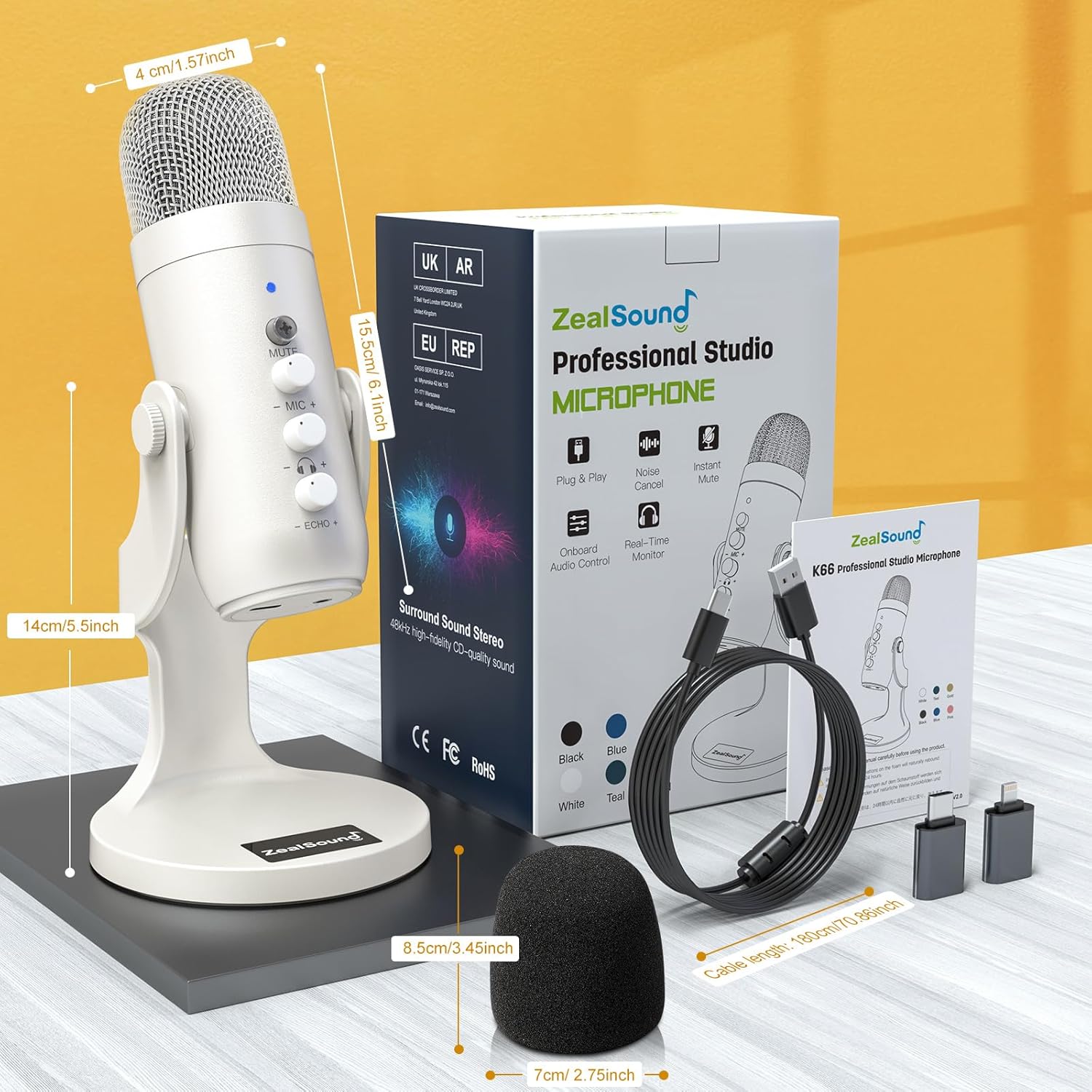
Image: Visual guide for activating the advanced noise cancellation feature on the k66w microphone by pressing and holding the mute button, also showing broadcast effects specifications.
k08-2s Microphone Controls
- ON/OFF Switch: Power on or off the microphone.
- VOL Knob: Adjust the microphone input volume.
- ECHO Knob: Adjust the echo effect level.
- 3.5mm Headphone Jack: Plug in headphones for real-time monitoring.

Image: Controls on the k08-2s microphone, including the volume and echo adjustment knobs, and the power switch.
Real-Time Monitoring
Both microphones feature a 3.5mm headphone output for direct, latency-free monitoring. Connect your headphones to this jack to hear your audio input in real-time, which is essential for recording and streaming applications.

Image: Demonstration of zero-latency monitoring with the k66w microphone, showing headphones plugged into the 3.5mm jack.
Polar Pattern (k08-2s)
The k08-2s microphone utilizes a Cardioid polar pattern. This pattern primarily picks up sound from the front of the microphone, reducing unwanted noise from the sides and rear. This is ideal for capturing a single voice or instrument clearly.

Image: Cardioid polar pattern diagram for the k08-2s microphone, indicating its directional sound pickup characteristics.
Maintenance
- Cleaning: Use a soft, dry cloth to clean the microphone body. Do not use liquid cleaners or solvents.
- Storage: Store the microphones in a dry, dust-free environment when not in use.
- Handling: Avoid dropping or subjecting the microphones to strong impacts, as this can damage internal components.
- Cable Care: Do not bend or crimp the USB cables excessively. Always grasp the plug, not the cable, when disconnecting.
Troubleshooting
| Problem | Possible Cause | Solution |
|---|---|---|
| No sound output from microphone. |
|
|
| Sound is distorted or unclear. |
|
|
| No real-time monitoring. |
|
|
Specifications
| Feature | Detail |
|---|---|
| Brand | ZealSound |
| Model Names | k66w, k08-2s |
| Microphone Form Factor | Large Diaphragm |
| Connectivity Technology | USB, Auxiliary (3.5mm) |
| Connector Type | USB, 3.5 mm Jack |
| Polar Pattern (k08-2s) | Unidirectional (Cardioid) |
| Power Source | Corded Electric (USB Powered) |
| Compatible Devices | Gaming Console (PS4/PS5), Laptop, Personal Computer, Smartphone, Tablet |
| Special Features | 3.5mm jack for real-time monitoring, Noise Cancellation (k66w), Mute Button, Volume/Echo Control |
| Recommended Uses | Gaming, Streaming, Video Conference, Voice Recording, Podcasting |
| Color | Gold (k08-2s), White (k66w) |
| Sampling Rate (k66w) | 48 KHz |
| Signal-to-Noise Ratio (k66w) | 85 dB |
| Dynamic Range (k66w) | 88 dB |
| Equivalent Noise Level (k66w) | 66 dB |

Image: Frequency response chart for the k08-2s microphone, indicating its audio performance across different frequencies.
Image: Broadcast effects, advanced noise cancel specifications, and dimensional overview of the k66w microphone and its accessories.
Warranty and Support
For warranty information and technical support, please refer to the official ZealSound website or contact their customer service directly. Details are typically provided on the product packaging or a separate warranty card.
You can visit the ZealSound Store on Amazon for more product information and support resources.
Related Documents - k66w, k08-2s
 |
ZealSound k08-u Portable Microphone User Manual User manual for the ZealSound k08-u portable condenser microphone, covering its features, connection methods for various devices, charging instructions, troubleshooting, and specifications. |
 |
Zealsound A68s-C RGB USB Condenser Microphone User Manual Comprehensive user guide for the Zealsound A68s-C RGB USB Condenser Microphone. Learn about setup, features like the articulated arm and tripod, and optimal use for PC/Mac gaming, podcasting, and streaming. |
 |
ZealSound BKD-11 Pro/A68-C RGB USB Microphone Instruction Manual Instruction manual for the ZealSound BKD-11 Pro/A68-C RGB USB Microphone, covering accessories, setup for Windows and macOS, specifications, and warranty information. |
 |
ZealSound P300 Live Mixer and Microphone User Manual Comprehensive user manual for the ZealSound P300 Live Mixer and Broadcasting Recording Microphone, detailing product introduction, features, specifications, connections, key functions, troubleshooting, and usage instructions for streaming, recording, and live performances. |
 |
ZealSound V7PRO Wireless Lavalier Microphone User Manual User manual for the ZealSound V7PRO wireless lavalier microphone system, providing setup, operation, and troubleshooting guidance for iPhone, iPad, and Android devices for vlogging, interviews, and live streaming. |
 |
ZealSound V3P Wireless Lavalier Microphone User Manual User manual for the ZealSound V3P wireless lavalier microphone system, detailing features, specifications, setup, and warranty information for interviews, podcasts, and vlogs. |
Ask a question about this manual
Ask about setup, troubleshooting, compatibility, parts, safety, or missing instructions. Manuals+ will review the question and use this page’s manual context to help answer it.