
1. Product Overview
The Selore&S-Global 16-in-1 USB C Docking Station is designed to expand the connectivity of your laptop, providing multiple ports for enhanced productivity. This docking station features triple HDMI outputs for multi-monitor setups, high-speed data transfer ports, power delivery, and network connectivity.

Image 1.1: The Selore&S-Global 16-in-1 USB C Docking Station, showcasing its compact design and the included USB-C to USB-C cable for host connection.
Key Features:
- Triple HDMI Output: Supports up to three external monitors for extended display configurations.
- High-Speed Data Transfer: Includes USB A 3.1 (10Gbps), USB C 3.1 (10Gbps), USB A 3.0 (5Gbps), and USB A 2.0 ports.
- Power Delivery (PD): 100W PD charging port to power your laptop.
- Gigabit Ethernet: RJ45 port for stable wired network connection up to 1000Mbps.
- Card Readers: SD and Micro SD card slots for data transfer.
- Audio Connectivity: 3.5mm Audio & Mic Jack.
2. Package Contents
Verify that all items are present in the package:
- 1 x Selore&S-Global 16-in-1 USB C Laptop Docking Station
- 1 x USB C to USB C Cable
- 1 x Instruction Manual (this document)
Note: A power adapter is not equipped and must be purchased separately. A 100W power adapter is recommended for optimal performance.
3. Port Layout and Functions
The docking station features a comprehensive array of ports to connect various peripherals and displays.
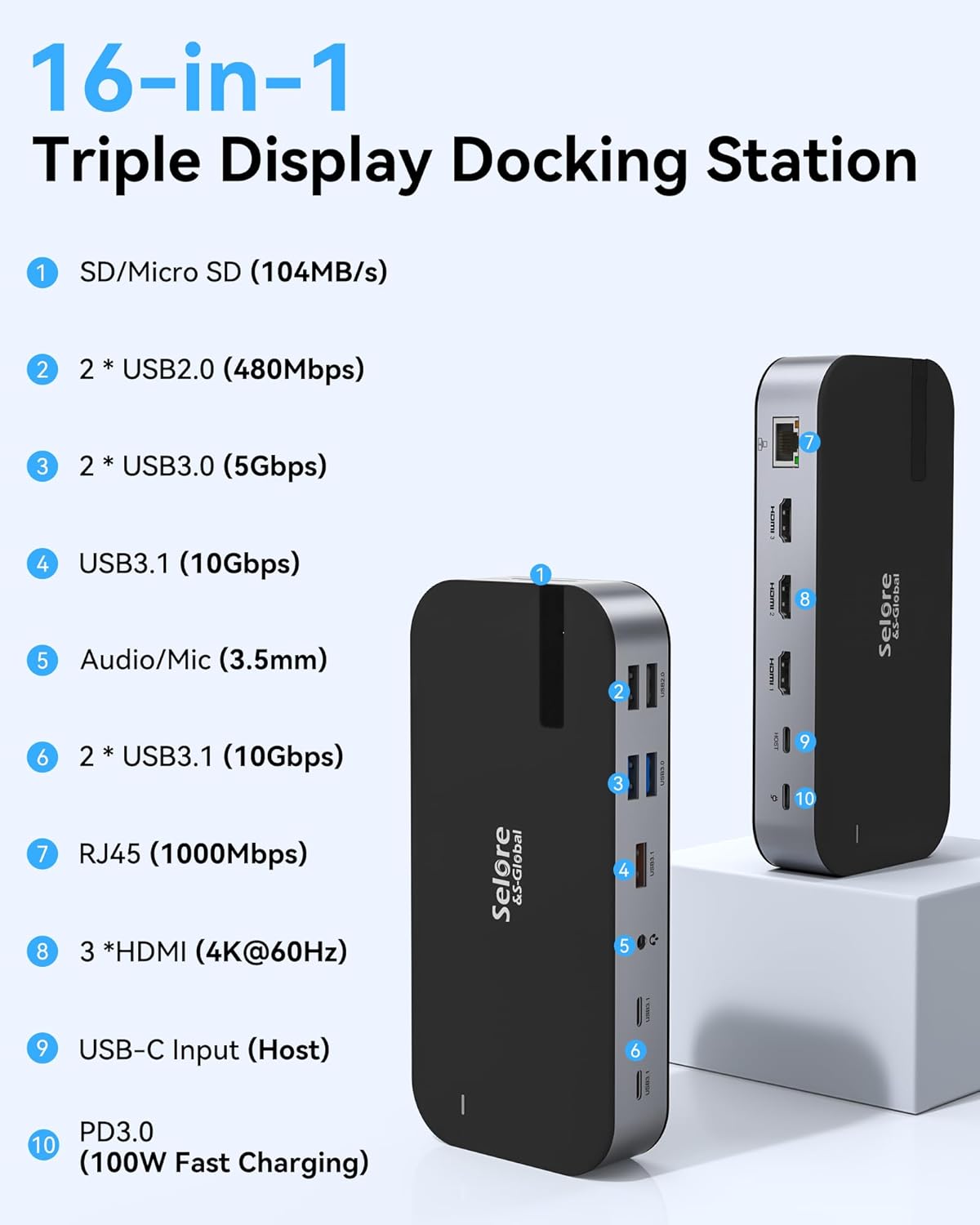
Image 3.1: Detailed diagram illustrating the 16-in-1 ports of the docking station, including SD/Micro SD slots, USB 2.0, USB 3.0, USB 3.1, Audio/Mic, RJ45 Ethernet, 3 HDMI ports, USB-C Host, and PD3.0 charging port.
- SD/Micro SD Slot: Data transfer up to 104MB/s.
- 2 x USB 2.0 Ports: Data transfer up to 480Mbps.
- 2 x USB 3.0 Ports: Data transfer up to 5Gbps.
- USB 3.1 Port (10Gbps): High-speed data transfer.
- Audio/Mic (3.5mm): For headphones or microphones.
- 2 x USB 3.1 Ports (10Gbps): High-speed data transfer.
- RJ45 Ethernet Port: Gigabit Ethernet (1000Mbps) for stable network connection.
- 3 x HDMI Ports: Supports 4K@60Hz for a single port or 4K@30Hz for triple monitors.
- USB-C Host Port: Connects to your laptop.
- PD3.0 (100W Fast Charging): Power input for the docking station and laptop charging.
4. Setup Instructions
Follow these steps to set up your docking station:
- Connect Power (Optional but Recommended): Connect a 100W USB-C power adapter (not included) to the PD3.0 port on the docking station. This provides power to the docking station and pass-through charging to your laptop. To prevent insufficient power allocation, a 100W power supply is recommended. Using a power supply lower than 65W may result in slow charging or no charging.
- Connect to Laptop: Use the included USB C to USB C cable to connect the docking station's USB-C Host port to a compatible USB-C port on your laptop. Ensure your laptop's USB-C port supports DisplayPort Alternate Mode (Alt Mode) for video output.
- Connect Monitors: Connect your external monitors to the HDMI ports on the docking station using HDMI cables.
- Connect Peripherals: Plug in your USB devices (keyboard, mouse, external drives), Ethernet cable, SD/Micro SD cards, and audio devices to the corresponding ports on the docking station.

Image 4.1: Guide to verifying your laptop's USB-C port type. Ensure your port supports "Full Function" or "Data+Displayport Alt" for full docking station functionality.
5. Operating Instructions
5.1. Display Configuration
The docking station supports various display modes depending on your operating system.
For Windows Laptops (with DP1.4 support):
Windows systems typically support both extended and mirror display modes across multiple monitors.
- Extend Mode (A-BCD): Your laptop screen (A) and three external monitors (B, C, D) can display different content.
- Mirror Mode (A-AAA): Your laptop screen (A) and all three external monitors (A, A, A) display the same content.

Image 5.1: Illustration of Extend Mode 1 (A-AAA) and Extend Mode 2 (A-BCD) for Windows laptops with DP1.4, showing how the laptop screen and external monitors can display content.
To configure displays on Windows:
- Right-click on your desktop and select "Display settings".
- Identify your monitors (click "Identify" if needed).
- Select each monitor and choose "Extend these displays" or "Duplicate these displays" from the "Multiple displays" dropdown.
- Adjust resolution and orientation as desired.
For macOS Laptops (with DP1.4 support):
Due to macOS limitations, Apple devices typically support only mirror mode across multiple external displays when connected via a single docking station. Extended mode is usually limited to one external display plus the laptop screen.
- Mirror Mode (A-BBB): Your laptop screen (A) and all three external monitors (B, B, B) will display the same content. macOS does not support Multi-Stream Transport (MST) for extending to multiple distinct external displays via a single hub.

Image 5.2: Illustration of Extend Mode 1 (A-AAA) and Extend Mode 2 (A-BBB) for macOS laptops with DP1.4. Note that macOS does not support Multi-Stream Transport (MST) Display, meaning multiple external monitors will mirror each other.
To configure displays on macOS:
- Go to "System Settings" (or "System Preferences") > "Displays".
- Arrange displays as desired. For multiple external monitors, they will typically mirror each other.
5.2. Power Delivery
The PD3.0 port supports up to 100W power input. When a 100W power adapter is connected to the docking station, it can provide up to 85W of pass-through charging to your connected laptop, while reserving power for the docking station's operations.

Image 5.3: Diagram illustrating the 100W power input to the docking station and 85W power output to the laptop for pass-through charging.
5.3. Data Transfer
Utilize the various USB ports for high-speed data transfer:
- USB 3.1 (10Gbps): Ideal for external SSDs or other high-bandwidth devices.
- USB 3.0 (5Gbps): Suitable for most external hard drives, flash drives, and other peripherals.
- USB 2.0 (480Mbps): Best for keyboards, mice, printers, and other low-bandwidth devices.

Image 5.4: Visual representation of high-speed data transfer capabilities, highlighting the 10Gbps speed for USB-C and USB-A 3.1 ports.
5.4. Network Connection
The RJ45 Gigabit Ethernet port provides a stable and fast wired internet connection, up to 1000Mbps.

Image 5.5: Close-up of the RJ45 Gigabit Ethernet port, emphasizing its 1000Mbps speed for a stable network connection.
5.5. SD/Micro SD Card Reader
Insert your SD or Micro SD cards into the dedicated slots for quick data access and transfer, supporting speeds up to 104MB/s.

Image 5.6: View of the SD and Micro SD card slots, indicating support for data transfer up to 104MB/s.
5.6. Audio Jack
The 3.5mm Audio/Mic jack allows you to connect headphones, speakers, or a microphone for audio input and output.

Image 5.7: Close-up of the 3.5mm Audio/Mic jack, designed for connecting audio peripherals.
6. Compatibility
This docking station is compatible with devices featuring a Thunderbolt 3 or USB-C port that supports DisplayPort Alternate Mode (Alt Mode).
Supported Operating Systems:
- Windows (e.g., Dell XPS13/15, Surface Laptop 3, Lenovo Yoga 720/910/920/930, HP, etc.)
- macOS (e.g., MacBook/MacBook Pro 2017-2020, MacBook Air 2018-2020, iPad Pro 2018, etc.)
Important Note for macOS: Due to limitations in macOS, Multi-Stream Transport (MST) for extending to multiple distinct external displays is not supported. External monitors connected via the docking station will typically mirror each other, or one can be extended while others mirror.
We do not recommend using any other converters with the docking station as we cannot guarantee compatibility.
7. Specifications
| Feature | Specification |
|---|---|
| Model | B0CNRHT3G2 |
| Ports | 3x HDMI (4K@60Hz max single, 4K@30Hz triple), 1x USB A 3.1 (10Gbps), 2x USB C 3.1 (10Gbps), 2x USB A 3.0 (5Gbps), 2x USB A 2.0 (480Mbps), 1x 100W PD Charging, 1x SD Slot, 1x Micro SD Slot, 1x Ethernet (1000Mbps), 1x 3.5mm Audio & Mic Jack, 1x USB C Host |
| Power Delivery | Input: 100W (via external adapter), Output: 85W to laptop |
| Data Transfer Speed | USB 3.1: 10Gbps, USB 3.0: 5Gbps, USB 2.0: 480Mbps, SD/Micro SD: 104MB/s, Ethernet: 1000Mbps |
| Dimensions | 6.81 x 4.25 x 1.26 inches |
| Item Weight | 11.3 ounces |
| Color | Black |
| Manufacturer | Selore&S-Global |
8. Troubleshooting
If you encounter issues, please refer to the following common solutions:
- No Display Output:
- Ensure your laptop's USB-C port supports DisplayPort Alternate Mode. Refer to your laptop's specifications or Image 4.1.
- Verify that all HDMI cables are securely connected.
- Check your laptop's display settings to ensure external monitors are detected and configured correctly (extend/mirror).
- Restart your laptop and reconnect the docking station.
- If extending to 4 displays (including laptop screen) and your laptop does not have a dedicated graphics card, the laptop's screen may go black.
- Laptop Not Charging:
- Ensure a 100W USB-C power adapter is connected to the docking station's PD3.0 port.
- Confirm the USB-C cable connecting the docking station to your laptop supports power delivery.
- If your laptop requires more than 85W, it might charge slowly or not at all via the docking station. Connect the laptop's original charger directly if needed.
- Slow Data Transfer:
- Ensure you are using the correct USB ports for your device (e.g., USB 3.1/3.0 for high-speed devices).
- Check the cable connecting your device to the docking station.
- Ethernet Connection Issues:
- Verify the Ethernet cable is securely connected to both the docking station and your router/modem.
- Check your laptop's network settings.
- If the network connection drops when the adapter is unplugged from the laptop but still powered, try disconnecting the power from the docking station when not in use.
- Docking Station Gets Warm:
- It is normal for the docking station to generate some heat during operation, especially when multiple ports are in use or when charging. Ensure adequate ventilation around the device.

Image 8.1: Important tips regarding power supply, display capabilities (especially for macOS), and general compatibility considerations.
9. Maintenance
To ensure the longevity and optimal performance of your docking station:
- Keep the device in a dry environment and away from direct sunlight.
- Avoid exposing the device to extreme temperatures.
- Clean the exterior with a soft, dry cloth. Do not use liquid cleaners.
- Avoid dropping or subjecting the device to strong impacts.
10. Warranty and Support
Selore&S-Global provides a two-year friendly after-sales service for this product. If you have any questions, operational problems, or require assistance, please contact Selore&S-Global customer support.
For support, please visit the official Selore&S-Global store or contact their customer service directly.