
Introduction
The Blucalm Wired Headset UCH30 is designed for clear communication and comfort in various environments, from busy offices to home setups. Featuring advanced noise cancellation and intuitive controls, it ensures a productive and focused experience.
Key features include an enhanced 3-microphone array for superior noise cancellation, an integrated Busylight for status indication, easy plug-and-play USB-A connectivity, and comfortable design for all-day wear.
What's in the Box
- Headset
- User Manual
- Pouch

Image: The Blucalm UCH30 headset, user manual, and a storage pouch are neatly arranged, showcasing all included items.
Setup and Connectivity
The Blucalm UCH30 headset offers simple plug-and-play functionality, requiring no additional software installation.
- Connect to Device: Insert the USB-A cable into an available USB-A port on your computer or laptop. The headset will be automatically recognized by your operating system.
- Adjust Headset: Adjust the headband for a comfortable fit. The earcups are adjustable by 180 degrees, and the microphone boom can rotate 270 degrees to position it optimally for your voice.
- Verify Audio Settings: Ensure the Blucalm UCH30 is selected as the default audio input and output device in your computer's sound settings or communication application (e.g., Teams, Zoom).

Image: The Blucalm UCH30 headset with its USB-A connector and inline control unit, ready for connection to a computer.
Video: An overview of the Blucalm Wired Headset, highlighting its noise-canceling microphone and Busylight feature, demonstrating its use in various work environments.
Operating Instructions
Noise Cancellation
The UCH30 features a 3-microphone array with AI noise-canceling technology, blocking over 96% of background noise. This ensures your voice is captured clearly, even in noisy environments.

Image: A visual representation of the 3-microphone array and its effectiveness in canceling background noise, ensuring clear voice pickup.
Busylight Functionality
The integrated 360° visible Busylight provides a clear indication of your work status to others. This helps to minimize interruptions during important calls or focused work.
- Red Light: Indicates you are busy or on a call.
- Light Off: Indicates you are available for conversation.
- Flashing Red Light: Alerts you to an incoming call (Teams only).
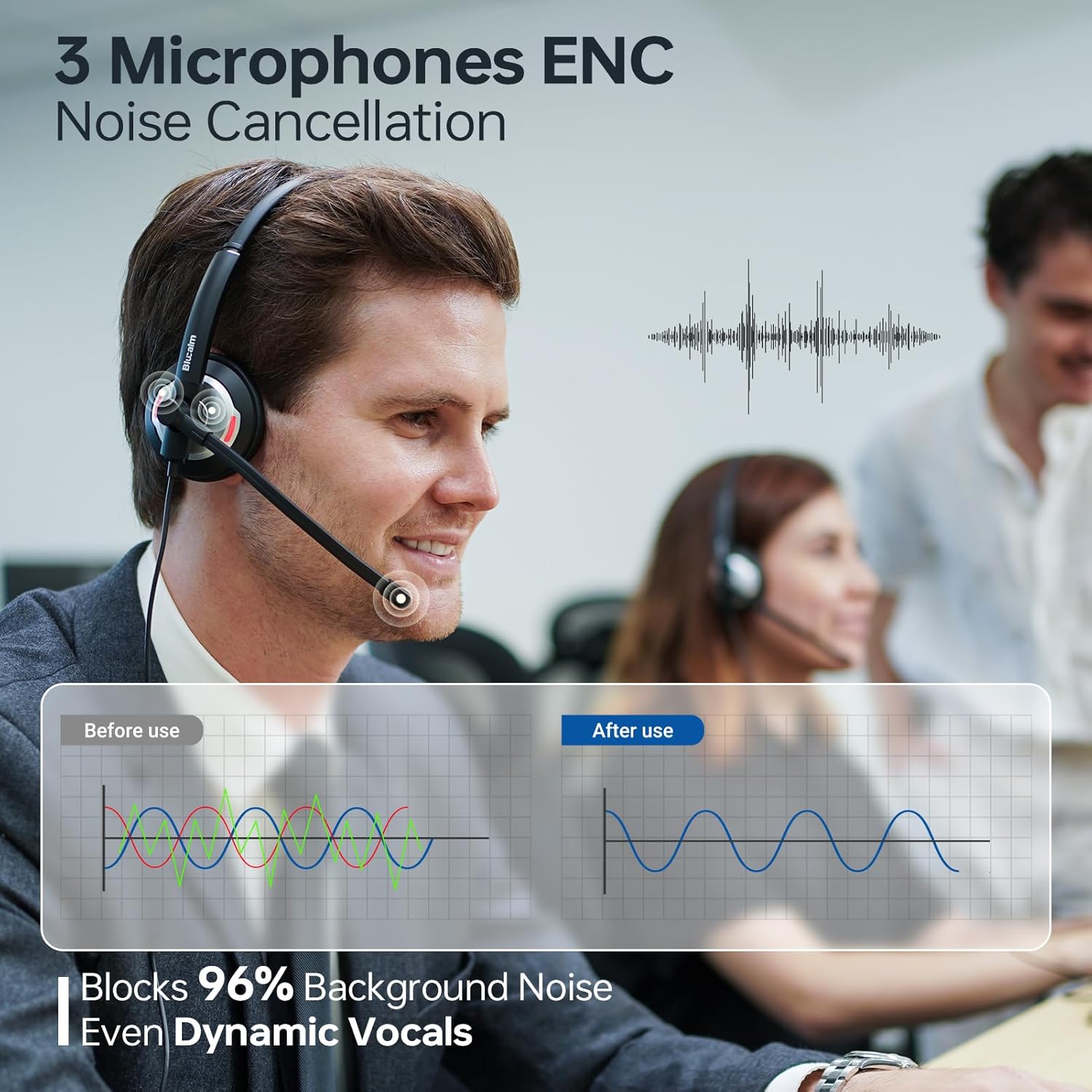
Image: A detailed view of the headset's earcup with the Busylight illuminated, indicating active use or a busy status.
Video: Demonstrates the features of the Blucalm headset, including its noise cancellation and Busylight, showing how it enhances communication in different settings.
In-Line Control
The convenient in-line control unit provides easy access to essential functions:
- Mic Mute/Unmute: Press the microphone button to toggle mute. An indicator light on the control unit shows mute status.
- Volume +/-: Use the '+' and '-' buttons to adjust the listening volume.
- MS Teams Call Answer/End: Press the call button to answer or end calls within Microsoft Teams.
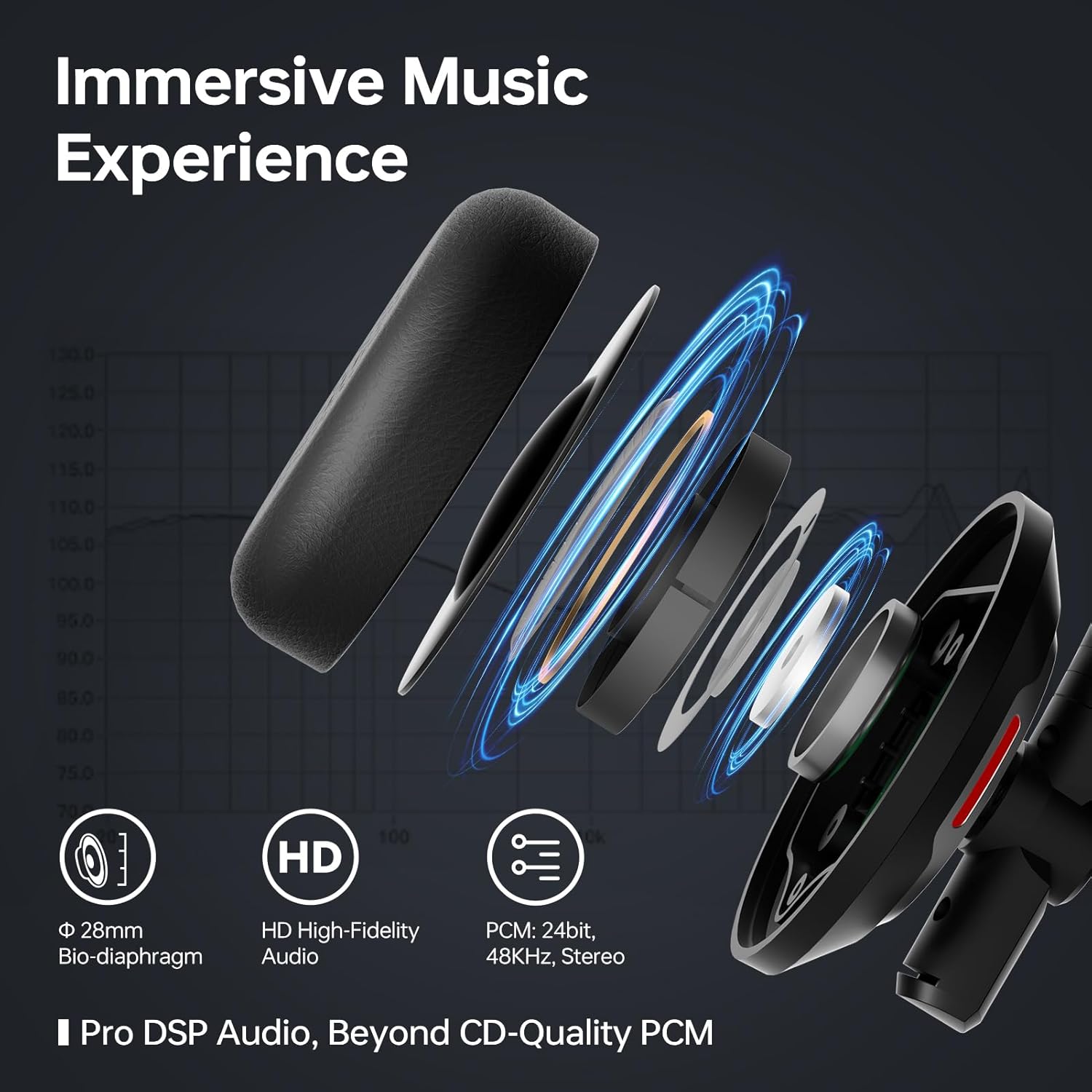
Image: A detailed view of the inline control unit, clearly showing the buttons for microphone mute, volume adjustment, and call answer/end, along with their respective icons.
Comfort and Design
The UCH30 is designed for all-day comfort, featuring an adjustable headband, 180° adjustable earcups, and a lightweight body. The ear cushions are made from skin-friendly leather covering memory foam, providing a soft and breathable fit.

Image: A composite image illustrating the headset's ergonomic features, including the 270° rotating microphone, 180° adjustable earcups, adjustable headband, and soft, breathable ear cushions.
Maintenance
- Cleaning: Use a soft, dry cloth to clean the headset. Avoid using harsh chemicals or abrasive materials.
- Storage: When not in use, store the headset in the provided pouch to protect it from dust and damage.
- Cable Care: Avoid sharp bends or excessive pulling on the cable to prevent internal damage.
Troubleshooting
| Problem | Possible Solution |
|---|---|
| No sound from headset |
|
| Microphone not working |
|
| Busylight not functioning |
|
Specifications
| Feature | Detail |
|---|---|
| Model Name | UCH30 |
| Headphones Jack | USB-A |
| Connectivity Technology | Wired |
| Noise Control | Sound Isolation |
| Microphone Array | 3-microphone array with AI noise-canceling |
| Busylight | Integrated 360° visible Busylight |
| Control Type | In-line control (Mic Mute/Unmute, Volume +/-, MS Teams Call Answer/End) |
| Material | Leather, Plastic |
| Ear Placement | On Ear |
| Item Weight | 4.9 ounces (0.14 Kilograms) |
| Product Dimensions | 7 x 6.3 x 2.4 inches |
| Included Components | Headset, User Manual, Pouch |
Warranty and Support
This Blucalm headset comes with a standard return policy of 30 days. For any product inquiries, technical support, or warranty claims beyond the return period, please contact Blucalm customer service directly through their official channels or the seller "Easilent" on Amazon.
Visit the Blucalm Store for more information and support resources.