
Introduction
Thank you for choosing the BoxWave SlimKeys Bluetooth Keyboard. This ultra-thin, portable keyboard is designed to enhance your typing experience across various devices, including your Xgody Mate 40. This manual provides detailed instructions for setup, operation, maintenance, and troubleshooting to ensure optimal performance.
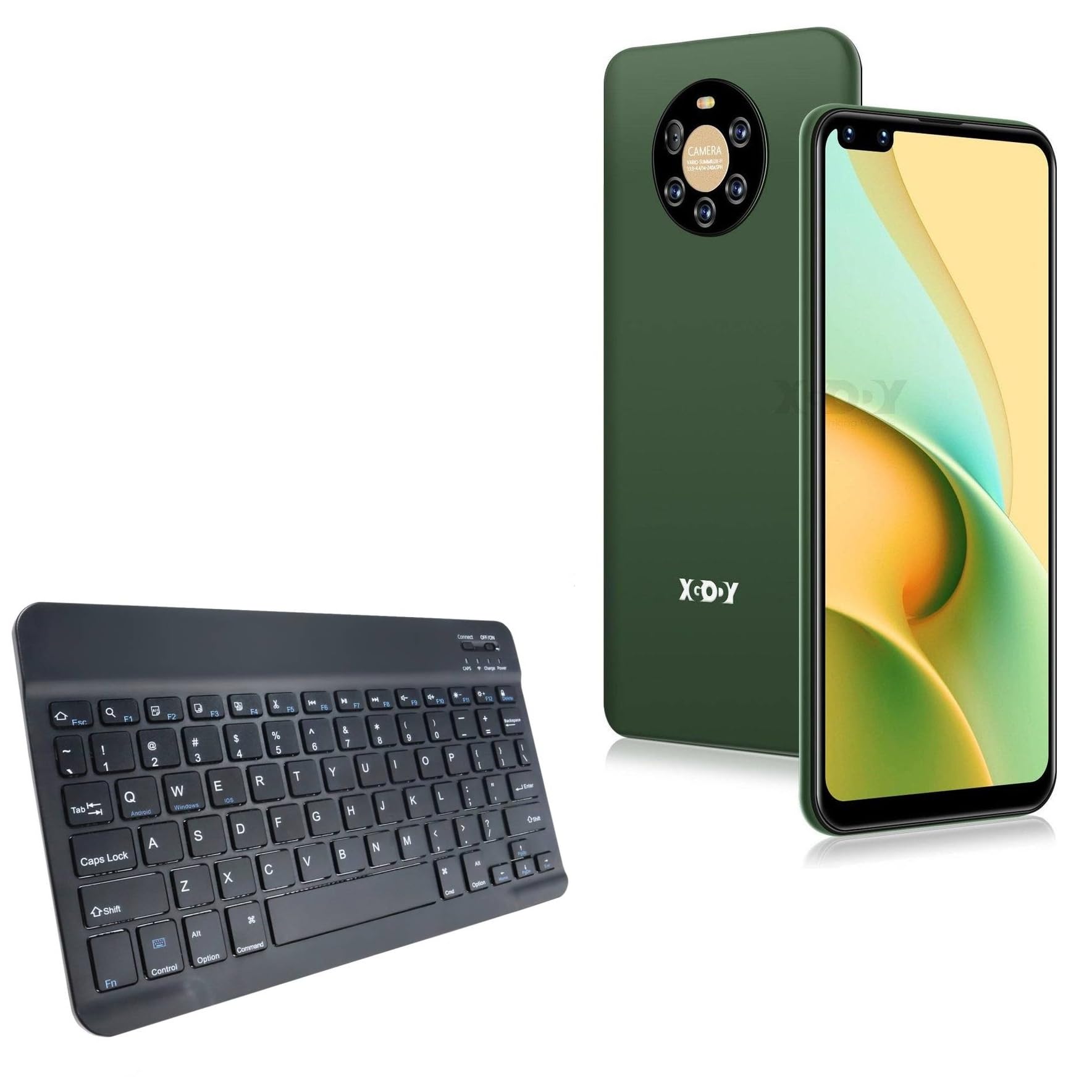
Image: The BoxWave SlimKeys Bluetooth Keyboard, a compact and sleek black keyboard with chiclet-style keys, shown from an angled perspective.
Setup
1. Charging the Keyboard
Before initial use, fully charge the keyboard. Connect the included USB charging cable to the keyboard's charging port and to a standard USB power source. The charge indicator light will illuminate during charging and turn off when fully charged.

Image: A close-up of the BoxWave SlimKeys Bluetooth Keyboard showing the charging port with a USB cable connected, illustrating the long-lasting battery feature.
2. Powering On/Off
Locate the ON/OFF switch on the top right side of the keyboard. Slide the switch to the "ON" position to power on the keyboard. Slide it to "OFF" to conserve battery when not in use.
3. Bluetooth Pairing
- Ensure the keyboard is powered on.
- Press the "Connect" button, usually located near the ON/OFF switch. The Bluetooth indicator light will begin to flash, indicating the keyboard is in pairing mode.
- On your device (e.g., Xgody Mate 40), navigate to the Bluetooth settings.
- Enable Bluetooth and search for available devices.
- Select "BoxWave SlimKeys Keyboard" or a similar name from the list of found devices.
- If prompted, enter the displayed pairing code on the SlimKeys keyboard and press Enter.
- Once paired, the Bluetooth indicator light on the keyboard will stop flashing and remain solid or turn off, depending on the model.

Image: A person's hands typing comfortably on the BoxWave SlimKeys Bluetooth Keyboard, demonstrating its use with Android, Apple iOS, and Windows devices.
Operating Instructions
1. Basic Typing
After successful pairing, you can begin typing directly into any text input field on your connected device. The keyboard features a standard QWERTY layout with chiclet-style keys for a comfortable and responsive typing experience.

Image: A close-up shot of a finger pressing a key on the BoxWave SlimKeys Bluetooth Keyboard, highlighting the chiclet key design for quiet and comfortable typing.
2. Switching Operating System Modes
The SlimKeys keyboard is compatible with Android, Windows, and iOS devices. To optimize key functions for your specific operating system, use the following key combinations:
- Fn + Android key: For Android devices.
- Fn + Windows key: For Windows devices.
- Fn + iOS key: For Apple iOS devices.
3. Specialized Function Keys
The keyboard includes a row of specialized function keys (F1-F12) that provide quick access to common commands. These functions are typically accessed by pressing the Fn key simultaneously with the desired function key.
| Key | Function |
|---|---|
| Fn + Esc (Home) | Go to Home screen |
| Fn + F1 (Search) | Open Search function |
| Fn + F2 (Select All) | Select all text/items |
| Fn + F3 (Copy) | Copy selected content |
| Fn + F4 (Paste) | Paste content |
| Fn + F5 (Cut) | Cut selected content |
| Fn + F6 (Skip Back) | Skip to previous track/media |
| Fn + F7 (Play/Pause) | Play or pause media |
| Fn + F8 (Skip Forward) | Skip to next track/media |
| Fn + F9 (Volume Down) | Decrease volume |
| Fn + F10 (Volume Up) | Increase volume |
| Fn + F11 (Brightness Down) | Decrease screen brightness |
| Fn + F12 (Brightness Up) | Increase screen brightness |
| Fn + Delete (Lock) | Lock the device screen |

Image: A visual representation of the specialized function keys (F1-F12) on the BoxWave SlimKeys Bluetooth Keyboard, detailing their respective actions like Home, Search, Copy, Paste, Media Controls, Volume, Brightness, and Lock.
Maintenance
1. Cleaning
To clean your keyboard, gently wipe the surface with a soft, damp cloth. Avoid using harsh chemicals or abrasive cleaners, as these can damage the keyboard's finish or internal components. Ensure the keyboard is powered off before cleaning.
2. Battery Care
The keyboard features a built-in rechargeable battery. For optimal battery life, avoid fully discharging the battery frequently. Recharge the keyboard when the battery indicator is low. If storing the keyboard for an extended period, charge it to about 50% and power it off.
Troubleshooting
- Keyboard not pairing:
- Ensure the keyboard is powered on and fully charged.
- Make sure Bluetooth is enabled on your device.
- Press the "Connect" button on the keyboard to enter pairing mode.
- If previously paired, try "forgetting" or "unpairing" the keyboard from your device's Bluetooth settings and then re-pair.
- Ensure your device is within the Bluetooth range (typically 10 meters or 33 feet).
- Keys not responding:
- Check if the keyboard is powered on and connected via Bluetooth.
- Ensure the battery is not critically low.
- Restart both the keyboard (power off/on) and your device.
- Incorrect characters appearing:
- Verify that the correct operating system mode is selected on the keyboard (Fn + Android/Windows/iOS).
- Check your device's language and keyboard layout settings.
Specifications
| Feature | Detail |
|---|---|
| Model | SlimKeys Bluetooth Keyboard |
| Connectivity | Bluetooth 3.0 |
| Compatibility | Android, Windows, iOS devices (e.g., Xgody Mate 40) |
| Dimensions (L x W x H) | Approximately 9.5 in (24.2 cm) x 5.75 in (14.5 cm) x 0.2 in (0.5 cm) |
| Weight | 8.6 ounces (approx. 0.24 kg) |
| Battery | 1 Product Specific battery (included), rechargeable |
| Battery Life | Up to 30 days of use, 6 months standby (when powered off) |

Image: An overhead view of the BoxWave SlimKeys Bluetooth Keyboard with its dimensions labeled: 9.5 inches (24.2 cm) width, 5.75 inches (14.5 cm) depth, and 0.2 inches (0.5 cm) height, emphasizing its ultra-slim and lightweight design.
Warranty and Support
BoxWave products are designed for quality and reliability. For information regarding warranty coverage, product support, or to contact customer service, please refer to the official BoxWave website or the documentation included with your purchase. Our support team is available to assist with any questions or issues you may encounter.
You can typically find more information and contact details on the manufacturer's website: www.boxwave.com