
Introduction
This manual provides instructions for the installation and use of the ViaBecs USB-FT03 adapter. This product is designed to allow the retention of your vehicle's original factory USB port functionality when installing an aftermarket car radio head unit. It ensures seamless integration, enabling the use of the OEM USB port for media playback and device charging through your new stereo system.
Product Overview
The ViaBecs USB-FT03 is a plug-and-play adapter cable that bridges the connection between your vehicle's existing factory USB port and an aftermarket stereo system. It features a male Type-A USB connector on one end, which connects to the aftermarket radio, and a vehicle-specific connector on the other end, which plugs into the OEM USB port. The adapter is constructed with pure copper wire for enhanced conductivity and reliable data transfer.

Image: The ViaBecs USB-FT03 adapter cable, showing the male USB-A connector and the vehicle-specific connector.

Image: A close-up view of the adapter's connectors, highlighting the quality and design.

Image: Illustration showing the pure copper wire construction of the adapter, indicating better performance.
Compatibility
This adapter is compatible with various vehicle models. Please ensure your factory USB port matches the connector type shown in the product images before purchase.

Image: A visual representation of compatible vehicle models and years.
- For Toyota: 2012-2017 Camry, 2016-2019 CHR, 2012-2017 RAV4, 2013-2017 Tacoma, 2014-2019 Highlander, 2012-2017 Prius, 2012-2017 Corolla, 2012-2013 Sequoia, 2012-2013 Sienna, 2014-2018 Tundra, 2013-2017 Venza, 2012-2014 Yaris, 2015-2016 Hilux.
- For Honda: 2015-2018 CR-V, 2015-2017 CRZ, 2016-2018 Civic, 2016-2018 Accord Hybrid, 2017-2019 Ridgeline.
- For Subaru: 2013-2016 BRZ, 2014-2015 Forester, 2013-2016 WRX.
- For Lexus: 2015 CT, 2013 GS350, 2013 GS450h, 2013 LX570, 2013 RX450h, 2015 IS250.
- For Scion: 2016 FRS, 2013 xB, 2014 tC.
Setup and Installation
The ViaBecs USB-FT03 adapter offers a simple plug-and-play installation process. No complex wiring or modifications are typically required.
- Access Aftermarket Radio: Ensure your aftermarket head unit is installed and accessible, particularly its USB input port.
- Locate Factory USB Port: Identify the factory USB port in your vehicle's dashboard or center console.
- Connect Adapter to Factory Port: Plug the vehicle-specific end of the ViaBecs USB-FT03 adapter into your car's factory USB port. This connection is designed to match the OEM USB plug.
- Connect Adapter to Aftermarket Radio: Plug the male USB Type-A end of the adapter into the USB input port of your aftermarket car radio head unit.
- Secure Connections: Ensure all connections are firm and secure to prevent intermittent functionality.
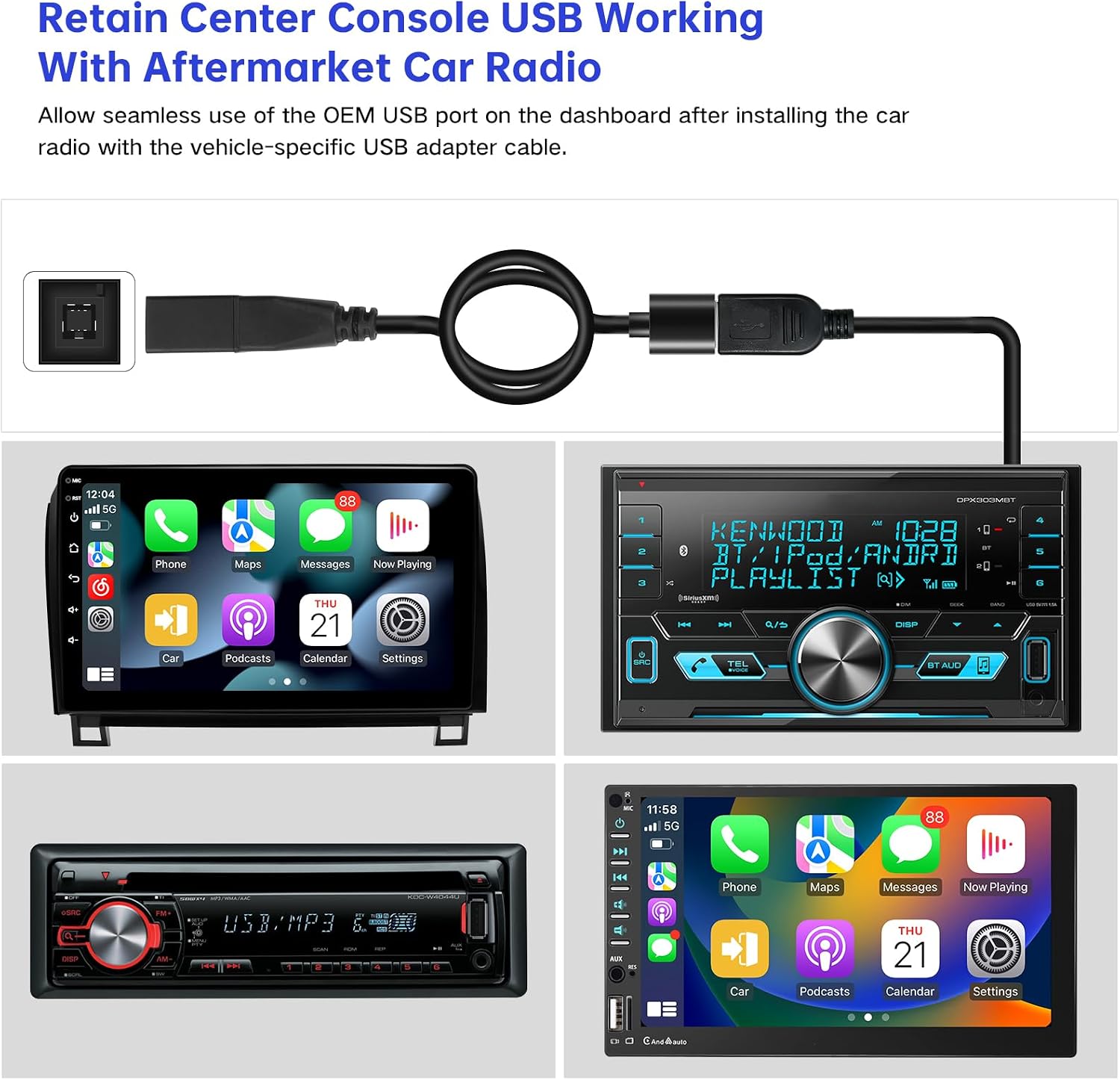
Image: Diagram illustrating how to connect the adapter between the OEM USB port and an aftermarket car radio.

Image: Visual guide demonstrating the plug-and-play nature of the installation, showing the factory USB plug and the adapter's USB interface.
Operating Instructions
Once the ViaBecs USB-FT03 adapter is correctly installed, your vehicle's factory USB port will function with your aftermarket head unit. You can use the OEM USB port for:
- Media Playback: Connect USB drives or compatible devices to play audio or video files through your aftermarket stereo.
- Device Charging: Charge your mobile phones, tablets, or other USB-powered devices.
- Data Transfer: If your aftermarket head unit supports it, the USB port can facilitate data transfer for features like Apple CarPlay or Android Auto.
Maintenance
The ViaBecs USB-FT03 adapter is designed for durability and requires minimal maintenance. To ensure optimal performance:
- Keep the connectors clean and free from dust or debris.
- Ensure all connections remain secure and are not subjected to excessive pulling or strain.
- Avoid exposing the adapter to extreme temperatures or moisture.
Troubleshooting
If you encounter issues with your ViaBecs USB-FT03 adapter, consider the following:
- No USB Functionality: Verify that both ends of the adapter are securely connected to the factory USB port and the aftermarket head unit.
- Device Not Recognized: Ensure the device you are connecting is compatible with your aftermarket head unit. Check the head unit's settings to confirm USB input is enabled and configured correctly.
- Slow Charging: Charging speed can vary depending on the device and the power output of the head unit's USB port. Ensure the cable used to connect your device to the adapter is in good condition.
Specifications

Image: Technical drawing showing the dimensions of the ViaBecs USB-FT03 adapter.
| Model Number | USB-FT03 |
| Brand | ViaBecs |
| Basic Color | Black |
| Material | Plastic + Metal |
| Total Length | 24.6 cm (9.6 inches) |
| Socket Type | USB 2.0 |
| Connector Type | USB |
| Compatible Devices | Android radio (and other aftermarket head units with USB input) |
| Item Dimensions (L x W x H) | 9.45 x 0.63 x 0.51 inches |
| Number of Ports | 1 |
| Power Plug Type | No Plug |
| Item Weight | 1.6 ounces |
| UPC | 732322808094 |
| Manufacturer Part Number | USB-FT03 |
Warranty and Support
The ViaBecs USB-FT03 adapter comes with a 12-Month Warranty from the date of purchase. This warranty covers manufacturing defects and ensures the product is free from material and workmanship flaws under normal use.
For technical assistance, warranty claims, or any product-related inquiries, please contact ViaBecs customer service through the retailer where the product was purchased or visit the official ViaBecs website for support contact information.