
Introduction
The XLW YYR08 is a compact voice recording module designed for DIY projects, such as integrating into stuffed animals, plush toys, baby dolls, or pillows. It offers up to 16 minutes of high-definition recording time and features a built-in rechargeable battery. This manual provides detailed instructions for its setup, operation, and maintenance.

Image: Overview of the XLW YYR08 Voice Recorder's key features, including HD recording, audio download capability, USB charging, and 16-minute recording time. A note indicates the switch must be ON when connecting to a computer.

Image: Detailed diagram illustrating the components of the XLW YYR08 Voice Recorder, including the Play Button, Micro USB port, Charging Indicator Light (Red), Recording Indicator Light, Recording Button, Switch (OFF/ON), and Microphone.
Setup
Charging the Device
The device has a built-in 3.7V 230 MA lithium battery. To charge:
- Connect the device to a computer or a USB power adapter using the provided Micro USB data cable.
- The red indicator light will illuminate during charging.
- Charging takes approximately 90 minutes for a full charge. The red indicator light will turn off once fully charged.
Connecting to a Computer for Audio Transfer
To transfer audio files to or from the device:
- First, connect the Micro USB cable to your computer.
- Then, turn the device's switch to the ON position. (Important: Do not turn on the switch before plugging in the USB cable.)
- The device will be recognized as a removable storage device on your computer.
Operating Instructions
Recording Audio (On-Device)
The device supports up to 16 minutes of recording using its built-in microphone. Please note that each new recording will overwrite the previous one.
- Ensure the switch is in the ON position.
- Press and hold the Recording Button for 1 second. You will hear a single "beep" sound, indicating recording has started.
- You can release the button during recording.
- To stop recording, press the Recording Button again. You will hear "two beeps", confirming that recording has stopped and saved.

Image: Visual guide demonstrating the steps for recording audio: turning on the switch, initiating recording, ending recording, and playing back the recorded audio.

Image: A child interacting with a teddy bear, demonstrating the application of the voice recorder. Text highlights its 16-minute recording capacity and notes on deleting built-in music, connecting to a computer, and downloading MP3s.
Playing Audio
To play back the current audio (either the last recorded message or the first downloaded MP3 file):
- Press the large Play Button located on the top of the device. The audio will play once.
Downloading and Deleting Audio Files (Via Computer)
The device has 16MB of built-in memory, allowing you to store multiple MP3 audio files. You can manage these files by connecting to a computer:
- Connect the device to your computer as described in the "Connecting to a Computer" section.
- Once recognized as a removable drive, open the drive.
- You can copy desired MP3 audio files to the recorder. Ensure the total size of all files does not exceed 16MB.
- To delete built-in or previously downloaded audio, simply delete the files from the device's storage drive on your computer.
- Note: Audio files must be in MP3 format. The file name is not required to be specific.
- Important: The CONFIG.TXT file located in the device's root directory should be kept. This file is used to set the volume and playback mode. Do not delete or modify it unless you understand its function.
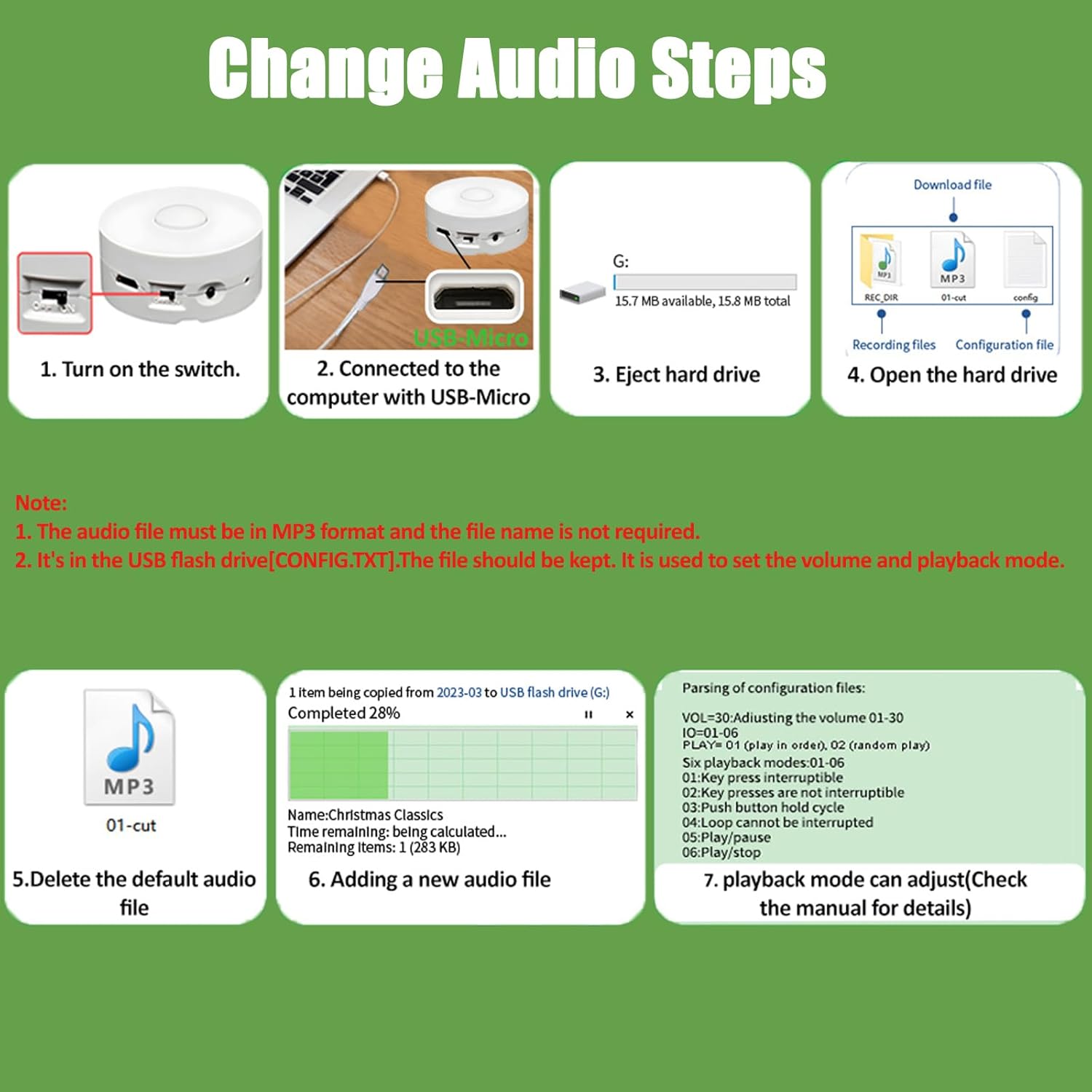
Image: Visual instructions for managing audio files: connecting the device, accessing its storage, deleting existing files, and adding new MP3 files. It also highlights the importance of the CONFIG.TXT file for settings.
Maintenance
Battery Life and Standby
- A fully charged battery provides approximately 90 minutes of continuous playback. For example, a 1-minute stored music file can be played about 90 times.
- In a non-working state, the device has a standby time of approximately 120 days. After this period, it will require recharging.
General Care
- Keep the device dry and away from extreme temperatures.
- Avoid dropping or subjecting the device to strong impacts.
- Clean the exterior with a soft, dry cloth. Do not use liquid cleaners.
Troubleshooting
- Recording Overwrites Previous Audio: This is normal operation for on-device recording. The device is designed to store only one recorded segment at a time, and each new recording will replace the previous one.
- Device Not Recognized by Computer: Ensure the device's switch is in the ON position after connecting the Micro USB cable to the computer. If the issue persists, try a different USB port or cable.
- No Sound During Playback: Check if the device is charged. Ensure the volume setting in the CONFIG.TXT file (if modified) is not set to zero.
- Cannot Delete Built-in Music: Ensure the device is properly connected to the computer and recognized as a removable drive. The switch must be in the ON position. Delete the files directly from the device's drive on your computer.
Specifications

Image: Diagram showing the compact dimensions of the XLW YYR08 Voice Recorder: 1.89 inches (4.8 cm) in diameter and 0.83 inches (2.1 cm) in height.
| Feature | Detail |
|---|---|
| Brand | XLW |
| Model Number | YYR08 |
| Recording Time | Up to 16 minutes |
| Memory Storage Capacity | 16 MB |
| Battery Type | Built-in 3.7V 230 MA Lithium Ion |
| Charging Time | Approximately 90 minutes |
| Battery Average Life (Playback) | 90 minutes |
| Standby Time | Approximately 120 days |
| Hardware Interface | Micro USB 2.0 Type A |
| Microphone Form Factor | Built-In |
| Compatible Devices | Laptop, Notebook, Windows system computer |
| Item Dimensions (D x W x H) | 48D x 48W x 21H Millimeters (1.89 x 1.89 x 0.83 inches) |
| Country of Origin | China |
Support
For further assistance, inquiries, or customization support, please contact XLW directly. Contact information may be available on the product packaging or the official XLW website.


