
1. Introduction
Thank you for choosing the Nideocion Single Din Car Radio SX-5513. This classic-designed car stereo offers a blend of style and modern functionality, including wireless Bluetooth connectivity, hands-free calling, and versatile audio input options. This manual provides detailed instructions for installation, operation, and troubleshooting to ensure a safe and enjoyable user experience.
The device features circuit protection to prevent damage from wiring errors and short circuits, enhancing its reliability and safety.
2. What's in the Box
- Product Main Unit
- ISO Wiring Harness
- User Manual
- Remote Control
3. Product Overview
Front Panel Controls and Rear Connections
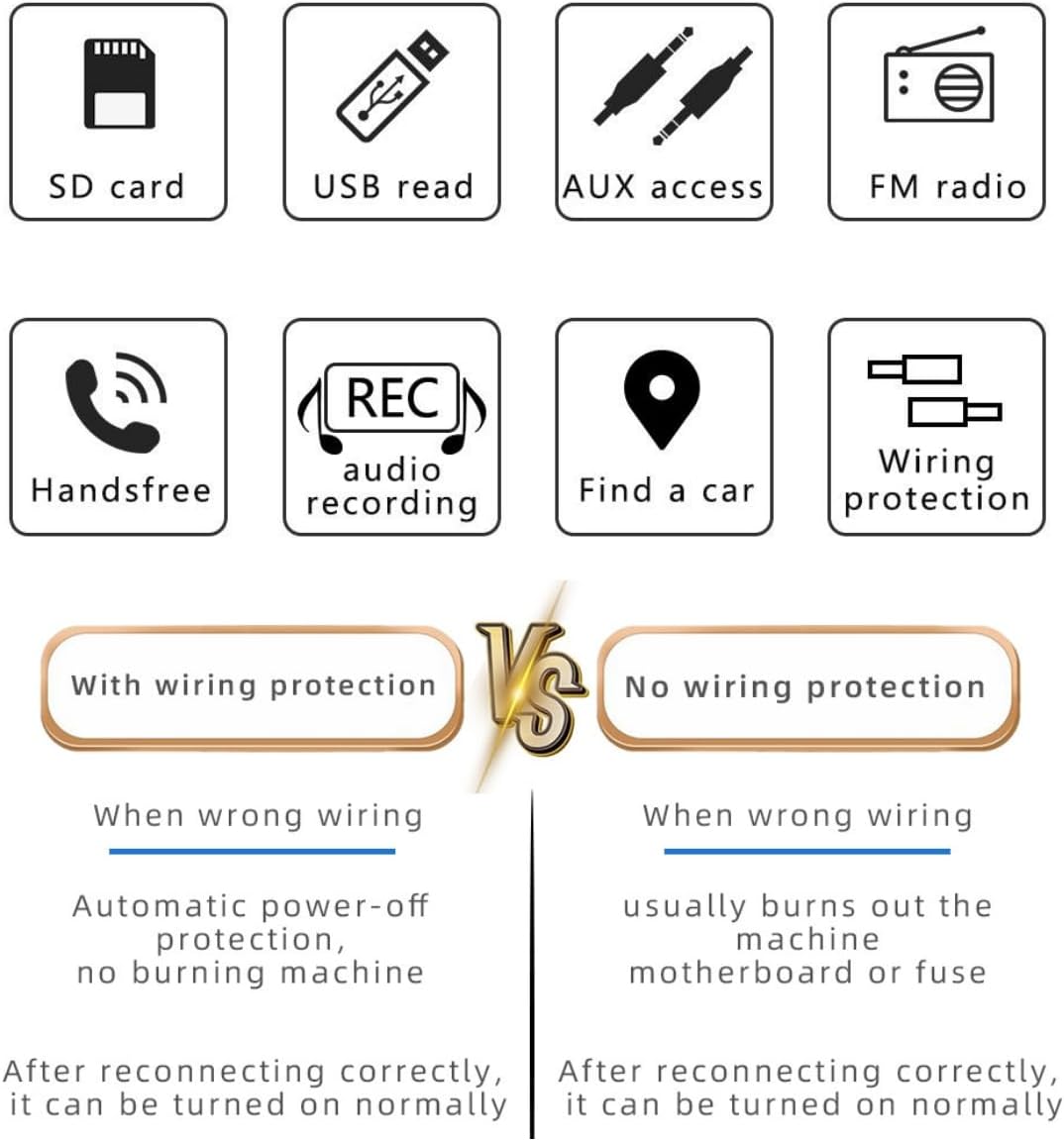
Image: Detailed view of the Nideocion SX-5513 car radio, showing the front panel controls and the rear connection ports. The front panel includes two rotary knobs, a central display, and various function buttons. The rear panel shows the power/speaker jack, audio output RCA ports, and an antenna jack.
Front Panel Features:
- Volume Knob / Sound Effect Adjustment: Left rotary knob for volume control and sound settings.
- Up and Down Tune Knob / Function Switch Key / Power Button: Right rotary knob for tuning and function selection, also serves as the power button.
- SD Card Slot: For playing media from SD cards.
- Answer Button / Band Switching: Button for answering calls and switching radio bands.
- Hang Up Key / Time: Button for ending calls and displaying time.
- Track 1 / Pause / Play: Media control button.
- Track 2 / Browse Play: Media control button.
- Track 3 / Single Cycle: Media control button for repeat mode.
- Track 4 / Shuffle: Media control button for shuffle mode.
- Track 5 / Subtract Ten Backwards: Media control button.
- Track 6 / Add Tens Forward: Media control button.
- USB Jack: For playing media from USB drives.
- Reset Hole: Small pinhole for resetting the unit.
- AUX Jack: 3.5mm input for external audio devices.
Rear Connections:
- Power/Speaker Jack: Main connector for power supply and speaker outputs (ISO Wiring Harness connects here).
- Audio Output (RCA): Left and right RCA outputs for connecting to external amplifiers.
- Antenna Jack: For connecting the car's radio antenna.
4. Installation and Setup
Proper installation is crucial for the performance and safety of your car radio. It is recommended to have this unit installed by a qualified professional.
Wiring Instructions:
- Disconnect Battery: Before starting any wiring, disconnect the negative terminal of your vehicle's battery to prevent short circuits.
- Connect ISO Wiring Harness: Use the provided ISO wiring harness. Match the wires from the harness to your vehicle's wiring according to the color codes. Common connections include:
- Yellow: Constant 12V (Battery)
- Red: Switched 12V (Accessory/Ignition)
- Black: Ground
- Blue: Power Antenna/Remote Turn-On
- Speaker Wires: Typically color-coded for front left, front right, rear left, rear right speakers (e.g., White/White-Black, Gray/Gray-Black, Green/Green-Black, Purple/Purple-Black).
- Antenna Connection: Connect your car's radio antenna to the antenna jack on the rear of the unit.
- Secure Unit: Slide the car radio into the single DIN mounting sleeve in your dashboard until it clicks into place.
- Reconnect Battery: Once all connections are secure and the unit is mounted, reconnect the negative terminal of your vehicle's battery.

Image: Diagram illustrating the built-in wiring protection. The left side shows that with wiring protection, incorrect wiring leads to automatic power-off protection, preventing damage. The right side shows that without protection, incorrect wiring can burn out the motherboard or fuse. This unit includes wiring protection.
Important: This product features circuit protection. If wired incorrectly, the unit will automatically power off to prevent damage. Correct the wiring, and the unit should function normally.
5. Operating Instructions
5.1 Basic Operation
- Power On/Off: Press the right rotary knob to turn the unit on or off.
- Volume Control: Rotate the left knob to adjust the volume.
- Mode Selection: Press the 'DIS' button to cycle through available modes (FM, Bluetooth, USB, SD, AUX).
5.2 FM Radio

Image: Illustration of the FM radio function, showing a radio tower, sound waves, and a small portable radio, indicating the ability to tune into FM frequencies (87.5-108MHz) for news and broadcasts.
- Select FM Mode: Press the 'DIS' button until 'FM' is displayed.
- Auto Scan: Press the 'APS/BND' button to automatically scan and store strong stations.
- Manual Tuning: Use the right rotary knob to manually tune to desired frequencies.
- Band Switching: Press the 'APS/BND' button to switch between FM1, FM2, and FM3 bands.
5.3 Bluetooth Connectivity

Image: Depicts the hands-free calling feature via Bluetooth, showing a phone receiving a call with the car radio in the dashboard, emphasizing wireless connection for communication.
- Enable Bluetooth: Select Bluetooth mode using the 'DIS' button. The display will show 'BT'.
- Pairing: On your mobile device, search for Bluetooth devices and select 'CAR BT' or a similar name. Enter '0000' if a PIN is required.
- Audio Streaming: Once paired, you can stream audio from your device to the car radio. The unit supports breakpoint memory playback, resuming from where you left off.
- Hands-Free Calling: When a call comes in, press the 'Answer' button to accept. Press the 'Hang Up' button to end the call. The built-in microphone allows for clear communication.
5.4 USB/SD Playback

Image: Illustrates the multiple play modes available, including SD card, USB drive, and AUX input, allowing users to play music from various sources.
- Insert Media: Insert a USB drive into the USB port or an SD card into the SD card slot. The unit will automatically switch to USB/SD mode and begin playback.
- Navigation: Use the track buttons (1-6) to skip tracks, browse, or select playback modes (single cycle, shuffle).
5.5 AUX Input
- Connect Device: Connect an external audio device (e.g., smartphone, MP3 player) to the 3.5mm AUX jack on the front panel using an audio cable.
- Select AUX Mode: Press the 'DIS' button until 'AUX' is displayed. Audio will now play through the car speakers.
5.6 Voice Assistant / Phone Finder

Image: Shows the voice broadcast feature, integrating with mobile phone navigation apps (like Google Maps) to provide spoken directions and traffic updates through the car radio speakers.
- Voice Assistant: When connected via Bluetooth, you can activate your phone's voice assistant (e.g., Siri, Google Assistant) through the car radio for commands like navigation or making calls. Refer to your phone's manual for specific voice assistant activation.
- Phone Finder: The unit supports a phone-finding capability, which can assist in locating your paired device. Consult the device's specific app or Bluetooth settings for this feature.
6. Maintenance
- Cleaning: Use a soft, dry cloth to clean the unit's front panel. Avoid abrasive cleaners or solvents.
- Temperature: Avoid exposing the unit to extreme temperatures or direct sunlight for prolonged periods.
- Connections: Periodically check all wiring connections to ensure they are secure and free from corrosion.
7. Troubleshooting
| Problem | Possible Cause | Solution |
|---|---|---|
| Unit does not power on. | Incorrect wiring; Blown fuse; Disconnected power. | Check all power connections (Yellow, Red, Black). Verify the fuse in the car's fuse box and on the unit's wiring harness. Ensure the battery is connected. The unit's circuit protection may have activated; correct wiring and try again. |
| No sound. | Incorrect speaker wiring; Volume too low; Mute activated; Incorrect source selected. | Check speaker connections. Increase volume. Ensure unit is not muted. Select the correct audio source (FM, BT, USB, SD, AUX). |
| Bluetooth not connecting. | Device not in pairing mode; Incorrect pairing code; Interference. | Ensure the car radio is in Bluetooth mode. Make sure Bluetooth is enabled on your mobile device and it's discoverable. Try re-pairing the device. Move closer to the unit. |
| USB/SD not playing. | Unsupported file format; Corrupted media; Incorrect mode. | Ensure media files are in a supported format (e.g., MP3). Try a different USB drive or SD card. Ensure the unit is in USB or SD mode. |
| Poor FM reception. | Antenna not connected; Weak signal; Interference. | Check antenna connection. Try auto-scanning for stations. Move to an area with better signal. |
| Remote control not working. | Dead battery; Obstruction; Not pointed correctly. | Replace the remote control battery. Ensure there are no obstructions between the remote and the unit's IR sensor. Point the remote directly at the unit. |
8. Specifications
- Model: SX-5513
- Brand: Nideocion
- Product Dimensions: 1.97"D x 7"W x 2.28"H (50mm x 178mm x 58mm)
- Item Weight: 0.42 Kilograms (14.9 ounces)
- Voltage: 12 Volts
- Connectivity Technology: Auxiliary, Bluetooth, USB
- Controller Type: Push Button
- Special Features: Built-In Bluetooth, Push To Talk Assistant, SD Card Input, Circuit Protection
- Compatible Devices: Smartphone, Speaker
- Connector Type: 3.5mm Jack, USB Type A
- Audio Output Mode: Stereo
- Surround Sound Channel Configuration: 4

Image: Diagram showing the physical dimensions of the Nideocion SX-5513 car radio, with measurements in both millimeters and inches.
9. Warranty and Support
For warranty information, please refer to the documentation provided with your purchase or contact the retailer. For technical support or further assistance, please reach out to the Nideocion customer service department through the contact information available on their official website or through your point of purchase.