
1. Introduction
The AUSEK AC1200 Dual Band WiFi Repeater is designed to extend your existing Wi-Fi coverage, boost signal strength, and eliminate dead zones in your home or office. It supports dual-band operation (2.4GHz and 5GHz) for optimal performance across various applications, offering speeds up to 1200Mbps. This device provides versatile networking modes, including Repeater and Router modes, and features a Gigabit Ethernet port for wired connections. Its compact design and easy setup options make it a convenient solution for enhancing your wireless network.

Image: Front view of the AUSEK AC1200 Dual Band WiFi Repeater, showing its compact white design with two adjustable antennas and indicator lights for Extender, 5G, 2.4G, and Power, along with a WPS button.
2. Package Contents
- AC1200 Dual Band WiFi Booster
- Quick Installation Guide
3. Product Features
- Dual Band WiFi Repeater: Up to 1200Mbps total data rate (300Mbps on 2.4GHz, 867Mbps on 5GHz).
- Extended and Stable Coverage: Four external 2dB omnidirectional antennas for reliable signal relay and dead zone elimination.
- Versatile Networking Modes: Supports Repeater Mode and Router Mode.
- Gigabit Ethernet Connectivity: Transforms the booster into a wireless adapter for wired devices like smart TVs and gaming consoles.
- Intelligent Setup Options and Security: Easy installation via WPS button or browser-based interface. Features 64/128-bit WEP and WPA/WPA2 encryption.
4. Product Overview and Components
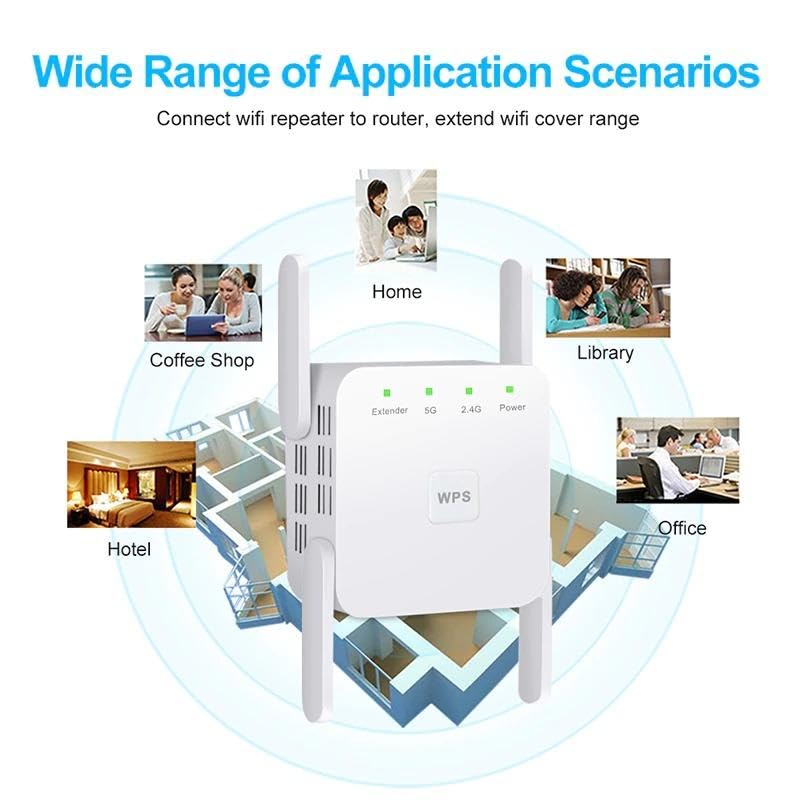
Image: Detailed diagram of the WiFi Repeater showing its various components and indicator lights.
Component Identification:
- Double External Antennas: For enhanced signal transmission and reception.
- Power Indicator: Lights up when the device is powered on.
- 2.4G Wi-Fi On Indicator: Shows activity on the 2.4GHz band.
- 5G Wi-Fi On Indicator: Shows activity on the 5GHz band.
- Extender Indicator: Indicates the extender function is active.
- WPS Button: For quick setup with WPS-enabled routers.
- Material: ABS plastic.
- Reset Hole: Used to reset the device to factory settings (press for 8 seconds with a needle).
- Network Interface: Gigabit Ethernet port for wired connections.
- Wall Plug: Integrated for direct wall outlet connection.
5. Setup and Installation
5.1. WPS Quick Setup (Recommended for compatible routers)
The WPS (Wi-Fi Protected Setup) method allows for a quick and easy connection to your existing router without manual configuration. Ensure your host router supports WPS.

Image: Diagram illustrating the WPS quick setup process between a router and the WiFi Repeater.
- Plug the AUSEK AC1200 WiFi Repeater into a power outlet near your router.
- Press the WPS button on your host router.
- Within 2 minutes, press the WPS button on the AUSEK AC1200 WiFi Repeater.
- Wait for 1-2 minutes for the devices to connect. The Extender indicator light on the repeater should turn solid green, indicating a successful connection.
Note: The SSID and password of the extended network will be the same as your router's. Special characters in the router's SSID or password may not be supported by WPS.
5.2. Wireless Repeater Mode Setting (Browser-based setup)
This method allows for manual configuration via a web browser, offering more control over settings.
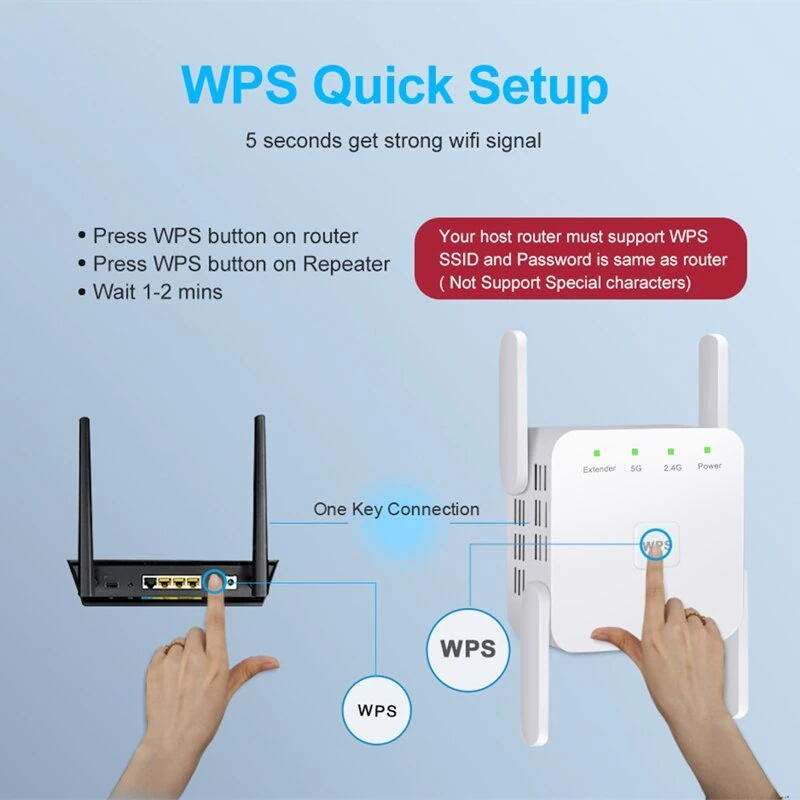
Image: Screenshots guiding through the browser-based setup for Wireless Repeater Mode.
- Plug the AUSEK AC1200 WiFi Repeater into a power outlet.
- Connect your device (smartphone, laptop) to the repeater's default Wi-Fi network. The network name will typically be "FW-AC1200-5G-xxxxx" or "FW-AC1200-2.4G-xxxxx", where "xxxxx" are the last 5 characters of the repeater's MAC address. The default password is "12345678".
- Open a web browser on your connected device and type http://192.168.188.1 into the address bar.
- Log in to the repeater's management interface. The default username is "admin" and the password is "admin".
- Follow the on-screen instructions to select your existing Wi-Fi network (SSID) and enter its password.
- Confirm the settings and allow the repeater to restart. Once restarted, the extended network will be active.
6. Operating Modes
The AUSEK AC1200 Dual Band WiFi Repeater supports two primary operating modes:
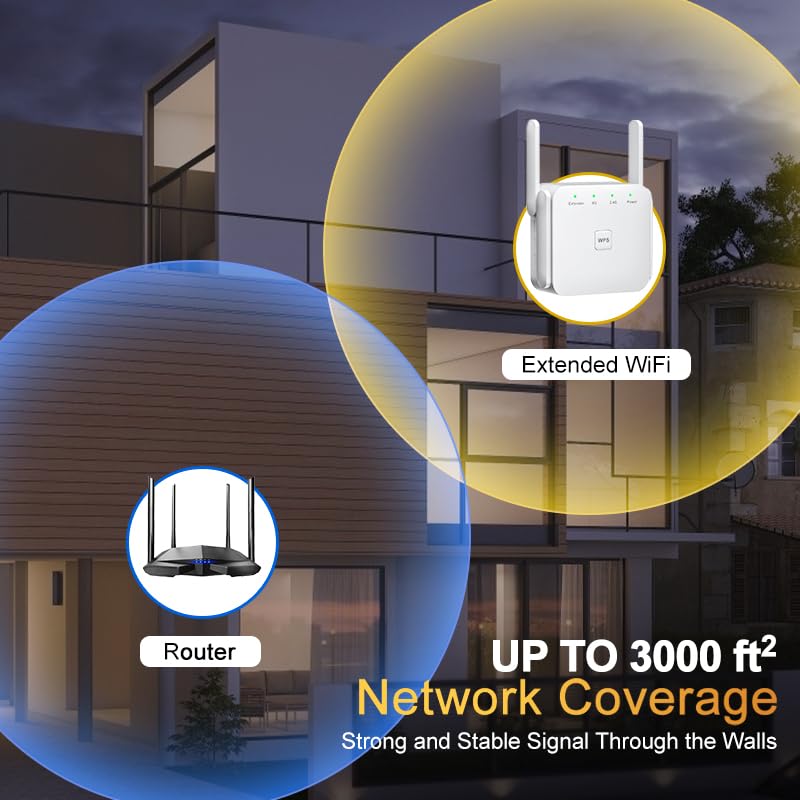
Image: Diagram illustrating the Wireless (Repeater) Mode and Wired (Router/AP) Mode applications.
6.1. Repeater Mode (Wireless Extender)
In Repeater Mode, the device wirelessly connects to your existing router's Wi-Fi network and re-broadcasts it, extending the coverage area. This is ideal for eliminating Wi-Fi dead zones and improving signal strength in areas with weak reception.
6.2. Router Mode (Access Point / Wired Adapter)
When configured in Router Mode (or Access Point mode), the device can create a new Wi-Fi network from a wired Ethernet connection. This is useful for converting a wired internet connection into a wireless hotspot. Additionally, the Gigabit Ethernet port allows the repeater to function as a wireless adapter, providing a wired connection for devices like smart TVs, gaming consoles, or desktop computers that lack wireless capabilities.
7. Troubleshooting
If you encounter issues with your AUSEK AC1200 Dual Band WiFi Repeater, consider the following troubleshooting steps:
- No Power: Ensure the repeater is securely plugged into a working power outlet. Check if the Power indicator light is on.
- Weak Signal/Frequent Disconnections:
- Relocate the repeater closer to your main router. The ideal location is halfway between your router and the Wi-Fi dead zone.
- Ensure there are no major obstructions (thick walls, large metal objects) between the repeater and the router.
- Check for interference from other electronic devices (cordless phones, microwaves).
- Try adjusting the antennas on the repeater.
- Cannot Access Setup Page (192.168.188.1):
- Ensure your device is connected to the repeater's default Wi-Fi network (e.g., FW-AC1200-5G-xxxxx).
- Verify that you have typed the IP address correctly in the browser's address bar.
- Try clearing your browser's cache or using a different browser.
- Temporarily disable any VPN or firewall software on your device.
- Incorrect Password for Extended Network:
- If using WPS, ensure the router's SSID/password does not contain special characters.
- If manual setup, double-check the password entered for your main Wi-Fi network.
- Resetting the Repeater: If all else fails, perform a factory reset. Locate the Reset Hole (usually a small pinhole) on the device. Use a paperclip or needle to press and hold the button inside for approximately 8 seconds until the indicator lights flash, then release. This will revert all settings to default.
8. Specifications
| Feature | Detail |
|---|---|
| Brand | AUSEK |
| Model Name | WiFi Repeater |
| Product Dimensions | 7.2 x 8.2 x 5.2 cm |
| Item Weight | 280 g |
| Data Transfer Rate | 1200 Megabits Per Second (300Mbps 2.4GHz, 867Mbps 5GHz) |
| Wireless Type | 5.8 GHz Radio Frequency, 802.11a/b/g/n/ac, 2.4 GHz Radio Frequency |
| Frequency Band Class | Dual-Band |
| Compatible Devices | Laptop, Personal Computer, Tablet, Smart Television |
| Special Features | Compact design, Dual-band, Up to 1200Mbps, Enhanced wireless coverage, Easy setup |
| Mounting Hardware | AC1200 Dual Band WiFi Booster & Quick Installation Guide |
9. Warranty and Support
The AUSEK AC1200 Dual Band WiFi Repeater comes with a 1 Year Warranty.
For customer support, you may contact the manufacturer, AUSHA EXPORTS P LTD, at 08048977694.
For returns or further assistance, please refer to your purchase platform's returns policy.


