
1. Introduction
This manual provides essential information for the safe and efficient operation of your Skyworth 50SUE9500 50-Inch UHD QLED Google TV. Please read it thoroughly before using the television and retain it for future reference. This television features a 50-inch 4K UHD QLED display, integrated Google TV platform, and advanced audio technologies.
2. Safety Information
Always observe the following safety precautions to prevent electric shock, fire, or damage to the television:
- Do not expose the television to rain or moisture.
- Do not open the television casing; refer all servicing to qualified personnel.
- Ensure proper ventilation around the television.
- Use only the power cord supplied with the television.
- Keep the television away from direct sunlight, heat sources, and strong magnetic fields.
- Unplug the television during lightning storms or when unused for long periods.
3. Package Contents
Verify that all items are present in the package:
- 1 x Skyworth 50SUE9500 50-Inch UHD QLED Google TV
- Remote Control
- Power Cord
- TV Stand Components
- User Manual (this document)
4. Setup
4.1. Stand Installation
Carefully place the television face down on a soft, clean surface. Attach the stand components to the designated slots on the bottom of the television using the provided screws. Ensure the stand is securely fastened before placing the TV upright.

Image: Side view of the Skyworth 50SUE9500 TV, illustrating the slim profile and stand attachment points.
4.2. Connecting External Devices
Connect your external devices such as set-top boxes, gaming consoles, or sound systems to the appropriate ports on the television. The TV features multiple interfaces to meet various connectivity needs.

Image: Diagram illustrating the various input and output ports available on the Skyworth TV, including USB 2.0 (x2), RF, AV IN, HDMI 2.0 (x3), LAN, and SPDIF.
- HDMI Ports: Connect high-definition devices like Blu-ray players or gaming consoles. This model includes 3 HDMI 2.0 ports.
- USB Ports: For connecting USB storage devices to play media files. This model includes 2 USB 2.0 ports.
- LAN Port: For wired internet connection.
- RF Input: For connecting an antenna or cable TV.
- AV IN: For connecting older devices with composite video and stereo audio outputs.
- SPDIF: For digital audio output to a sound system.
4.3. Initial Power-On and Google TV Setup
After connecting all cables and the power cord, press the power button on the remote control or the TV. Follow the on-screen instructions to complete the initial setup, including network connection, Google account login, and channel scanning. This will personalize your Google TV experience.
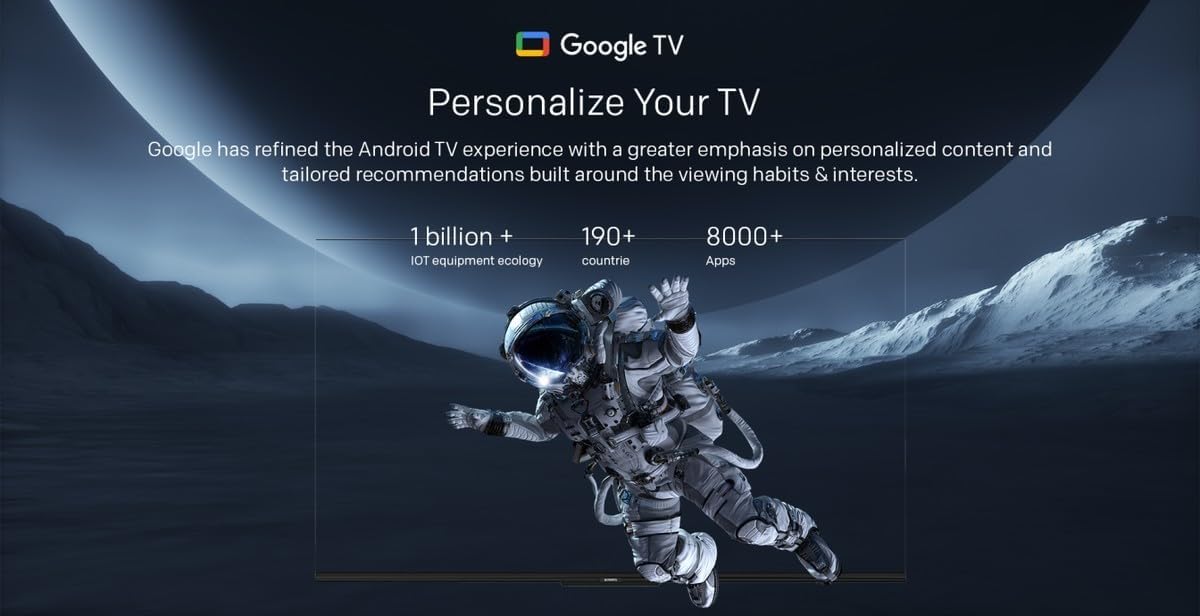
Image: A visual representation of the Google TV interface, highlighting personalized content and tailored recommendations based on viewing habits and interests.
5. Operating the Television
5.1. Basic Functions
- Power On/Off: Use the power button on the remote or TV.
- Input Selection: Press the 'Input' button on the remote to switch between HDMI, AV, and other sources.
- Volume Control: Use the 'Volume Up/Down' buttons.
- Channel Selection: Use the 'Channel Up/Down' buttons or number pad.
5.2. Google TV Features
Your Skyworth TV integrates Google TV, offering a smart and personalized viewing experience. Key features include:

Image: A collection of icons representing key features: Google TV, Flicker Free, Low Blue Light, Filmmaker Mode, Dolby Audio, DTS Studio Sound, and Bidirectional Bluetooth.
- Voice Control: Use the built-in 'Hey Google' voice assistant to search for content, control smart home devices, and manage TV functions.
- App Access: Download and stream from a wide variety of applications available on the Google Play Store.
- Personalized Recommendations: Google TV learns your preferences to suggest movies, shows, and live TV.
- Daily Family Features: Access daily shortcuts, manage apps, and use daily key functions for simplified operation.

Image: A composite image demonstrating Google TV's 'Daily Family' features, including 'Daily Shortcuts' for common settings, 'Daily Manage' for app organization, and 'Daily Key' for direct access via remote, alongside 'Hey Google' voice control functionality.
5.3. Special Features
- Bidirectional Bluetooth: Connect mobile phones or Bluetooth audio products to the TV, or use the TV as a soundbar for external devices.
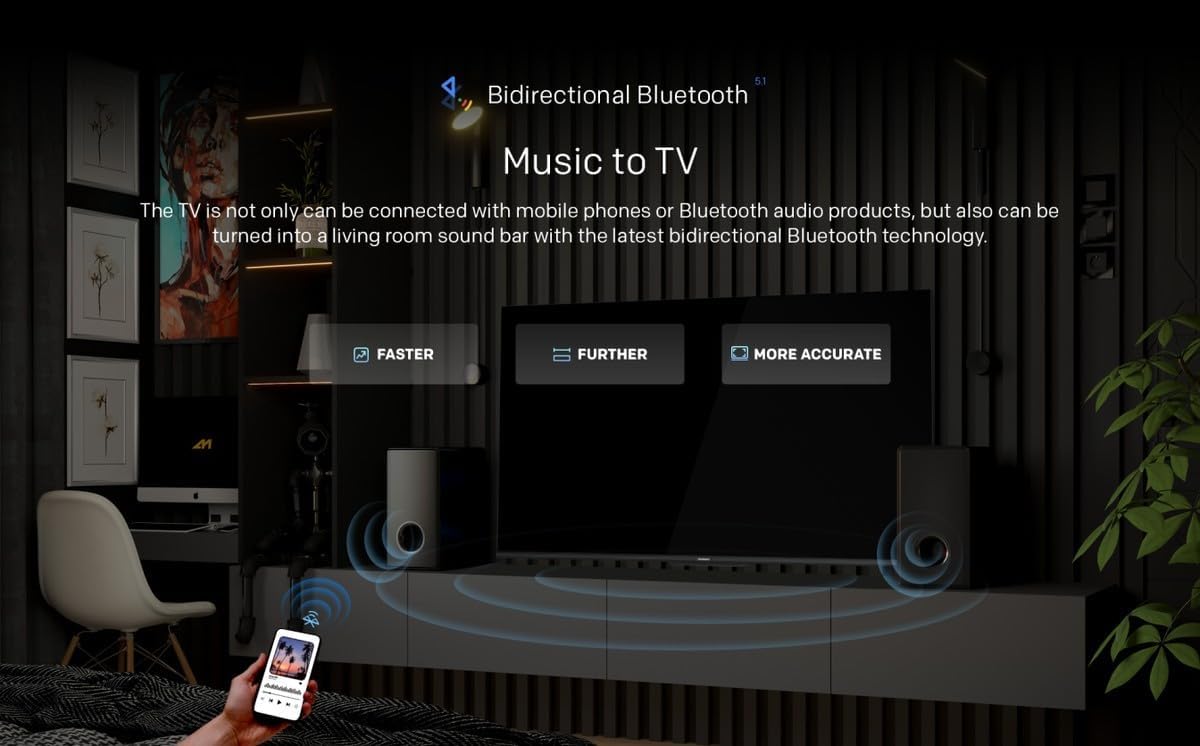
Image: A diagram showing how Bidirectional Bluetooth allows connecting mobile phones or Bluetooth audio products to the TV, or using the TV as a soundbar, emphasizing faster, further, and more accurate connections.
- Flicker Free & Low Blue Light: Designed to reduce eye strain during extended viewing.
- Filmmaker Mode: Preserves the original aspect ratio, colors, and frame rates of content as intended by the filmmaker.
- Swaiot Smart Home: Voice control connected home devices directly from your TV to adjust room temperature, lighting, and play music.
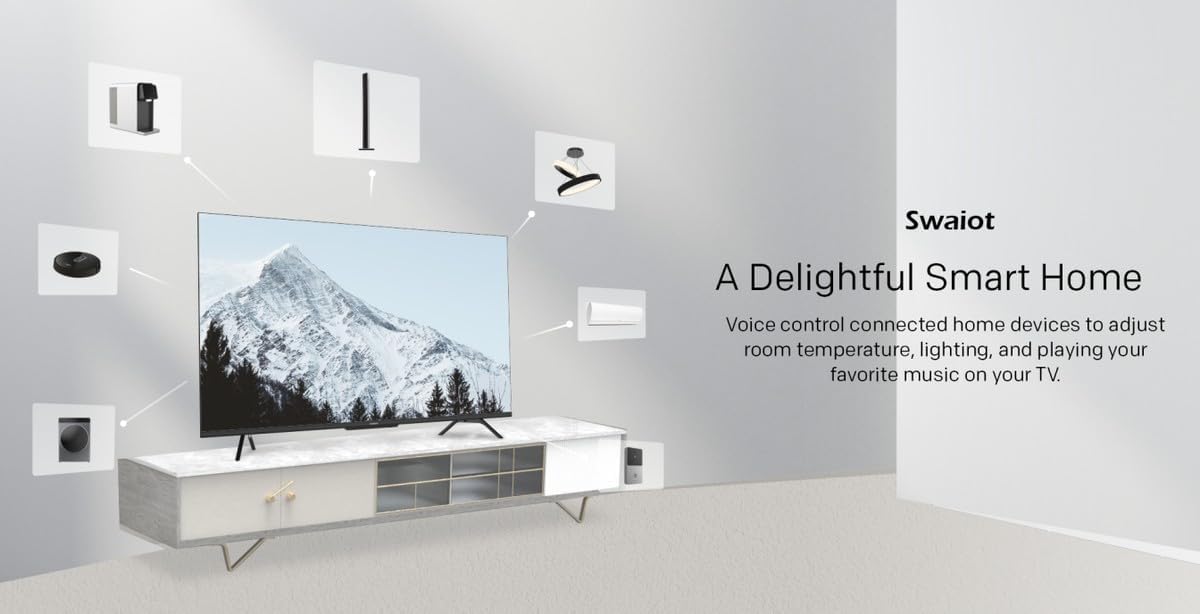
Image: An illustration of the Swaiot smart home ecosystem, showing various smart devices connected and controllable via the Skyworth TV.
6. Picture and Sound Settings
Your QLED TV offers advanced picture and sound customization. Navigate to the 'Settings' menu to adjust:
- Picture Mode: Select from standard, vivid, movie, game, or custom settings.
- Brightness, Contrast, Color: Fine-tune display characteristics.
- Sound Mode: Choose from standard, music, movie, or custom audio profiles.
- Dolby Audio & DTS Studio Sound: Enhance your audio experience with these integrated technologies.
Skyworth has over 30 years of experience in picture quality adjustment, ensuring optimal visual performance.
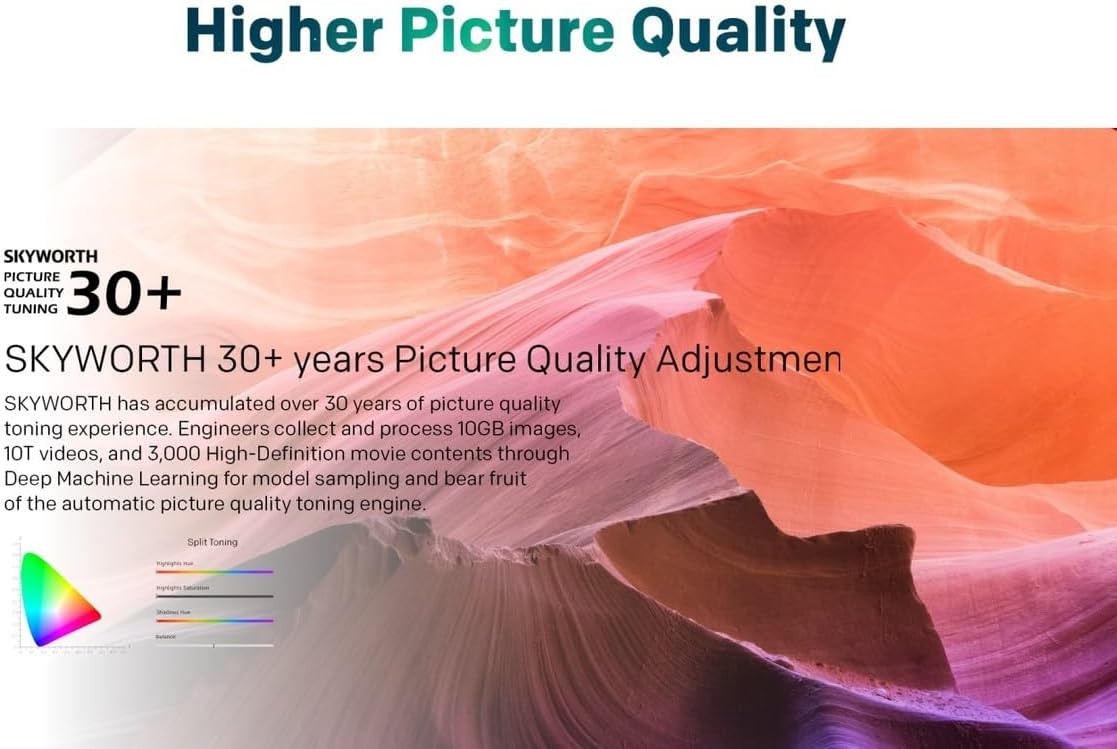
Image: A graphic highlighting Skyworth's 30+ years of picture quality adjustment experience, showcasing advanced color tuning and processing capabilities.
7. Maintenance
7.1. Cleaning the Screen
Gently wipe the screen with a soft, lint-free cloth. For stubborn marks, lightly dampen the cloth with water or a specialized screen cleaner. Do not spray liquid directly onto the screen.
7.2. Cleaning the Casing
Use a soft, dry cloth to clean the television casing. Avoid using abrasive cleaners or solvents.
8. Troubleshooting
If you encounter issues with your television, refer to the following common problems and solutions:
- No Power: Ensure the power cord is securely plugged into both the TV and a working electrical outlet. Check the power indicator light.
- No Picture, But Sound: Verify the correct input source is selected. Check cable connections to external devices.
- No Sound, But Picture: Check the volume level and mute settings. Ensure external audio systems are properly connected and powered on.
- Remote Control Not Working: Replace the batteries. Ensure there are no obstructions between the remote and the TV's IR sensor.
- Poor Picture Quality: Check antenna or cable connections. Adjust picture settings in the menu. For streaming content, check your internet connection speed.
- Internet Connection Issues: For Wi-Fi, ensure the password is correct and the router is working. For wired connection, check the LAN cable. Try restarting your router.
If the problem persists, contact customer support.
9. Specifications
| Feature | Specification |
|---|---|
| Brand | Skyworth |
| Model Number | 50SUE9500 QLED |
| Screen Size | 50 Inches |
| Display Technology | QLED |
| Resolution | 4K (3840 x 2160) |
| Refresh Rate | 60 Hz |
| Aspect Ratio | 16:9 |
| Connectivity Technology | HDMI, USB |
| Total Number of HDMI Ports | 3 |
| USB Ports | 2 (USB 2.0) |
| Special Features | Browser, Google TV, Bidirectional Bluetooth, Flicker Free, Low Blue Light, Filmmaker Mode, Swaiot |
| Product Dimensions (D x W x H) | 4.8D x 120W x 65.9H centimetres |
| Color | Black |
| Model Year | 2023 |
10. Warranty
This Skyworth 50SUE9500 50-Inch UHD QLED Google TV comes with a 3 Year Warranty. Please retain your proof of purchase for warranty claims. The warranty covers manufacturing defects under normal use. It does not cover damage caused by misuse, accidents, unauthorized repairs, or acts of nature.
11. Support
For technical assistance, troubleshooting beyond this manual, or warranty inquiries, please contact Skyworth customer support. Refer to the official Skyworth website or your purchase documentation for the most current contact information.
Online Support: Visit the official Skyworth support website for FAQs and further assistance.
Telephone Support: Check your product packaging or Skyworth's official website for regional contact numbers.